

Voice
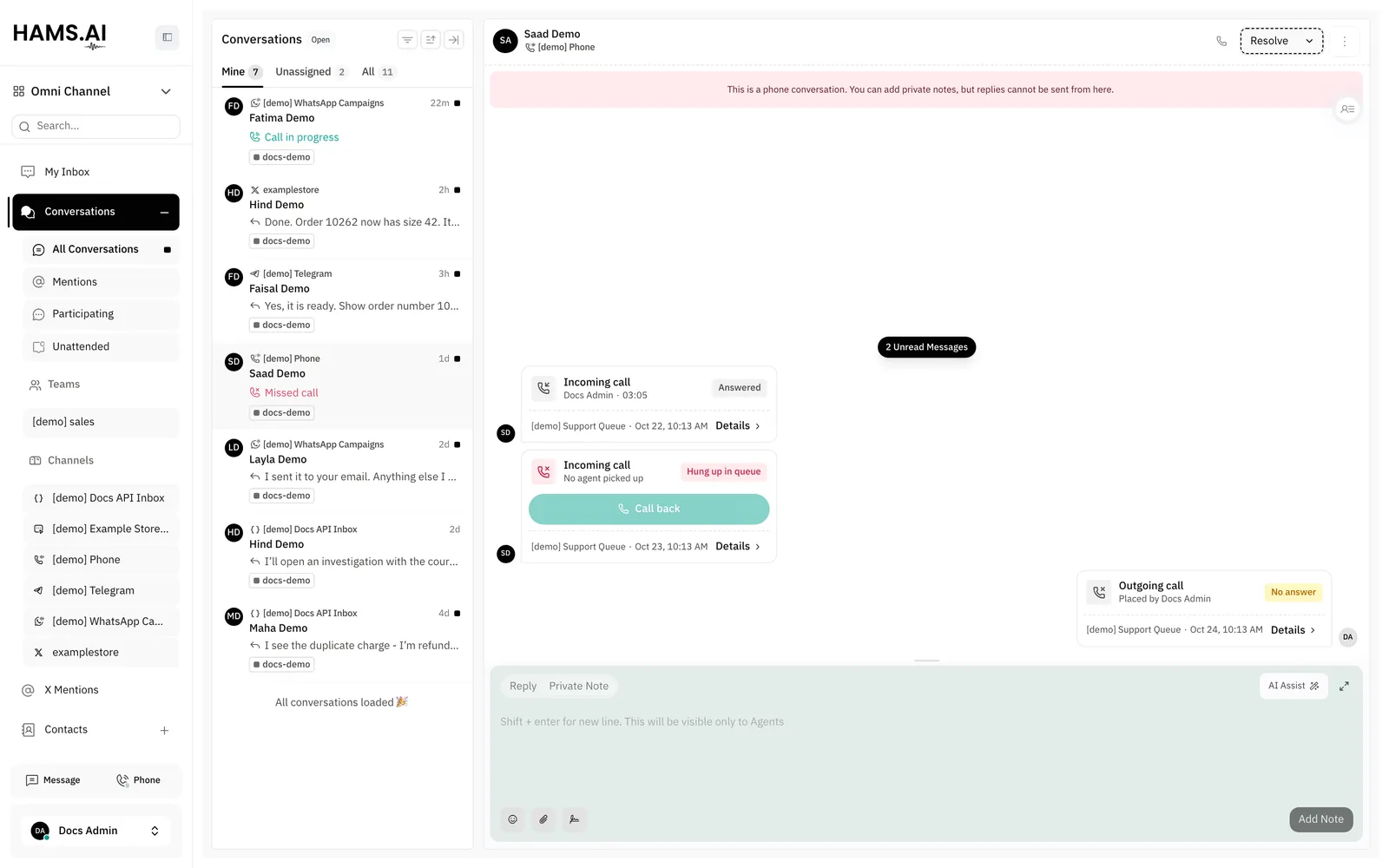
Omni Channel shows the calls of Cloud Call Center as conversations. Each Cloud Call Center number (DID) can link to 1 inbox. A call on a linked DID goes into that inbox as a call card. The DID can link to a Phone inbox, which gets only calls. It can also link to a WhatsApp or SMS inbox with the same number, so that calls and messages of a customer share 1 conversation.
The Phone card and the Call Center tab show only when Hams support turns on Call Center and Voice Channel for your account. Transcripts show only when Hams support also turns on Call Transcription. The call analysis on a call card shows only when Hams support turns on Post-call Analysis. Only administrators can add a Phone inbox and link DIDs to inboxes.
In this page, {account_id} is the number of your account in the dashboard URL.
Before you start
You need these items:
- Cloud Call Center on your account, with 1 or more DIDs. See DIDs.
- A DID that no other inbox has. A DID links to 1 inbox only.
- To get calls in a WhatsApp or SMS inbox: an inbox whose phone number is the same as the DID.
- To call customers from the dashboard: a registered softphone. See Softphone.
How calls reach an inbox
The system finds the inbox from the DID of the call:
- A call on a DID that links to an inbox goes into that inbox.
- A call on a DID that links to no inbox stays in Cloud Call Center only. Omni Channel shows nothing about it.
The system then finds the contact from the phone number of the customer. If no contact has that number, the system adds a contact with the name “New Customer”. When the call center sends the name of the caller later, the name replaces “New Customer”.
The system then finds the conversation:
- In a Phone inbox, each contact has 1 conversation. Each call to or from the contact goes into the same conversation, also after an agent resolves the conversation.
- In a WhatsApp or SMS inbox, the call goes into the open conversation of the contact. If the contact has no open conversation, the system starts a new conversation. If Conversation Routing of the inbox keeps 1 conversation per contact, the call goes into the last conversation of the contact.
A call from Cloud Call Center does not open the 24-hour WhatsApp window. To send a free-form WhatsApp message after a call, the customer must first send a message.
Add a Phone inbox
A Phone inbox gets calls on 1 or more DIDs. It has no number of its own. Use it for DIDs that have no WhatsApp or SMS inbox, for example a sales line.
Open the inboxes
Open Settings > Inboxes. The page is at /app/accounts/{account_id}/settings?tab=inboxes.
Enter the name
In Inbox name, enter a name for the inbox, for example Sales line. You must enter a name.
Select the numbers
In Call Center numbers, select 1 or more DIDs. The list shows only the DIDs that no inbox has.
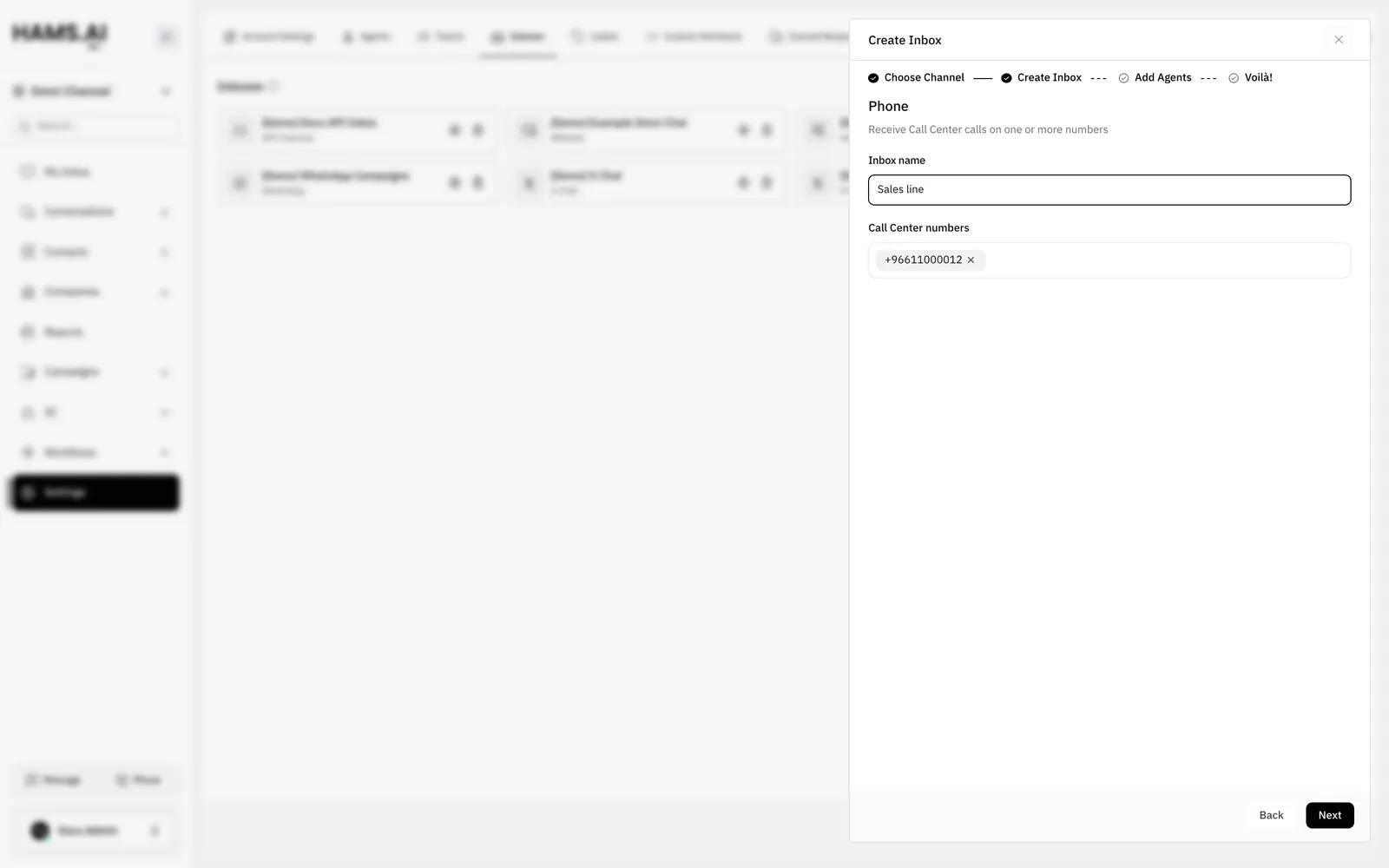
Next stays off until the inbox has a name and 1 or more DIDs. The form can show Every Call Center number already belongs to an inbox. In that case, each DID has an inbox. Remove a DID from its inbox first.
The system checks with Cloud Call Center that each DID belongs to your account. If a DID does not, the form shows Not a Call Center number on this account, followed by the number. If the call center does not reply, the form shows The Call Center is unavailable. Try again shortly.
Settings
The settings of an inbox that can get calls have a Call Center tab. The tab shows on a Phone inbox, a WhatsApp inbox, and an SMS inbox. A WhatsApp inbox with the provider Twilio has no Call Center tab and cannot get Cloud Call Center calls. For the other tabs, see Inboxes and channels.
If the list of DIDs does not load, the tab shows Couldn’t load the Call Center numbers. Try again shortly. The Phone form shows the same message.
To open the tab, open Settings > Inboxes. Click the settings of the inbox, and then click Call Center.
Phone inbox
The Numbers field shows the DIDs of the inbox. Calls to these DIDs go into the inbox.
In Numbers, select a DID to add it. To remove a DID, click its remove icon. Then click Update. The message Call Center numbers updated shows.
The list shows single numbers only. It does not show a number block, because a number block is not 1 phone number. See DIDs.
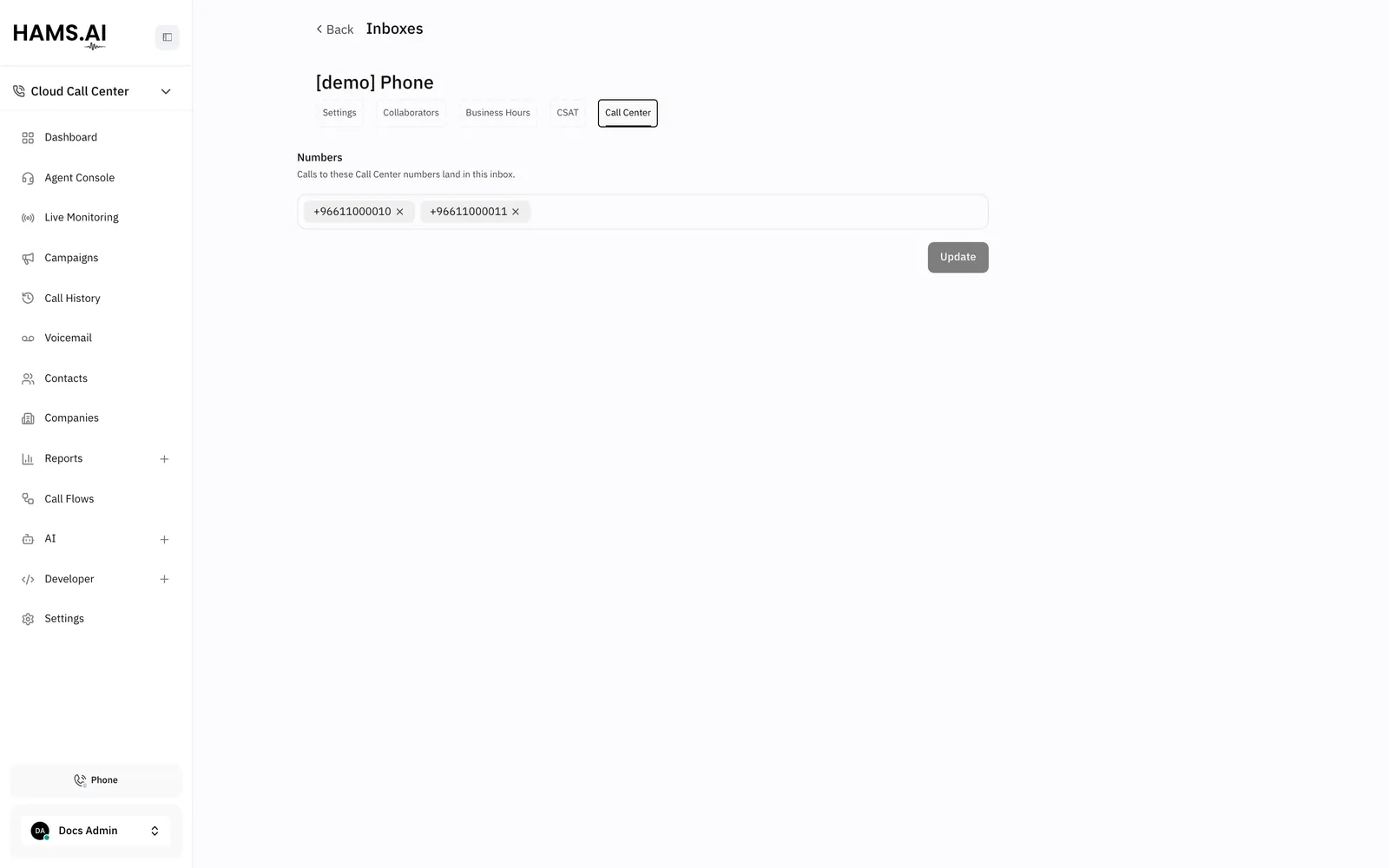
If the inbox has no DIDs, the tab shows This inbox has no numbers and receives no calls.
WhatsApp and SMS inboxes
A WhatsApp or SMS inbox can get calls only on its own phone number. The tab shows the switch Receive Call Center calls on this number. Turn on the switch to send the calls of that DID into this inbox. The calls then go into the same conversation as the messages of the customer.
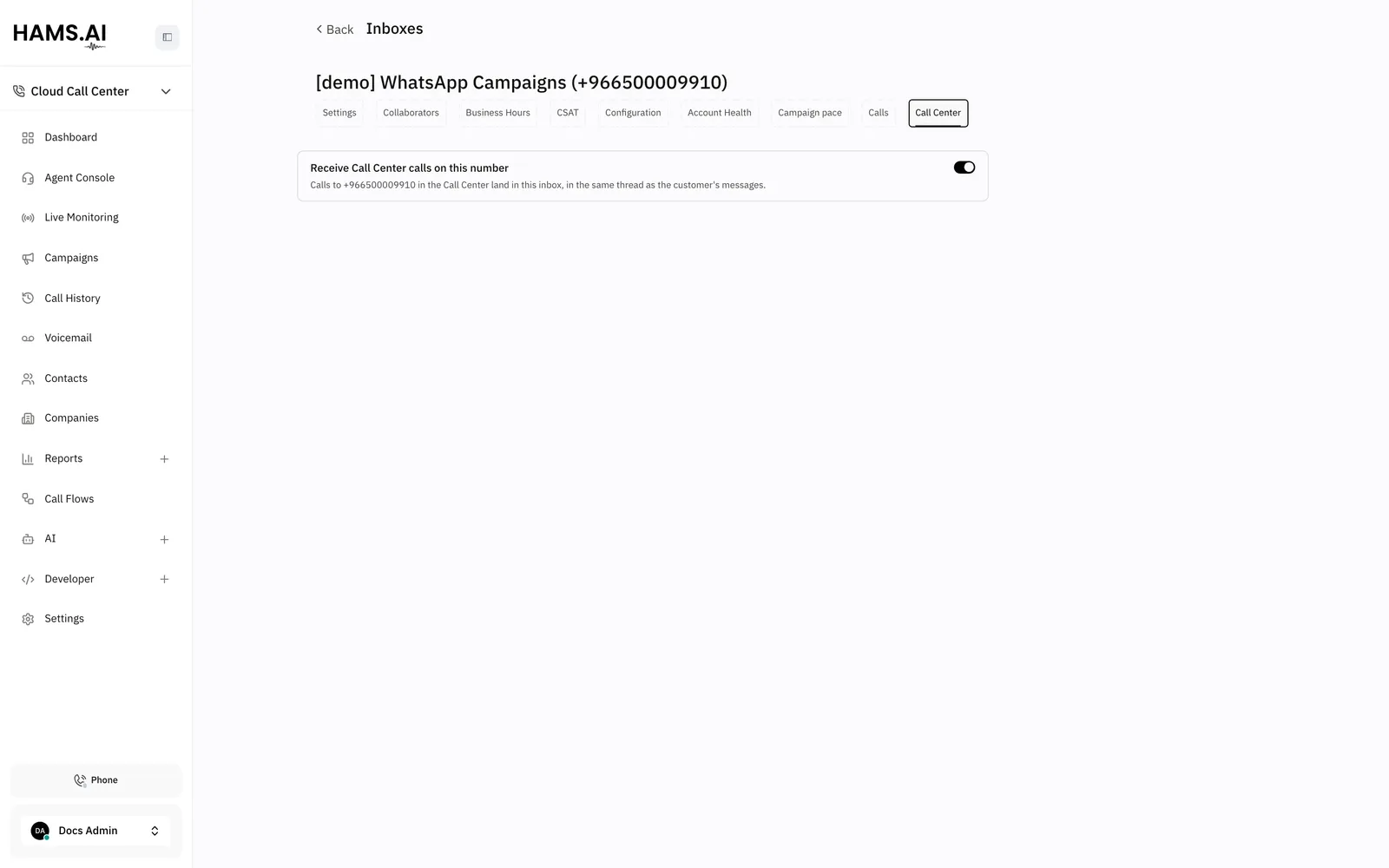
The switch shows only if the number of the inbox is a DID of your account and no other inbox has that DID. If not, the tab shows No Call Center number matches this inbox’s number, or another inbox already receives its calls.
Move a DID to a different inbox
A DID links to 1 inbox only. To move a DID, remove it from its inbox first. Then add it to the other inbox.
The call card
Each call is a call card in the conversation. The card shows the direction of the call, an outcome badge, and a line with more information. The card changes during the call.
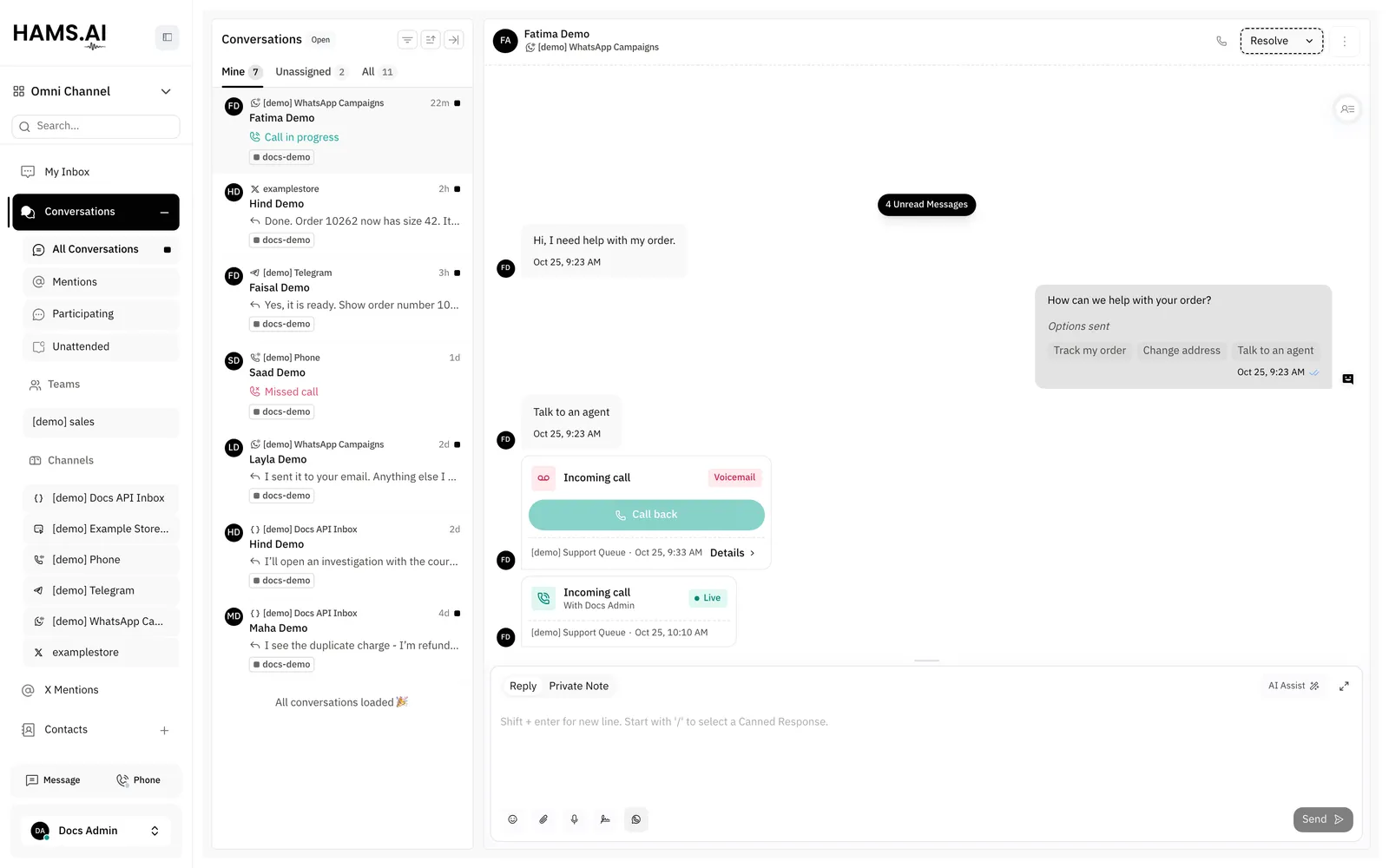
The title of the card is Incoming call or Outgoing call. While the call is active, the badge shows the live state:
A short time after the call ends, the call center sends the final record of the call. The badge then shows the outcome. An answered call shows Answered, and the line shows the agent and the talk time.
An incoming call that nobody answered shows 1 of these badges:
For an incoming call that nobody answered, the line shows Waited and the wait time. If the system has no wait time, the line shows No agent picked up.
An outgoing call that did not connect shows 1 of these badges:
For an outgoing call that did not connect, the line shows Placed by and the name of the agent. If the system has no agent, the line shows Not connected.
If a call stays active for 4 hours without a final record, the system ends it on the card with the badge Failed.
Buttons and links
The bottom line of the card shows the queue of the call and the date and time. Each Cloud Call Center call that is not active also has the link Details. The link opens the call details from call history, with the full timeline of the call. See Call history.
An incoming call that nobody answered has the button Call back. The button calls the customer through your softphone. If you did not register the softphone, the button is off and shows Open the softphone and register to call. The button does not show during another call.
Recordings and transcripts
If the call has a recording, a player shows in the card when the audio is ready. The audio is ready a short time after the call ends. The recording plays from the call center. The system does not copy it into the conversation.
If the call has a transcript, the transcript shows below the player. A long transcript shows the first part. Click Show more to read all of it. Click Show less to make it short again. An administrator can also request a transcript in call history. See Call history.
Call analysis
When the call center analyzes a call, the card shows the analysis below the player. The analysis comes a short time after the transcript, and the card updates when it arrives. If the call center analyzes the call again, the card shows the newest result. For the analysis profiles and the call center side, see Post-call analysis. The card shows these items:
- How the call ended for the customer: Resolved, Unresolved, Escalated, or Customer went silent.
- The sentiment of the customer at the start and at the end of the call.
- The score of the agent, for example Agent 4/5.
- A short summary of the call, in up to 2 lines, and up to 3 labels.
The conversation list
The conversation list shows the last call of a conversation as the preview text:
What happens to the conversation
An answered call resolves the conversation. The system assigns the conversation to the agent who took the call and sends no notification. The agent handled the call on the phone, so no other action is necessary.
An incoming or outgoing call that nobody answered keeps the conversation open. The system notifies all members of the inbox, as for a new conversation. Then a person can call the customer back. A call with the badge Failed sends no notification.
If the conversation already contains messages, an answered call is only an event in that conversation. The assignee and the status do not change. A missed call in that conversation still notifies the members of the inbox.
Replies in a Phone inbox
Agents do not reply in a Phone inbox. The reply box accepts only private notes, because a text message cannot go to a phone line. The conversation shows This is a phone conversation. You can add private notes, but replies cannot be sent from here. To speak to the customer, call the customer back.
A Phone inbox does not show in the inbox list of New conversation.
Calls, workflows, and the AI agent
Workflows do not run in a Phone inbox. In a WhatsApp or SMS inbox, a workflow can run on a conversation that contains only calls. A call does not count as a customer message for the AI agent. On a conversation that contains only calls, the AI agent answers the first message that the customer writes.
When the AI agent answers a conversation with calls, it sees the direction, the status, and the duration of each call. If the call has a transcript, the AI agent also sees the transcript. Thus, the AI agent knows what the customer and the agent said on the phone. The AI agent does not see failed calls, because they have no content.
Call a contact
Agents call from the dashboard through the softphone in the browser. The call goes out through the registered extension of the agent and the outbound routes of the call center. The call center records the call with the same rules as all other calls. See Softphone.
You can start a call in 2 places:
- In the conversation header: a conversation in a Phone inbox, or in an inbox with a linked DID, has a phone button. If the inbox can call in more than 1 way, the button opens a menu. Select Phone call to call through the softphone. Select WhatsApp call or Start call to call through WhatsApp or Twilio.
- In the contact profile: a contact with a phone number has a phone button. If more than 1 inbox can make calls, the window Choose a voice inbox opens. Select the inbox.
If the agent did not register the softphone, the button is off and shows Open the softphone and register to call. The button is also off during another call.
The dashboard sends only the number of the customer to the call center. It does not send the inbox. The outgoing call card shows in the inbox that links to the DID that the call center reports for the call. Thus, a call from a WhatsApp conversation can show in a different inbox. If the DID links to no inbox, the call stays in Cloud Call Center only.
Twilio Voice and WhatsApp calls
2 other channels also make conversations from calls. These calls do not go through the call center:
- Twilio Voice receives and makes calls through your Twilio account, on a Twilio SMS inbox with the Voice tab. The conversation gets the recordings. Agents answer in the dashboard.
- WhatsApp calls come from customers in WhatsApp, to a WhatsApp Cloud inbox with the Calls tab. Agents answer them in the dashboard. To call a customer, the customer must first give the call permission that WhatsApp asks for.
These calls use the same call card. An incoming call that rings and has no agent yet shows Join call. A missed incoming call shows Call back. These channels have no queues, call flows, extensions, or wallboard. For these features, use Cloud Call Center.