

Assistants
An AI agent answers customers in conversations. It reads the messages of the customer and searches the knowledge that you gave it. Then it replies, or it transfers the conversation to a human agent.
The same AI agent can also answer calls. See Voice agents.
The AI agent is off by default. Hams support turns on the Workflows + Agent feature for your account. The same feature turns on workflows. Only administrators can see AI in the sidebar and create or change AI agents. All agents can assign an AI agent to a conversation and take a conversation over from it.
In this page, {account_id} is the number of your account in the dashboard URL.
The list of AI agents
The AI agents page lists your AI agents. It is at /app/accounts/{account_id}/hams-agent/agents. To open it, click AI in the sidebar. Then click Agents.
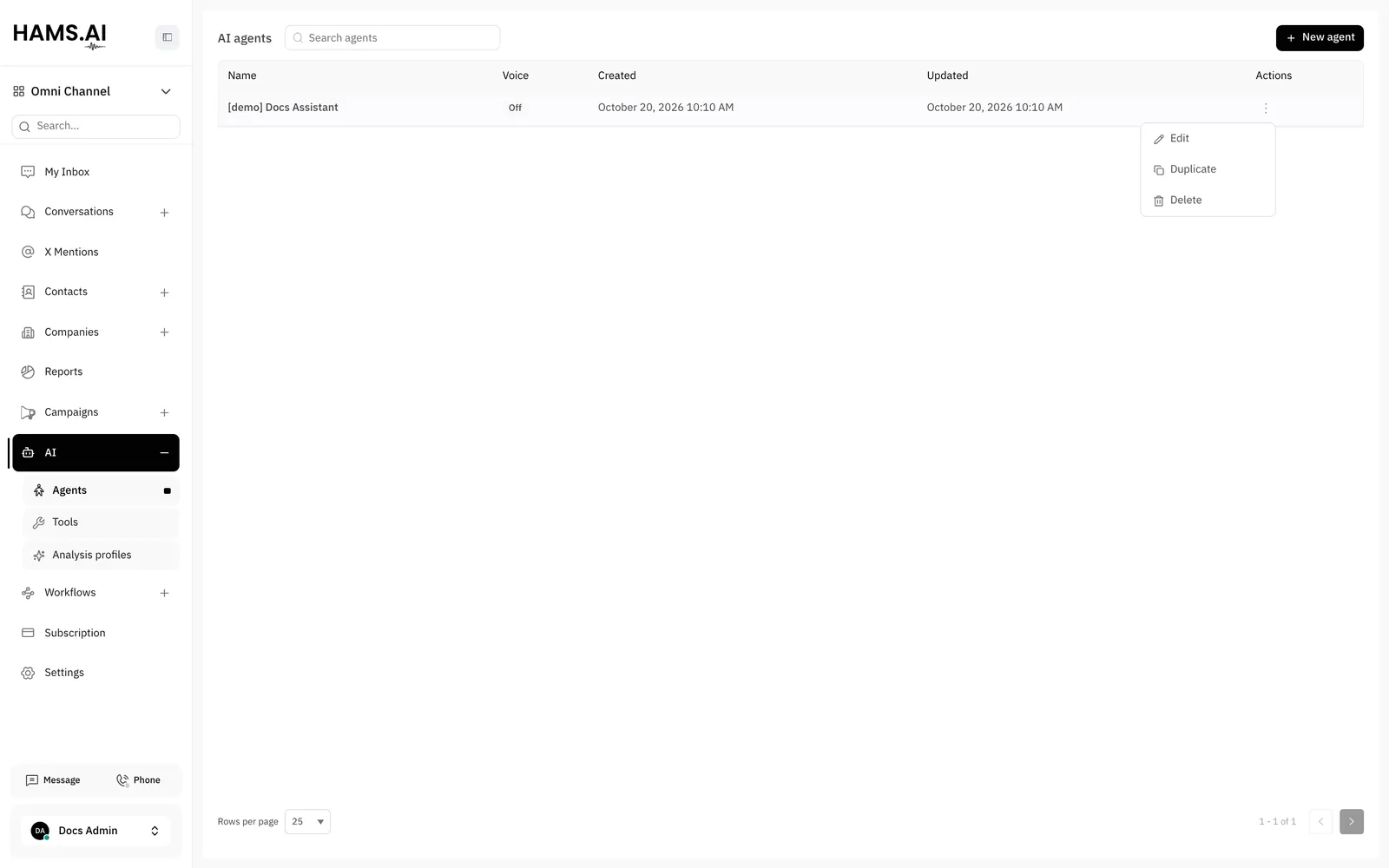
To find an AI agent, type its name in Search agents. Click a row to open the AI agent in the editor. The actions menu of each row has Edit, Duplicate, and Delete.
Create an AI agent
The instructions are necessary. If they are empty, Save shows Instructions are required — they define the agent’s persona.
You must save a new AI agent before you can use the Documents, FAQ, Tools, and Scenarios tabs. Until then, these tabs show Save the agent first to manage this section.
The editor
The editor is 1 page for all the settings of the AI agent. The switch at the top selects Chat or Voice. Chat has the settings for conversations. Voice has the settings for calls. See Voice agents.
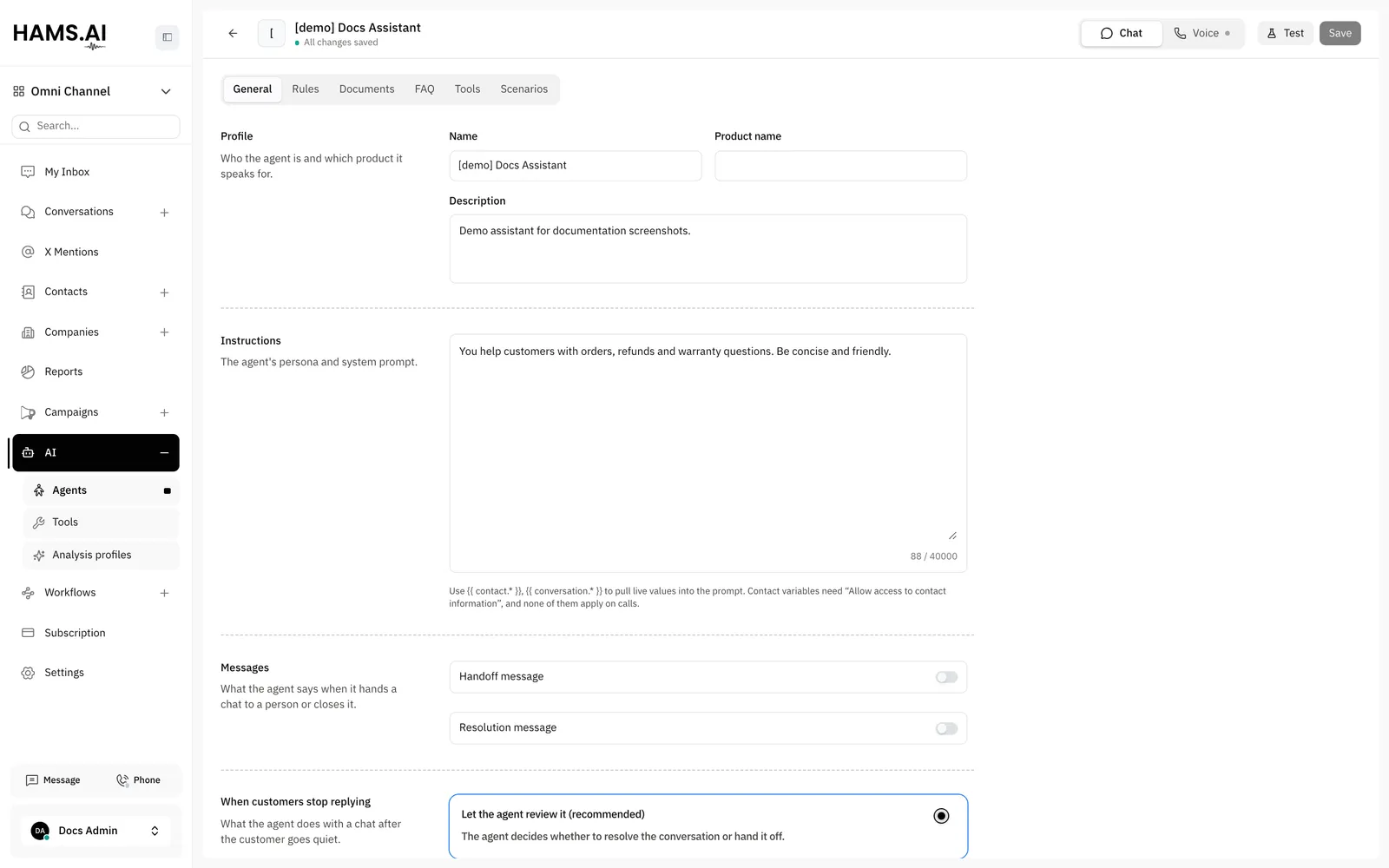
Chat has these tabs:
Save and discard
The header shows the save state: All changes saved or Unsaved changes. 1 Save writes all the changes on the General, Rules, and Tools tabs and in the Voice settings. If 1 change is not valid, the system saves no change.
To go back to the last saved version, click Discard. Discard shows only when an existing AI agent has unsaved changes.
If you leave the editor with unsaved changes, the dialog Discard unsaved changes? opens. Click Keep editing to stay. Click Discard changes to leave without a save.
Documents, FAQs, and scenarios save immediately when you add or change them. Save and Discard do not apply to them.
To test the AI agent, click Test. With Chat selected, Test opens a test chat. With Voice selected, it opens a test call in your browser. See Playground.
The General tab
Most problems with an AI agent come from the instructions. Write what the AI agent is for, what it can promise, and what it must not do, in plain sentences. For example:
An instruction such as Be helpful and friendly tells the AI agent nothing new.
Variables in the instructions
The instructions can contain live values of the conversation and the contact. Write a variable in double braces:
To read a custom attribute, add its key, for example {{ contact.custom_attributes.plan }}.
The contact variables have a value only when Allow access to contact information is on. When it is off, they are empty. Variables do not work on calls. If the instructions contain an error in the variable syntax, the AI agent uses the instructions without a change.
Messages
Handoff message and Resolution message each have a switch:
- Handoff message: the message that the customer gets when the AI agent transfers the conversation to a human agent.
- Resolution message: the message that the customer gets when the AI agent resolves the conversation.
When the switch is on, the message has 2 fields:
- AI instructions (optional): the AI agent writes the message from these instructions.
- Static fallback message (optional): the system sends this text if the AI agent cannot write the message.
If the switch is off, or both fields are empty, the customer gets no message. The handoff or the resolution still occurs.
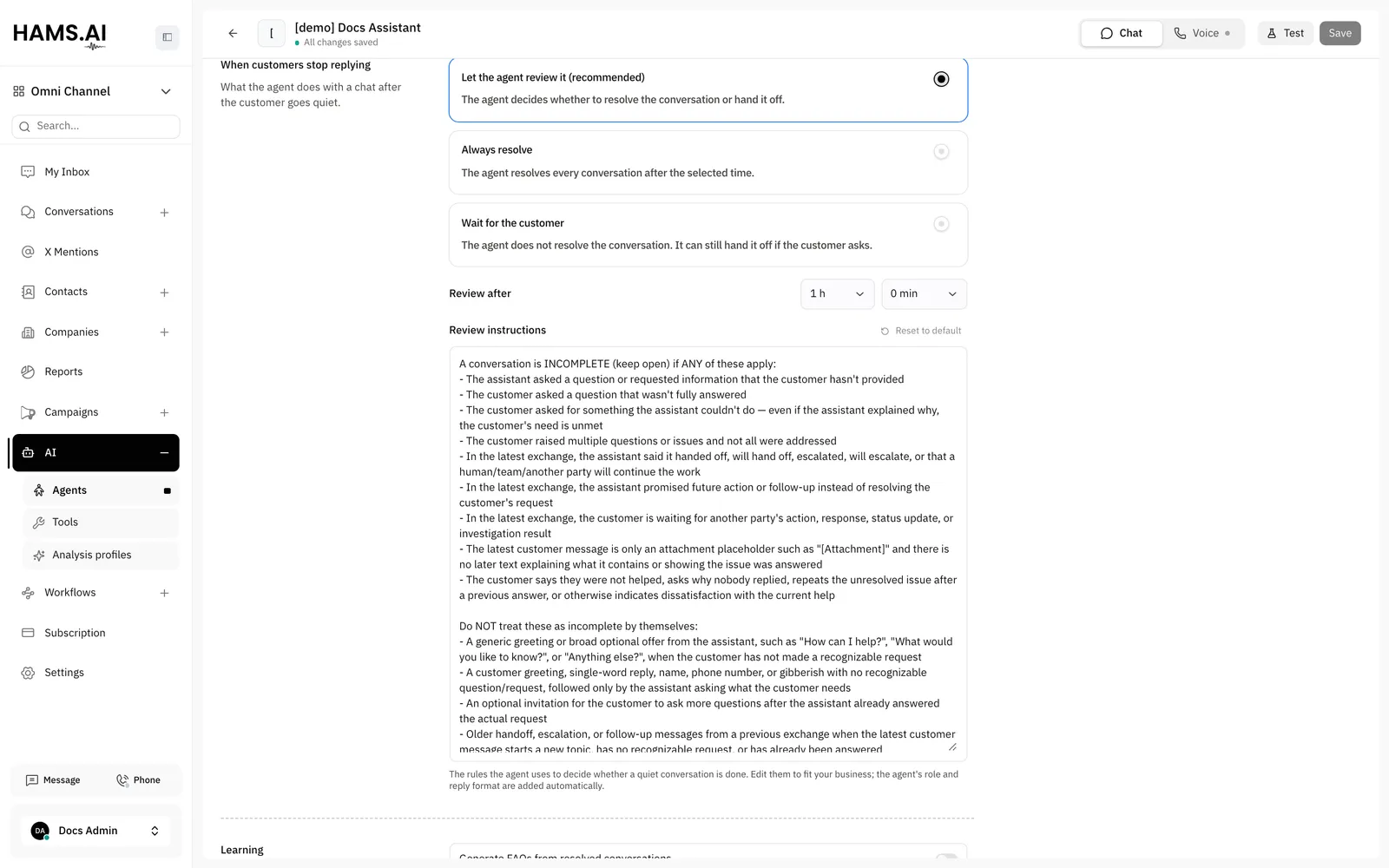
When customers stop replying
This section sets what the AI agent does with a conversation that had no activity for a period. Select 1 option:
Review after and Resolve after have an hours field and a minutes field. The time is from 5 minutes to 24 hours, in steps of 5 minutes. The default is 1 hour.
With Always resolve, the editor shows a warning. Some conversations that still need help can close.
Review instructions shows only with Let the agent review it (recommended). It contains the rules that the AI agent uses to decide if a conversation is complete. Edit them to fit your business. To go back to the default rules, click Reset to default. The system adds the role of the AI agent and the reply format to the rules.
When the AI agent resolves a conversation after a review, it adds a private note that starts with Auto-resolved: and gives the reason. When it transfers the conversation, the private note starts with Auto-handoff:. The AI agent also sends the resolution message or the handoff message. The activity lines of these actions are in the language of your account.
Learning
Under Learning, turn on the features that the AI agent can use:
- Generate FAQs from resolved conversations. See FAQ and responses.
- Capture key details as memories from customer interactions.
- Allow access to contact information. The AI agent can read the contact of the conversation. This feature is necessary for contact variables in the instructions.
Tuning
The Rules tab
Write 1 rule on each line. The system ignores empty lines.
Duplicate an AI agent
A copy starts with the settings, the tools, the scenarios, the FAQs, and the voice setup of the AI agent.
The copy does not get the documents. Add the sources again on the Documents tab of the copy. The FAQs that the system wrote from the documents stay in the copy.
The copy does not answer calls. To let it answer calls, turn on voice for the copy. See Voice agents.
Delete an AI agent
Do not delete an AI agent that you still need. When you delete it, it stops replying in conversations, and the system deletes its documents and FAQs. You cannot undo this action.
- On the AI agents page, click the actions menu of the AI agent.
- Click Delete.
- Click Delete again in the dialog.
Assign an AI agent to a conversation
An AI agent takes the assignee place of a conversation, as a person does. An AI agent can get a conversation in 2 ways:
- In the conversation sidebar, select the AI agent in Assigned AI Agent.
- A workflow with an Assign to node set to Assign an AI agent. See Workflows.
When the AI agent gets the conversation, the system removes the human assignee. The status of the conversation does not change. Then the AI agent answers the message that waits. After that, it answers each new message of the customer. Automatic assignment does not give a conversation of an AI agent to a human agent.
In the conversation list, the card of the conversation shows the name of the AI agent with a bot icon. A human assignee shows with a person icon.
The AI agent replies only when the conversation is open or pending. It does not reply while a workflow runs on the conversation. It does not reply to X mentions, because mentions are not conversations. A call message does not count as a customer message. On a conversation that contains only calls, the AI agent answers the first message that the customer writes. When the status of the conversation changes to resolved or snoozed, the AI agent stops and the conversation has no AI agent.
Activities of the AI agent
The activity lines in the conversation give the name of the AI agent for the actions that it does. For example:
Conversation was handed off by <AI agent>when the AI agent transfers the conversation.Conversation was marked resolved by <AI agent>when the AI agent resolves the conversation.- The activity line of a label or a priority that the AI agent changes.
Take over from the AI agent
While an AI agent has the conversation, the reply box shows An AI teammate is handling this conversation. Take over to reply. Agents can write private notes, but they cannot reply. To reply, click Take over. The system assigns the conversation to you and removes the AI agent.
Handoff
When the AI agent transfers a conversation, the Handoff to Human tool sets where it goes. Set Assign the conversation to on the Tools tab:
After each handoff, the conversation is open for a human agent, and the members of the inbox get a notification. The customer gets the handoff message in both modes. If the member is no longer in that inbox, or the team no longer exists, the inbox assignment policy applies. An activity line in the conversation gives the reason.
The AI agent also transfers the conversation to a human agent in these cases:
- The reply window of the channel closes. For example, WhatsApp accepts a free-form reply only in the 24 hours after the last message of the customer.
- The account has no AI credit left.
- The AI agent cannot write a reply because of an error. A private note says
⚠️ AI error: the automated reply could not be generated, so this conversation was handed off for manual follow-up.
How the AI agent replies
On WhatsApp and Telegram, the chat of the customer shows an indicator while the AI agent writes a reply. On WhatsApp, this works for the providers WhatsApp Cloud and Quick setup with Meta.
The AI agent reads the history of the conversation before each reply. It reads a maximum of the last 100 messages, and a maximum of about 40,000 characters. Private notes are not in the history. If an earlier conversation cycle ended with a resolution, the AI agent knows that the messages before that point belong to a closed cycle. See Conversation cycles.
A call in the conversation shows to the AI agent as its direction, its status, and its duration. If the call has a transcript, the AI agent also reads the transcript. The AI agent does not see failed calls. See Phone calls.
These rules also apply to each reply:
- If a human agent already answered the last message of the customer, the AI agent does not reply.
- If the customer sends a new message while the AI agent writes a reply, the AI agent drops that reply. Then it answers again with the new message. The tools of the dropped reply do not run.
- If the upload of a file in a message of the customer is not complete, the AI agent waits for the file.
- A reply fits the maximum message length of the channel. If a reply is too long, the AI agent makes it shorter. If it is still too long, the AI agent transfers the conversation to a human agent.
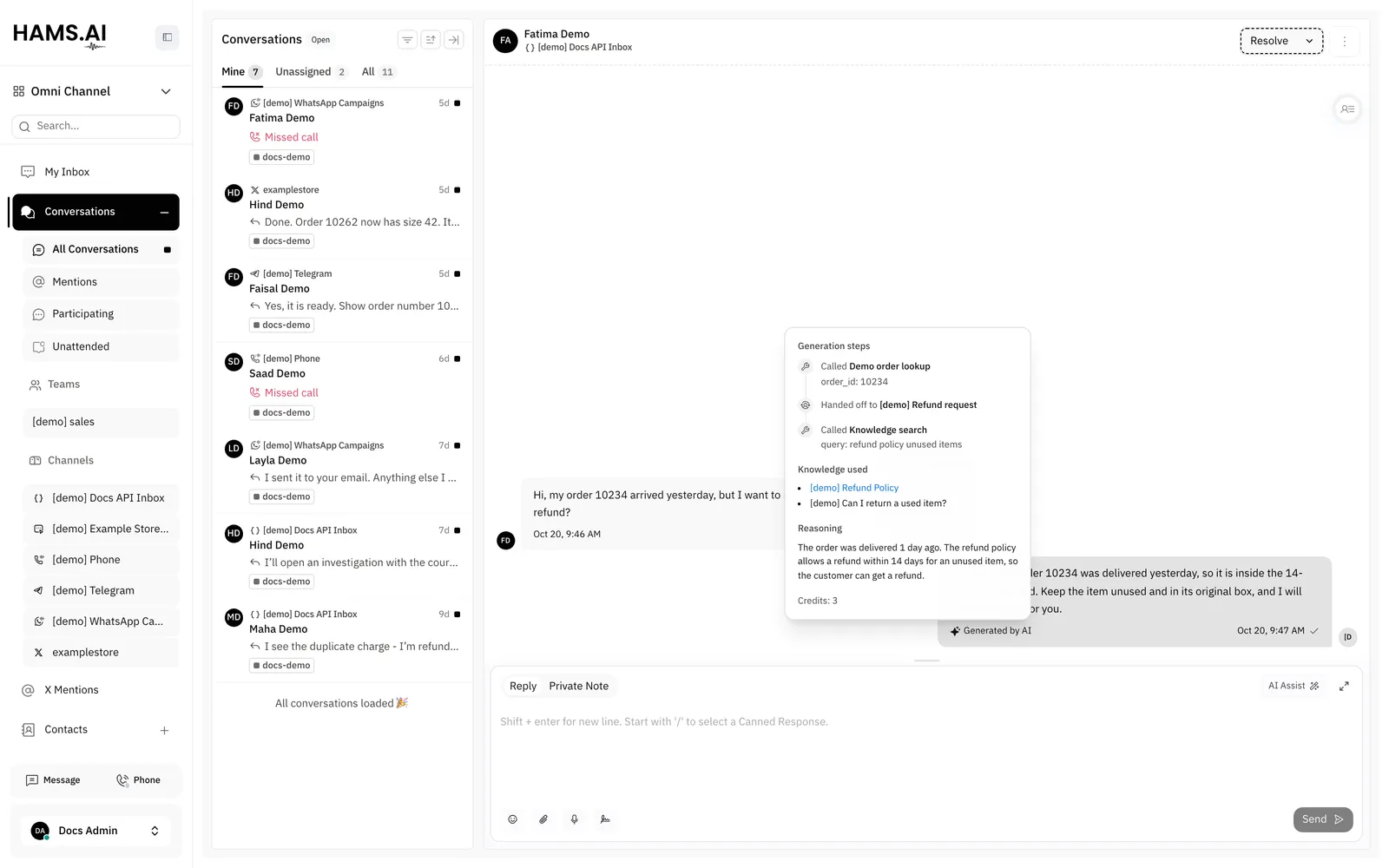
See how a reply was generated
Administrators see Generated by AI under each message of an AI agent. Click it to open How was this reply generated?:
Agents do not see Generated by AI.
Filter by AI agent
To see the conversations of an AI agent, use the conversation filter AI agent. This is a fast way to review the work of an AI agent.