

The Facebook inbox connects 1 Facebook Page to your account. Each person who sends a Messenger message to the Page becomes a contact, and the messages go into a conversation. An agent replies from the usual reply box, and the system sends the reply through Messenger. The inbox does not get the comments on the posts of the Page.
The Facebook card is active only when Facebook Channel is on for your account and the Hams installation has a Meta app. Facebook Channel is on by default. A gray card that you cannot click means that 1 of these 2 items is missing. Only administrators can add the inbox and change its settings. Agents of the inbox can read and reply to its conversations.
In this page, {account_id} is the number of your account in the dashboard URL.
Before you start
You do not create a Meta app. The Hams installation has the Meta app, and you sign in to Facebook to give it access to your Page. You need these items:
- A Facebook Page. A personal profile does not work.
- A Facebook account with full control of the Page. If your role on the Page is lower, Facebook can refuse the sign-in.
- Permission for the Hams app to manage the Page. You grant it during the sign-in.
At the sign-in, Facebook asks you to grant these permissions:
The sign-in always asks for the 2 Instagram permissions. Grant all permissions. If you refuse one, Facebook can return an error or the inbox can miss events.
The system gets only the messages of your Page. It cannot read your private messages on Facebook.
Add the inbox
Open the inboxes
Open Settings > Inboxes. The page is at /app/accounts/{account_id}/settings?tab=inboxes.
Select the channel
Click the Facebook card. The description of the card is Connect your Facebook page. Click Next.
Sign in with Facebook
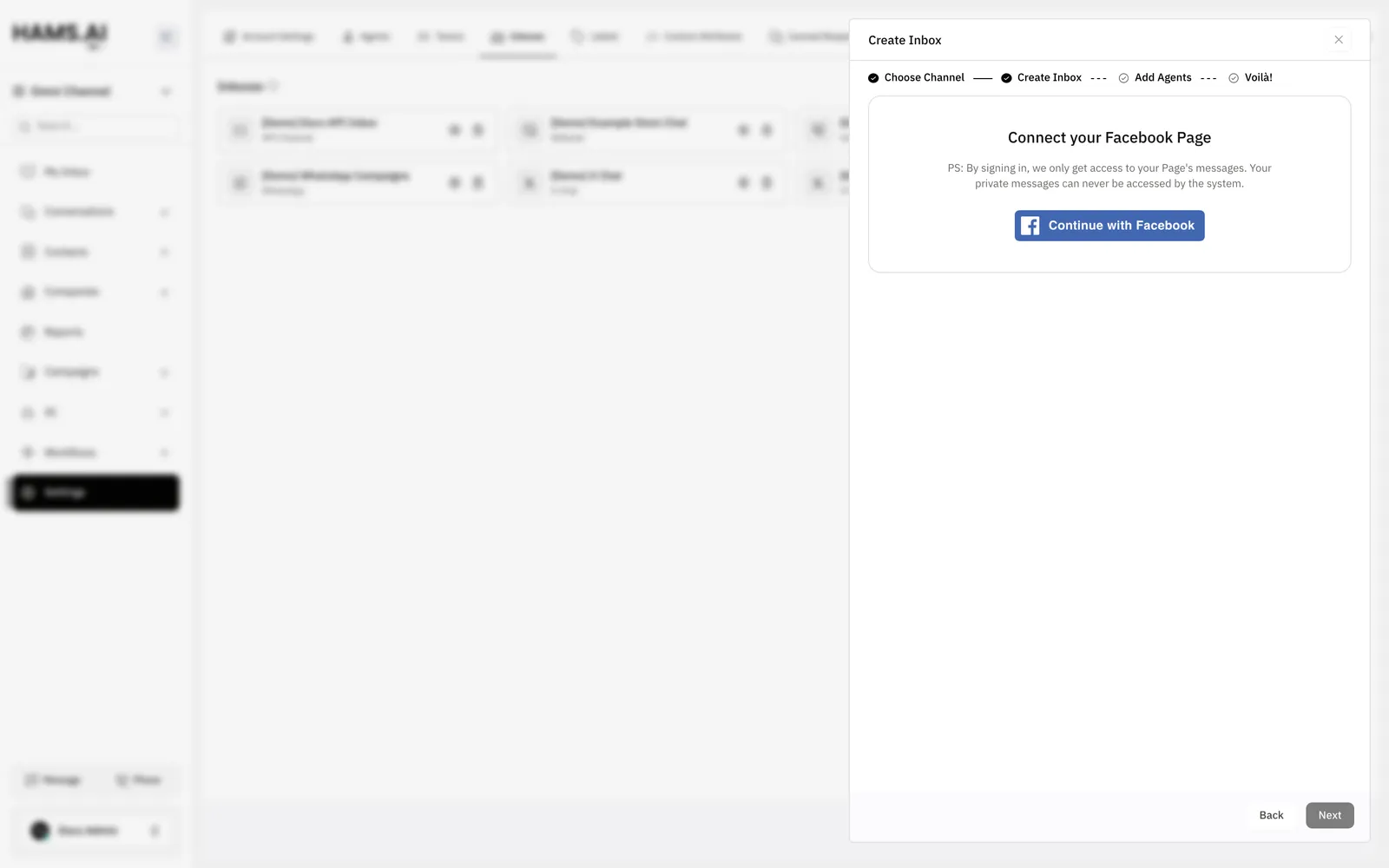
At the Create Inbox step, click the Facebook sign-in button. A Facebook window opens. Sign in and grant the permissions. While the system gets your Pages, the page shows Authenticating you with Facebook….
Select the Page
In Choose Page, select the Page. The list shows only the Pages that are not in this account. You must fill in this field.
Name the inbox
In Inbox Name, enter a name. The field has the name of the Page already. Change it if you want. You must fill in this field.
Go to the next step
Click Next. The button stays off until you select a Page and enter a name. The page then shows Creating your Inbox….
If the sign-in fails, the step shows 1 of these messages and a Try Again button:
- You’re not authorized to perform this action. The Facebook account does not have full control of the Page. Use an account with full control.
- Something went wrong, Please refresh page… Facebook did not give a session. This happens, for example, when you close the Facebook window.
If the browser cannot load the Facebook script, an alert says Error loading Facebook SDK. Please disable any ad-blockers and try again from a different browser.
The system subscribes the Page to the Messenger events of the Hams app. It also copies the profile picture of the Page to the inbox. A Page can be in 1 account only 1 time. After you connect it, the Page is not in the Choose Page list of this account.
If the Page has an Instagram business account linked to it, the system saves the link. This link does not add an Instagram inbox. Add an Instagram inbox for the Instagram messages.
Settings
Open Settings > Inboxes and click the settings icon of the inbox. The settings are the same as for other inboxes. See Inboxes and channels. The Facebook inbox has no extra tab.
The Conversation Routing setting works for this channel. It sets if a contact who writes again gets a new conversation or continues the last one. With the setting off, the system opens a new conversation after you resolve the last one. With the setting on, the contact keeps 1 conversation.
The message window
Facebook lets a Page reply to a person only for a limited time after the last message of that person. This time is the message window. The system enforces it.
- The window is 24 hours after the last incoming message of the contact.
- If the human agent feature is on for the Hams installation, the window is 7 days. The feature is a setting of the whole installation, not of your account. Meta must approve the feature for the Hams app. To learn if your installation has the feature, ask Hams support.
- With the feature on, the system sends each reply with the
HUMAN_AGENTtag, also inside the first 24 hours. Without it, the system sends each reply as a standardRESPONSEmessage. - A new message from the contact opens a new window.
When the window closes, a banner shows above the conversation. The banner reads You cannot reply due to and the link 24 hour message window restriction. The link opens the Messenger platform policy. The reply box shows You cannot reply to this conversation. The reply box does not accept a public reply. Agents can still add a private note.
The system has no message template for Facebook. It cannot send a message to a contact after the window closes. To continue, ask the contact to send a new message, or contact the person outside Messenger.
Messages and attachments
Messages from contacts
The system gets these items from Messenger:
The system skips attachments of the type template, unsupported, and ephemeral. For a message type that the system cannot show, the conversation says This message is unsupported. You can view this message on the Facebook Messenger app.
If the contact replies to a message, the system keeps the link to the replied message.
Replies from agents
Type the reply in the reply box and click Send. These rules apply:
- A text reply can have up to 2000 characters. The reply box shows the characters that remain when you come near the limit.
- You can attach files. The system sends the text first. Then it sends each attachment as a separate Messenger message.
- The system sends an attachment as
image,audio,video, orfile. It sends all other types asfile. - A message with answer buttons, for example from a bot, goes as Messenger quick replies. Each button shows the title of the option.
- A private note stays in Hams. The system does not send it to Messenger.
If Facebook rejects a reply, the message shows Failed to send. Put the pointer on the warning icon to see the error code and the reason from Facebook.
Messages that you send from Facebook
An agent can answer from the Page directly, for example in the Meta Business Suite or in the Messenger app. The system adds this message to the conversation as an outgoing message. The message says This message was sent from the native app. Reply from the system to maintain the message window.
Delivery and read status
Facebook sends delivery and read events. The system updates the status of the messages of the conversation to delivered and read.
Reconnect the inbox
Facebook can cancel the access of the inbox, for example when the Facebook user changes a password or removes the app. The system finds this when a Facebook call fails with an access token error. After 2 such errors, the inbox needs a new sign-in.
In this state, the system does not add the new messages of the Page to Hams. The system also sends an email to the administrators with the subject Your Facebook page connection has expired.
To reconnect the inbox:
Find the banner
The page has the banner Your inbox is disconnected. You won’t receive new messages until you reauthorize it.
The reconnect keeps the inbox, its conversations, and its settings. It works only for the same Page. If the account you sign in with does not manage the Page, the reconnect fails.
What is not supported
- Comments on the posts of the Page. The system gets only Messenger messages.
- Message templates. The system cannot send a message after the message window closes.
- Replies after the window. The only exception is the 7-day window of the human agent feature.
- A Facebook profile. Only a Facebook Page works.
- Message attachments of the type template, unsupported, and ephemeral.
- Text replies of more than 2000 characters.
- More than 1 inbox for the same Page in 1 account.
An Instagram card is a separate channel with its own sign-in.