

WhatsApp campaigns
A WhatsApp campaign sends one approved WhatsApp template to a group of contacts one time. You select the contacts by label or by saved contact filter. The system sends the messages at the pace that you set for the WhatsApp number. It records the result for each contact and counts the replies in a reply window.
A WhatsApp campaign is not the same as a call campaign in Cloud Call Center, which calls contacts. For that feature, see Campaigns. A WhatsApp campaign is also not the same as an outbound batch in the Voice AI Platform. For that feature, see Outbound dialer.
WhatsApp campaigns are off by default. Hams support turns on WhatsApp Campaign for your account. Only administrators can see Campaigns > WhatsApp, create and manage campaigns, see campaign analytics, and set the Campaign pace of an inbox. Agents see the campaign of a conversation in the conversation header. The developer API does not include WhatsApp campaigns.
In this page, {account_id} is the number of your account in the dashboard URL.
Before you start
You need these items before you create a WhatsApp campaign:
- A WhatsApp inbox with the provider WhatsApp Cloud or Quick setup with Meta. A WhatsApp inbox with the provider Twilio cannot send WhatsApp campaigns. See Inboxes and channels.
- At least 1 approved WhatsApp template on that inbox. The campaign form shows only approved templates. To check the status of the templates, open Settings > WA Templates. See See all templates.
- Contacts with a phone number, and a label or a saved contact filter that selects them.
Set the pace
Each WhatsApp number has a campaign pace. The pace controls how fast campaigns send on that number, and how many campaign messages it sends in 24 hours. Campaign messages share the number with the replies of your agents and with other template messages. A low pace keeps capacity free for them.
Get a suggestion
Click Derive from number health. The system reads the health of the number from Meta and fills in the 2 fields.
Set the messages per second
In Messages per second, keep the suggested value or enter a number from 1 to 1000.
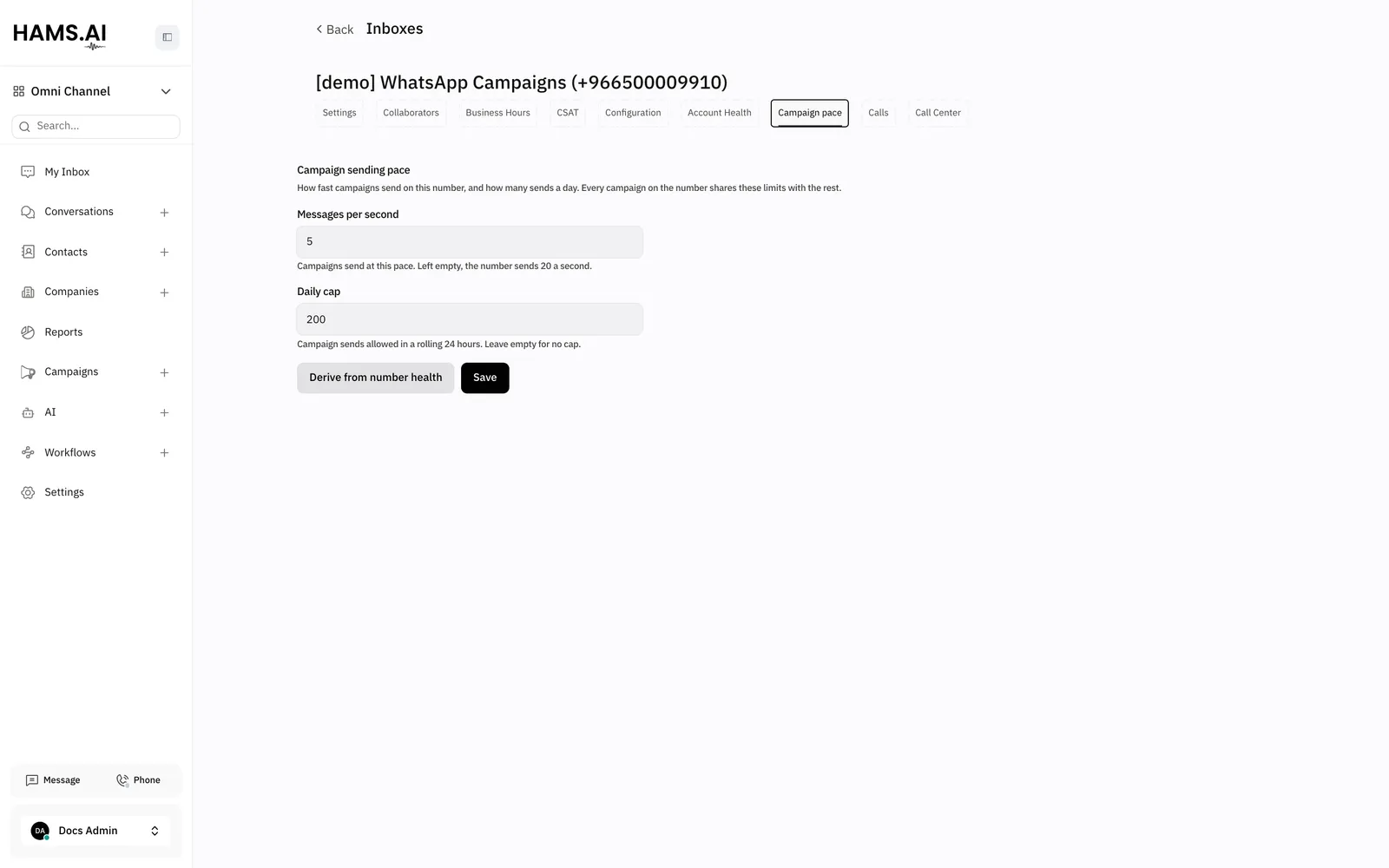
The suggestion from Derive from number health uses the throughput level, the tier, and the quality rating that Meta reports for the number. The tier is the Meta limit of unique contacts in 24 hours.
- The suggested pace is 1/4 of the throughput of the number. It is 1/2 of that value for a yellow quality rating, and 1/4 of it for a red rating. A number with no rating counts as yellow.
- The suggested daily cap is the tier of the number, for example 1,000 for the 1K tier. A number with an unlimited tier gets no cap.
- The page shows the values that Meta reported. The suggestion changes nothing until you click Save.
If Meta did not give the number a throughput level yet, the system cannot make a suggestion. The Campaign pace tab also shows on an inbox with the provider Twilio, but you cannot save a pace there.
How the pace works
- All campaigns on the same number share its pace and its daily cap.
- An account sends 1 WhatsApp campaign at a time. If a campaign of the account is in progress, the next campaign waits with the status Scheduled. It starts when the account is free.
- If Meta reports that the number sends too fast, the system stops campaign messages on that number for 60 seconds. Each new throttle error in a row doubles this time, up to 15 minutes. The contact goes back to the queue and does not fail.
- When the number reaches its daily cap, the campaign waits. It continues when the 24-hour count goes below the cap.
Create a campaign
The WhatsApp campaigns page lists your campaigns. It is at /app/accounts/{account_id}/campaigns/whatsapp.
Open the campaigns list
Click Campaigns in the sidebar. Then click WhatsApp. The WhatsApp campaigns page opens.
Select the template
In WhatsApp Template, select an approved template. The list shows the templates of the inbox with their language.
Select the audience
Under Audience, click Labels. Select one or more labels. You can also click Saved Filter. Then select one or more saved contact filters.
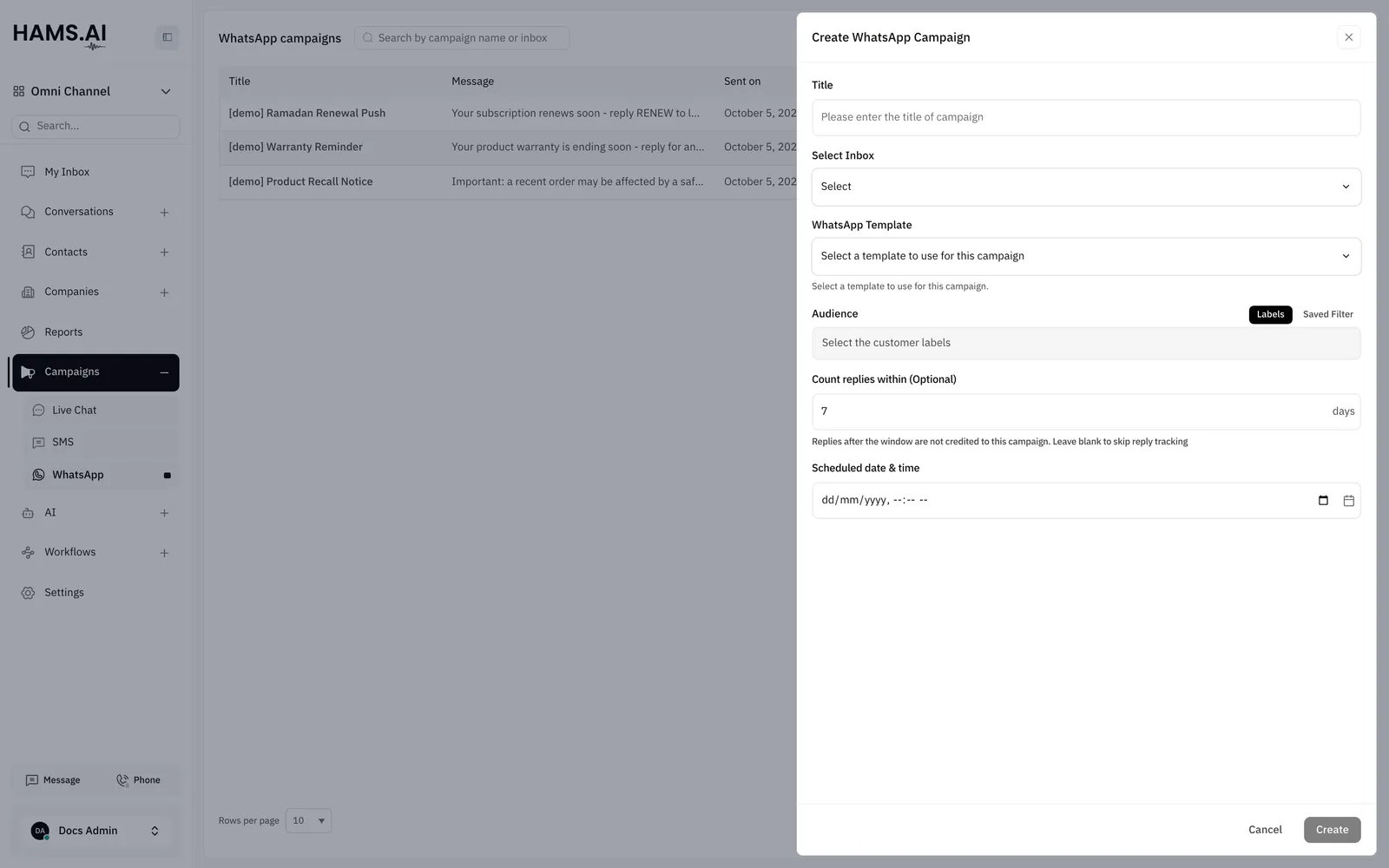
The system checks for due campaigns every 5 minutes. Thus, a campaign can start up to 5 minutes after its scheduled time.
Check the inbox, the template, and the audience before you click Create. The form has no edit action. To change a scheduled campaign, delete it and create a new campaign.
The audience
- The campaign includes a contact that has any of the selected labels or matches any of the selected saved filters.
- A contact that matches more than 1 label or filter gets the message 1 time.
- The system finds the contacts when the campaign starts, not when you create it. After the start, the audience does not change.
- The system skips a contact that has no phone number and no WhatsApp identity on the inbox.
Reply window
The reply window is the number of days after a message in which a reply counts for the campaign. If you leave Count replies within (Optional) empty or enter 0, the campaign does not count replies.
When a contact replies in the window, these things occur:
- The reply counts as Replied for the campaign.
- The conversation shows the campaign template above the reply, with the date and time of the send. The sender name of the template is the campaign title.
- The conversation header shows Campaign and the campaign title. An administrator can click it to open the campaign analytics.
Only the first reply to a message counts. If the windows of 2 campaigns overlap, the reply counts for the campaign with the most recent message.
The template in the conversation does not change the conversation. It does not open the conversation again or change its status or its assignee. It does not count as the first reply of an agent. It does not start an automation, a notification, a webhook, or an agent bot. A new conversation opens the same way as without a campaign.
Campaign statuses
The Actions menu of each row shows the actions for the status of the campaign.
A paused campaign does not start again by itself. If another campaign of the account is in progress, Resume fails and the page shows an error.
Do not cancel a campaign that you only want to stop for a short time. Use Pause instead. You cannot resume a canceled campaign.
When you cancel a campaign, the messages that the system started to send finish. The system skips all other contacts with the reason Campaign cancelled.
To find a campaign, type in Search by campaign name or inbox. To load the list again, click the reload icon (Reload).
See the results
Click View analytics in the Actions menu of a campaign. The analytics page opens. It is at /app/accounts/{account_id}/campaigns/whatsapp/{campaign_id}/analytics. The header shows the title, the status, the inbox, and the scheduled time of the campaign. On a campaign with the status Processing or Paused, the header also has Pause, Resume, or Cancel.
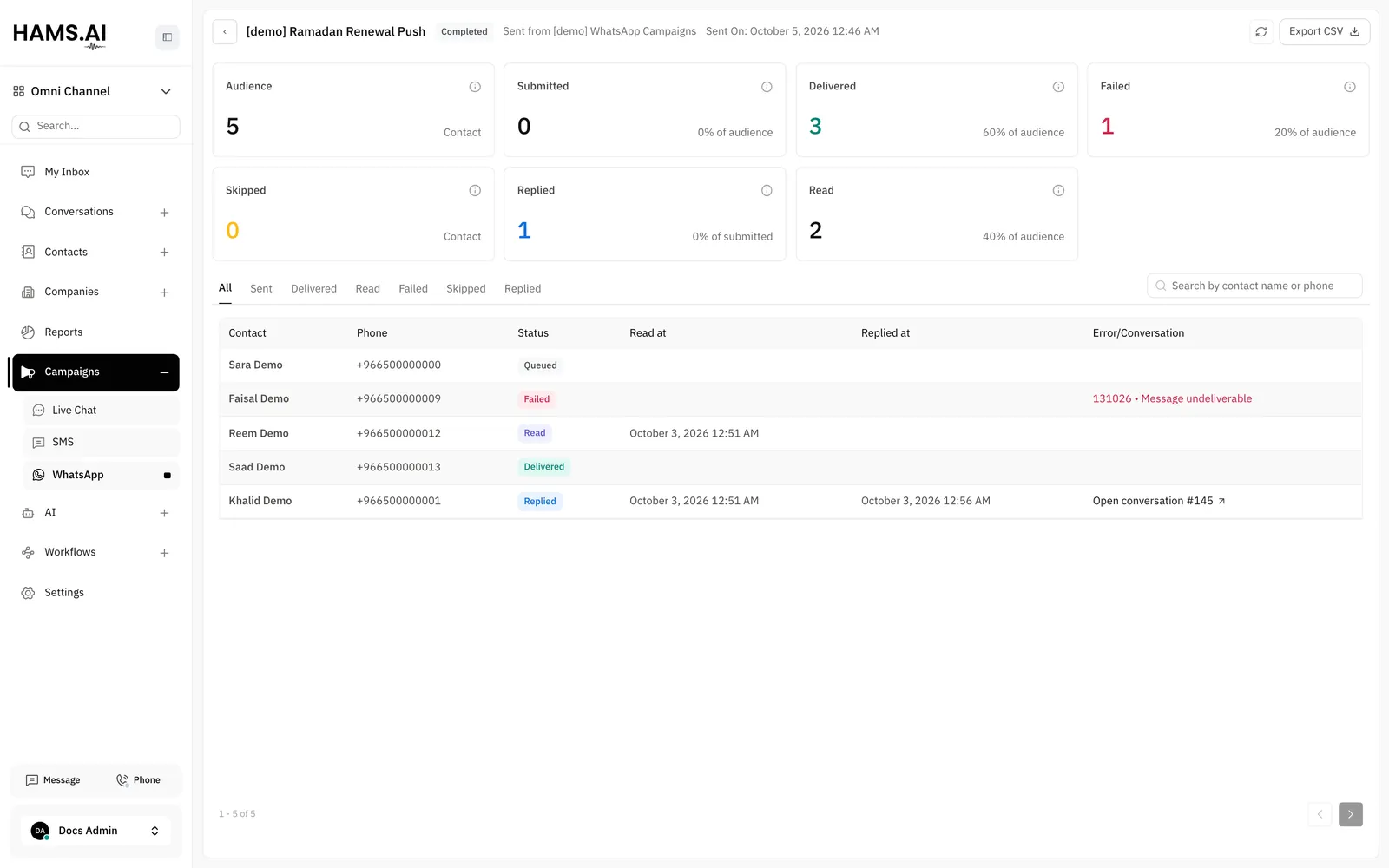
While the campaign has the status Processing, a banner shows 2 numbers. The first is the number of messages in the queue. The second is the number of messages that wait for a delivery update from WhatsApp. The page updates every 5 seconds.
Metric cards
The Deliveries table
The table shows 25 contacts on each page. It has these columns:
- Contact and Phone.
- Status: Queued, Sent, Delivered, Read, Failed, Skipped, or Replied. A contact that replied shows Replied.
- Read at and Replied at.
- Error/Conversation: a link to the conversation of a reply, or the reason for a failed or skipped contact. The reason shows the error code of Meta when there is one.
To show only one status, click a tab: All, Sent, Delivered, Read, Failed, Skipped, or Replied. To find a contact, type in Search by contact name or phone.
The table shows the reason as the system recorded it, in English:
Export the contacts
Click Export CSV. The file includes the contacts of the selected status tab. The search text does not change the file.
- For 50,000 rows or fewer, the file downloads to your computer.
- For more than 50,000 rows, the system makes the file in the background. Then it sends an email with a link to the file to your email address.
The file has these columns: Name, Phone number, Status, Sent at, Delivered at, Read at, Failed at, Replied at, Failure reason, and Conversation ID. The column names use the language of your dashboard. The file starts with a UTF-8 byte order mark, so spreadsheet applications show Arabic names correctly.
To compare all campaigns of a period, use the WhatsApp Campaigns report. See WhatsApp campaign reports.