Conversation log
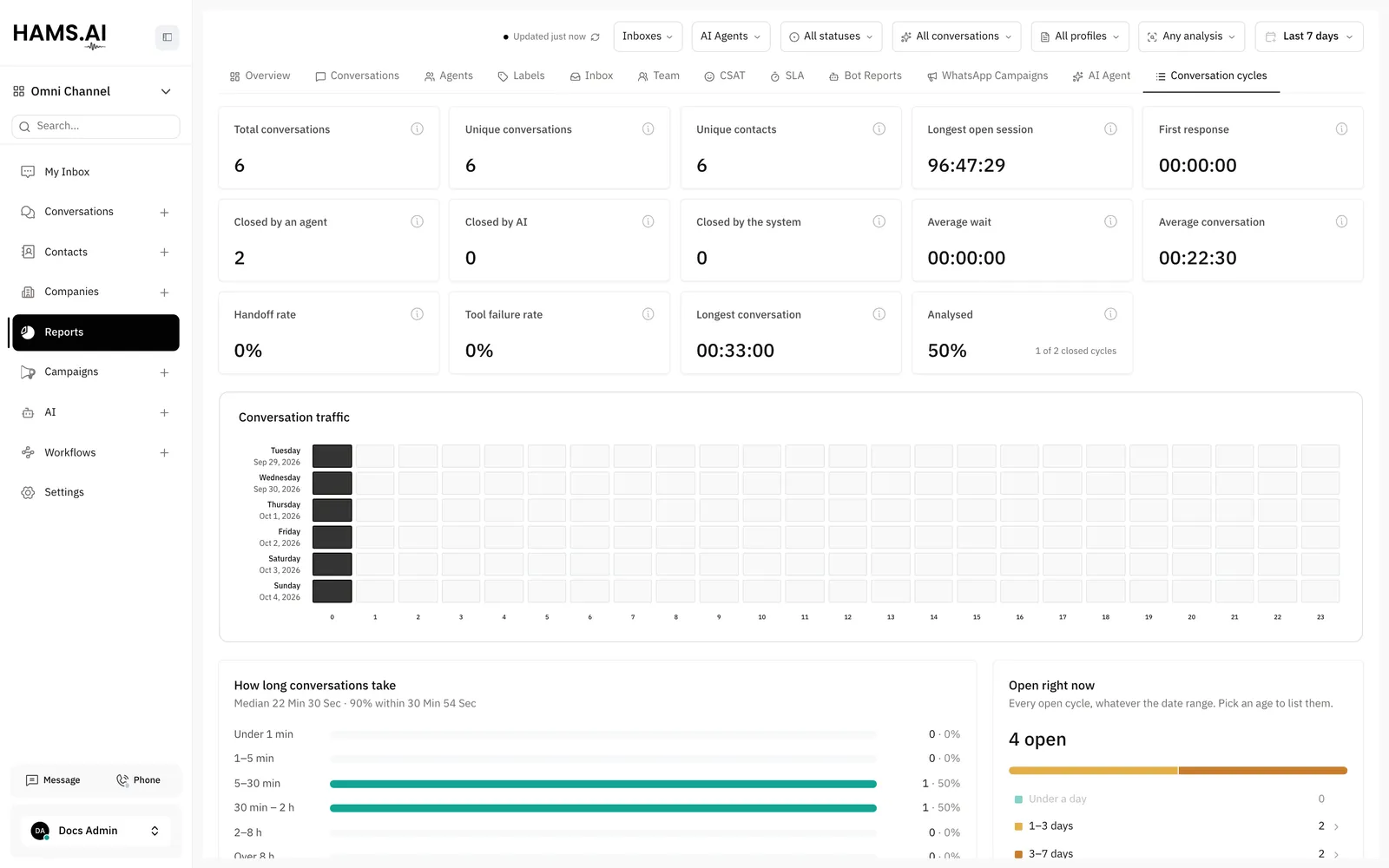
The conversation log is a report of your conversation cycles. It shows the cycles of a period in cards, charts, and a table. In Reports, the tab of the conversation log is Conversation cycles.
All accounts have the conversation log. Administrators and agents can open it. Only administrators and users with the Manage reports permission see Reports in the sidebar. An administrator sees all cycles. An agent sees only the cycles of conversations in their inboxes and their teams. Only an administrator can start an analysis from the report.
Open the conversation log
In this page, {account_id} is the number of your account in the dashboard URL.
An agent has no Reports menu in the sidebar. To open the report, an agent opens /app/accounts/{account_id}/reports/conversation-log in the browser. An agent can also see the cycles of one conversation in the conversation sidebar. See Cycles in the conversation sidebar.
Filters
The header has these filters:
If no cycle matches the filters, click Clear filters.
Summary cards
The 3 response cards measure each cycle. A conversation that opens again gets a new first response in each new cycle. The account reports record 1 first response for each conversation. Thus, their values can be different from these cards.
Charts
- Conversation traffic: a heatmap of the cycles that opened in each hour of each day. For a long period, the heatmap scrolls. The hour axis stays at the bottom of the chart.
- How long conversations take: the closed cycles in duration groups, from Under 1 min to Over 8 h. Each bar shows who closed the cycles: AI, Agent, or System. The chart also shows the median and the time in which 90% of cycles closed.
- Open right now: all open cycles in age groups, from Under a day to Over a week. This chart ignores the date range.
To list the open cycles of one age group, click the group in Open right now. The table shows only those cycles. To remove this filter, click the close icon on the Open cycles chip.
The report also shows the post-chat analysis charts. See Where you see the results.
The cycle table
The All cycles table lists the cycles with the newest first. Select 10, 25, or 50 rows for each page. To load the table again, click the refresh icon (Reload cycles).
These columns show by default:
- Opened, Conversation, Contact, Status, Closed, and Resolved by.
- Resolution source: AI, Agent, or System.
- Duration, First response time, and AI runs. First response time is the time to the first reply of the AI agent or of a person. Campaign and automation messages do not count.
- Profile, Outcome, and Sentiment, from the post-chat analysis.
To show more columns, click Columns. Then select the columns. The extra columns are Contact reason, Labels, First response at, First response by, Avg agent response, Incoming, Outgoing, Agent responses, Team, and Closing note. The Labels column shows the labels of the conversation.
To change the order of the columns, drag the handle of a column in the Columns menu to a new place. The table shows the columns in this order. To show the default columns in the default order, click Reset to default. The table keeps your column choice and your column order.
Durations use the format hh:mm:ss. The Conversation cell links to the conversation and shows its inbox. The Contact cell links to the contact and shows the phone number or the email address.
If post-chat analysis is on, an administrator sees an actions menu at the end of each closed row. The menu does not show while an analysis of the cycle is in progress. The menu has Analyse, or Rerun analysis if the cycle has a result. See Run the analysis again.
Cycle details
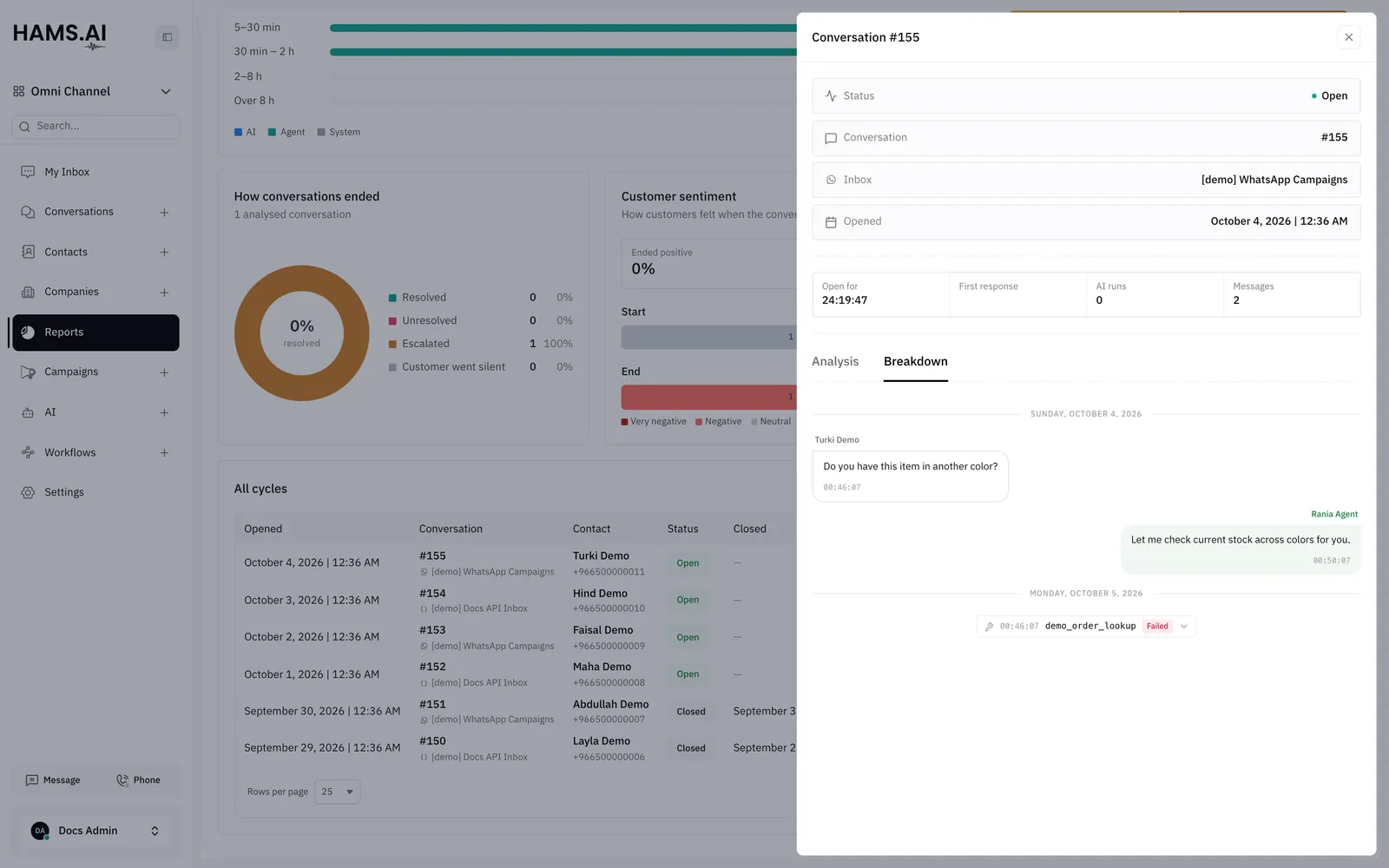
Click a row. The cycle details open in a drawer. The drawer shows these items:
- Status, and the analysis outcome of a closed cycle.
- Conversation, with a link to the conversation, and Inbox.
- Opened, Closed, Resolved by, and AI agent.
- Closing note, if the AI agent resolved the cycle with a note.
- Duration (or Open for), AI first response, Human first response, AI runs, and Messages. A value shows a dash if no reply of that kind exists in the cycle.
The drawer has 2 tabs:
- Analysis: the post-chat analysis result of the cycle. See Post-chat analysis.
- Breakdown: the messages of the cycle, with each AI agent run and its tool calls. For each tool call, Sent shows the arguments and Returned shows the result. A tool call that did not work shows Failed.
The Breakdown tab shows the last 500 messages of the cycle. For a longer cycle, the tab shows a note above the messages.