

Overview
Omni Channel is the part of Hams for customer messages. It puts the messages of all your channels in one shared list: WhatsApp, email, the chat widget on your website, social media, and phone calls. Your team reads and answers every customer from the same dashboard. Workflows and AI agents answer the repeated questions for your team.
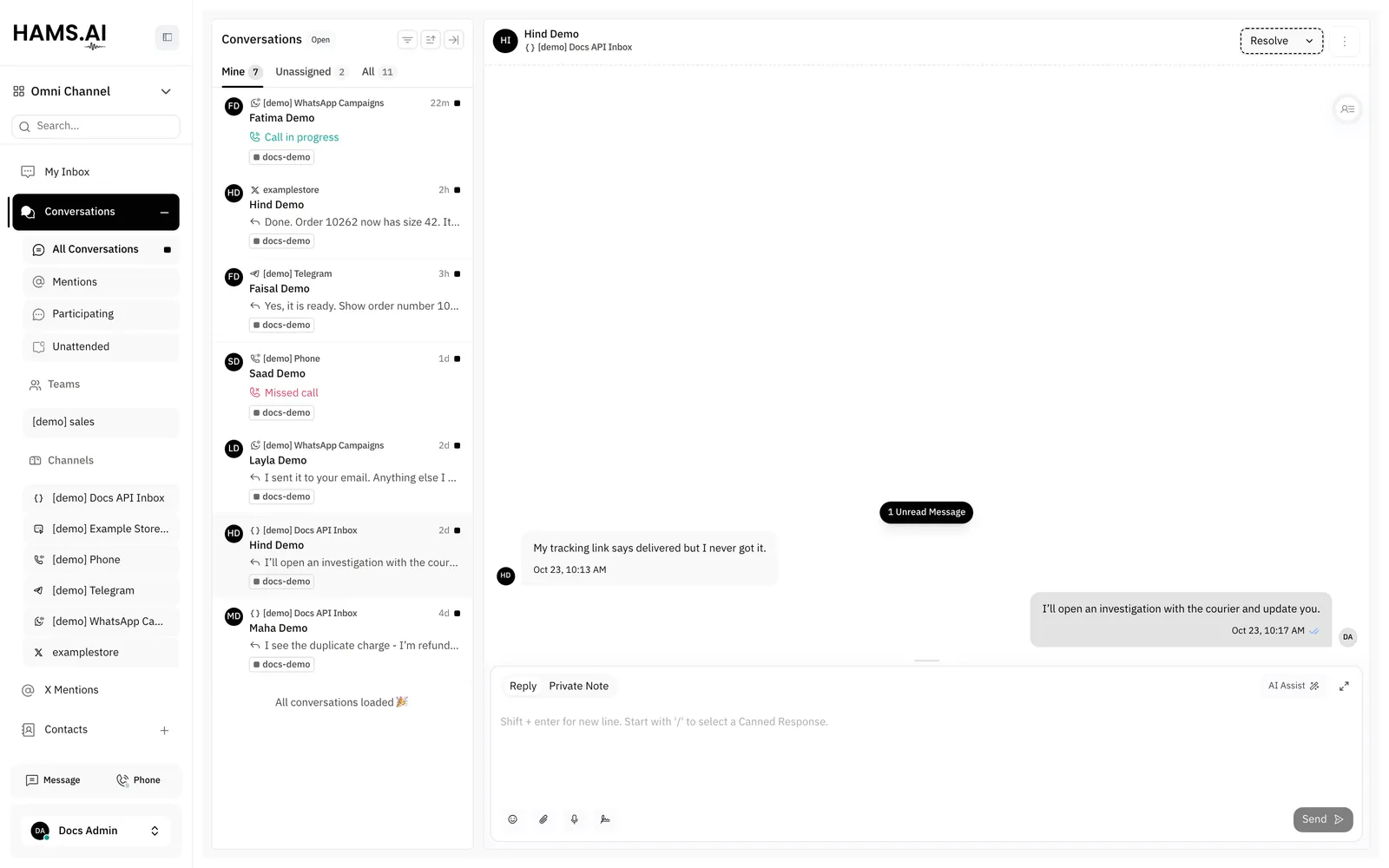
In this page, {account_id} is the number of your account in the dashboard URL.
Main terms
What you can do
Some features are off by default. Hams support turns them on for your account. The features are:
- The X channel and the X Mentions view: X Channel (Mentions + Chat)
- Phone calls: Call Center and Voice Channel
- Companies: Companies
- WhatsApp campaigns: WhatsApp Campaign
- Workflows and the AI agent: Workflows + Agent
- Post-chat analysis: Post-chat Analysis
The top of each page tells you who can use the feature and how to get it.
Set up your account
Do these steps in this order.
Connect a channel
Open Settings > Inboxes. Click Add Inbox. Select a channel. Then connect it. See Inboxes and channels.
Add your team
Open Settings > Agents at /app/accounts/{account_id}/settings?tab=agents. Click Add Agent. Enter the Agent Name and the Email Address. Select the Role: Administrator or Agent. Click Add agent. The system sends an invitation email to the new agent.
Give the agents access to the inbox
Add the agents to the inbox in the Add Agents step of the inbox wizard. You can also add them later on the Collaborators tab of the inbox settings. An agent sees only the conversations of the inboxes and teams of that agent.
Automate the repeated work
Build a workflow for the steps that are the same each time. Create an AI agent for the questions that are the same each time.
Connect your own systems
Create an API key. Then send your first template through the developer API. See Quickstart.
Switch to Cloud Call Center
The sidebar has a product switcher under the account name. Use it to move the dashboard between Omni Channel and Cloud Call Center. Use Cloud Call Center to take and make calls, route calls, and read call reports.
Your account, your login, and your contacts are the same in both products. A call shows as a conversation on the timeline of the contact. See Phone calls and the Cloud Call Center overview.
Personal settings
Each user can set a chat background for the message area of a conversation. Open Profile Settings and find Chat background in the Interface section. You can also open the More actions menu in the header of a conversation and click Chat background. The choices are Default, Sand, Sky, Lavender, Slate, Doodle, Dots, Waves, and Grid. The background applies only to the user who sets it. Other users see their own background.