

Companies
A company groups the contacts who work for the same organization. The company page shows the contacts, their recent conversations, and their notes together. A contact can belong to one company only.
Companies are off by default. Hams support turns on Companies for your account. When the feature is on, administrators and agents can see, add, and change companies. Only administrators can delete a company. The developer API does not include companies.
In this page, {account_id} is the number of your account in the dashboard URL.
Open the companies list
Click Companies in the sidebar. Then click All Companies. The Companies page opens at /app/accounts/{account_id}/companies. In Cloud Call Center, click Companies in the sidebar. The same list opens.
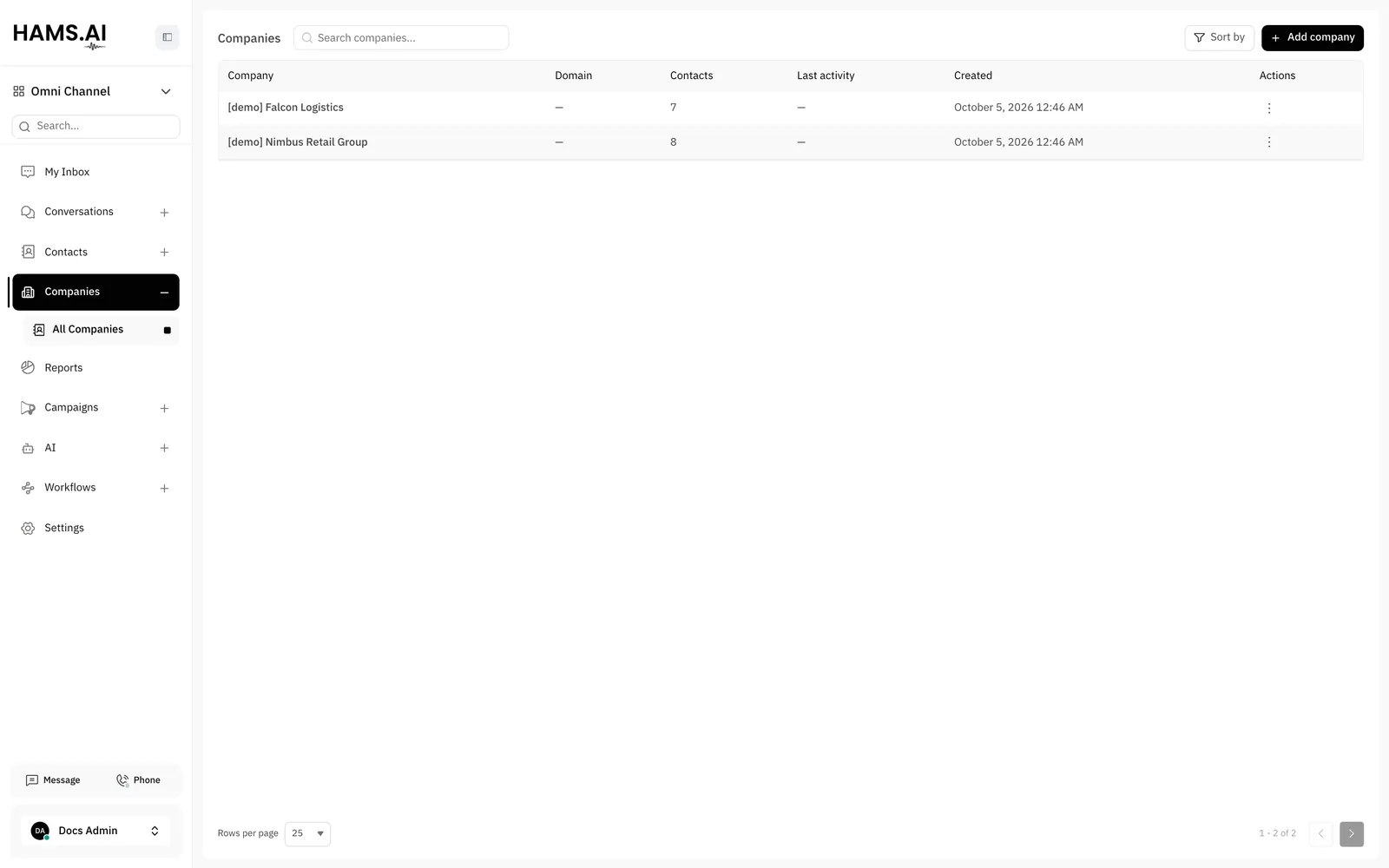
The list has these columns:
The list shows 25 companies on each page. You can change the number of rows at the bottom of the list.
Search and sort
Type in the Search companies… box to find a company. The search compares your text with the name and the domain of each company.
To sort the list, click Sort by. Then select a field and an order:
- Sort by: Name, Domain, Contacts count, Last activity, or Created at.
- Order: Ascending or Descending.
The default sort is by name. The dashboard keeps your sort choice for the next time that you open the list.
Add a company
Enter the name
Enter the Name of the company. The name is necessary and has 100 characters or fewer. Add company stays off until you enter a name.
The domain must be a valid domain name, for example example.com or shop.example.co.uk. Do not add https:// or a path. Two companies in the same account cannot have the same domain. If a company already has the domain, the system rejects the new company.
If you add the company with a domain, the system gets the icon of that website and uses it as the avatar of the company. The system does not get the icon when you add a domain to a company later.
To change a company from the list, click Edit company in the Actions menu. The Edit company details drawer opens. Change the fields. Then click Update company.
Companies that the system adds
The system can add a company for you. When a contact gets an email address for the first time, the system reads the domain of the address. If the domain belongs to a business, the system links the contact to the company with that domain. If no company has that domain, the system adds one.
The system does not do this for a free email provider, for example Gmail, or for a temporary email address. It also does not change a contact that already belongs to a company.
The name of the new company comes from the company name of the contact. If the contact has no company name, the system makes the name from the domain. For example, acme-tools.com becomes Acme Tools.
The company page
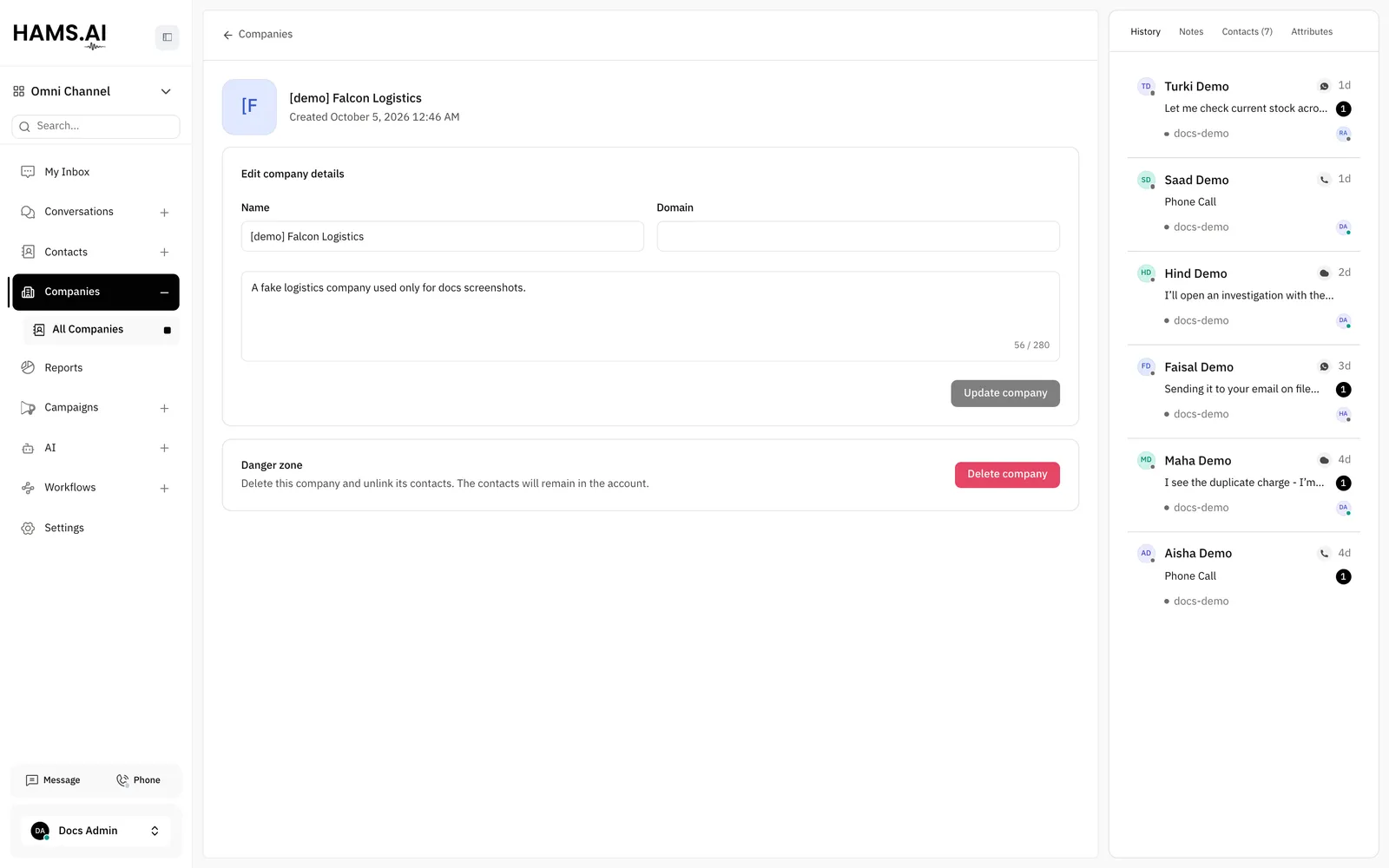
Click a company in the list. The company page opens at /app/accounts/{account_id}/companies/{company_id}. The left part shows the details of the company. The right part has 4 tabs.
Details
The top of the page shows the avatar, the name, the date when someone added the company, and the last activity. To change the avatar, click it and upload an image. You can also delete the avatar.
Under Edit company details, change the Name, the Domain, or the description. Then click Update company.
Tabs
The History tab opens first.
Link a contact to a company
Find the contact
Under Add contact, click the list. Type a name, an email address, a phone number, or an identifier of the contact.
The results do not include the contacts that already belong to this company. If the contact belongs to a different company, the panel shows Currently linked to and the name of that company. When you click Link contact, the contact moves to this company.
You can also set the company from the form of a contact. Select a company in the Select company list. To add a new company from the same list, type its name. Then click the Add option that shows the name.
To remove a contact from the company, click Remove contact next to the contact. The contact stays in the account without a company.
Company attributes
A custom attribute keeps more data about a company, for example a contract number. An administrator adds company attributes in Settings > Custom Attributes, on the Company tab. The Attributes tab of the company page then shows these attributes. Enter a value for each attribute that applies to the company.
Delete a company
Do not delete a company that you want to keep. You cannot undo the delete. The contacts of the company stay in the account, but they have no company after the delete.
Only administrators can delete a company. On the company page, go to Danger zone. Click Delete company. The Delete company? dialog opens. Click Delete company to confirm. The Companies list opens.
You can also click Delete company in the Actions menu of the list.