

Tools
A tool is an action that an AI agent can do in a conversation. For example, it can add a label, look up an order in your system, or transfer the conversation to a human agent.
The AI agent is off by default. Hams support turns on the Workflows + Agent feature for your account. Only administrators can see AI in the sidebar, change the tools of an AI agent, and use the Tools page.
In this page, {account_id} is the number of your account in the dashboard URL.
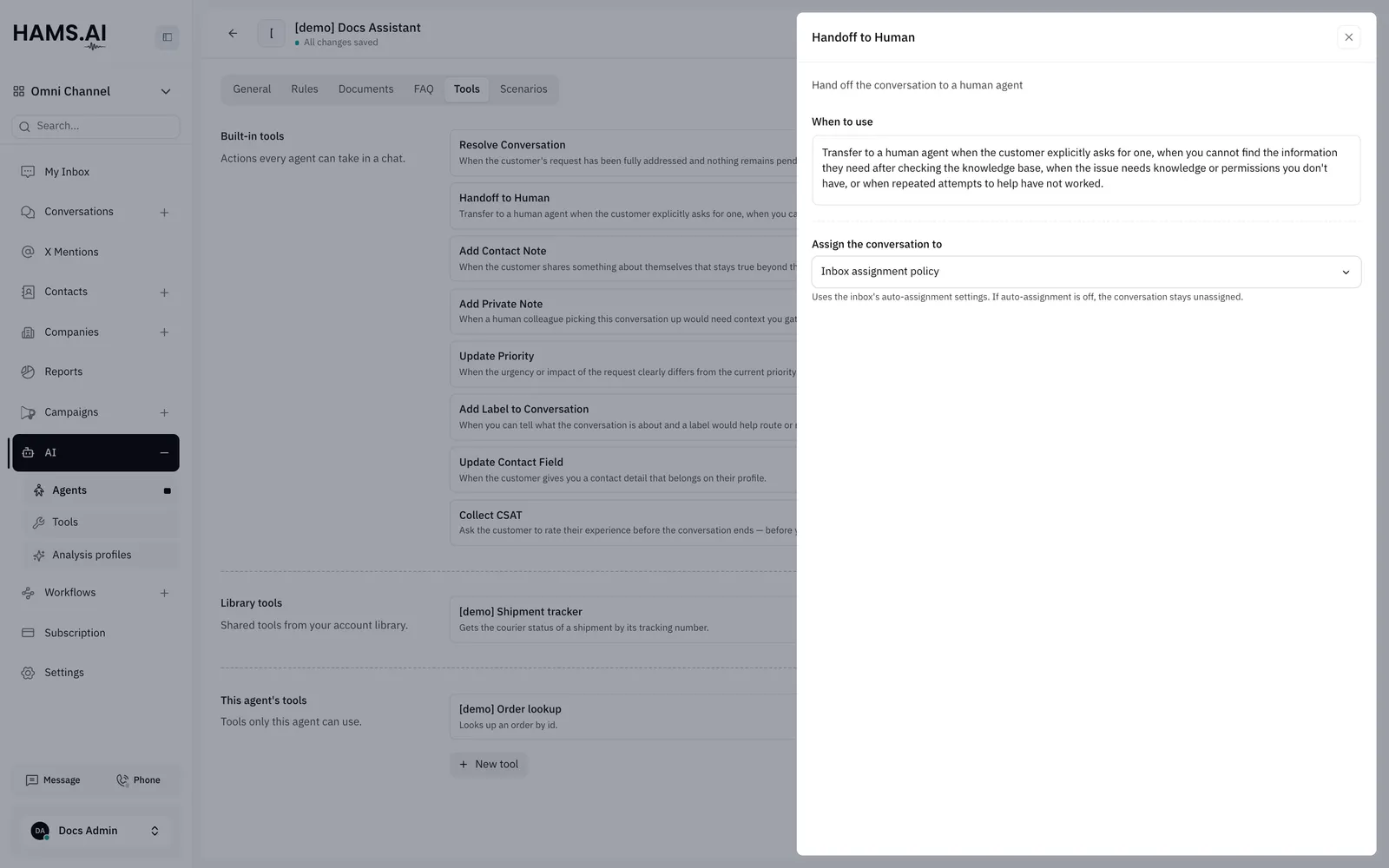
The Tools tab
Open an AI agent. Click the Tools tab. You must save a new AI agent before you can use this tab. The tab has 3 sections:
The changes on this tab are part of the AI agent. They apply only after you click Save in the header of the editor. See Assistants.
Built-in tools
Resolve Conversation is always on. Each of the other tools has a switch.
If you turn off Handoff to Human, the AI agent cannot transfer a conversation itself. The system still transfers the conversation to a human agent in some cases. For example, the reply window of the channel closes, or the account has no AI credit left. See Assistants.
The AI agent also has a Knowledge Search tool. This tool does not show on the tab. It is active when the AI agent has saved FAQs. It finds the 5 FAQs that are nearest in meaning to the question. See FAQ and responses.
When to use a tool
Each built-in tool has a When to use sentence. The AI agent reads this sentence to decide if it uses the tool. Each tool starts with a default sentence. Change it when your case is different.
Write about the situation of the customer, not about what the tool does. For example, “When the customer confirms their order number” is better than a description of the tool.
Turn on the tool
Click the switch of the tool. A drawer opens with the default sentence in When to use.
To change the sentence of a tool that is on, click the name of the tool. The drawer opens. When to use must not be empty. If it is empty, Save shows A tool you turned on has no “When to use” line. Add one on the Tools tab, then save.
Handoff to Human
The drawer of Handoff to Human also has Assign the conversation to. It sets where the conversation goes. See Handoff.
Labels and contact fields
The drawer of Add Label to Conversation has a list of labels. For each label, write when the AI agent adds it.
- Select a label in Add a label.
- Write the guidance in When should the agent assign this label?
The drawer of Update Contact Field has a list of fields in the same way. Select a field in Add an attribute. Then write the guidance in When should the agent set this attribute? The list contains the standard fields and the custom attributes of your contacts:
- Name, Email, Phone number, Identifier, Middle name, Last name, Location, Country code, and Company name.
- Each contact custom attribute. For a list attribute, Options: shows the values that it accepts.
If the list is empty, the AI agent selects the label or the field itself. If the list has items, the AI agent can use only those items. For a list attribute, the AI agent can write only one of its values.
Collect CSAT
The AI agent asks the customer for a rating in the conversation. It does not send a survey link or buttons. In the sentence of the tool, tell the AI agent to ask before it resolves or transfers the conversation.
The AI agent records the rating as a score from 1 to 5. It records the words of the customer as the feedback. The response shows in the CSAT report, with the AI agent as the assigned agent. See AI agent reports.
A conversation has 1 response. If the customer gives a new rating, the last rating replaces the previous one.
Custom tools
A custom tool calls your own API. Then the AI agent can answer questions that only your systems know. For example, where an order is, or if a booking exists.
There are 2 kinds of custom tools:
- A library tool. You create it on the Tools page. Each AI agent can turn it on under Library tools.
- A tool of one AI agent. You create it under This agent’s tools on the Tools tab of that AI agent.
An account can have a maximum of 15 library tools. The tools of one AI agent are not part of this limit.
Create a library tool
The Tools page lists the library tools. It is at /app/accounts/{account_id}/hams-agent/tools. The Type column shows HTTP or Sends files.
Create a tool for one AI agent
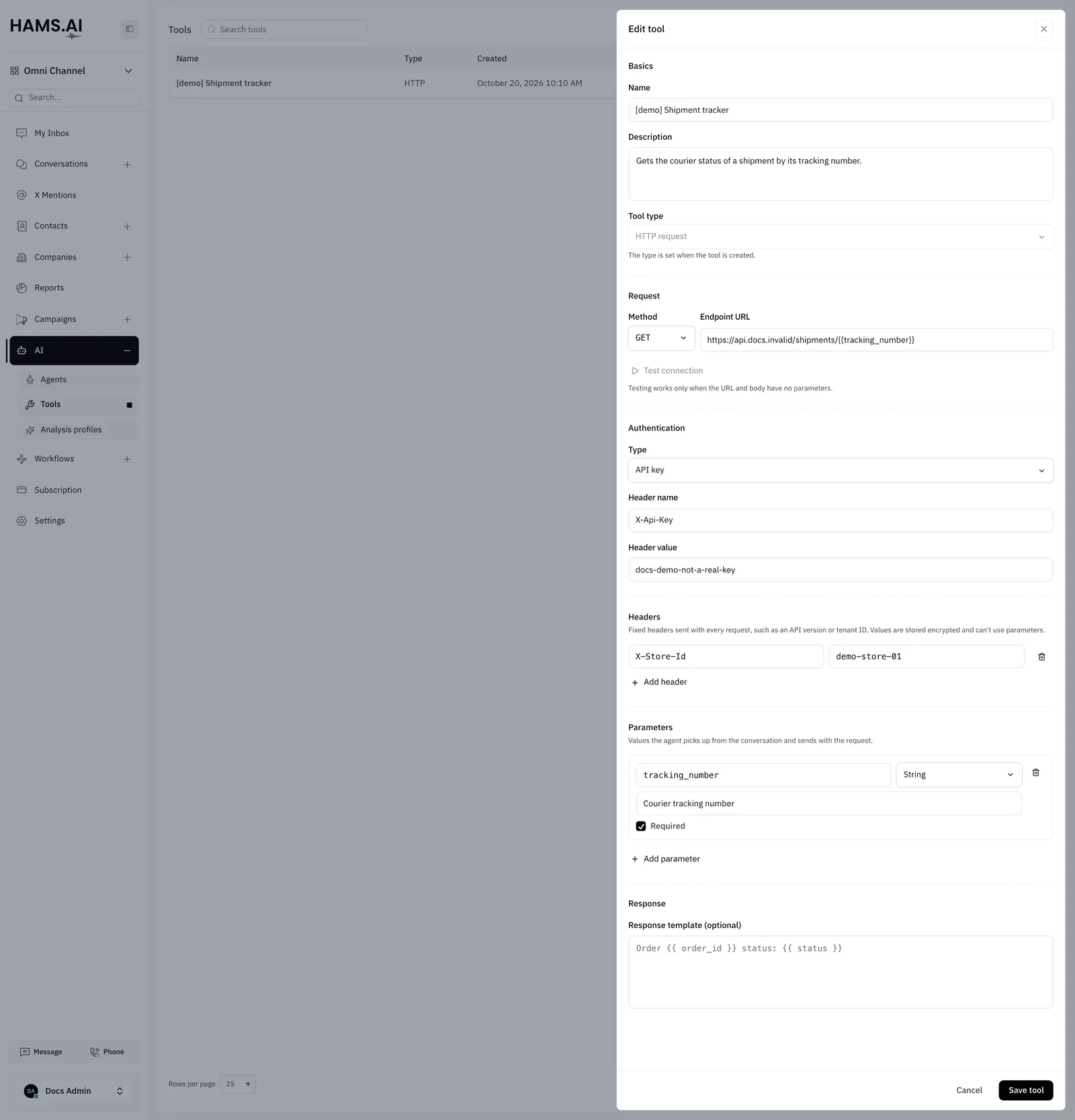
The custom tool form
The form has the sections Basics, Request, Authentication, Headers, Parameters, and Response.
In the Description, say what the tool does and when the customer needs it. For example, “Looks up the status of an order. Use it when the customer asks where their order is.” The AI agent reads the description, not the name.
Parameters
A parameter is a value that the AI agent must find in the conversation. For example, an order number, an email address, or a date. Click Add parameter to add one. Each parameter has these fields:
- A name, for example
order_id. The name is necessary. - A type: String, Number, Boolean, Array, or Object.
- A description. Write what the value means in 1 sentence.
- Required. Select it if the tool cannot work without the value.
You can put a parameter in the Endpoint URL or in the Request body (optional). Write its name in double braces:
The request body must be valid JSON after the system puts the values in. If it is not valid JSON, the form shows an error, and the system does not save the tool.
Response template
Without a template, the AI agent reads the full response body. The maximum response size is 1 MB.
A template changes the response into a shorter text. In the template, response or r is the JSON response. For example:
Authentication
The system sends the credential with each call of the tool.
The AI agent cannot log in through a login page. The endpoint must accept one of these types.
The system keeps the credentials encrypted. Only administrators can read them.
Static headers
A static header is a fixed header that the tool sends with each request. For example, an API version or a tenant ID. Click Add header. Then enter the Header name and the Value.
- A tool can have a maximum of 16 headers.
- A header name can show only 1 time in the list.
- A value is plain text with a maximum of 1 KB. It cannot contain parameters in double braces.
- You cannot use these names:
Authorization,Host,Content-Length,Content-Type, and the headers that the system sets. See Headers from the conversation.
The system keeps the header values encrypted. The Playground hides them in Request sent.
If your endpoint redirects the request to a different host, the system does not send the static headers or the credential to that host.
Headers from the conversation
The system also sends these headers with each call. Use them to find the conversation or the contact in your system.
The system sets X-Tool-Slug when you create the tool. It is custom_ and the tool name, in lowercase, with underscores between the words. If another tool has the same ID, the system adds _ and 6 random characters. The ID does not change when you change the name. Do not make the ID again from the tool name in your system. Read it from the header.
The conversation and contact headers are only in calls from a conversation. A call from the Playground does not have them.
Test the endpoint
Click Test connection to call the endpoint before an AI agent uses it. The test uses the Endpoint URL, the authentication, and the static headers that you entered. It does not use an AI agent.
If the call is successful, the form shows Endpoint returned HTTP and the status code. If the call fails, the form shows the error. Test connection is not available when the Endpoint URL contains a parameter or when the tool has a request body.
A successful test shows that the endpoint works. It does not show that the AI agent uses the tool at the correct time. To test that, use the Playground.
Send files
A tool with the type Send files sends files to the customer. For example, it can send an invoice or a brochure. In the lists, the tool shows the label Sends files.
The endpoint, or the Response template (optional), must return a list of direct file links in this format:
- Each
urlmust start withhttp://orhttps://. - The
nameis optional. If the name has no file extension, the system uses the extension of the file. - The tool sends a maximum of 5 files. It does not send the other files.
- If one item in the list does not have this format, the tool sends no files.
- If the system cannot download a file, it does not send that file. It still sends the other files. For example, the system does not accept the file type, or the file is too large.
- The system sends each file to the customer as a separate message.
- The files can be images, video, audio, and documents such as PDF, Word, Excel, and ZIP files.
In a later reply, the AI agent knows the names of the files that it sent. It does not see the files again. Thus the AI agent does not send the same files again.
In the Playground, the tool does not send files. It shows a preview of the files. See Playground.
Change or delete a custom tool
To change a library tool, click its row on the Tools page. Then click Save tool. To change a tool of one AI agent, click its name under This agent’s tools. Then click Update tool and save the AI agent. You cannot change the Tool type.
To delete a library tool, click the actions menu of its row. Click Delete. Then click Delete tool. The system removes the tool from every AI agent. You cannot delete a library tool that a voice agent uses. See Voice agents.
To delete a tool of one AI agent, click the delete icon of the tool. Then save the AI agent.