

X
The X inbox connects 1 X account to your account. It has 2 features that you turn on or off for each inbox: X Chat and Mentions. X Chat gets the direct messages of the account as conversations. An agent replies from the reply box, and the system sends the reply as a direct message on X. Mentions gets the public posts that mention the account. Agents answer them in the X Mentions view, not in the conversation list.
The X channel card shows only when Hams support turns on X Channel (Mentions + Chat) for your account. Only administrators can add the inbox and change its settings. Agents of the inbox can read and reply to its direct messages and its mentions. X bills your X developer account for each message, each mention, and each reply.
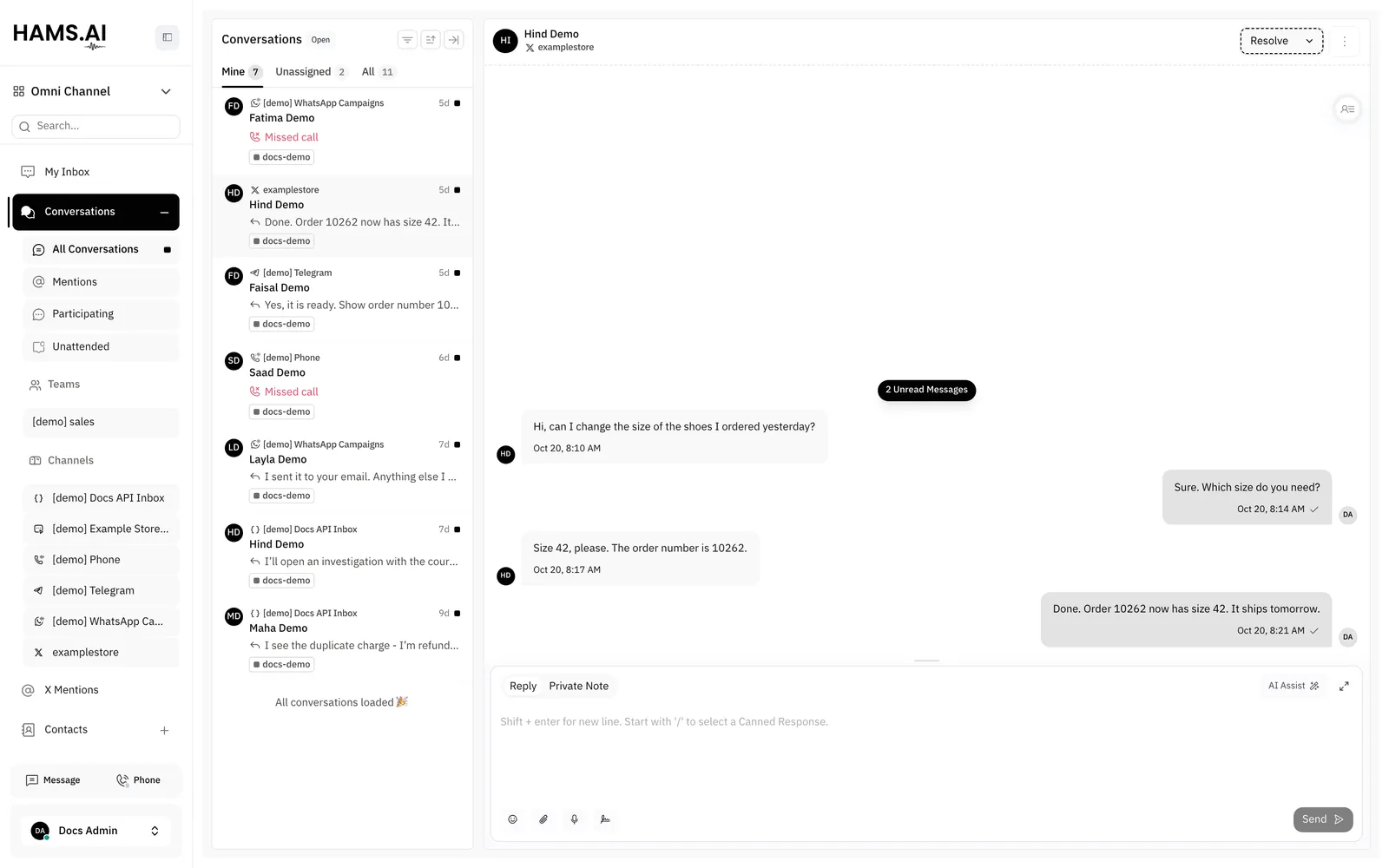
In this page, {account_id} is the number of your account in the dashboard URL.
Before you start
You connect your own X developer app, not a shared app. Thus, your X account keeps its own rate limits, permissions, and costs. You need these items:
- An X developer account with a payment method for the X API. See the prices of the X API.
- An app in the X developer console with OAuth 2.0 user authentication turned on.
- A confidential app type, for example a web app. The system sends the client secret of the app to X.
- 2 pairs of keys of the app. You need the Client ID and the Client Secret from the OAuth 2.0 keys. You also need the API Key and the API Key Secret (the consumer keys).
- For X Chat: an X account that has X Chat set up in the X app, with an X Chat PIN.
The app must also have the callback URL of Hams in its user authentication settings. The callback URL is https://<your Hams domain>/hams_x_channel/callback. The connect form shows the exact URL for your account.
The system asks X for the scopes that the features of the inbox need:
X apps
The system keeps 1 record for each X app that you connect in your account. All X inboxes on the same X app share its keys and its 1 webhook. Thus, you enter the keys of an app only 1 time. For a second X account, select the saved app in the connect form.
You can enter the keys again for a Client ID that the account has. The system then updates the keys for all inboxes on that app. When you delete the last inbox of an app, the system removes the webhook of the app at X.
Connect your X account
Open the inboxes
Open Settings > Inboxes. The page is at /app/accounts/{account_id}/settings?tab=inboxes.
Register the callback URL
Copy the URL under Callback URL. Add it to the user authentication settings of your X app.
Select the X app
If the account has a saved X app, select it in X app. For a different app, select Add a new X app.
Enter the keys
For a new X app, enter the Client ID, the Client Secret, the API Key, and the API Key Secret.
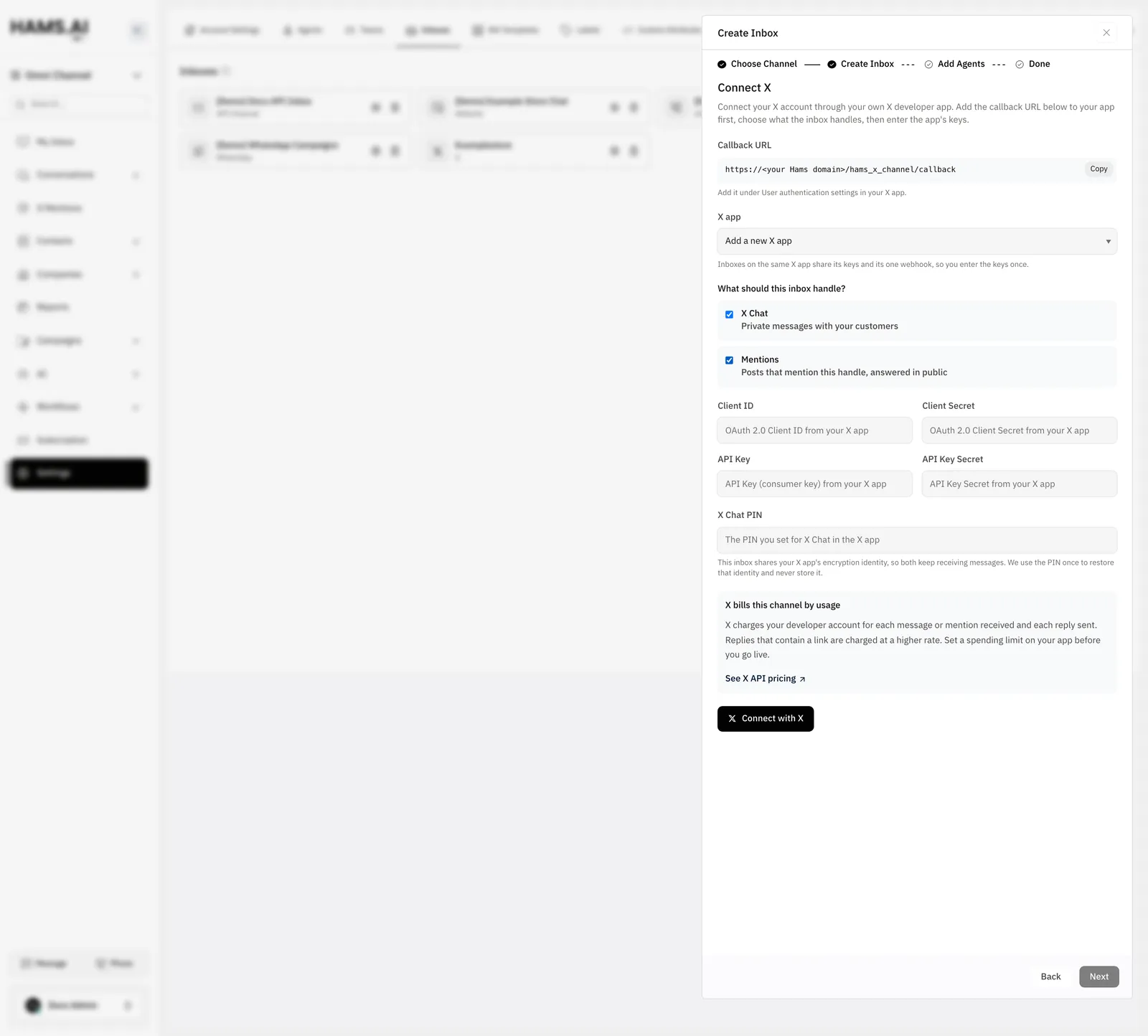
The X app field shows only when the account has a saved X app. Each option shows the start of the Client ID and the inboxes on that app. The key fields show only for a new app. The X Chat PIN field shows only when you select X Chat.
If a field is empty, the form shows an error under it, for example Enter your app’s Client ID. If you select no feature, the form shows Choose at least one.
The inbox uses the same encryption identity as your X app. Thus, the X app on your phone and the inbox both get the direct messages. The system uses the PIN 1 time to recover this identity, and it does not keep the PIN.
The name of the inbox is the X username of the account. After you authorize the app, the system registers the webhook of the app at X. It also subscribes the webhook to the events of the features that you selected. You do not add the webhook URL in the X developer console.
Connection errors
If the connection fails, the Inboxes list shows 1 of these messages:
Turn a feature on or off
An X inbox has the Configuration tab and the Account Health tab in addition to the tabs of all inboxes. For the other tabs, see Inboxes and channels.
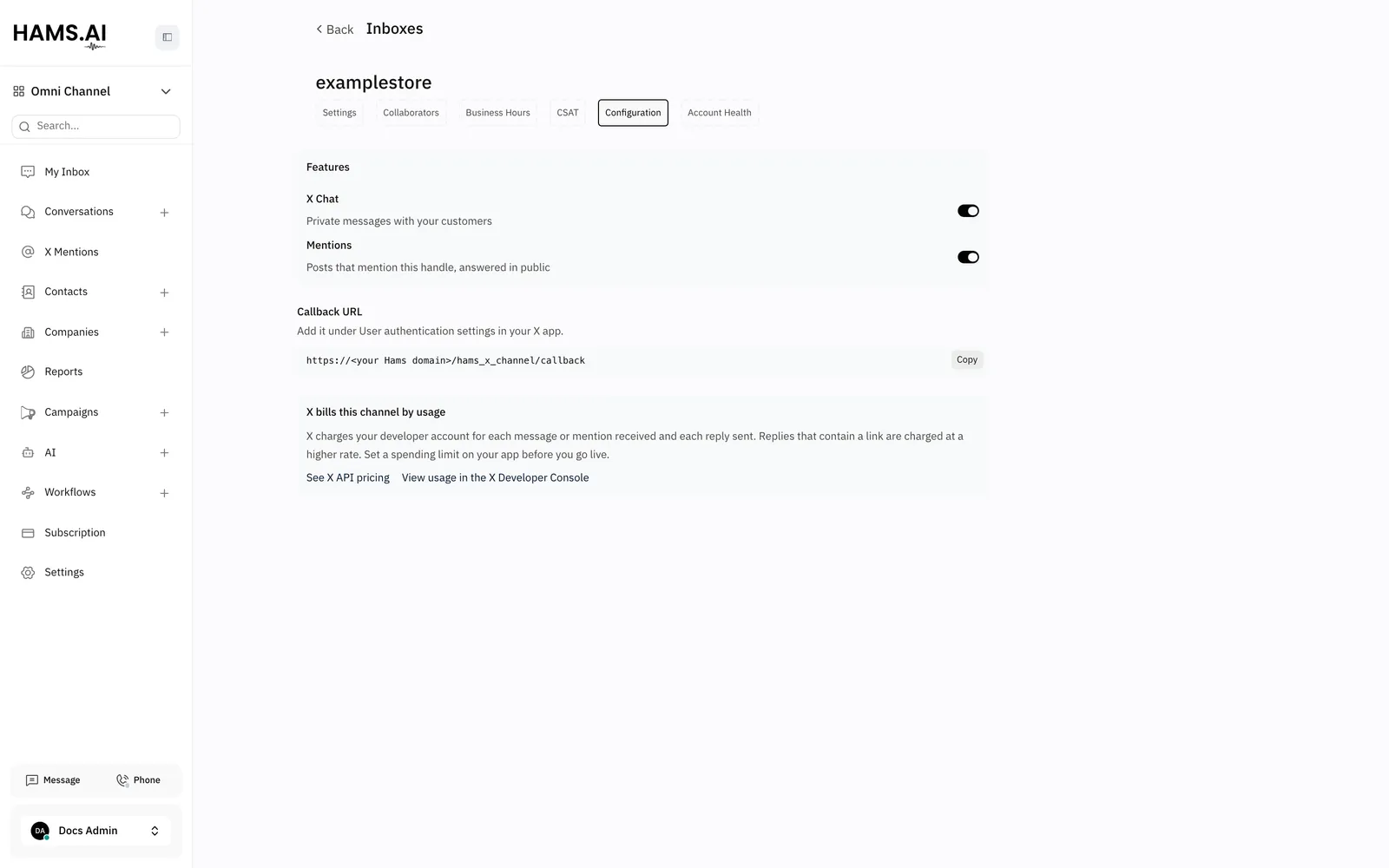
At least 1 feature must stay on. If you turn off the last feature, the dashboard shows Choose at least one and keeps the feature on.
A feature can need more permissions from X than the inbox has. The box then shows X needs to grant this inbox more permissions. Click Log in with X again, and then authorize the app on X. To turn on X Chat for the first time, also enter the X Chat PIN before you click Log in with X again.
When you turn off a feature, the system removes its event subscriptions at X. The inbox then gets no events of that feature.
The Configuration tab also shows the callback URL again. The URL must stay in the settings of your X app. The tab has links to the prices of the X API and to the usage of your app in the X Developer Console.
Account Health
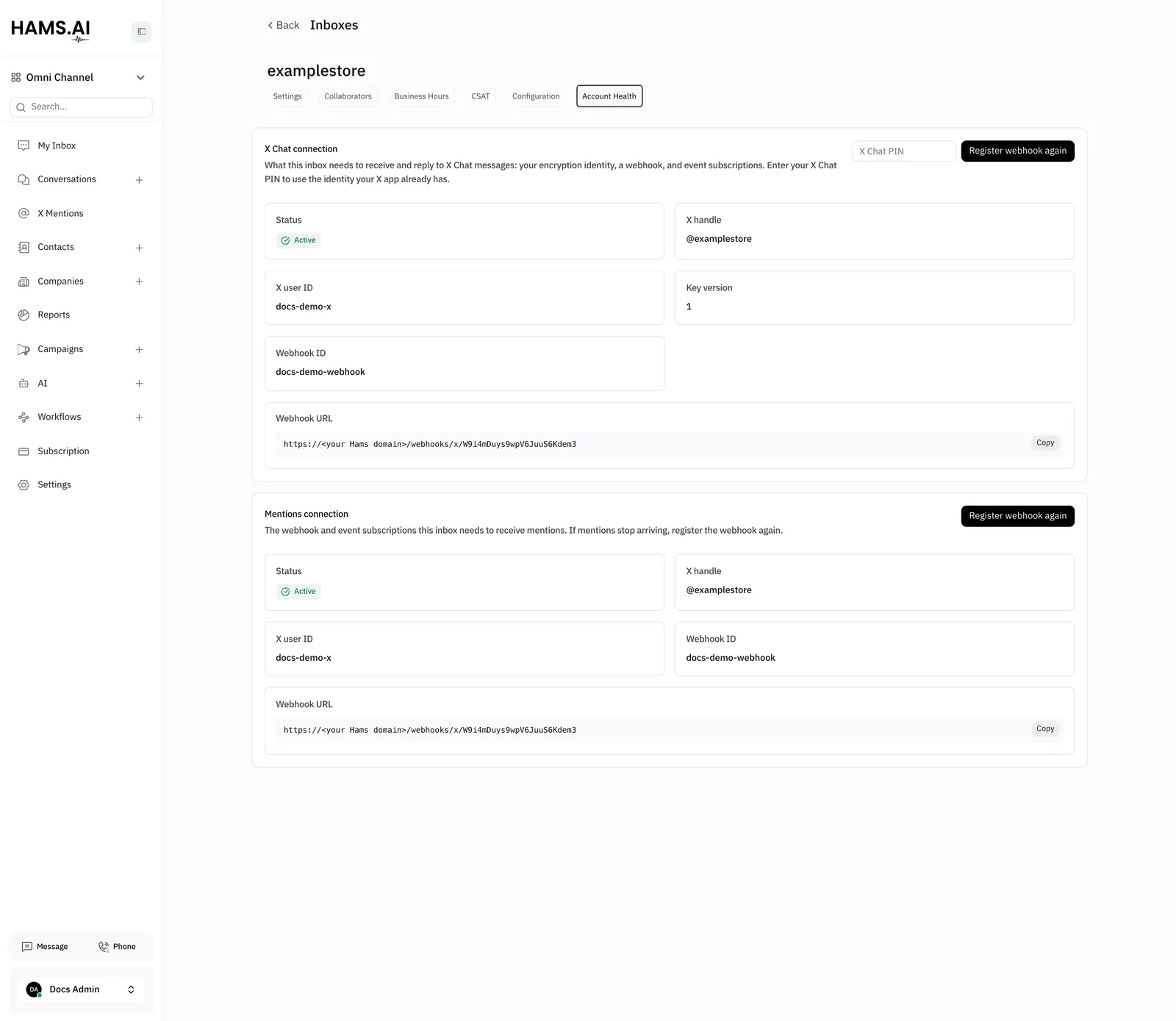
The Account Health tab shows the state of the connection between the inbox and X. It has 1 box for each feature that is on.
X Chat connection
The X Chat connection box shows what the inbox needs to get and send direct messages: the encryption identity, the webhook, and the event subscriptions.
The inbox gets and sends direct messages only when the status is Active.
To finish the setup, enter the PIN in the X Chat PIN field. Then click Finish setup. When the setup is complete, the dashboard shows This inbox is active and receiving X Chat messages.
If you reset your X Chat PIN in the X app, the inbox can stop. To fix it, enter the new PIN. Then click Register webhook again. The system gets the encryption identity again and checks the webhook and the subscriptions.
Mentions connection
The Mentions connection box shows the webhook and the event subscriptions that the inbox needs to get mentions. It has the fields Status, X handle, X user ID, Webhook ID, and Webhook URL. The status is Active or Webhook not registered.
If mentions stop, click Register webhook again. When the registration is complete, the dashboard shows Webhook registered. This inbox is receiving mentions. If the registration fails, the dashboard shows 1 of these messages:
- Your X developer account has used all its webhooks. Connect this inbox with the same X app as your X Chat inbox so they can share one, or delete unused webhooks in the X Developer Console.
- Your X developer account has reached its subscription limit. Remove unused subscriptions in the X Developer Console, or upgrade your X plan.
- X is limiting requests right now. Try again in a few minutes.
Reconnect the inbox
The system checks the access token of each X inbox every 5 minutes. It gets a new token from X before the old token expires. An inbox that works does not need a new connection.
X rejects the access of the inbox when, for example, someone removes the access of the app in the X account. X also rejects it when someone changes the permissions or the keys of the app.
If X rejects the access of the inbox 1 time, the inbox stops. It gets no new messages or mentions, and it cannot send replies. The Configuration tab then shows This X account needs to be reconnected. Messages, mentions and replies are paused until you reconnect.
To reconnect, click Reconnect on the Configuration tab. The X authorization page opens. You do not enter the keys again, because the X app keeps them. If X Chat is on and its status is Not connected, enter the X Chat PIN first. Sign in with the same X account and authorize the app. The system updates the inbox that you have and does not add a new inbox.
When the access token of the inbox expires, X keeps the events of the account. After the system gets a new token, it asks X to send these events again. X sends again only the events of the last 24 hours.
Direct messages
When X Chat is on, X sends each chat event to the inbox when it occurs. The system groups the messages of 1 X conversation into 1 conversation:
- The first message of a person starts a new conversation. The person becomes a contact, with the X name, the X username, and the avatar of the person.
- The next messages of the same X conversation go to the same conversation.
- Messages that you send from the X app show as outgoing messages in the conversation.
X encrypts these messages, and the system decrypts them for you. Images, GIFs, videos, audio, and files in a message show as attachments.
The system makes a message only from a text message event. It does not show reactions, edits, read receipts, or other chat events.
Message requests
A person who does not have X Chat can also send a direct message to your account. X sends this message as a message request, without encryption. The system adds it to the conversation of that person. A message request is text only.
When you reply, the system tries to open an encrypted chat with the person. If the person has X Chat, the reply goes as an encrypted message. The conversation stays the same. If the person does not have X Chat, the reply goes as a plain direct message, text only.
Reply to a direct message
Type the reply in the reply box. Then click Send. The system sends the reply as a direct message on X.
You can attach files and record audio. Each attachment can be up to 15 MB. If your installation sets a lower limit, the lower limit applies. Only an encrypted chat can send attachments. A plain direct message sends only the text of the reply. If the reply has no text, the message shows Failed to send.
A private note stays in Hams. The system does not send it on X.
You can reply only in a conversation where the system got at least 1 message. You cannot start a new conversation from the dashboard.
If a reply fails, the message shows Failed to send. Put the pointer on the warning icon to see the reason. The system does not send a failed reply again automatically, because X bills each message. To send it again, click Send again (the retry icon) next to the message. The retry icon shows for 1 day after the message.
Costs
X bills your X developer account, not Hams. The connect form and the Configuration tab show X bills this channel by usage. X charges for each message or mention that the inbox gets and for each reply that it sends. A reply with a link costs more. Before agents reply, set a maximum cost for your app in the X developer console.
What the X inbox does not support
- Group chats. The system gets only one-to-one direct messages.
- New direct messages from the dashboard. The conversation must start on X first.
- Reactions, edits, and read receipts.
- Attachments in a reply to a mention. A reply to a mention is text only.
- Mentions in the conversation list. Mentions show only in the X Mentions view.