

Post-chat analysis
Post-chat analysis reads each closed conversation cycle. It records how the cycle ended for the customer, the mood of the customer, why the customer wrote, a short summary, and labels. Analysis profiles tell the system which conversations to analyze and how.
Post-chat analysis is off by default. Hams support turns on Post-chat Analysis for your account. The AI menu in the sidebar shows only when Workflows + Agent is also on. Only administrators can manage analysis profiles and start an analysis. All users who can see a cycle can see its analysis result.
How the analysis works
- A cycle closes when a person, the AI agent, or the system resolves the conversation.
- Approximately 5 seconds later, the system finds the first profile that is on and matches the conversation. It checks the profiles from the top of the list to the bottom.
- The system sends the messages of the cycle for analysis. The result shows when it is ready.
The system does not analyze a cycle in these cases:
- No profile that is on matches the conversation. The drawer of the cycle shows Not analysed: no enabled profile matched this conversation.
- The customer sent no messages in the cycle. The result shows Not analysed: the customer sent no messages in this cycle.
- Post-chat analysis was off for your account when the cycle closed. The result shows nothing.
- Hams support turned off post-chat analysis after the cycle closed and before the analysis ran. The result shows Not analysed: post-chat analysis was turned off before this conversation was analysed.
- The system closed the cycle later because the cycle stayed open after the resolve. See How a cycle starts and ends.
If no profile matched, or the cycle closed without an analysis, an administrator can start the analysis manually. See Run the analysis again. A manual start does not help if the customer sent no messages.
If an analysis gets no result, the system sends the cycle again. It does this up to 2 times. If there is still no result, the result shows The analysis failed. An administrator can run the analysis again. See Run the analysis again.
The system checks the profile conditions when the analysis runs, not when the cycle closes. If the conversation changes between the two times, a different profile can match.
Result fields
The outcome and the sentiment use these API values: resolved, unresolved, escalated, customer_silent, and very_negative, negative, neutral, positive, very_positive.
- Escalated means that the conversation went to a human agent or another team and did not end in this cycle.
- If the outcome is Customer went silent, the system does not show the sentiment at the end.
- The summary and the contact reason use the language of the profile.
- If a conversation is very long, the system analyzes only its beginning and its end. The result then shows Long conversation: only its beginning and end were analysed.
Analysis profiles
A profile sets which conversations to analyze, which labels the analysis can use, what to do with the labels, and the language of the result. To open the profiles, click AI in the sidebar. Then click Analysis profiles. The page opens at /app/accounts/{account_id}/hams-agent/analysis.
If Workflows + Agent is off for your account, the sidebar has no AI menu. Open /app/accounts/{account_id}/hams-agent/analysis in your browser. In this path, {account_id} is the number of your account in the dashboard URL.
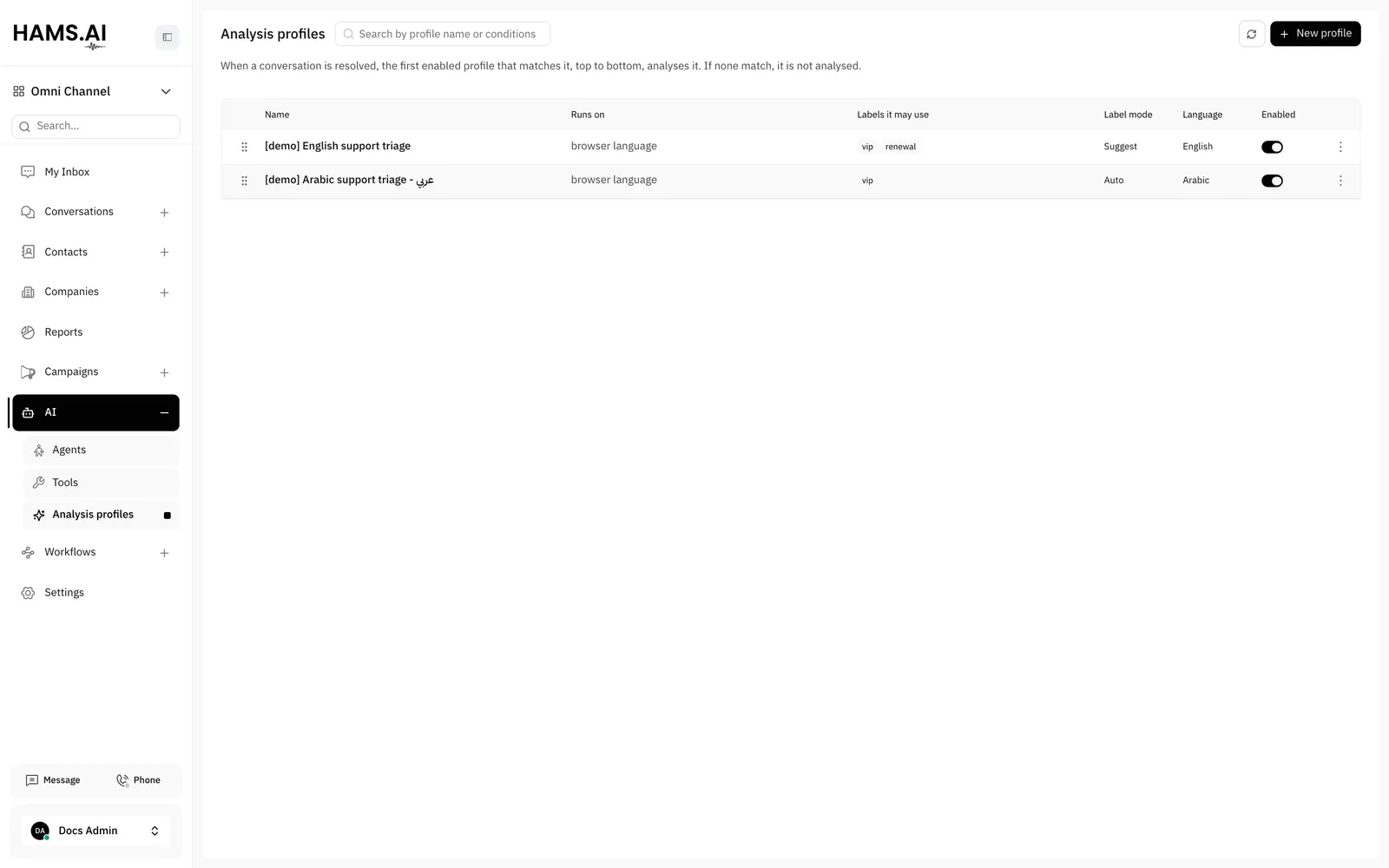
The list has these columns: Name, Runs on, Labels it may use, Label mode, Language, and Enabled. A profile with no conditions shows Catch-all and runs on Every resolved conversation.
The order of the list is the match order. To change the order, drag a profile by its handle. The system saves the new order. You cannot drag a profile while you search the list.
If a catch-all profile is on and is above a profile, the lower profile shows Never runs: a catch-all profile above it matches first. Move the catch-all profile to the bottom of the list.
To turn a profile on or off, use its Enabled switch. The actions menu of each profile has Edit, Duplicate, and Delete. If you delete a profile, the system keeps the results that the profile already gave.
Create a profile
Open the profiles
Click AI in the sidebar. Click Analysis profiles. If the sidebar has no AI menu, open the page from its URL.
Set the conditions
Under Analyse conversations when, click Add condition. Select an attribute, an operator, and a value. If necessary, add more conditions.
Set the labels
Under Labels the analysis may use, click Add a label. Select the labels. If you add no label, the analysis can use all labels of the account.
The conditions work like the conditions of a workflow. They use the conversation attributes, for example the inbox, the team, or a label, and some contact attributes. The AND and OR operators join the conditions. If a profile has no conditions, it matches all resolved conversations.
The default values of a new profile are Apply automatically and Arabic. The Enabled switch of a new profile is on.
Label modes
Where you see the results
- Conversation sidebar: each closed cycle in the Conversation Cycles section shows its outcome. A cycle with an analysis in progress shows Analysing. A failed cycle shows Failed. See Conversation cycles.
- Cycle drawer: the Analysis tab shows the profile, the summary, the Sentiment at the start and the end, the Contact reason, and the labels. The drawer opens from the conversation sidebar and from the conversation log.
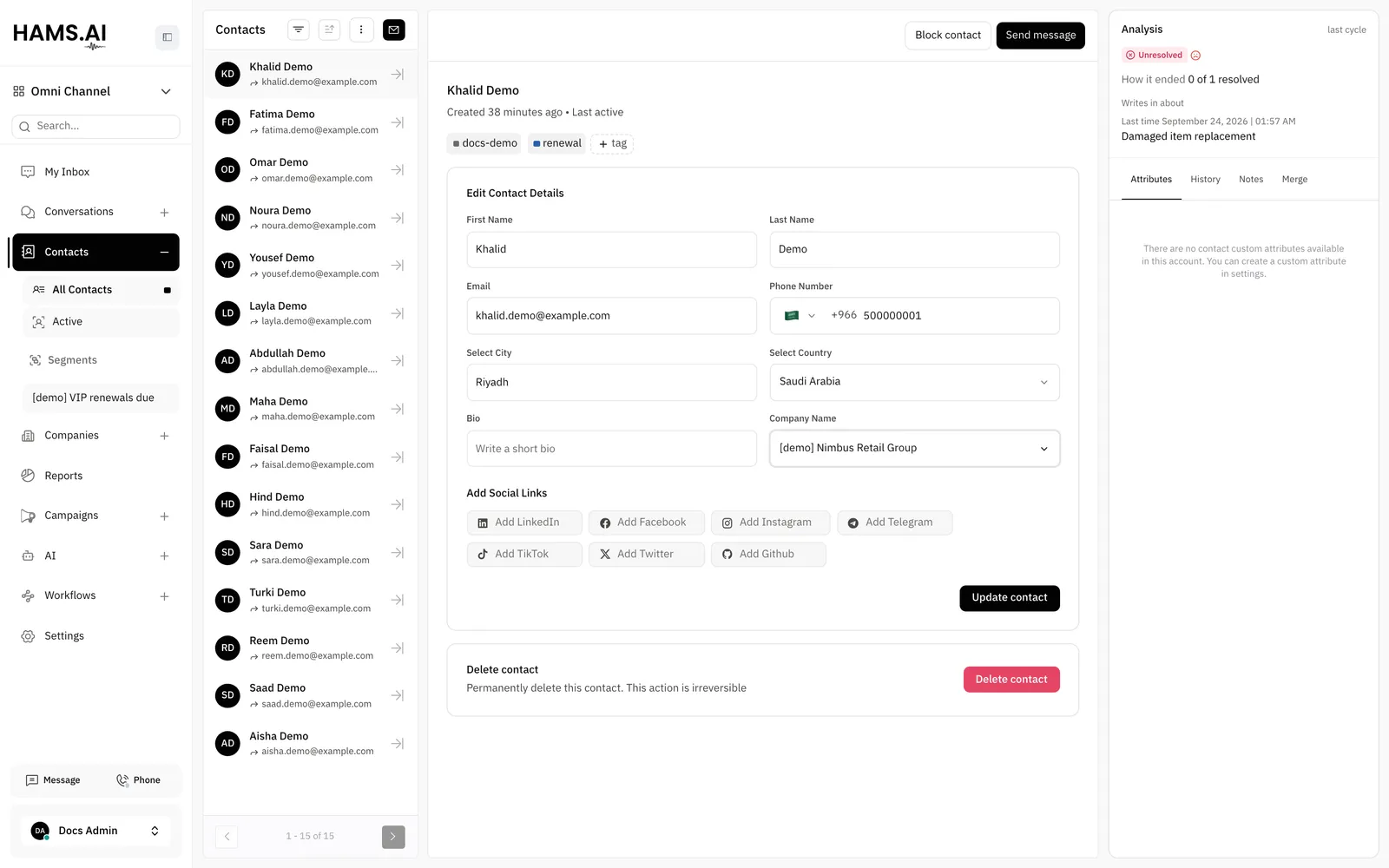
- Contact details: the Analysis panel shows the outcome and the end mood of the last 3 analyzed cycles of the contact. It shows how many analyzed cycles of the contact ended as resolved. It shows the contact reason of each recent cycle, with a link to its conversation. When 3 recent cycles exist, it also shows the most frequent mood at the end. The panel shows only when the contact has an analyzed cycle.
- Conversation log: the table has the Profile, Outcome, Sentiment, and Contact reason columns. The Analysis and profile filters narrow the table. The Analysed card shows the percentage of closed cycles with a result. See Conversation log.
The conversation log also has these analysis charts:
The charts count only the cycles that you can see. For an agent, these are the cycles of their inboxes and their teams.
Apply suggested labels
If the profile mode is Suggest, the Analysis tab shows Suggested labels. Click Apply next to a label to add it to the conversation. A label that the conversation already has shows no Apply button. If 2 or more suggested labels are not on the conversation, click Apply all to add them all. An applied label shows a check mark.
If the profile mode is Apply automatically, the tab shows Labels added automatically. Click a label to see the conversations with that label.
Run the analysis again
Only administrators can start an analysis. On the Analysis tab of the cycle drawer, click Rerun. If the cycle has no result, click Analyse. In the conversation log, you can also use the actions menu of a row.
The new result replaces the current result. Labels that an earlier result applied stay on the conversation. If the profile applies labels automatically, the system adds the new labels again.
You cannot start an analysis in these cases:
- The cycle is open.
- An analysis of the cycle is in progress.
- No profile is on. The tooltip of the button shows Turn on a profile to rerun the analysis.
If an analysis fails, the result shows The analysis failed. Click Rerun to try again.