

Teams
A team is a named group of agents, for example Sales or Support. You assign a conversation to a team, and the agents of the team handle it. An agent can be a member of more than 1 team. A team can also assign its conversations to its own members by itself.
Only administrators can open the Teams settings page and create, change, or delete a team. All agents can see the teams in the lists where they assign a conversation. An agent sees only the conversations of the inboxes and teams of that agent.
In this page, {account_id} is the number of your account in the dashboard URL.
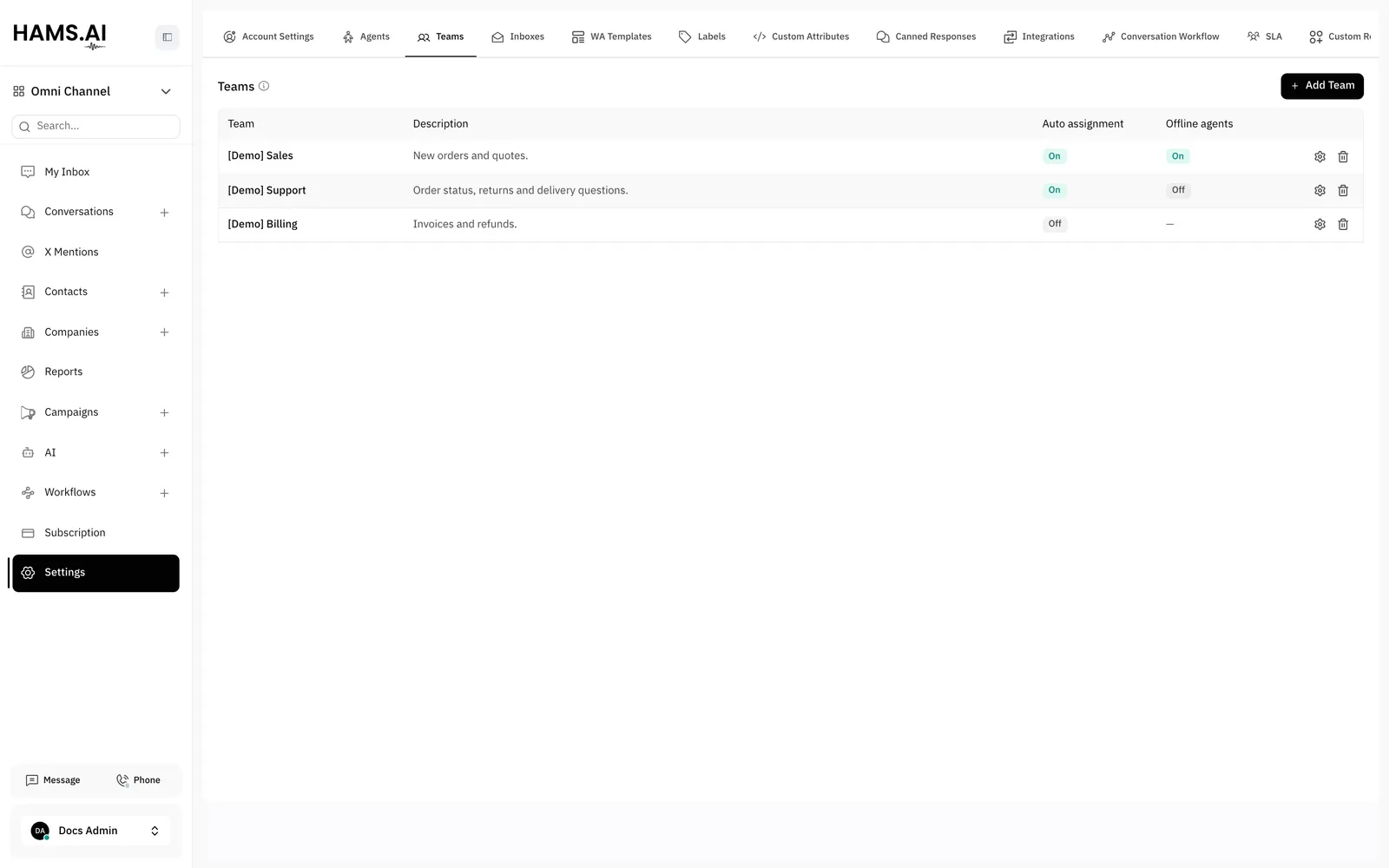
The Teams page
Open Settings > Teams at /app/accounts/{account_id}/settings?tab=teams. The page shows 1 row for each team. Click Add Team at the top to create a team. If the account has no team, the page shows No Teams and a Create Team button.
Create a team
Open the form
Click Add Team. The Create Team panel opens. It has 3 steps: Create, Add Agents, and Finish.
You must select at least 1 agent. The Next button stays off until you select an agent.
Edit a team
Click the Edit team icon in the row of the team. The panel has 3 steps: Team details, Edit Agents, and Finish. The first step has the same fields as the create form. The second step shows the current members. Select or clear agents, then click Next. The panel shows Team updated successfully!. Click Done.
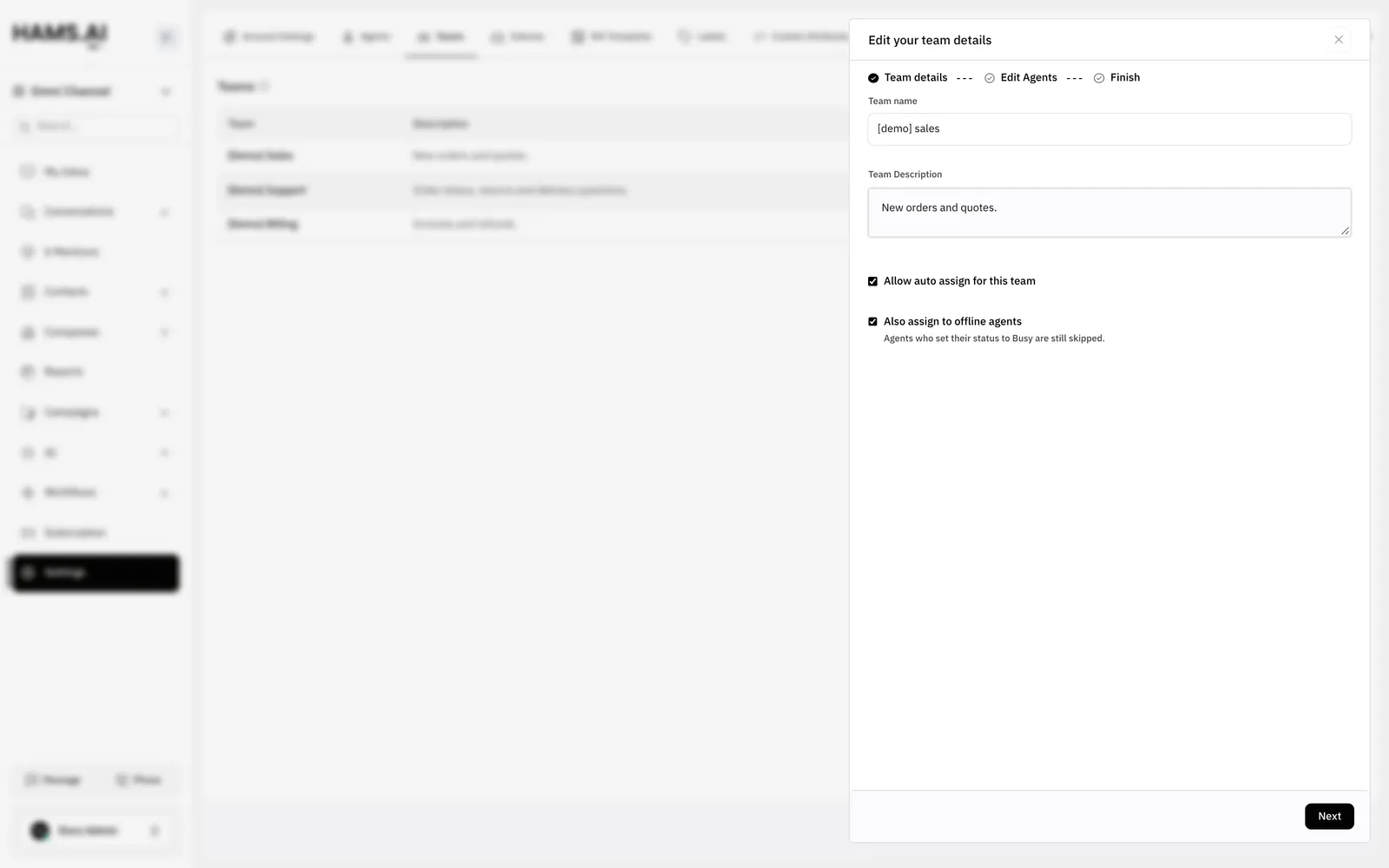
The first step of the create form and of the edit form has these fields:
Delete a team
Click the Delete icon in the row of the team. Type the team name to confirm. Click Delete.
Do not delete a team if its conversations must keep the team. If you delete a team, the system removes the team from all conversations of that team. The conversations stay open and keep their agents.
How conversations get a team
A conversation has no team until someone or something sets one. A conversation can have 1 team at a time. These actions set the team:
- An agent selects a team with Assign team in the conversation details.
- An agent selects many conversations in the list and assigns them to 1 team.
- An automation rule runs the action Assign a Team.
- A workflow runs the action Assign a team.
- Your own system sends a team through the developer API.
Each change adds an activity message to the conversation.
When the team of a conversation changes, the system checks the agent of the conversation. If that agent is not a member of the new team, the system removes the agent. If the conversation then has no agent and the team has auto assignment, the system picks a member. The next section explains the rule.
How a team assigns conversations
The settings of the team and the settings of the inbox work together. A team assigns a conversation to a member only when all of these are true:
- Allow auto assign for this team is on.
- The inbox has Enable auto assignment on. See Inboxes and channels.
- The conversation is open and has no agent.
The system picks from the agents who are members of both the team and the inbox. It picks 1 agent at a time in turn, so each member gets a similar number of conversations. If the team has auto assignment off, the system does not assign the conversation to anyone. An agent or an administrator must assign it.
Which agents the system can pick
The availability of the agent decides who the system can pick. An agent sets the Availability in the profile settings: Online, Busy, or Offline.
A member counts as busy when the status of the member is Busy. The system never picks a busy member, also when Also assign to offline agents is on. An agent can set Busy to stop new conversations. A member counts as offline when the status is Offline. A member also counts as offline when Mark offline automatically is on and the dashboard is not open.
If the system cannot pick a member, the conversation stays without an agent.