

Telegram
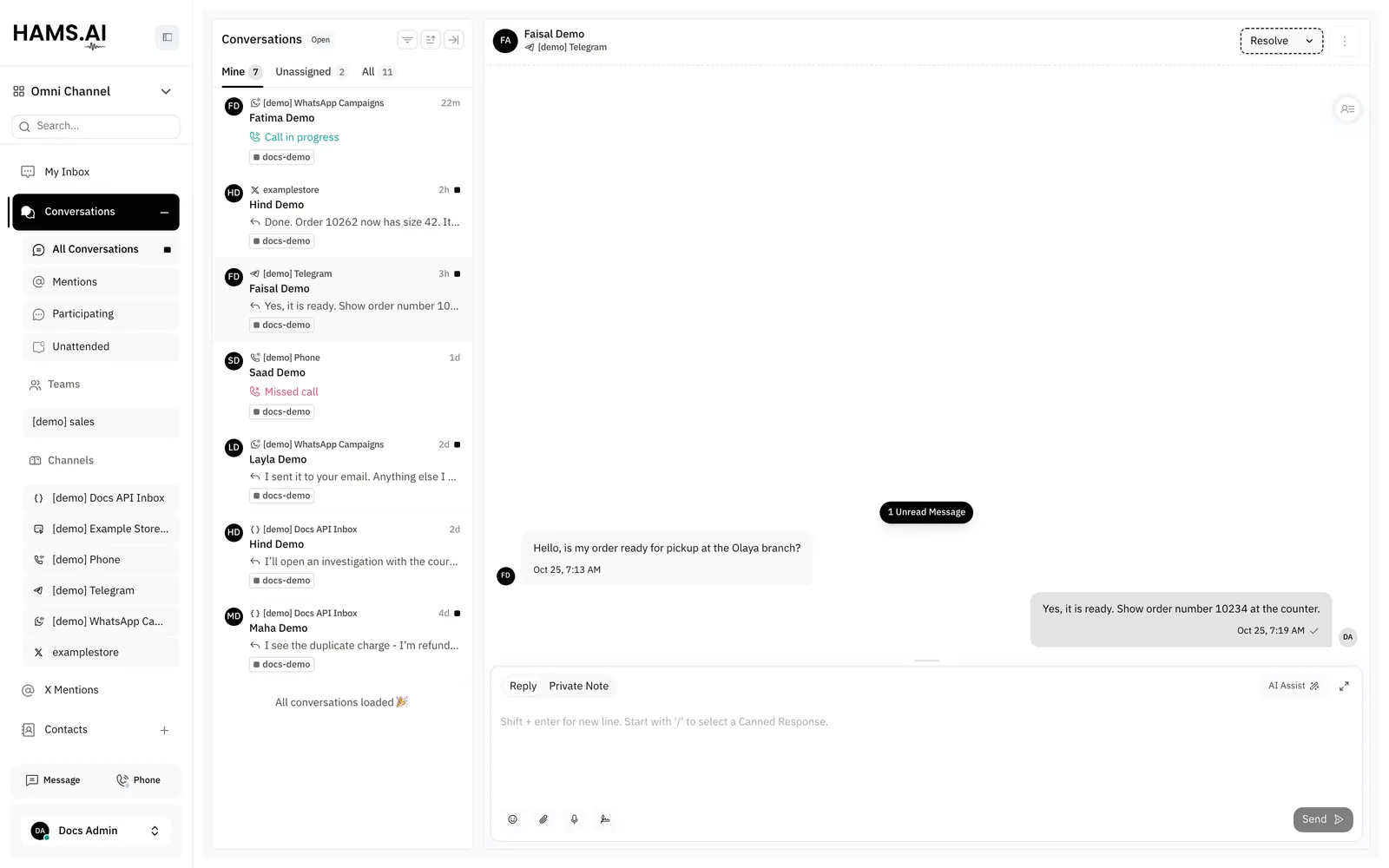
The Telegram inbox connects 1 Telegram bot to Hams. A person who sends a message to the bot starts a conversation. An agent replies from the usual reply box, and the reply shows in the Telegram chat as a message from the bot. You create the bot in Telegram. Hams needs only the token of the bot. See Inboxes and channels.
Only administrators can add the inbox. No Hams support switch gates the Telegram channel. Agents of the inbox can read and reply to its conversations.
In this page, {account_id} is the number of your account in the dashboard URL.
Before you start
You need a Telegram account and a bot token. Create the bot in Telegram with BotFather, the bot that makes bots.
- In Telegram, open a chat with @BotFather.
- Send the command
/newbot. - Enter a name for the bot. Then enter a username that ends in
bot. - Copy the token that BotFather sends. The token looks like
123456789:AAExampleTokenFromBotFather.
Keep the token secret. A person who has the token controls the bot. To get the token again, send /token to BotFather and select the bot.
Add the inbox
Open the inboxes
Open Settings > Inboxes. The page is at /app/accounts/{account_id}/settings?tab=inboxes.
Enter the bot token
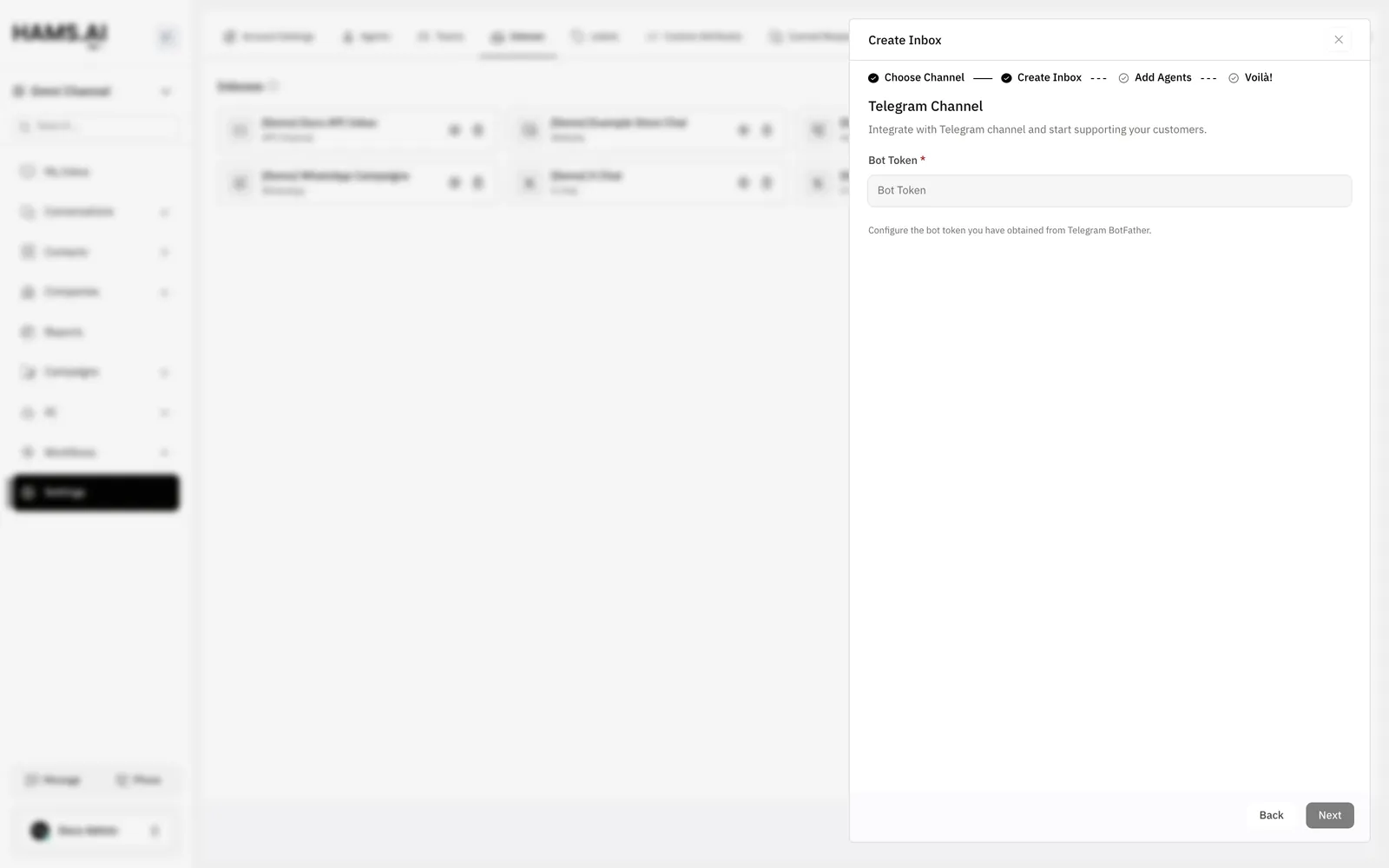
In Bot Token, paste the token from BotFather. You cannot leave the field empty. The Next button stays off until the field has a value.
Create the inbox
Click Next. Hams checks the token with Telegram and creates the inbox. If the token is not valid, an error shows and Hams does not create the inbox.
The form has no field for the name of the inbox. Hams names the inbox with the username of the bot. You can change the name later on the Settings tab.
Each bot token can belong to only 1 inbox. If another inbox already uses the token, Hams does not create the inbox.
What Hams does with the token
When you create the inbox, Hams registers itself with Telegram as the receiver of the messages for your bot. Telegram then sends each message for the bot to Hams as soon as a person writes it. You do not copy a URL or set up anything else in Telegram.
A Telegram bot can have only 1 receiver. When Hams registers, it replaces the receiver that the bot had before. If another tool uses the same bot, that tool gets no more messages.
Hams also reads the name, the username, and the profile photo of each person who writes to the bot. The contact gets the name and the Telegram username of the person. The contact gets the profile photo if the person has one.
Who can start a conversation
A bot cannot start a chat. A person must send the first message to the bot. Until then, the contact does not exist in Hams, and an agent cannot send a message.
Share the link of the bot, https://t.me/<bot username>, with your customers. You can also let them scan the QR code that shows at the end of the wizard.
After the first message, the conversation stays open to replies. Telegram has no time window like the 24-hour window of WhatsApp. No template is necessary.
Conversations
Each Telegram user is 1 contact. The Conversation Routing setting of the inbox decides what happens when a contact writes again:
- Reopen same conversation: Hams reopens the last conversation of the contact.
- Create new conversations: Hams adds a message to the open conversation. If the last conversation has the status resolved, Hams creates a new one.
Telegram sends a message again when a person edits it. Hams updates the text or the caption of the first message with the edit.
Messages that agents receive
Agents see these message types in the conversation:
When a person replies to a message in Telegram, Hams keeps the link to the message that the person quotes.
The bot can get a file only if Telegram lets the bot download it. Telegram limits the size of the files that a bot can download. For a larger file, the message arrives without the attachment.
Messages that agents send
An agent can send text and attachments from the reply box. Telegram shows these text formats: bold, italic, strikethrough, inline code, code blocks, quotes, and links.
Hams sends the text and the attachments as separate Telegram messages. Hams sends attachments in groups:
- Images and videos go together as 1 album.
- Audio files go together as 1 group.
- Each file goes as its own message.
The size limit of an attachment is the upload limit of your account. The default limit is 40 MB. Telegram can also refuse a file that is too large for a bot.
If Telegram refuses a message, the message shows as failed in the conversation. The message shows the error code and the reason that Telegram gave.
Before an AI agent replies, Telegram shows the status typing for the bot. Telegram shows this status for at most 5 seconds. If the reply takes longer, the status stops before the reply arrives.
Change or revoke the token
The dashboard has no field to change the token of an existing inbox. To use a new token, add a new Telegram inbox with the new token and delete the old inbox.
To revoke the token, send /revoke to BotFather and select the bot. Telegram then rejects the old token. Hams cannot send replies, and the new messages do not arrive. Telegram gives the bot a new token. To connect the bot again, add a new Telegram inbox with the new token.
Do not revoke the token of a bot that customers use before you add a new inbox. After the revoke, customers get no replies.
Not supported
- Group chats and supergroups. Hams ignores messages that people write in a group, and the bot does not answer them.
- Telegram channels.
- Messages that the bot starts. A person must write first.
- Message templates and the 24-hour window. Telegram has neither.
- More than 1 bot for each inbox, and the same bot in more than 1 inbox.
Telegram Business chats also work. In such a chat, the messages that the account owner writes in Telegram show as outgoing messages.