

X Mentions
The X Mentions view shows the public posts that mention your X accounts. The system groups the posts of 1 X conversation into 1 thread. Mentions do not become conversations in the conversation list. Agents read the threads, reply to a post, and mark each post as done in this view.
The Mentions feature of an X inbox sends the mentions to this view.
The X Mentions view shows only when Hams support turns on X Channel (Mentions + Chat) for your account. It also needs at least 1 X inbox with Mentions turned on. Administrators and agents can use the view. An agent sees only the posts of the X inboxes that the agent is a member of.
In this page, {account_id} is the number of your account in the dashboard URL.
Open the view
In the sidebar, click X Mentions. The view is at /app/accounts/{account_id}/x-mentions.
You can also click an X inbox under Channels in the sidebar. If the inbox has Mentions on and X Chat off, the X Mentions view opens with a filter for that inbox.
The X Mentions view is different from Mentions under Conversations. Mentions lists the conversations where a team member mentions you in a private note.
The view has 3 parts:
- The list of posts or threads, on the left.
- The thread of the selected post, with the reply box, in the middle.
- The contact of the selected post, on the right.
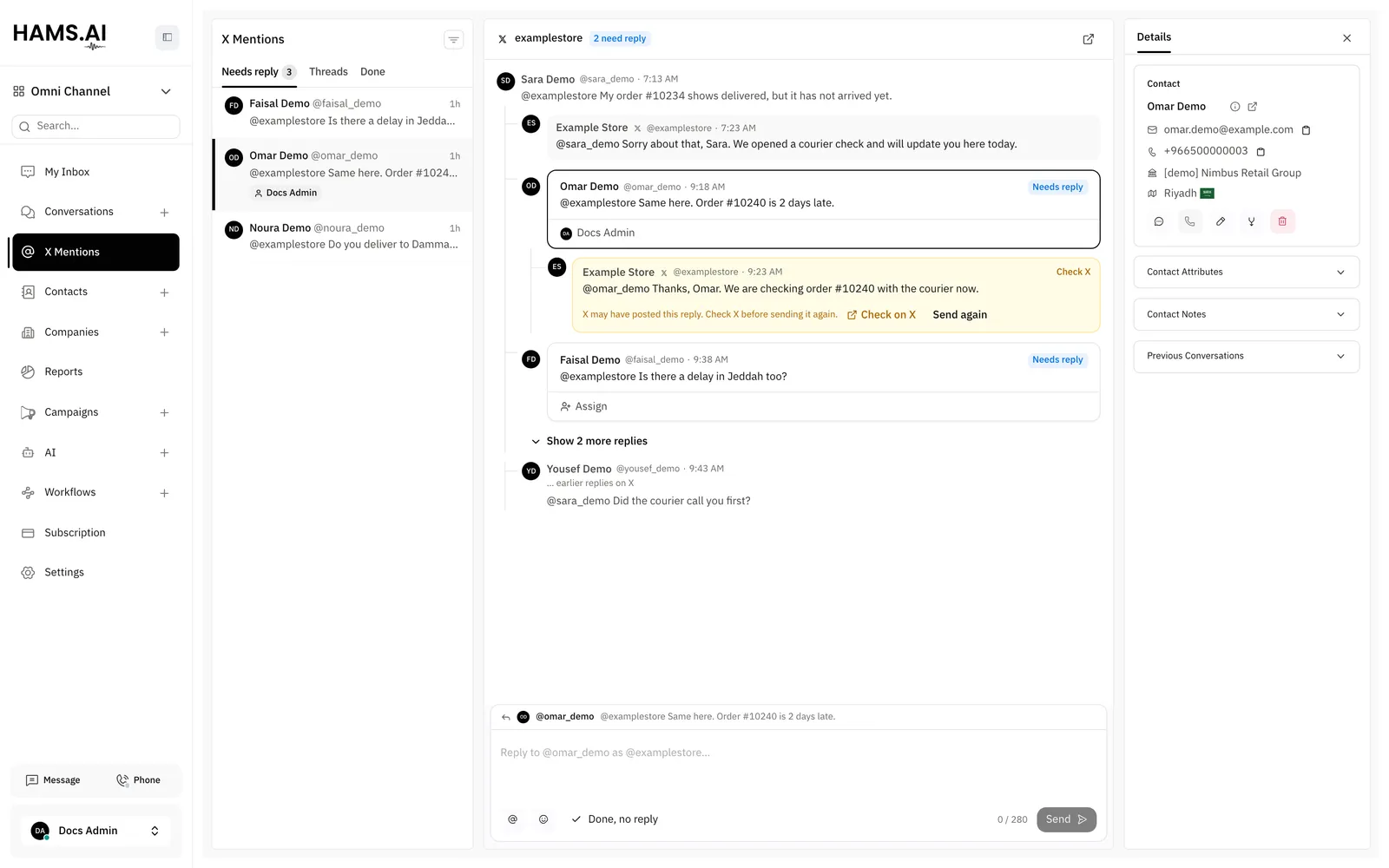
Tabs
The list has 3 tabs:
Click a post or a thread to open its thread. A post in the list shows its assigned agent, if it has one.
Threads
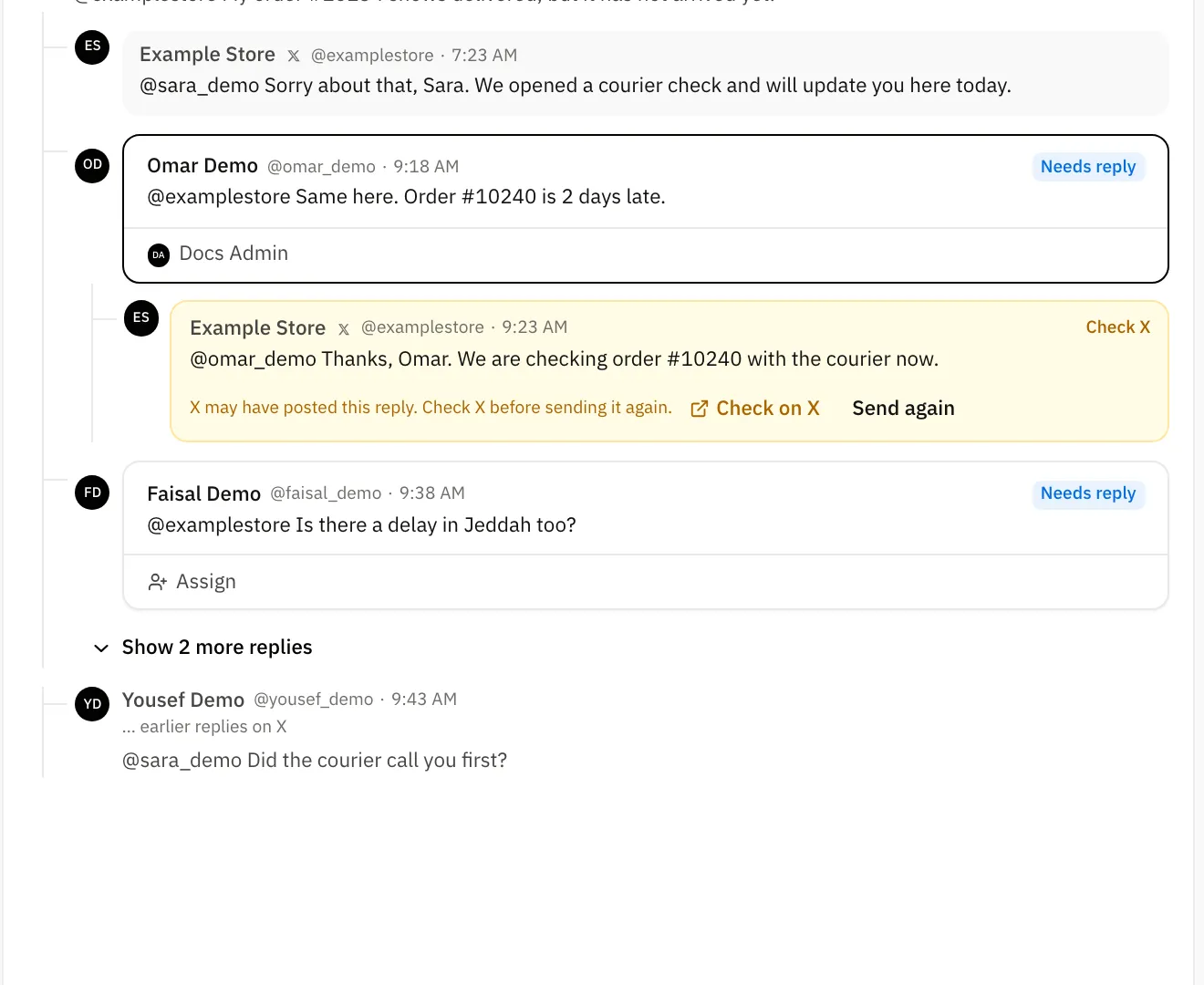
A thread is 1 X conversation in 1 inbox. It starts at the first post of the X conversation and shows the replies as a tree.
- Each post shows its author, the X username, and the time. Click the time to open the post on X.
- A post shows its first 3 replies. To see the other replies, click Show {count} more replies.
- The system gets only the parent and the first post of a thread from X. If a thread has older posts, the thread shows … earlier replies on X.
- If X does not return a post, the thread shows This post is no longer available on X.
- To open the full thread on X, click Open on X at the top of the thread.
The posts of your own X account show in the thread too, also when you posted them from the X app.
Posts in Arabic and in other right-to-left languages show from right to left. X usernames and times in these posts show from left to right.
Work state of a post
Each post from a customer has a work state. The state tells your team if the post needs an answer.
A mention that is part of a reply list on X does not count. The username must be in the text of the post.
When a reply to a post goes out, the system closes the post as done. This also occurs when someone replies from the X app.
Assign a post
A post that needs a reply has an Assign button. Click Assign, and then select an agent of the inbox. To remove the agent, click the name of the agent, and then click Unassign.
Close or reopen a post
To close a post with no reply, select the post. Then click Done, no reply in the reply box. The post moves to the Done tab.
To open a done post again, put the pointer on the post in the thread. Then click Reopen. The post moves back to the Needs reply tab.
Reply to a post
Select the post
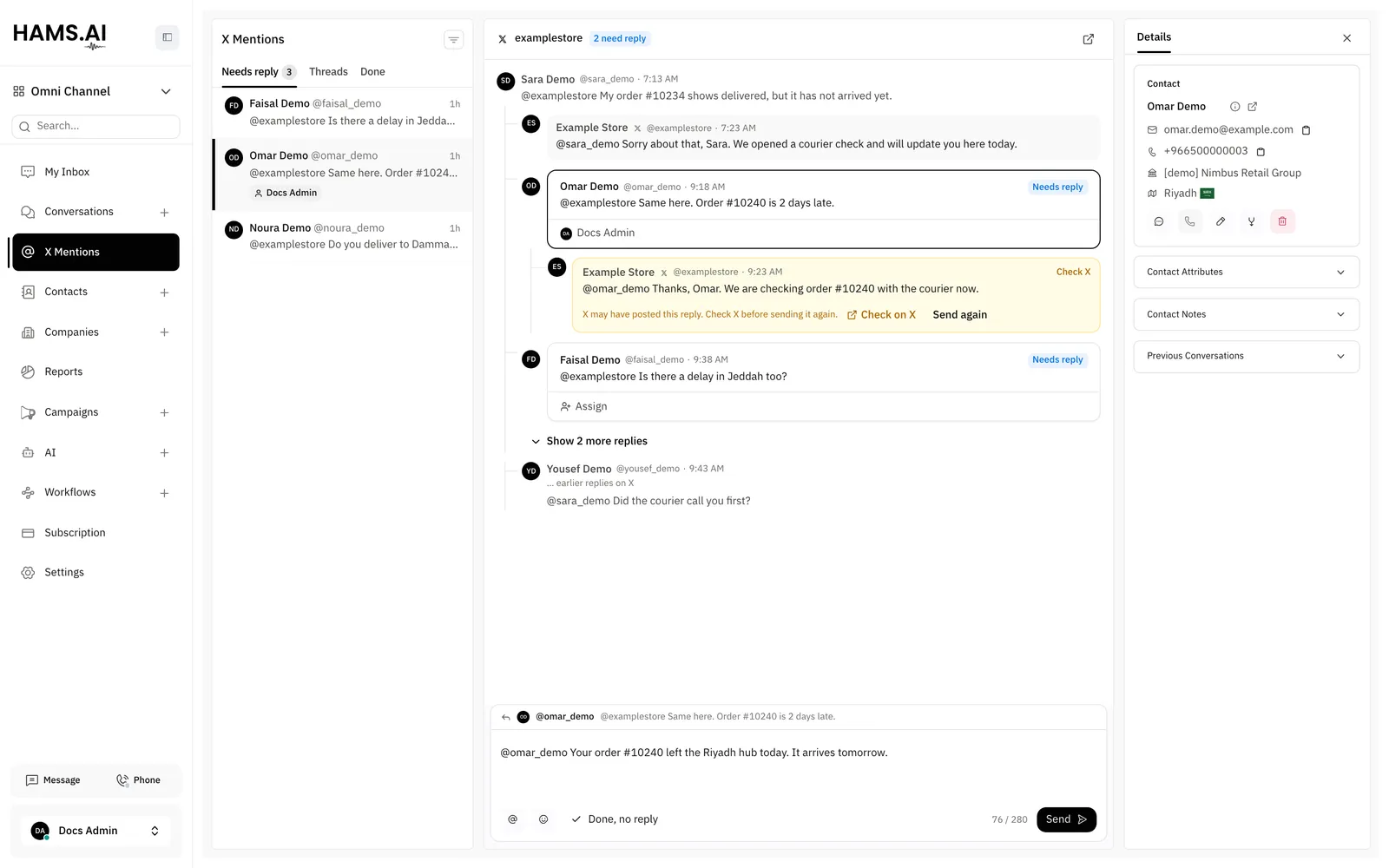
Click the post in the list or in the thread. The reply box shows the post that you reply to.
The system posts the reply on X as a reply to the selected post. Anyone on X can see it. The reply shows in the thread with your X account as its author.
Some things work differently from a conversation:
- A reply can have up to 280 characters. The reply box shows the count. If the reply is longer, you cannot send it.
- You cannot attach files or record audio. The reply is text only.
- The reply box has no private notes.
Reply by direct message
The author of a post can also have an X Chat conversation with your account. If you can open that conversation, the reply box shows Reply publicly and Reply by DM. Select Reply by DM, and then click Send. The post closes as done, and the X Chat conversation opens. Then reply in the conversation.
You cannot start a direct message from a post. The author must send a direct message to your account first. For direct messages, see X.
Delivery states
A reply from the X Mentions view goes to X in the background. The reply shows in the thread at the same time, with a delivery state:
The system does not send a reply again automatically. X bills each post, and a second post shows in public.
Do not click Send again on a Check X reply before you look at X. If X already posted the reply, a second reply shows in public.
When you click Send again on a Check X reply, the Send this reply again? dialog opens. Click Send again to confirm, or click Cancel.
How mentions arrive
X sends each new mention of your account to the inbox when it occurs. X also sends the posts of your own X account. The system waits 1 minute before it adds your own posts, so a reply from Hams does not show 2 times.
Replies in a thread do not always mention your account. Every 5 minutes, the system asks X for the new replies of each active thread. A thread is active when it has a post from the last 7 days. The system stops at 100 posts in 1 thread.
A thread shows at most its 500 newest posts.
Filter the list
To remove the filter, click the clear button next to X Mentions. The filter applies to all 3 tabs and to the count of Needs reply.