

Knowledge and documents
Without knowledge, an AI agent answers from the language model only. Then it can give wrong answers with confidence. Documents give the AI agent the facts of your business.
The AI agent is off by default. Hams support turns on the Workflows + Agent feature for your account. Only administrators can see AI in the sidebar and add or delete documents. Automatic refresh of documents is also off by default. Hams support can turn it on for your account.
How documents become knowledge
Each document belongs to 1 AI agent. After the system reads a document, it writes question and answer pairs from the content. These pairs are the FAQs of the AI agent. The AI agent searches the FAQs, not the full document. See FAQ and responses.
The system keeps a maximum of 200,000 characters from each source. It does not read the text after that point.
Add a source
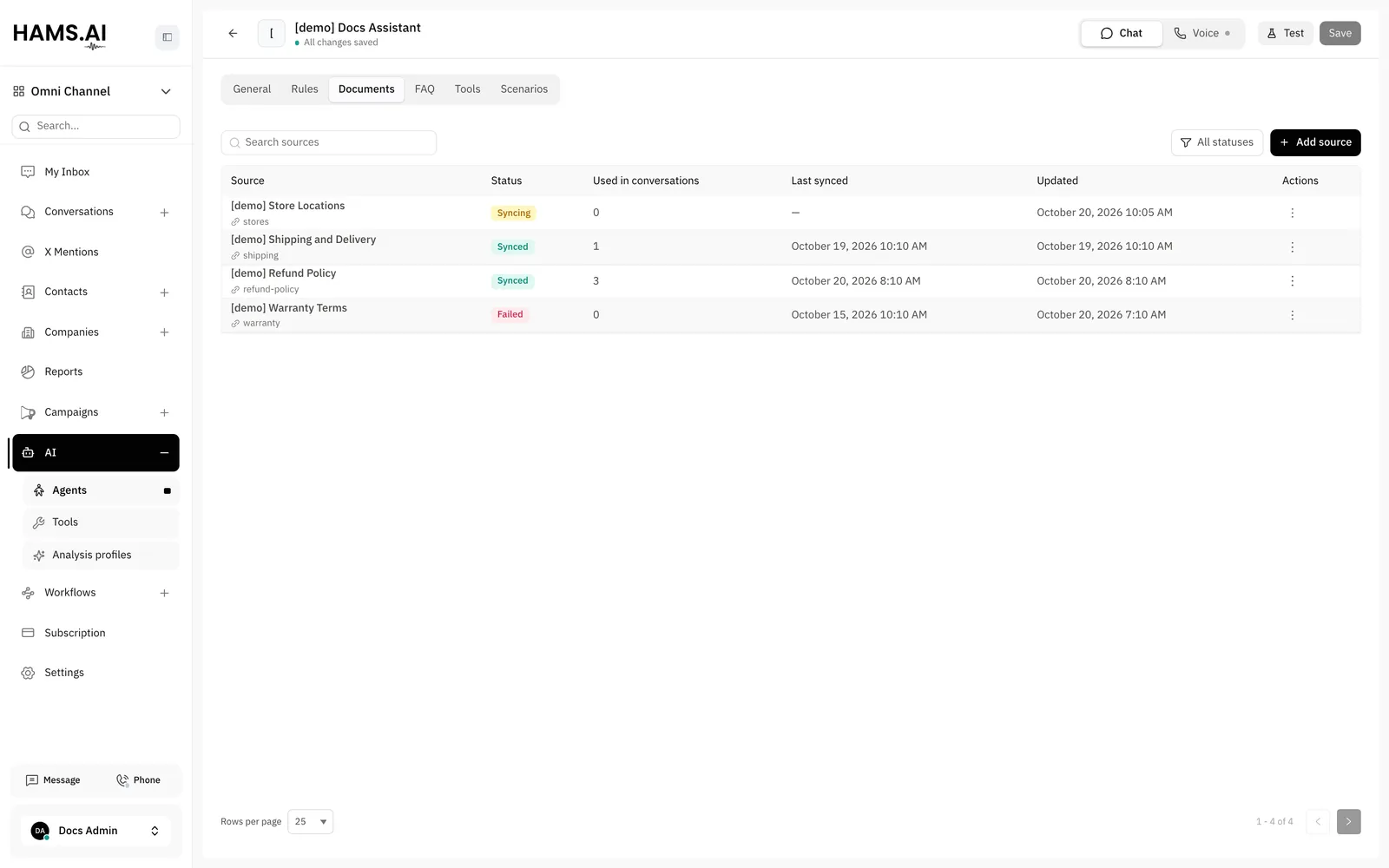
Open an AI agent. Click the Documents tab. You must save a new AI agent before you can use this tab. A source saves immediately. You do not click Save in the editor.
The system reads the source in the background. The FAQs come after the system reads the source.
Web pages
When you add a URL, the system adds the page. It also adds the pages that the page links to. Each page becomes a separate source in the list. The title of the page becomes the name of the source, also if you entered a name.
If the URL ends in .xml, the system reads it as a sitemap. It adds the pages that the sitemap lists. Use a sitemap to control which pages the AI agent learns.
Examine the list after the system adds the pages. Delete the sources that the AI agent does not need.
PDF files
A PDF file can be a maximum of 10 MB. The dialog accepts only PDF files. If you leave the name empty, the name of the file becomes the name of the source.
You cannot sync a PDF file again. Its actions menu does not show Sync now. To change the content of a PDF, delete the source. Then add the new file.
Document limit
Your plan sets the maximum number of documents for the account. Each page that the system adds from a site is 1 document. When the account reaches the limit, you cannot add more sources, and the system adds no more pages from a site. The tab can also show Document limit reached. Upgrade to continue using Captain AI.
The list of sources
To find a source, type its name or its URL in Search sources. To show only one status, click Filter. Then select a status. At the bottom of the list, select how many sources show on each page: 10, 25, or 50.
Keep the content current
A sync reads the page again. If the content changed, the system writes new FAQs from the new content. It keeps the FAQs that you edited. It replaces the other FAQs of the source.
A sync reads only the page of the source. It does not add new pages from your site. To add a new page, add it as a new source.
To sync a source now:
- Click the actions menu of the source.
- Click Sync now. The status changes to Syncing.
If a sync failed, the menu shows Retry sync.
Automatic refresh
When Hams support turns on automatic refresh, the system syncs each web page source on a schedule. The interval depends on the plan of your account. Then a change on your site gets to the AI agent without a new upload.
View the FAQs of a source
To see the FAQs that the system wrote from a source, click the actions menu of the source. Then click View related FAQs.
Delete a source
Do not delete a source that the AI agent still needs. When you delete a source, the system deletes all the FAQs of that source, also the FAQs that you edited.
- Click the actions menu of the source.
- Click Delete.
- Click Delete again in the dialog.