

The WhatsApp inbox connects a WhatsApp Business number to your account. Customers write to the number in their WhatsApp app, and each customer becomes a conversation in the inbox. An agent replies from the reply box, and the customer gets the reply in WhatsApp. You connect the number through Meta or through Twilio.
Only administrators can add a WhatsApp inbox, change its settings, and open the WA Templates tab of Settings. Agents of the inbox can read and reply to its conversations. The Quick setup with Meta provider shows only when the Hams installation has a Meta app for it. The Campaign pace tab shows only when Hams support turns on WhatsApp Campaign for your account. The Calls tab shows only when Hams support turns on Voice Channel for your account. The Call Center tab shows only when Hams support turns on Call Center and Voice Channel for your account.
In this page, {account_id} is the number of your account in the dashboard URL.
Before you start
Select 1 of the 3 providers. Each provider needs different items from you.
Quick setup with Meta connects the number through the Meta signup window. You need these items:
- A Facebook account with admin access to your Meta business account.
- A phone number for WhatsApp. Meta sets up the WhatsApp Business account and the number in the signup window.
WhatsApp Cloud connects a number that is already on the WhatsApp Business Platform. You need these items from your Meta app:
- The phone number, in international format with a
+sign, for example+966500000001. - The Phone number ID and the Business Account ID of the number. They are in the WhatsApp settings of your Meta developer app.
- An access token for the WhatsApp Cloud API. The access token must stay valid, so use a permanent token of a system user.
Twilio connects a WhatsApp sender of your Twilio account. You need these items:
- The Account SID and the Auth Token of your Twilio account.
- A Twilio phone number that Twilio approved as a WhatsApp sender.
A phone number can belong to only 1 WhatsApp inbox in Hams. If another inbox has the number, the system rejects the new inbox. The error message is “Channel already exists for this phone number”.
Add the inbox
Open the inboxes
Open Settings > Inboxes. The page is at /app/accounts/{account_id}/settings?tab=inboxes.
Select the provider
In WhatsApp Provider, select Quick setup with Meta, WhatsApp Cloud, or Twilio. The form shows the fields of that provider.
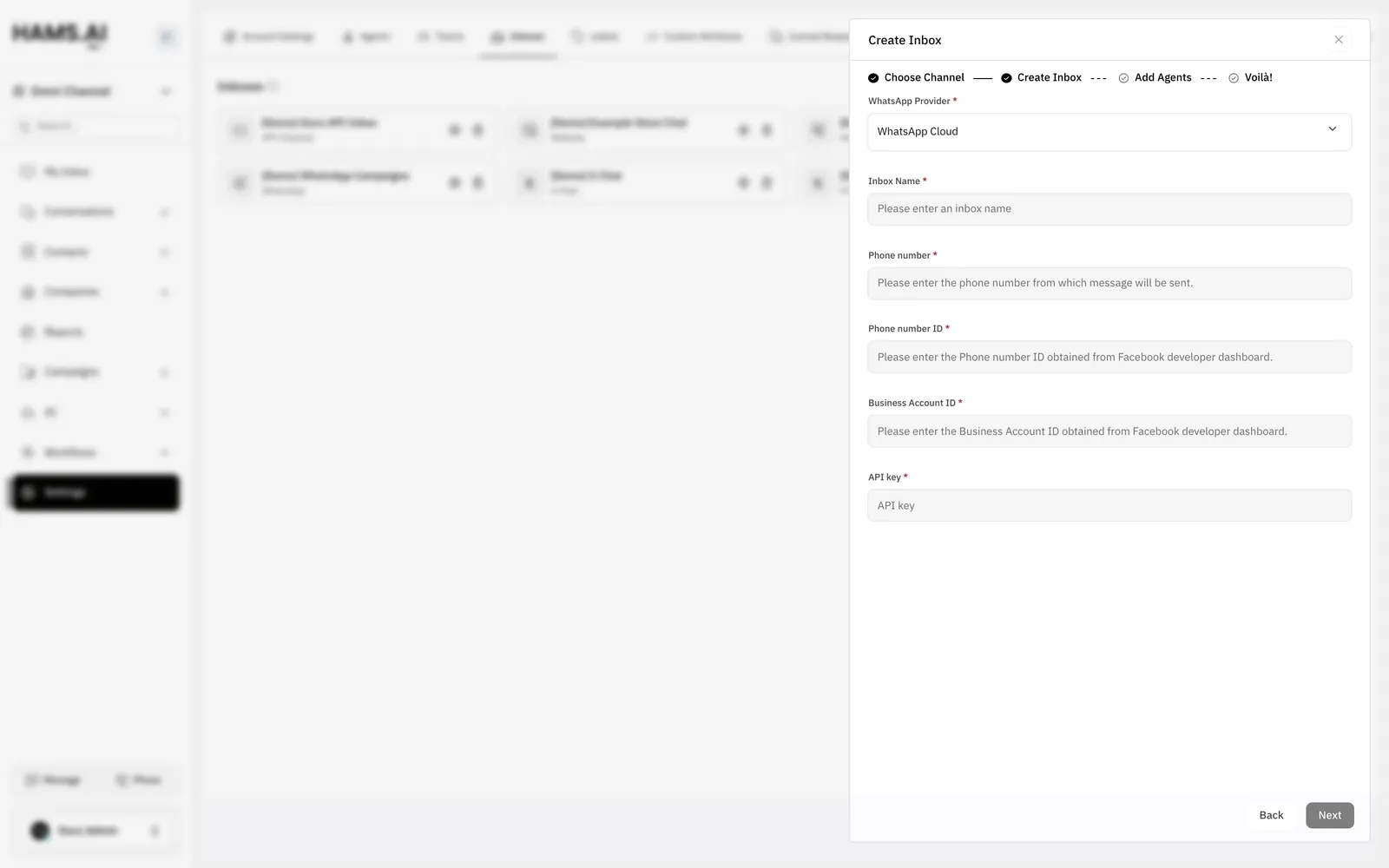
The Next button of the Add Agents step stays off until you select at least 1 agent. To change the agents later, use the Collaborators tab of the inbox.
Quick setup with Meta
WhatsApp Cloud
Twilio
This provider has no Inbox Name field. The system names the inbox after your business, for example “Example Store WhatsApp”.
Click Connect with WhatsApp Business. The Meta signup window opens. Sign in to Facebook, and complete the steps in the Meta window. In these steps, you select or create your business account and your WhatsApp number. Then the system makes the inbox and goes to the Add Agents step. You do not click Next at this step.
The system subscribes the number to messages for you, so you set no callback URL. If you close the Meta window, the dashboard shows WhatsApp Signup was cancelled.
The Meta window can also connect a number that you use in the WhatsApp Business app. If the window ends with no usable number, the dashboard shows “The Meta setup finished without a WhatsApp phone number that can be connected. Please run the setup again and add a phone number.”
If the number is already on the WhatsApp Business Platform, use the WhatsApp Cloud provider instead.
The Voilà! step also shows a QR code. Scan it with your phone to send a test message to the new inbox.
Settings
To open the settings, open Settings > Inboxes. Then click Settings on the WhatsApp inbox. This section covers only the tabs and fields of a WhatsApp inbox. For the tabs of all inboxes, see Inboxes and channels.
The Settings tab shows the provider of the inbox in API Provider. You cannot change the provider. A Quick setup with Meta inbox shows WhatsApp Cloud.
Configuration
The Configuration tab depends on the provider:
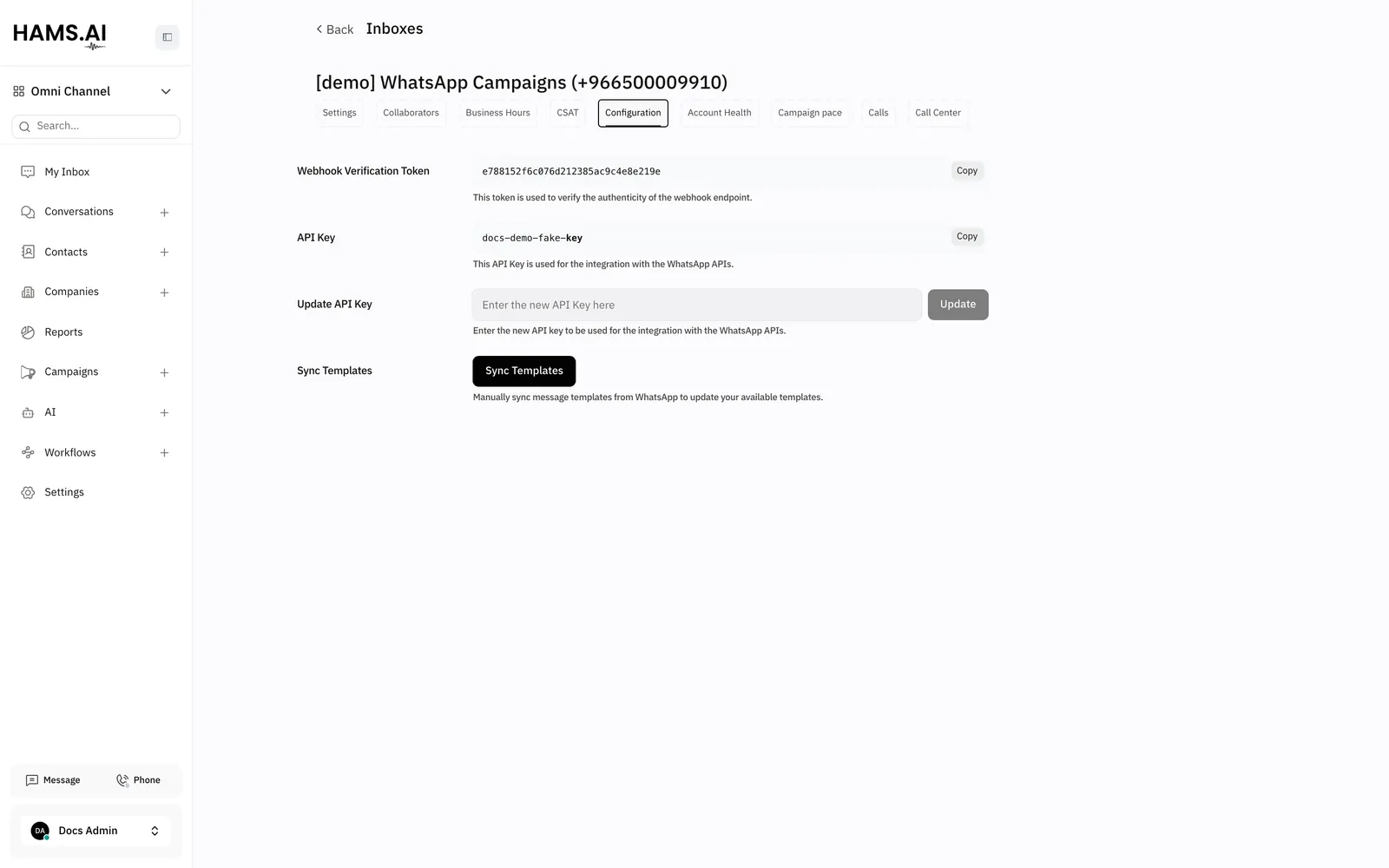
- WhatsApp Cloud: the Webhook Verification Token and the current API Key. To use a new access token, enter it in Update API Key. Then click Update.
- Quick setup with Meta: the WhatsApp Embedded Signup section. To connect the number again with new Meta permissions, click Reconfigure. The Meta window opens.
- Twilio: the Callback URL for your Twilio sender.
All providers also have Sync Templates. Click Sync Templates to get the templates from the provider again. The update can take a few minutes.
Account Health
The Account Health tab shows the status of the number at Meta. It has these fields: Display phone number, Business name, Display name status, Quality rating, Messaging limit tier, and Account mode. To change these values, click Go to Meta Business Manager.
The Webhook Configuration section shows if Meta sends the messages of the number to Hams. If it shows Webhook not configured or Webhook URL mismatch, the inbox does not get messages. Click Register Webhook to fix the subscription.
Calls
The Calls tab turns on WhatsApp calls for the number. Customers can then call the number from WhatsApp, and agents answer in the dashboard. See WhatsApp calls.
The fields under the switch show only when calls are on. Click Update to save the Call permission request message. If Meta has not added the number to the Calling API, the switch goes back to off and the dashboard shows an error. Ask Meta or your WhatsApp Business Solution Provider to add the number.
Call Center
The Call Center tab connects the number to Cloud Call Center. A Cloud Call Center number can be the same as the number of the inbox. Then the tab shows Receive Call Center calls on this number. Turn on the switch. Phone calls to that number then go into this inbox, in the same conversation as the messages of the customer.
Sometimes no Cloud Call Center number matches, or another inbox already gets its calls. Then the tab shows No Call Center number matches this inbox’s number, or another inbox already receives its calls. See Voice.
Campaign pace
The Campaign pace tab sets how fast WhatsApp campaigns send on the number. For the fields and the procedure, see Set the pace.
CSAT on WhatsApp
On a WhatsApp inbox, the CSAT tab sends the survey as a WhatsApp template. Enter the Message, the Button text, and the Language. When you save, the system makes the template and sends it to Meta for approval. The tab shows the status of the template, for example Pending WhatsApp approval or Approved by WhatsApp.
If you change the message, the button, or the language, the system deletes the old template and makes a new one. The new template needs approval again. If Hams support turns on Captain for your account, you can click Check utility fit to see if Meta can classify the message as Utility.
The 24-hour window
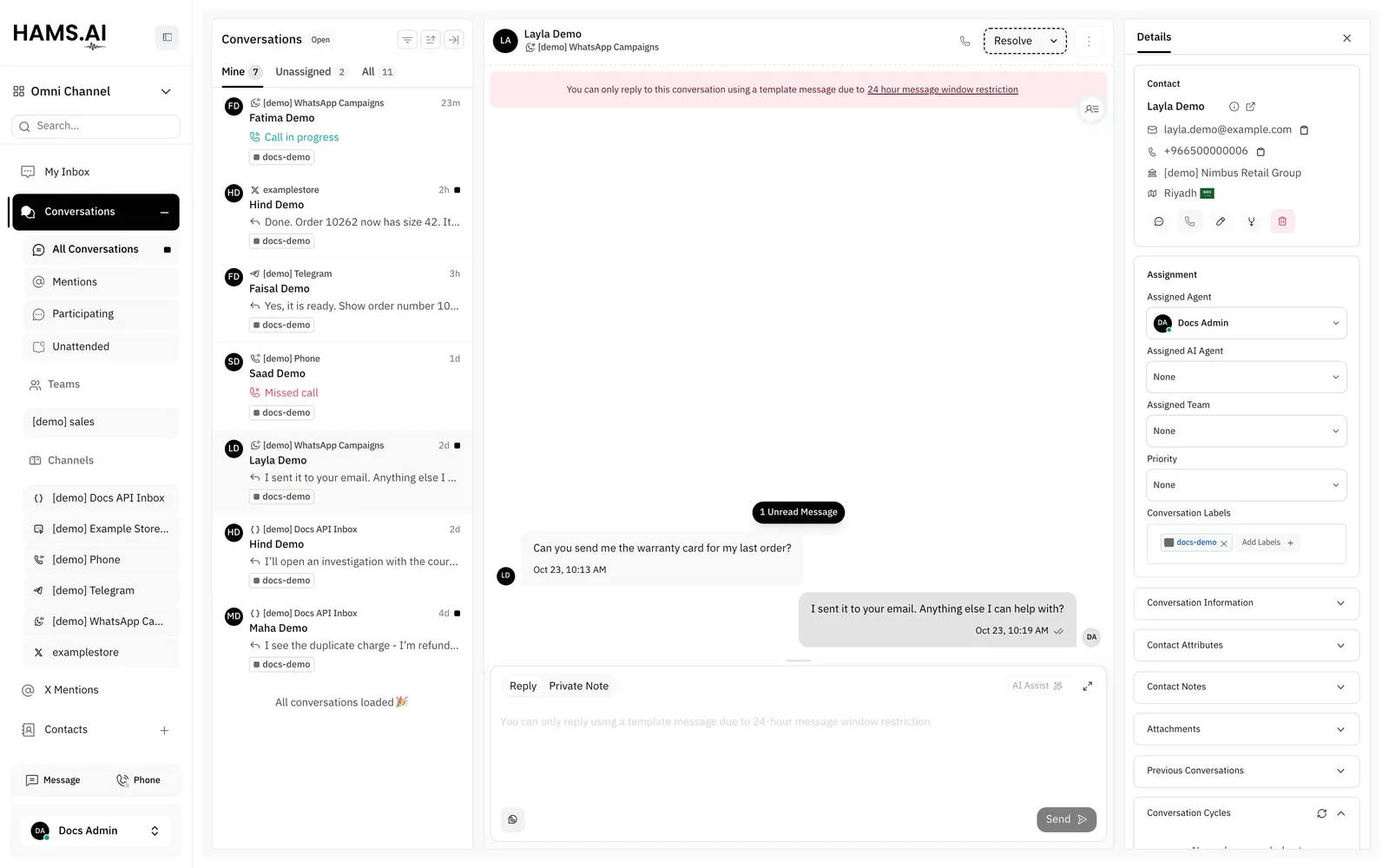
WhatsApp lets you send a message that is not a template only in the 24 hours after the last message of the customer. After 24 hours, you can send only an approved template. When the customer writes again, a new 24-hour window starts.
Outside the window, the conversation shows a banner. The banner says You can only reply to this conversation using a template message due to 24 hour message window restriction. The reply box does not accept text, and it shows You can only reply using a template message due to 24-hour message window restriction. You can still do these things:
- Send an approved template. See Templates.
- Write a private note.
An incoming WhatsApp call from the customer starts a new window. A phone call through Cloud Call Center does not start a window.
Templates
A template is a message that Meta approved before you send it. Use a template to write to a customer outside the 24-hour window, or to start a new conversation.
See all templates
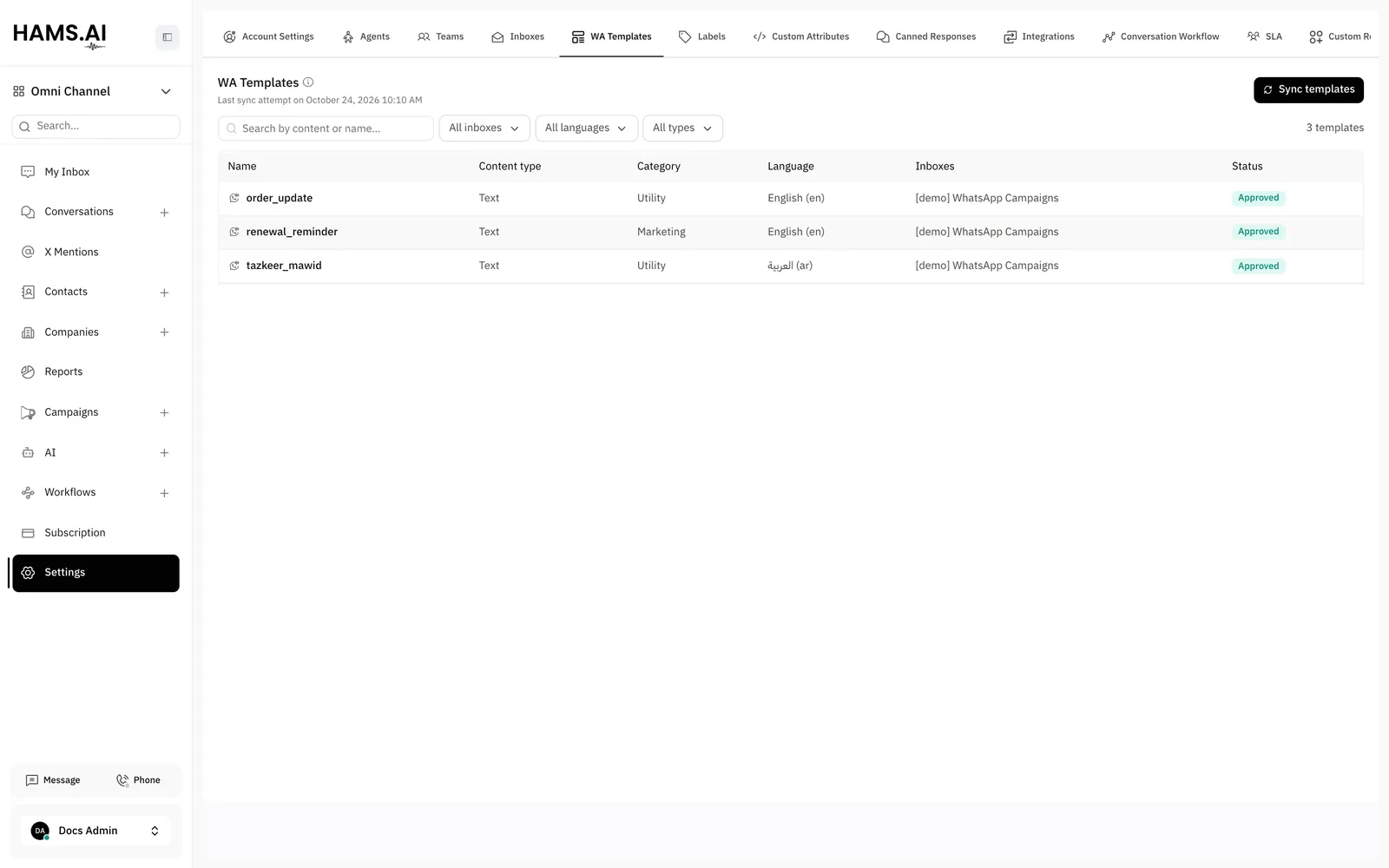
The WA Templates tab lists the templates of all your WhatsApp inboxes in 1 table. Only administrators can open it. The tab shows templates of WhatsApp Cloud, Quick setup with Meta, and Twilio inboxes. You cannot create or edit a template in this tab.
Open the tab
Open Settings > WA Templates. The page is at /app/accounts/{account_id}/settings?tab=templates.
The table has these columns: Name, Content type, Category, Language, Inboxes, and Status. The status is Approved, Pending, Rejected, Paused, Disabled, or Not submitted for WhatsApp approval. The page shows the date of the last sync attempt.
To get the templates from the providers again, click Sync templates. The update can take a few minutes. To create or edit a template, click Manage in Meta or Manage in Twilio in the drawer. Manage in Meta shows only for a template of a Meta inbox.
Templates of a WhatsApp Cloud inbox
The system gets the templates from Meta when you add the inbox. Then it gets them again about every 3 hours. To get them immediately, click Sync Templates on the Configuration tab, or click the refresh icon in the template list.
To send a template in a conversation, do these steps:
Open the templates
In the reply box, click the WhatsApp icon (Whatsapp Templates). The Whatsapp Templates dialog opens.
Find the template
Type the name in Search Templates. Each template shows its language, header, body, footer, and buttons.
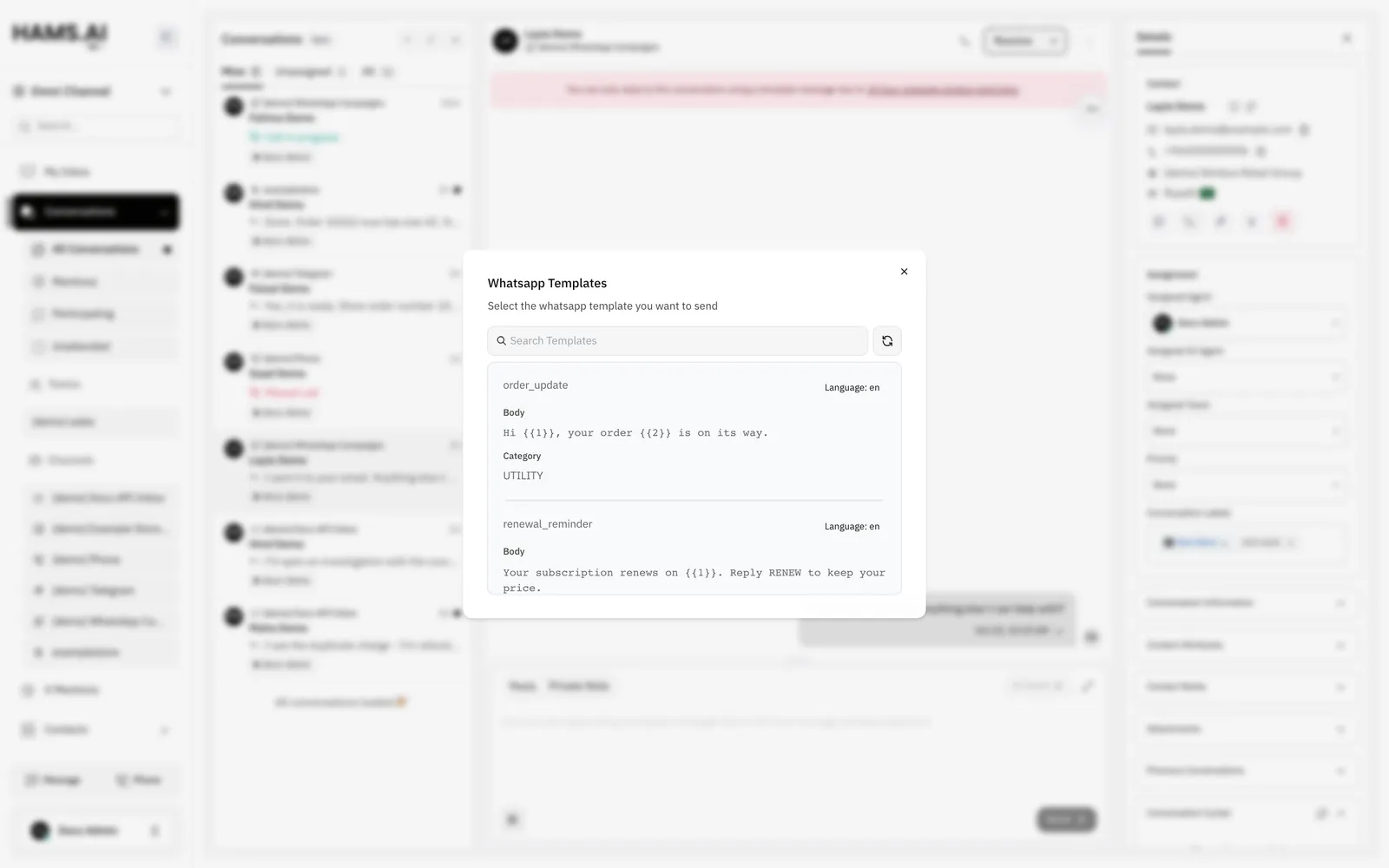
If a variable has no value, the form shows Please fill all variables before sending. To select a different template, click Go Back.
The WhatsApp icon shows only when the inbox has at least 1 template. The list does not show these templates:
- A template that Meta did not approve.
- A template in the
AUTHENTICATIONcategory. - The CSAT survey template of the inbox.
- A template with a list, a product, a catalog, a location header, or a call permission request.
Templates of a Twilio inbox
A Twilio inbox uses the content templates of your Twilio account. In the reply box, click the WhatsApp icon (Content Templates). The Twilio Templates dialog opens. It lists only the approved templates.
The system does not get Twilio templates automatically. Click Sync Templates on the Configuration tab, or click Refresh templates in the dialog.
Start a conversation with a template
On a WhatsApp inbox, a new conversation must start with a template. In the new conversation form, select the WhatsApp inbox. Then click Select template. Select the template. Fill in the variables. Then click Send message.
Messages and attachments
Text
A message from the WhatsApp Business app on the phone of the number also shows in the conversation. Its avatar has the tooltip This message was sent from the native app. Reply from the system to maintain the message window.
Attachments
You can attach more than 1 file to a reply. The system sends each file as a separate WhatsApp message. The text of the reply goes with the first file as its caption.
The reply box accepts only the file types that WhatsApp accepts. Each type has a size limit:
Your Hams installation also has a general file limit, 40 MB by default. The lower of the 2 limits applies. If a file is too large, the dashboard shows File exceeds the 5 MB attachment limit, with the limit for that file.
An agent can record a voice message in the reply box. It goes out as an OGG file on WhatsApp Cloud and as an MP3 file on Twilio.
The status of a message moves forward only: sent, delivered, read. A late update from WhatsApp does not set a message back, for example from read to delivered. A failed status can replace any other status.
What the customer can send
- Text, images, video, audio, voice messages, and documents.
- Stickers. They show as images.
- Locations and contact cards.
- Replies to the buttons of a template.
The system ignores reactions. If WhatsApp sends a message type that the system cannot show, the conversation shows This message is unsupported. You can view this message on the WhatsApp app.
On a WhatsApp Cloud or Quick setup with Meta inbox, you can reply to a specific message. Click Reply to this message in the menu of the message. A Twilio inbox does not support this.
Contacts
The system names a new contact with the WhatsApp profile name of the customer. If the customer has no profile name, the contact gets the name “New Customer”. When a profile name comes in later, it replaces “New Customer”.
A customer can hide the phone number in WhatsApp. WhatsApp then sends a business-scoped user ID (BSUID) instead of the phone number, and the contact has no phone number. If WhatsApp also sends the username of the customer, the system keeps it on the contact. The contact panel shows it as WhatsApp username, with an @ sign. In the edit form of the contact, the field Add WhatsApp holds the username.
If WhatsApp changes the BSUID of a customer, the contact and its conversations stay together. A Brazilian number with or without the extra 9 is 1 contact. A Mexican number with or without the mobile 1 is also 1 contact.
You cannot send a template in the AUTHENTICATION category to a contact without a phone number. You can write to the contact in the 24-hour window, and you can call the contact on WhatsApp. When the phone number comes in later, the system adds it to the contact.
Ask for the phone number
On a WhatsApp Cloud or Quick setup with Meta inbox, you can ask a customer without a phone number to share it. The button shows in the reply box only if the contact has no phone number.
Outside the window, the button shows only if the inbox has such a template. The message shows Waiting for contact information until the customer replies. The customer then shares the phone number, and the message shows Phone number shared. The system adds the number to the contact. If the number needs a check, the message shows Phone number needs review. A contact can have only 1 open request in the inbox at a time. While a request is open, the button is off and shows Contact information request pending.
WhatsApp calls
When calls are on in the Calls tab, customers can call the number from WhatsApp. The call shows in the conversation of the customer, and agents answer it in the dashboard. The browser of the agent must have permission to use the microphone.
To call a customer, click the call icon (Start WhatsApp call) in the conversation header. If the inbox also gets calls from Cloud Call Center, the icon opens a menu. Then click WhatsApp call.
WhatsApp needs the permission of the customer before you can call. If the customer has not given permission, the system sends a call permission request instead of the call. The dashboard shows Sent a call permission request to the contact. Try again once they accept. The system sends 1 request in 5 minutes at most.
If a call does not start, the dashboard shows the reason, or Could not start the WhatsApp call.
For call cards and missed calls, see Voice.
Reconnect a Quick setup with Meta inbox
If Meta rejects the access token of the inbox 2 times, the inbox needs a new connection. The settings of the inbox show Your inbox is disconnected. You won’t receive new messages until you reauthorize it. The administrators of the account also get an email.
To reconnect, click Click here to reconnect. in the banner. The Meta window opens. Sign in and confirm the same business account and number. The system updates the inbox that you have and does not add a new inbox.
If the registration of the number at Meta is not complete, the banner shows Your WhatsApp Business registration isn’t complete. Please check your display name status in Meta Business Manager before reconnecting. Check the display name in Meta Business Manager. Then click Complete Registration.
A WhatsApp Cloud inbox does not show this banner. If its access token stops, enter a new token in Update API Key on the Configuration tab.