

Scenarios
One set of instructions for returns, billing, and delivery becomes long, and its parts can contradict. A scenario is a sub-agent with its own instructions for one type of request. The main AI agent transfers the conversation to the scenario when the request of the customer matches.
The AI agent is off by default. Hams support turns on the Workflows + Agent feature for your account. Only administrators can see AI in the sidebar and create or change scenarios.
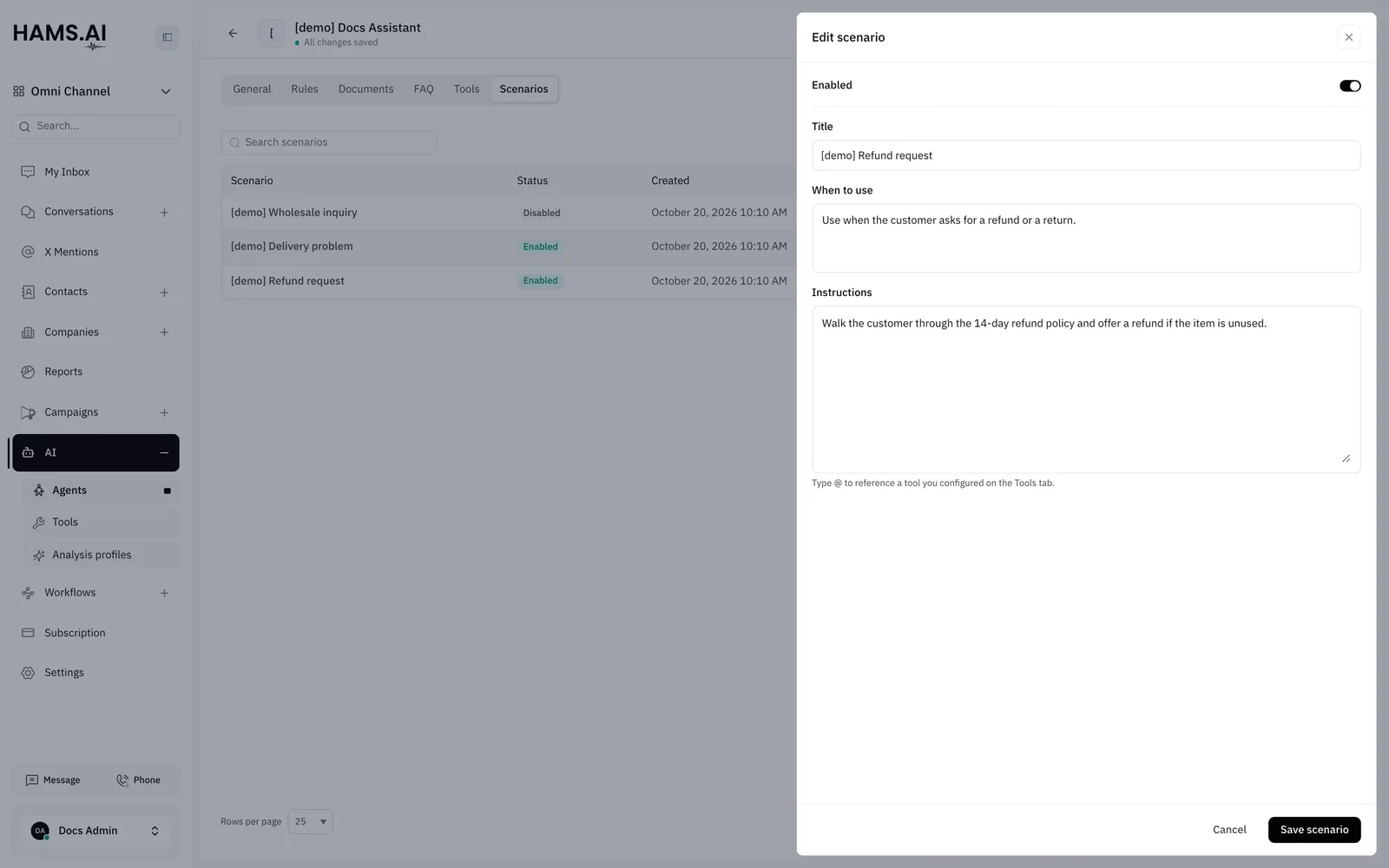
Create a scenario
Open an AI agent. Click the Scenarios tab. You must save a new AI agent before you can use this tab. A scenario saves immediately. You do not click Save in the editor.
Title, When to use, and Instructions are all necessary.
Tools in a scenario
A scenario can use only the tools that its instructions refer to. To refer to a tool, type @ in Instructions. Then select the tool.
The @ list contains all the built-in tools and the library tools that are on for the AI agent. It also contains the tools under This agent’s tools. It also contains Knowledge Search, which does not show on the Tools tab. A scenario can use a built-in tool that is off for the main AI agent. See Tools.
A scenario does not search the FAQs unless its instructions refer to Knowledge Search. If the scenario must answer from the FAQs, refer to Knowledge Search in its instructions. See FAQ and responses.
What a scenario gets from the AI agent
A scenario uses these settings of the main AI agent:
- The Guardrails and the Response guidelines.
- The Temperature.
- The variables in the instructions, for example
{{ contact.name }}. Thecontactvariables have a value only when Allow access to contact information is on. See Assistants.
How a transfer works
- The main AI agent reads the When to use text of each scenario that is on.
- When the request of the customer matches this text, the main AI agent transfers the conversation to that scenario.
- The scenario answers the customer with its own instructions and tools.
- When the task is complete, the scenario gives the conversation back to the main AI agent.
- The main AI agent resolves the conversation or transfers it to a human agent.
The customer does not see the transfer. The conversation continues as 1 conversation.
If the customer asks about a different subject, the scenario gives the conversation back to the main AI agent. Then the main AI agent can select a different scenario.
When to use a scenario
Use a scenario when one type of request needs many rules that the other requests do not need. Keep short, general rules in the instructions of the main AI agent.
For example:
- Refund requests: the scenario asks for the order number, looks up the order with a custom tool, and explains the refund policy.
- Delivery problems: the scenario collects the shipment number and the address, and adds a label to the conversation.
A good sign that you need a scenario: the main instructions contain many rules that apply only to one subject.
Change or delete a scenario
To change a scenario, click its row. The Edit scenario drawer opens. Make the changes. Then click Save scenario.
The actions menu of each row has these items:
To find a scenario, type its title in Search scenarios.