

AI agent reports
The AI agent report shows what your AI agents did in a period, and how the conversations ended. For each conversation cycle, with or without the AI agent, see the conversation log.
The AI agent is off by default. Hams support turns on the Workflows + Agent feature for your account. Administrators and users with the Manage reports permission can open the report.
Open the report
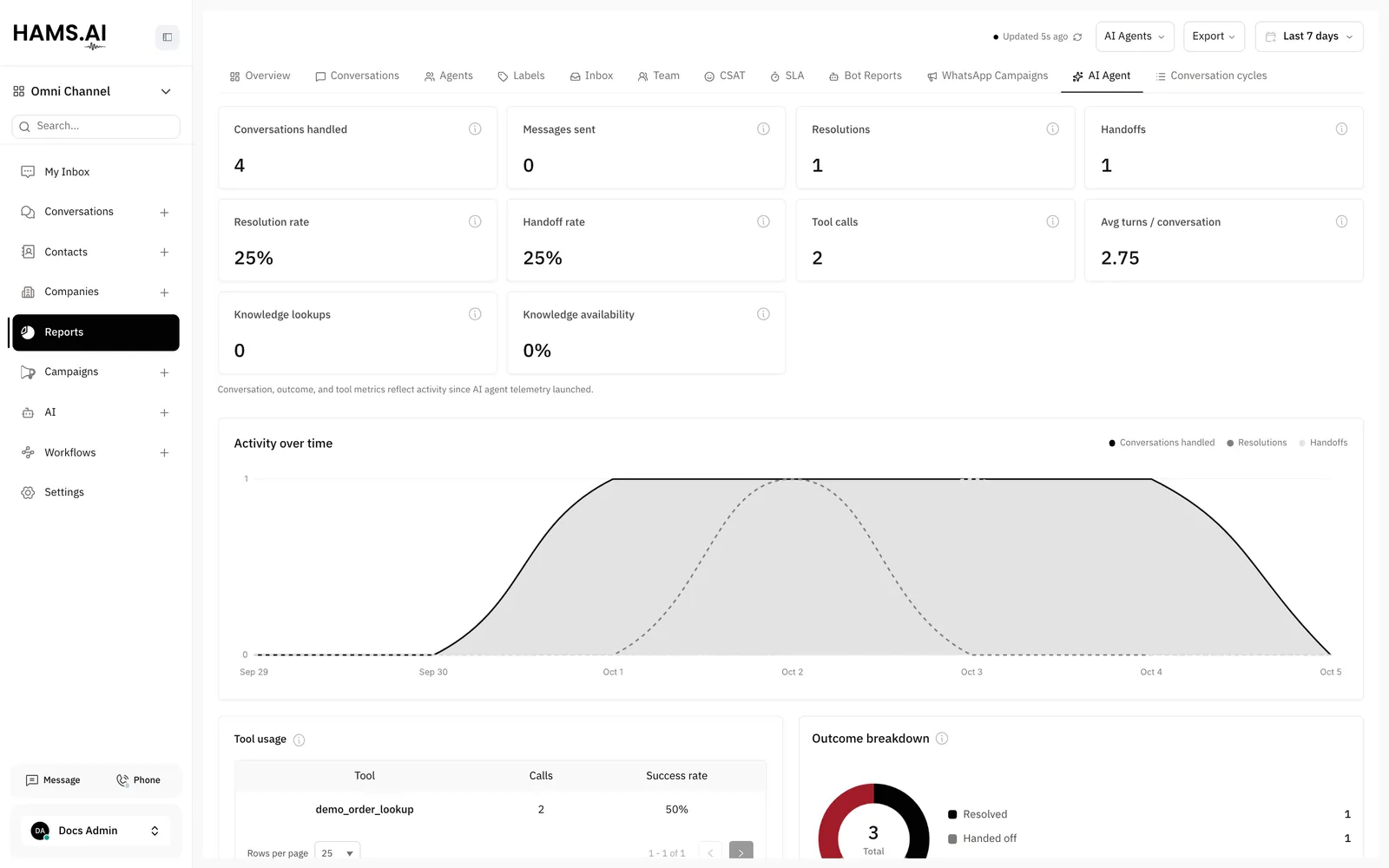
Summary cards
The conversation, outcome, and tool values count only the activity after the start of AI agent telemetry. The report shows a note about this.
Charts
- Activity over time: the Conversations handled, the Resolutions, and the Handoffs of each day.
- Tool usage: each action tool, with its Calls and its Success rate.
- Outcome breakdown: the conversations that the AI agent resolved, handed off, or hit an error in: Resolved, Handed off, or Error. A conversation can appear under more than one outcome.
Export the report
Click Export. Then click Export CSV. The system downloads hams_agent_report.csv. The file has the period, the summary values, and the tool usage table.
CSAT by AI agent
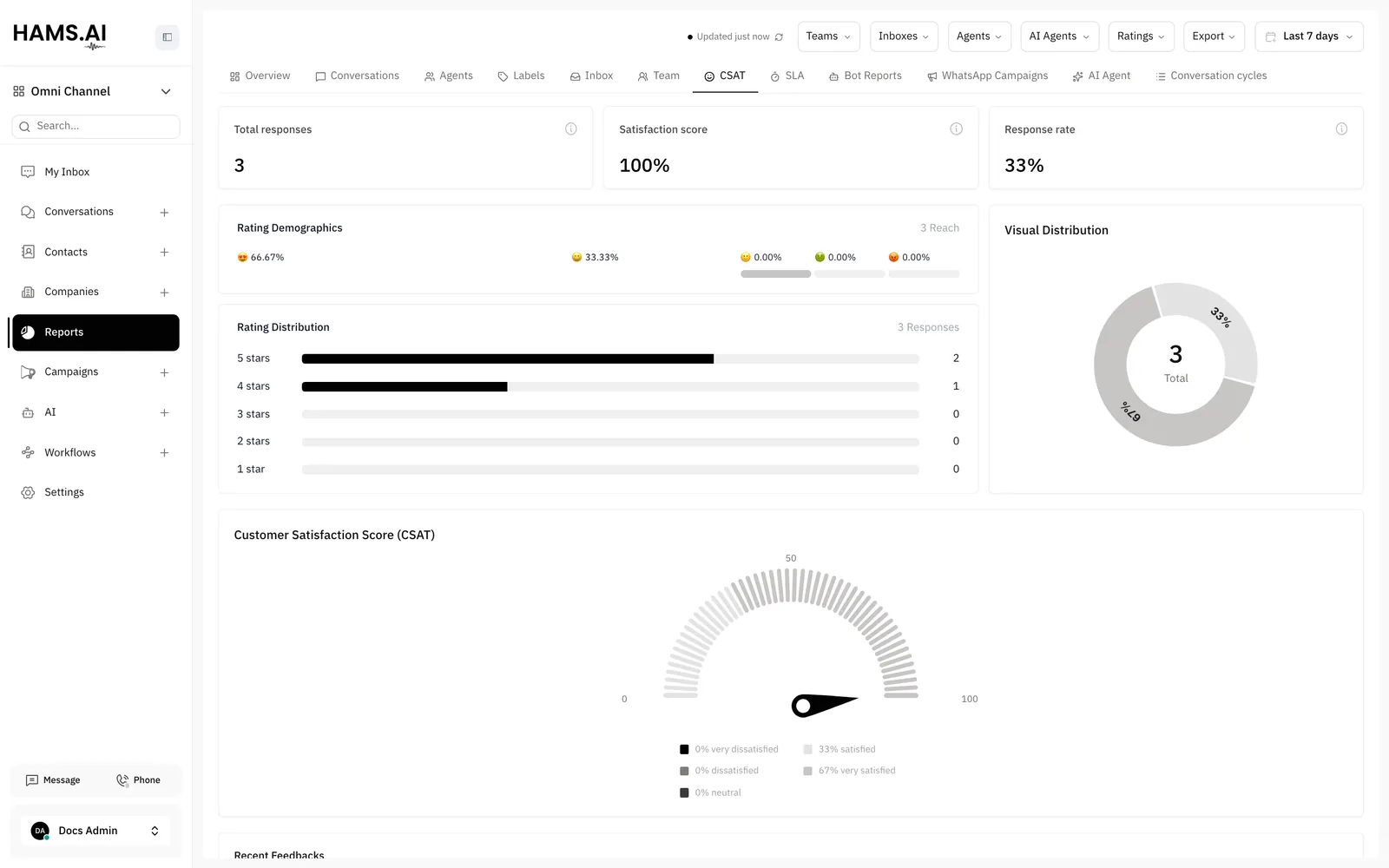
The AI agent collects ratings with its Collect CSAT tool. These ratings show in Reports > CSAT with the other ratings. The AI agent shows as the assigned agent.
To see the ratings of one AI agent, select it in the AI Agents filter. You can compare the ratings of an AI agent with the ratings of your human agents. In the CSV file of the CSAT report, the agent column shows the name of the AI agent.
Find the cause of a bad answer
Open the reply
Open the conversation. Under the reply of the AI agent, click Generated by AI. The panel How was this reply generated? opens.
Read the steps
Read Generation steps, Knowledge used, and Reasoning. They show which tools ran and which documents and FAQs the AI agent used.
Read the tool results
To see what each tool returned, open the conversation log. Click the row of the cycle. Then click the Breakdown tab.
Fix the knowledge
If the correct answer is not in the results, add it to the knowledge of the AI agent. You can also add it to the FAQ.
Only administrators see Generated by AI. See Assistants.
The Used in conversations column on the Documents and FAQ tabs shows how often the AI agent uses each source and each FAQ. A source with a count of 0 can be a sign of a problem in the content.