

Campaigns
A call campaign dials a list of contacts for you. The campaign calls from one of your DIDs. It connects each answered call to an agent from a list or to an AI agent. It follows the Calling hours and the Pacing settings that you set.
A call campaign is not the same as an outbound batch in the Voice AI Platform. For that feature, see Outbound dialer. A call campaign is also not the same as a WhatsApp campaign, which sends a WhatsApp message. For that feature, see WhatsApp campaigns.
Only administrators can see and manage call campaigns. The developer API does not include call campaigns.
Before you start
You need these items before you create a call campaign:
- A DID for a single number. The contacts see this number as the caller ID. A number block cannot be a caller ID. See DIDs.
- An outbound route in the DID’s SIP domain that matches the contact numbers, and a trunk that the route uses. See Outbound routes.
- For an agent list: at least one extension in the same SIP domain as the DID. See Extensions.
- For an AI agent: a voice agent. See Voice agents.
- Your contacts, as a CSV file or as Omni Channel contacts.
Create a campaign
The Call campaigns page lists your campaigns.
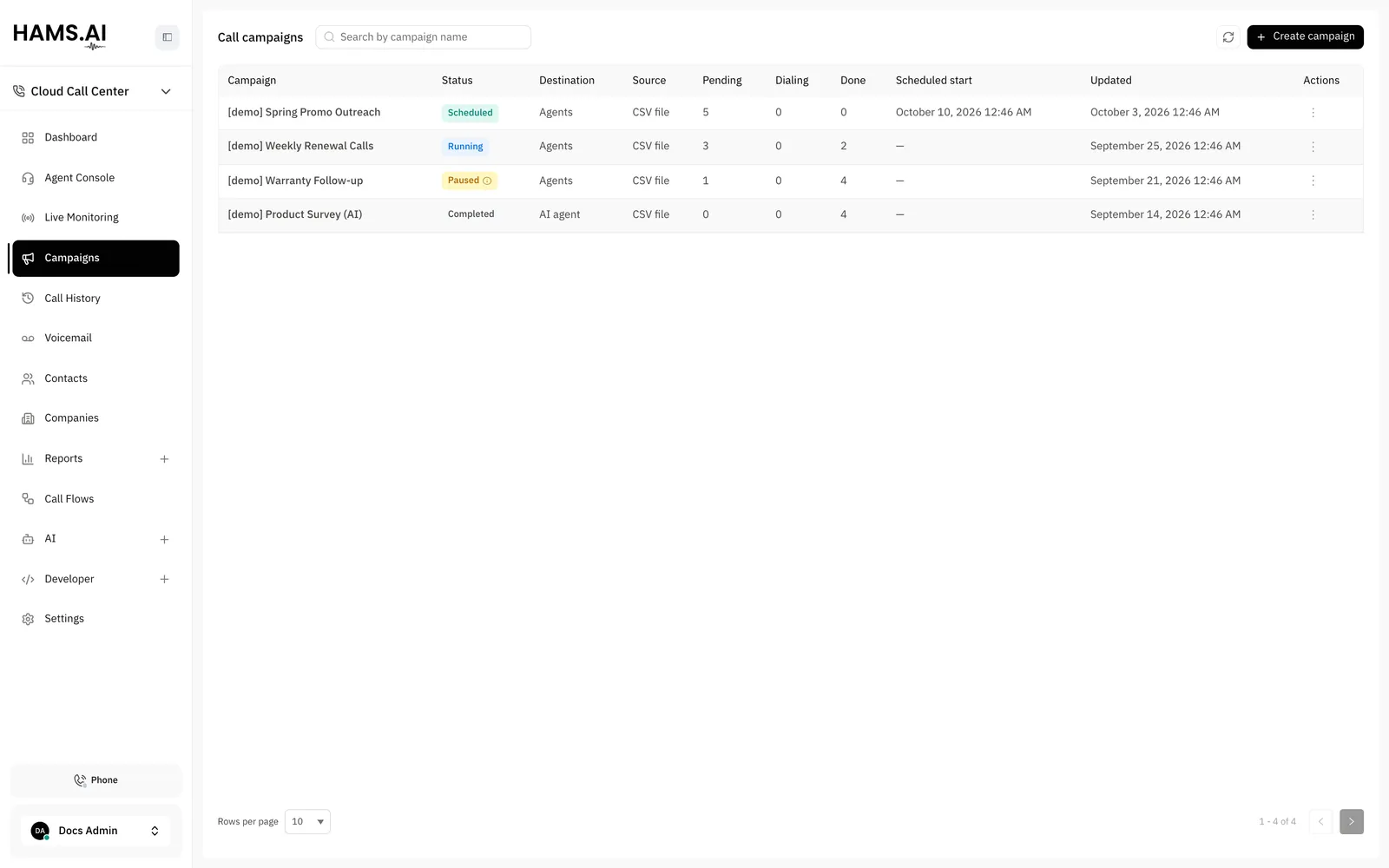
Open the campaigns list
Click Campaigns in the Cloud Call Center sidebar. The Call campaigns page opens.
Set who calls
Under Who calls, and from where, select a Caller ID. The list shows single numbers only. Select Agents or AI agent in Calls go to. For Agents, select the Agent extensions. For AI agent, select the AI agent.
Add the contacts
Under Contacts, select the source in Contacts from. The sources are CSV file, Contacts by label, and Saved contact filter.
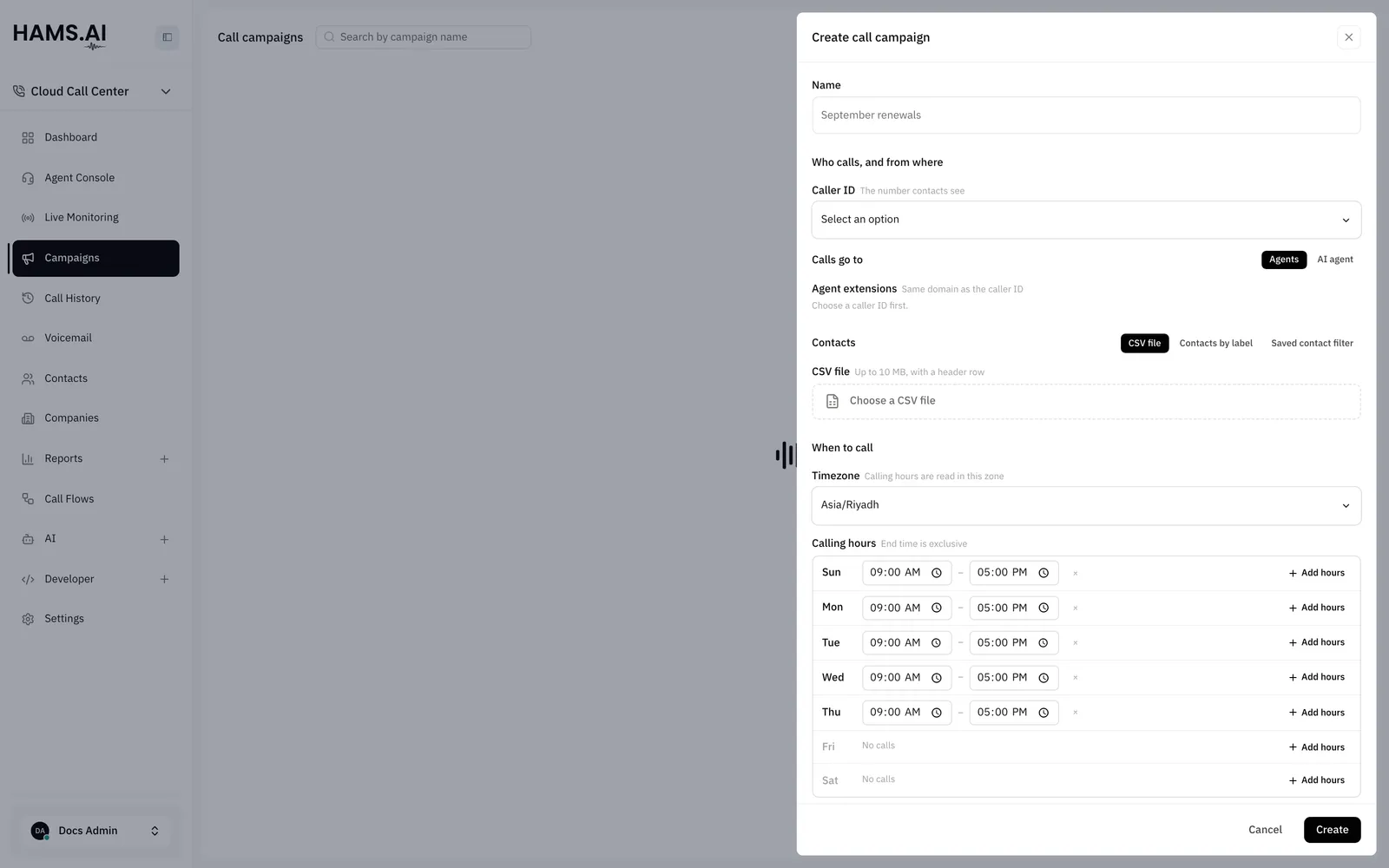
For a CSV file, add all contacts before you create the campaign. You cannot add contacts to a campaign later. For Omni Channel contacts, the system takes the contacts when you click Start.
Check the caller ID, the destination, and the contacts before you click Create. You cannot change the caller ID, the destination, or the contacts after you create the campaign.
Contact sources
The system loads the contacts one time only. A campaign can hold 50,000 contacts by default. The system skips blocked contacts and contacts without a phone number.
CSV file
Contacts by label
Saved contact filter
Choose a CSV file. The file must have a header row. The maximum size is 10 MB. Select the Phone column. You can also select the Name column.
Each phone number must start with + or 00, followed by the country code. The system removes spaces, dashes, and parentheses. The system rejects a local number, for example one that starts with 05, as invalid_phone.
The system rejects a row that has no phone number or an invalid phone number. If a number is in the file 2 times, the system keeps the first row and rejects the later rows as duplicate. The system keeps the other columns of the file with each contact.
The system creates no campaign in these cases:
- The file is larger than 10 MB.
- The file has more rows than the contact limit (50,000 by default).
- The file is not UTF-8.
- The file is not a valid CSV file.
- A column that you selected is not in the header.
- The file has no number that the system can dial.
If the system rejects rows, the campaign detail page shows a report. The report gives the number of accepted contacts. It lists each rejected row by its row number and gives the reason.
Default values
The end time of a time window is exclusive. Each window must end after it starts. A retry delay is at most 10080 minutes.
Limits
- An account can have 10 unfinished campaigns, by default. At the limit, the page shows “This account has reached its campaign limit.”
- All campaigns of an account share the same line limit. It is 10 lines by default. If Lines at once is more than this limit, the campaign gets only the account limit.
How calls connect
Agent list
AI agent
The system rings the agent who has been free for the longest time. The agent sees the name and the number of the contact.
When the agent answers, the system calls the contact. The contact sees the DID as the caller ID. The agent hears a ringback tone until the contact answers.
If an agent does not answer, the contact is pending again. The system rings the next free agent. A missed ring does not use one of the attempts of the contact.
The campaign calls only as many contacts at one time as it has free agents.
The system cannot tell a voicemail from a person. A voicemail that answers counts as answered.
The Omni Channel contact timeline does not show campaign calls.
A webhook event for a campaign call carries the field campaign_id. The event call.completed does not carry it. See Webhooks.
Campaign statuses
The actions in the list and on the detail page depend on the status.
Start checks that the campaign has at least one time window in Calling hours. An agent list campaign must have at least one extension. The campaign must have contacts, or an Omni Channel source.
The system does not start new calls outside the Calling hours. When a window closes, calls in progress continue. The status stays Running. The campaign dials again when the next window opens.
Edit a campaign
You can edit only these fields, and only when the status is New or Paused:
- Name
- Timezone
- Calling hours
- Scheduled start
- Lines at once
- Attempts per contact
- Retry after, in minutes
Automatic pauses
The system pauses a campaign when it finds a problem. The list and the detail page show the reason next to the status.
Contact dispositions
Each contact has a disposition after an attempt. The disposition is the result of that attempt. It is not the same as the outcome of a call. The Outcome column of the contacts table shows the contact disposition.
failed has these causes:
- The carrier or the channel is not available, or the carrier or the channel has too much traffic. Another dial status can also cause it.
- For an AI agent, the call ends unanswered for another reason.
- For an AI agent, the contact answers and the voice agent never connects.
- The call is still in the state Dialing after 300 seconds, by default.
- No route reaches the number. The system does not retry it.
- The outcome is unknown.
The system retries a contact after the delay that you set for its disposition. It stops when the contact reaches the value of Attempts per contact.
The system does not check a do-not-call list when it dials. The system still dials a contact that you block in Omni Channel after the campaign loads. 2 campaigns that have the same number both dial it. The Calling hours use the timezone of the campaign, not the timezone of the contact.
Watch a campaign
Click a campaign in the list to open its detail page.
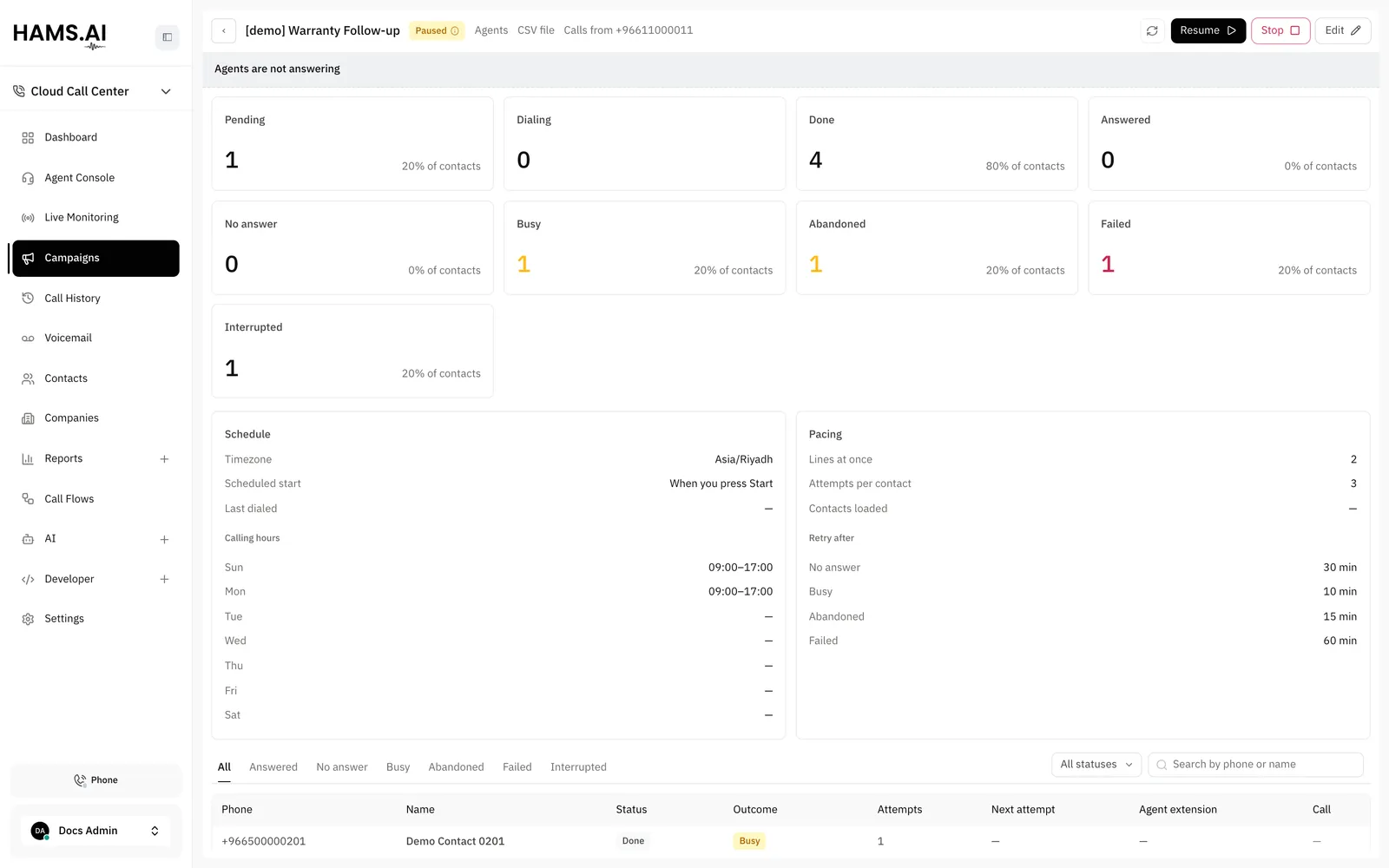
The detail page shows these items:
- The Pending, Dialing, and Done tiles.
- The Schedule: the Timezone, the Scheduled start, Last dialed, Contacts loaded, and the Calling hours.
- The Pacing: Lines at once, Attempts per contact, and Retry after.
- Calls from: the DID that the campaign uses.
- The upload report, when the system rejected rows.
- The Contacts table.
While the campaign runs, the page updates by itself.
The Contacts table shows the Phone, Name, Status, Outcome, Attempts, and Next attempt of each contact. The Agent extension column is empty for an AI agent. Click Open call on a row to open the call. Search by phone or name. Filter by Status or by Outcome.
Delete a DID or an extension
If you delete an extension, the system removes it from every agent list. If a campaign has no extension left, it stays in the status Running and rings nobody. Stop that campaign. Create a new campaign with a new agent list.
You cannot delete a DID while a campaign that uses it has the status Scheduled, Loading, Running, or Paused. When you delete a DID, the system deletes the campaigns with the status New that use it. A finished campaign keeps its record.