

Trunks
A trunk is the SIP connection between the call center and a carrier. Without a trunk, no call comes in or goes out. This page describes how to add, change, and delete a trunk. To learn how a trunk reaches Hams, see SIP connection.
Only administrators can see and change trunks.
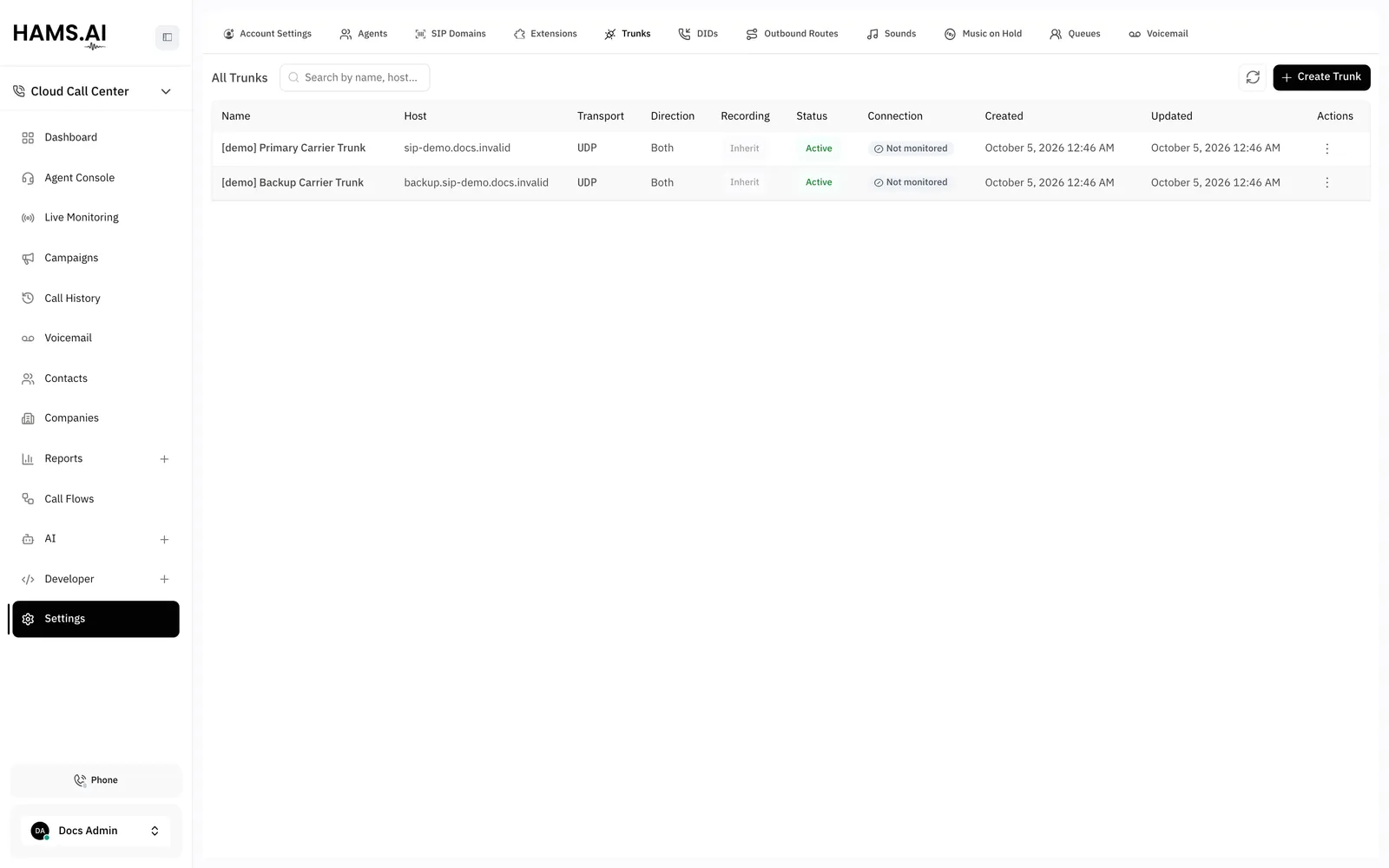
Fields
Add a trunk
Before you start, make sure that the account has at least one SIP domain. See SIP domains.
Fill in the carrier values
Enter the Name. Select the Domain. Enter the Host and the Port. Select the Transport and the Direction.
To change a trunk, click its row. Change the fields. Click Save. You cannot change the Domain of an existing trunk.
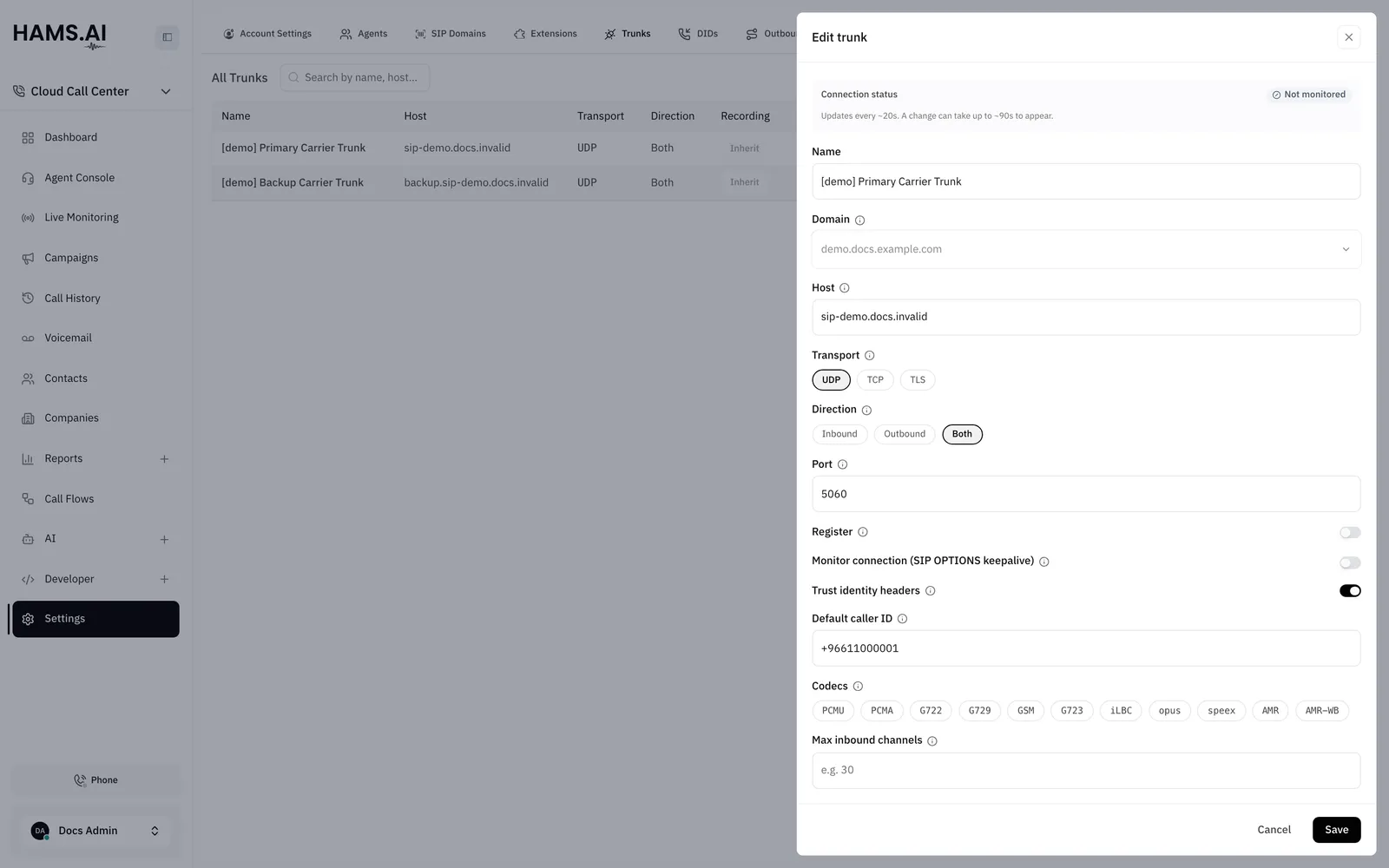
Trust identity headers
A carrier or PBX can tell the call center who calls and who forwarded the call. It does this in SIP headers. The call center believes these headers only when you turn on Trust identity headers on the trunk.
Turn on Trust identity headers only for a carrier or PBX that you trust. The setting decides the caller number that call flows and call history show. A false sender can show a false number.
When Trust identity headers is on, these changes apply to inbound calls on the trunk:
- The caller number comes from the header
P-Asserted-Identity. If the header is missing or not valid, the caller number comes from the headerFrom. - The header
DiversionorHistory-Infogives the number that forwarded the call and the reason. A call flow reads them ascall.redirected_fromandcall.redirect_reason. See Redirected calls.
When the setting is off, the system ignores these headers. The values call.redirected_from and call.redirect_reason are empty.
The field does not show for an Outbound trunk, because the trunk gets no inbound calls.
Registered trunks
If Register is on, the call center registers with your carrier. The carrier can then send calls to the contact that the call center registered. These calls enter the call flow of the DID. The system takes the DID from the header To, or from the header P-Called-Party-ID.
Default caller ID
The Default caller ID is the number that an outbound call shows when the extension has no Outbound Caller ID. If the trunk has none either, the call shows the extension number. The caller_out rewrite rules of the outbound route still apply to this number. For the rules, see Outbound routes.
Status and connection
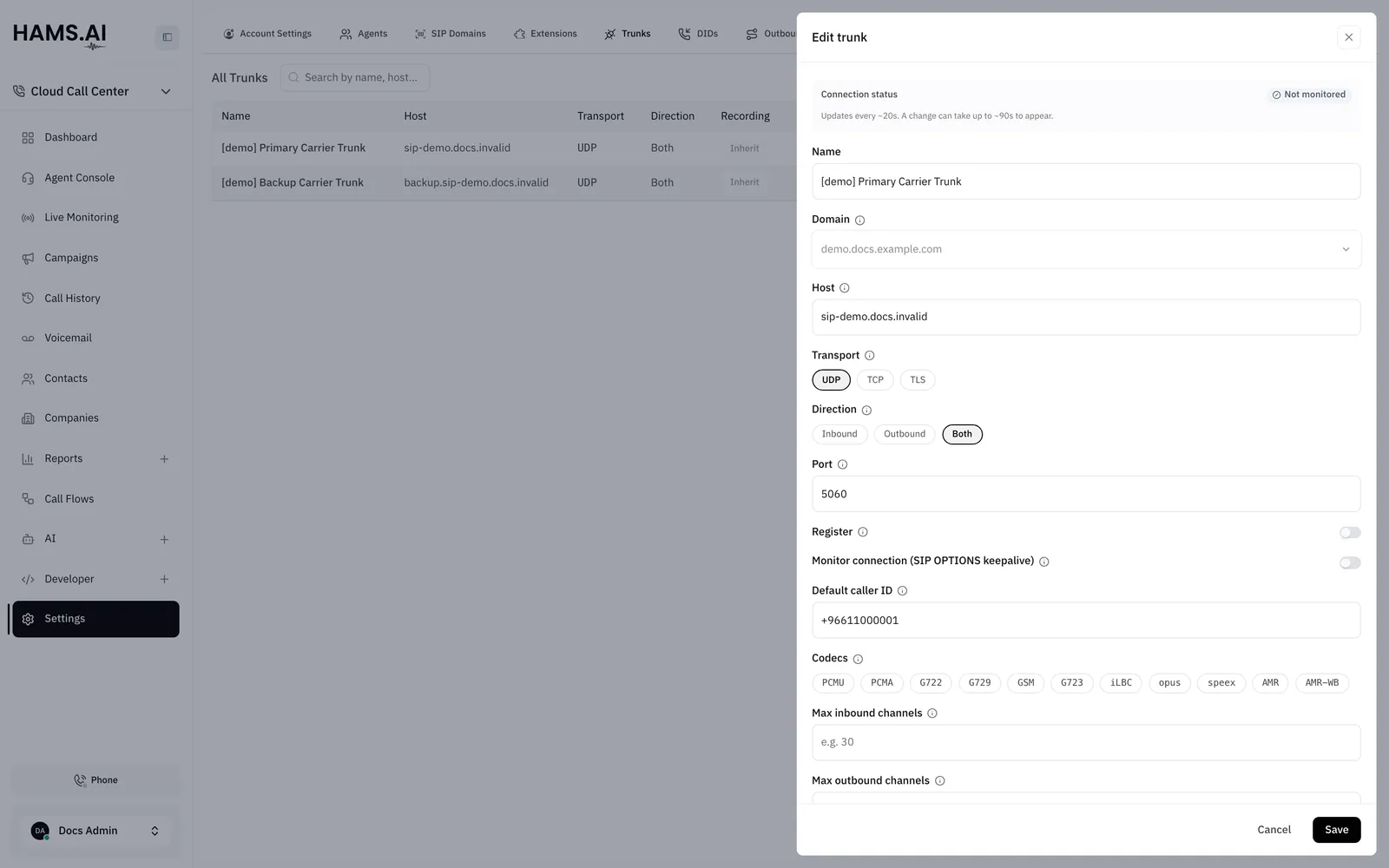
The Status column shows Active or Inactive. The Connection column shows the live state of the trunk. The page checks the state every 20 seconds. A change can take up to 90 seconds to show.
If Register is on, the drawer of the trunk also shows Registered or Not registered.
Call recording
The Call recording setting decides if the system records calls on the trunk. The trunk is the first level of the decision. A DID or an outbound route can change the decision. A queue can change it in the middle of a call.
Turn on Lock this decision so that no later level can change the decision. Use it where the law makes recording mandatory.
The lock has no effect while the setting is Inherit. People listen to recordings in Call history and recordings.
Change the direction
If you narrow the Direction, the DIDs and outbound routes stay on the trunk. Only the removed side stops.
If you remove Inbound, the DIDs on the trunk do not get calls any more. If you remove Outbound, the outbound routes on the trunk do not send calls any more.
The Change trunk direction? dialog shows how many DIDs and outbound routes this affects. Click Change anyway to save the change.
Delete a trunk
Move all DIDs and outbound routes to another trunk before you delete a trunk. The system does not delete a trunk that a DID or an outbound route uses. You cannot undo a delete.
To delete a trunk, open the actions menu of its row. Click Delete. Click Delete again in the dialog.