

Call history and recordings
The Call History page opens at /call-center/call-history. It lists the calls of the account. An administrator sees every call. An agent sees only the calls in which they took part.
Find a call
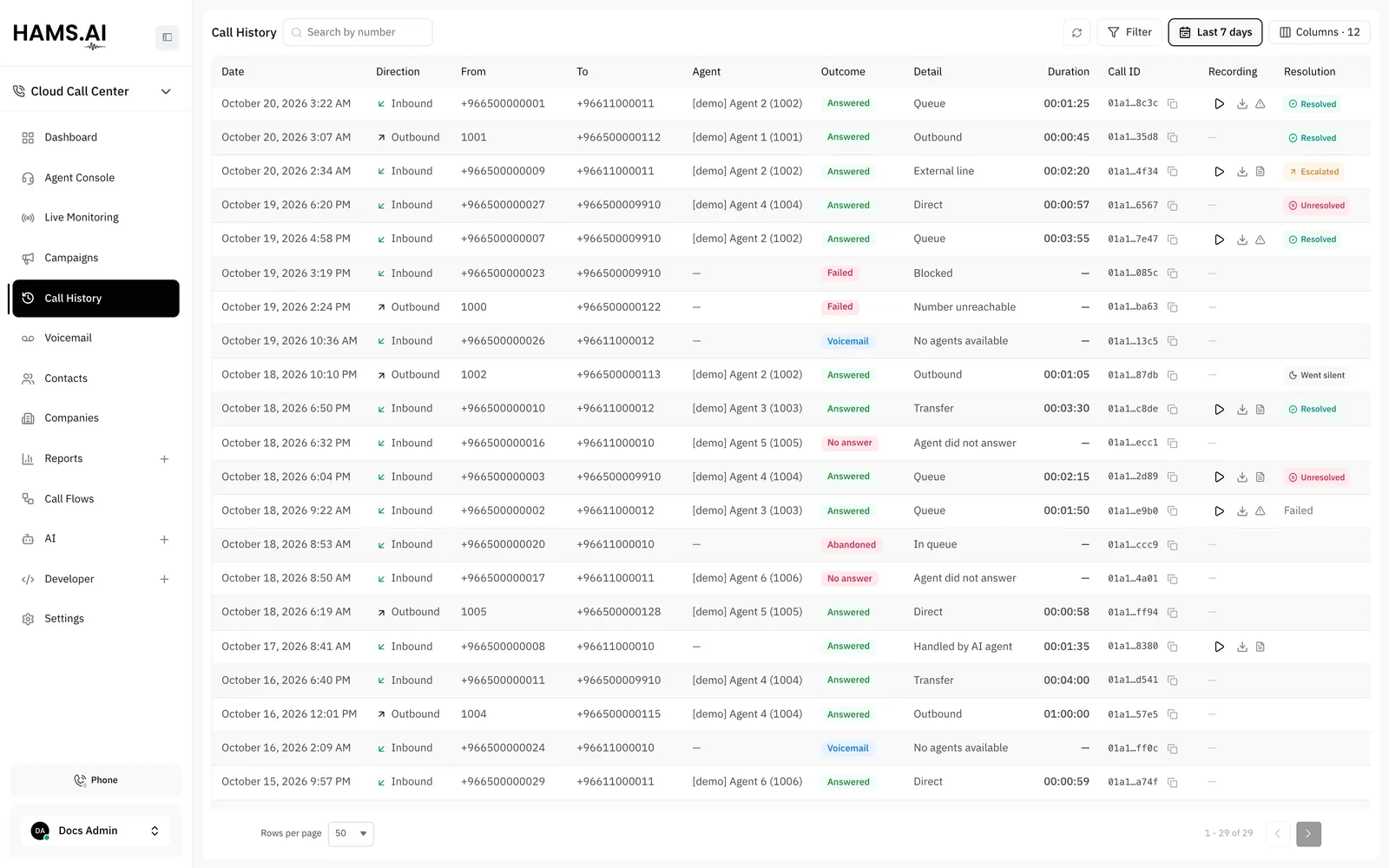
The list shows the newest call first. Each row has these columns: Date, Direction, From, To, Agent, Outcome, Detail, Duration, and Call ID. An administrator also sees the Recording column. The Outcome column shows the call outcome. The Detail column shows the outcome detail.
When Post-call Analysis is on, an administrator also sees the Resolution, Sentiment, and Labels columns. The page hides the Labels column by default. See Post-call analysis.
To show, hide, or move a column, click Columns. To return to the default columns, click Reset to default.
The table has pages. Choose 25, 50, or 100 rows for each page. The default is 50 rows. A call appears in the list a few seconds after it ends.
To search, type a number in Search by number and press Enter. The search matches the number of the caller and the number of the callee. Type at least 3 digits.
Click Filter to narrow the list. Then click Apply.
The list opens on the calls of the Last 7 days. To change the period, click Time Range. Choose Today, Last 7 days, or Last 30 days. You can also type a start in From and an end in To. Click Apply. The system rejects a range of more than 92 days.
Each active filter shows as a chip above the list. The default period of 7 days does not show a chip. Click the cross on a chip to remove the filter. Click Clear all to remove every filter and return to the last 7 days. Click the refresh button to load the list again.
The Call ID column shows the id of the call. Click Copy call ID to copy it. The Developer API and every webhook use this id for the same call. The address of the page keeps the call that you open, so you can share the address of a call.
Call outcomes
The Outcome column shows the call outcome as a badge. Point at a badge to read its meaning.
The Detail column shows how the call reached its outcome:
A blind transfer counts as answered only when the target answers.
A row can show an icon next to the badge. The label Partial data means that the record from the carrier has not arrived yet. The timings can still change. The label Conflicting data means that the call engine recorded an answer, but the queue recorded an abandon.
Call details
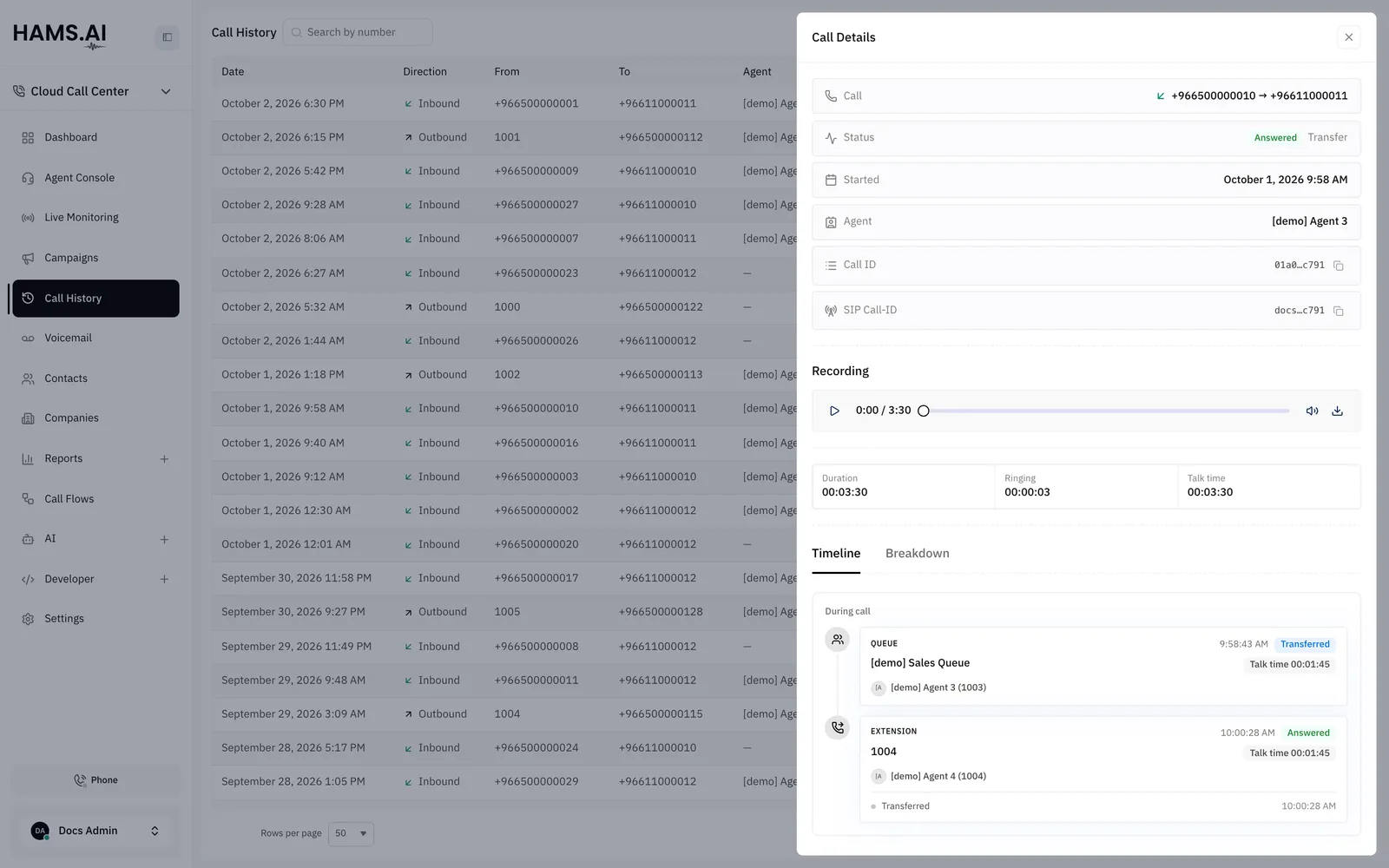
Click a row to open the Call Details drawer. The drawer shows these facts: Call, Outcome, Started, Agent, Call ID, and SIP Call-ID. 4 tiles show Duration, Ring time, Wait time, and Talk time.
Timeline
The Timeline shows what the call did, in order. A card is one leg of the call. A leg is one stop of the call. The type of the leg shows above its title. The types are Queue, Ring group, Extension, External line, Audio, Menu, Input, Outbound, Voicemail, and Voice agent.
A leg has a call outcome badge and the times Wait time and Talk time. It also lists the events that happened in the leg:
- Joined queue and Left queue
- Connected to an agent
- No answer from an agent that did not pick up
- Pressed a key in a menu, No key pressed, or Pressed a key with no option
- Transferred to a target, Consulted a target, or Transfer failed
- Left a voicemail
- Web request
A dashed line with the text unaccounted shows time that no leg covers. The total duration shows below the last event of the call.
A transfer can fail. The event Transfer failed shows the target and the reason.
After-call sequence
If the call flow has an after-call sequence, the timeline has 2 parts. The first part is During call. The second part is After call. The After call part shows the events of the sequence:
- After-call sequence started
- Paused or Paused until a time, for a Wait node
- WhatsApp message sent or WhatsApp message not sent, with the number and the reason
- Workflow started or Workflow did not start, with the reason
- Web request or Web request failed
- After-call sequence finished, or After-call sequence stopped when the sequence could not finish
See After-call sequences.
The Web request event shows the method, the host, the path, and the response status. Click Show request and response to see more. The drawer then shows the Request and the Response, each with Headers and Body. It also shows the time of the request in ms.
The drawer cuts a body at 4 KB and shows Truncated at 4 KB. The drawer hides a value that comes from a sensitive variable and shows Hidden. Click Copy to copy a body.
Recordings
The Recording column and the Recording section of the drawer show the recording of a call. Only administrators see recordings. For an agent, the list has no Recording column and the drawer has no Recording section.
A call that the API placed has its recording on the call like any other call. A call that a campaign placed also has its recording on the call.
The system records a call only when the recording policy says so. The policy comes from the trunk, the DID, the outbound route, and the queue. See Trunks.
Click the play control in a row to open the player. The player starts to play immediately. Click the download control in a row to save the file.
The drawer has its own player. It has these controls: Play recording, Pause recording, Seek recording, Mute, Unmute, and Download recording.
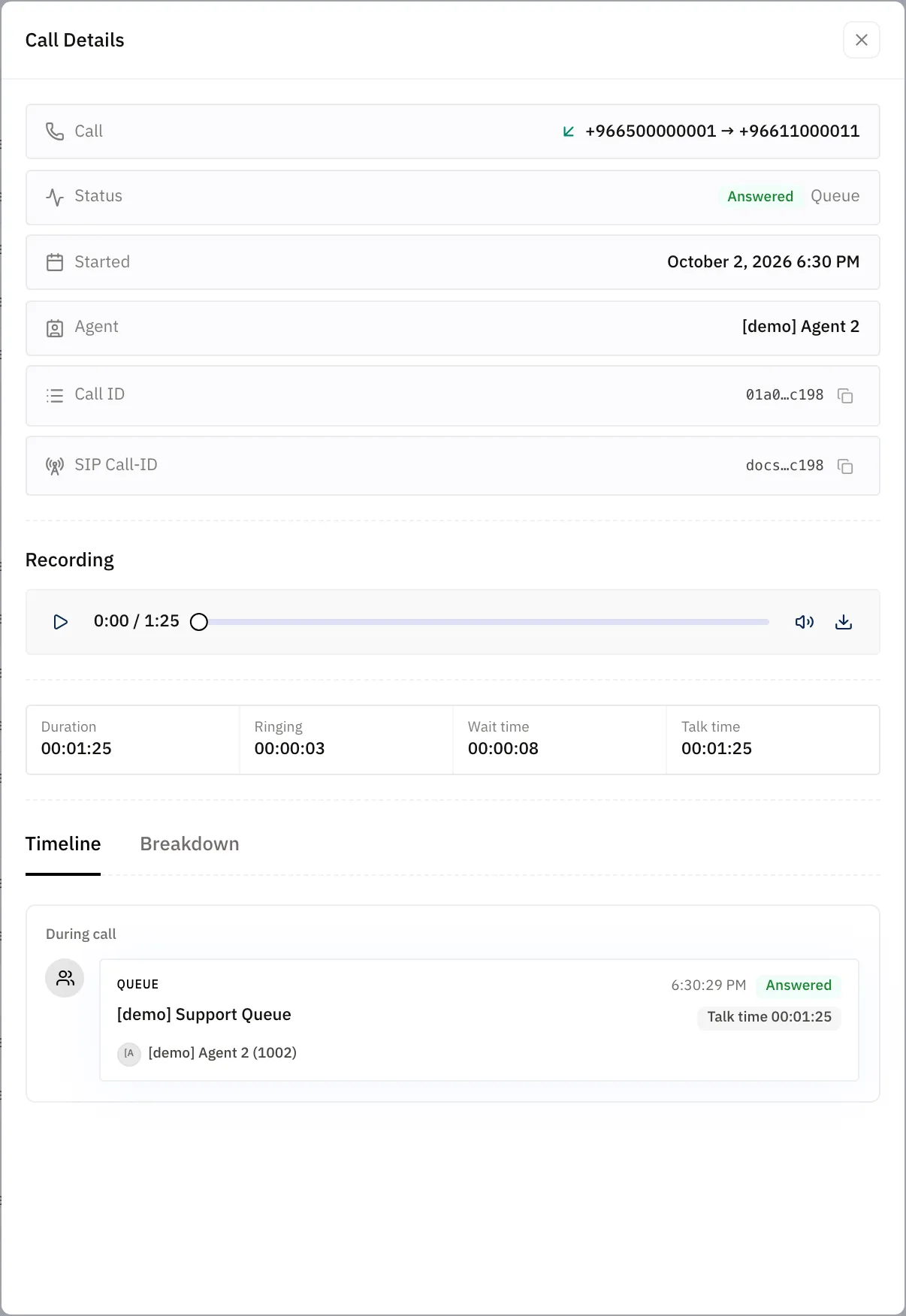
The audio has 2 channels. The customer is on the left channel. The agent is on the right channel.
A recording is ready a short time after the call ends. Until then, the row shows Processing. If the system could not prepare the recording, the row shows Unavailable.
Get legal advice before you record calls. Many countries need notice or consent from both parties. The platform records the calls that you choose. It does not play an announcement and it does not enforce a policy.
To download recordings with code, use the Developer API. The call.recording_ready webhook tells you when a recording is ready. See Call history and recordings.
Transcripts
A transcript is the text of a recording. The transcript shows the customer and the agent in one dialogue, in time order.
Transcription works only when Call Transcription is on for your account. Hams support turns on Call Transcription for your account. When it is on, the system makes a transcript automatically after a recording is ready. An administrator can also request a transcript. Agents cannot request a transcript.
For an administrator, the drawer of a call has the tabs Timeline and Breakdown. The Breakdown tab shows the Transcript. The tab shows only when call transcription is on, or when the recording already has a transcript. The drawer also has the Analysis tab when Post-call Analysis is on, or when the call already has an analysis. See Post-call analysis.
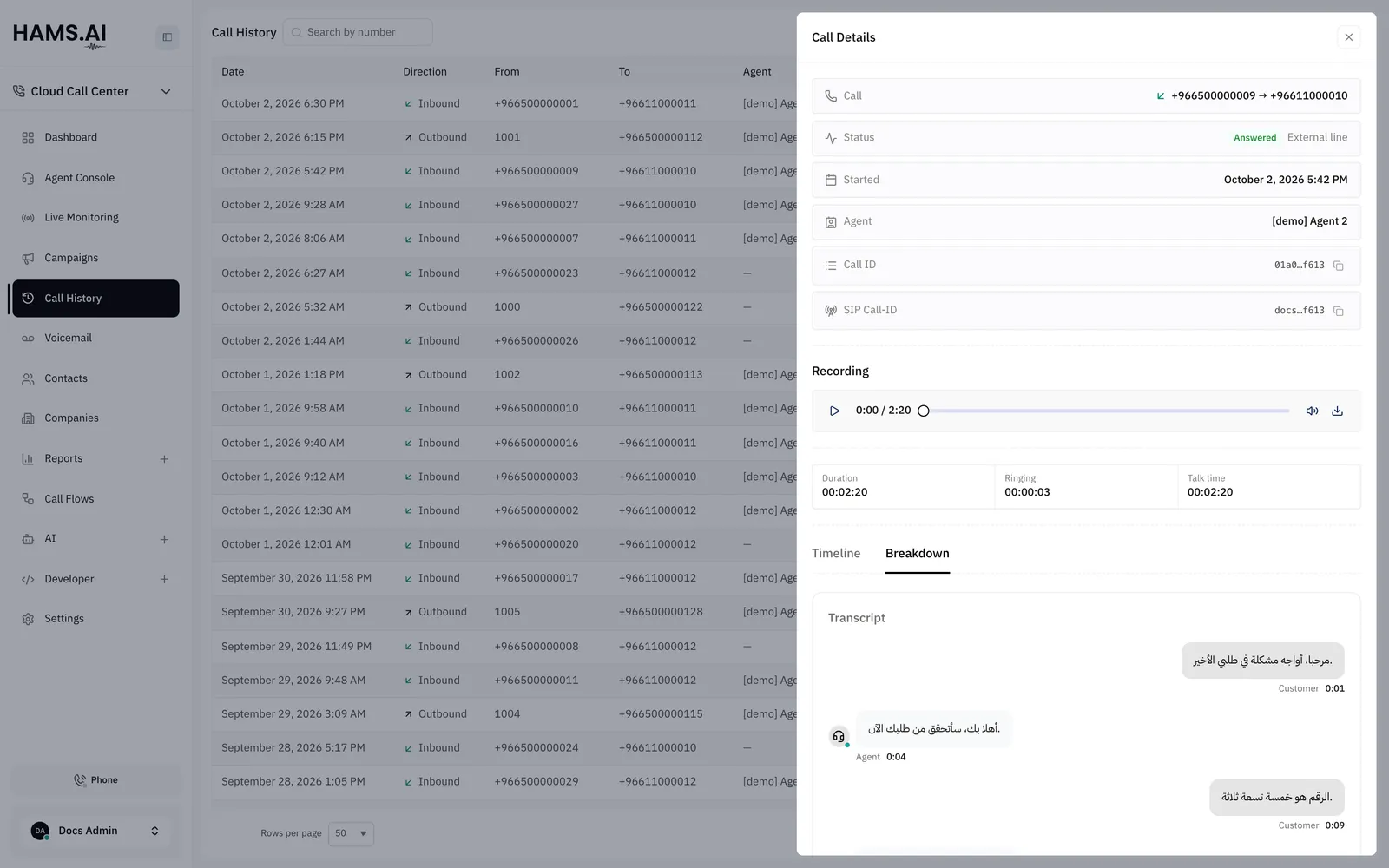
Each turn of a ready transcript shows the speaker, Agent or Customer, and the time in the recording. If an administrator requested the transcript, the tab shows Requested by and the name.
The tab shows the state of the transcript:
The Recording column of the list shows a small icon for the transcript of an administrator. A clock means that the transcript is in progress. A file means that the transcript is ready. A warning means that the transcript failed. Point at the icon to read the reason.
To read a transcript with code, use the Developer API. See Call history and recordings.