

Outbound routes
An outbound route matches the number that an agent dials. It sends the call out through a trunk. It can also rewrite the dialed number and the caller ID before the carrier gets them. A call campaign also needs an outbound route that matches its contact numbers.
Only administrators can see and change outbound routes.
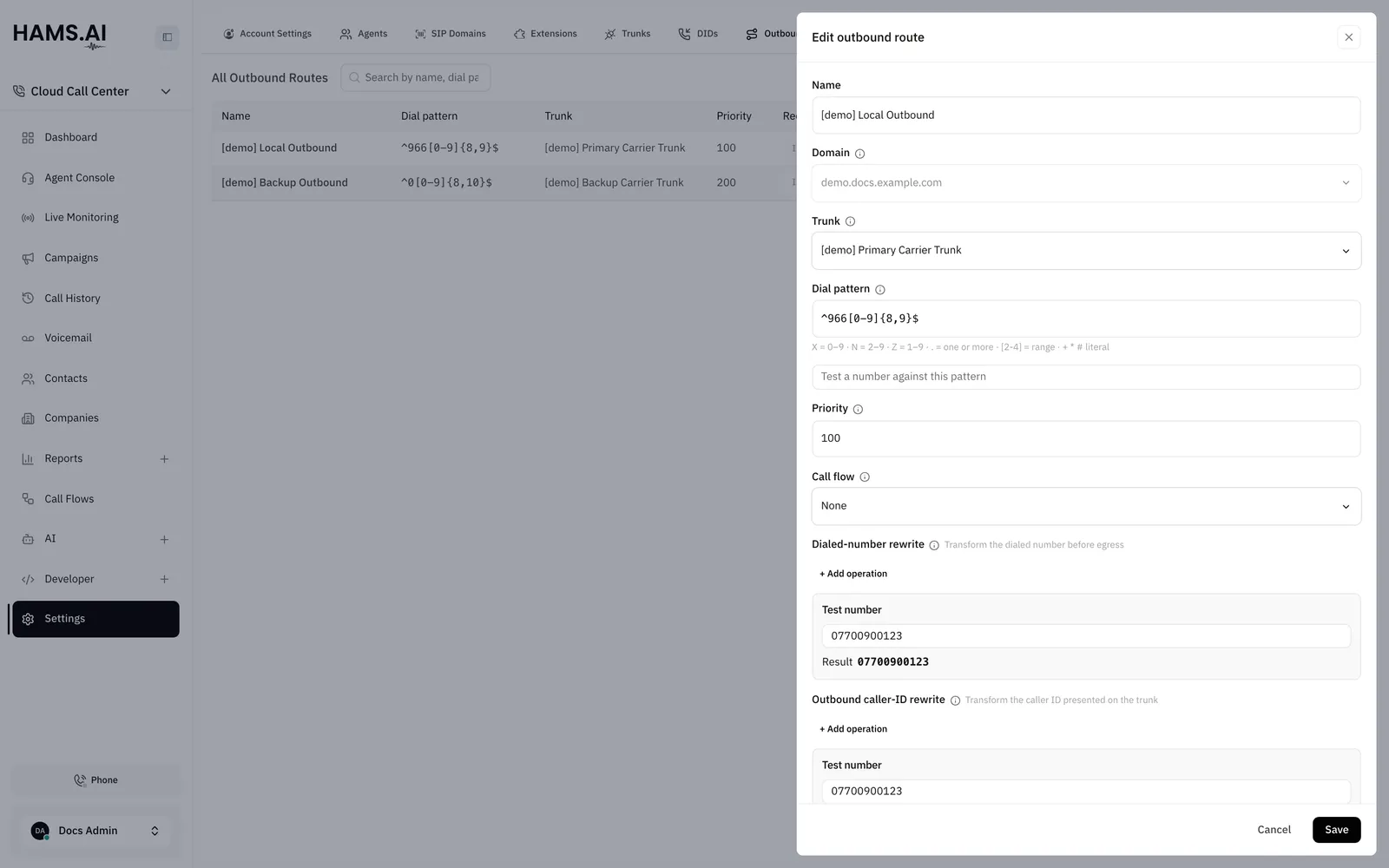
Fields
Two routes in the same SIP domain cannot have the same Dial pattern and the same Priority.
Dial patterns
The Dial pattern uses these symbols:
Examples:
Type a number in Test a number against this pattern. The form shows Matches or No match. The system does not check if two patterns overlap when you save a route. If two routes match a number, the route with the lowest Priority number goes first. Give each route a different priority.
Rewrite operations
Each operation changes the number in order, from the first row to the last row. Click + Add operation to add a row. Type a number in Test number to see the Result.
A prefix has 1 to 6 characters: digits, +, *, or #. The number for Set number has 3 to 16 characters: an optional +, then digits, *, or #.
For example, an agent dials 07700900123. Use Strip prefix 0 and then Add prefix +44. The carrier gets +447700900123.
Caller ID on an outbound call
The system picks the caller ID in this order:
- The Outbound Caller ID of the extension. See Extensions.
- The Default caller ID of the trunk, if the extension has none. See Trunks.
- The extension number, if the extension and the trunk have none.
The Outbound caller-ID rewrite of the route then changes the number that the system selected.
Add an outbound route
Before you start, add a SIP domain and a trunk. You cannot create a route before both exist.
Open the Outbound Routes tab
Click Settings in the Cloud Call Center sidebar. Click the Outbound Routes tab.
Set the match
Enter the Name. Select the Domain and the Trunk. Enter the Dial pattern and the Priority.
To change a route, click its row. Change the fields. Click Save. You cannot change the Domain.
Delete an outbound route
Check the dial pattern before you delete a route. If no other route matches the same numbers, those numbers have no route after the delete. You cannot undo a delete.
To delete a route, open the actions menu of its row. Click Delete. Click Delete again in the dialog.