

Call flows
A call flow is a diagram of the path of a call. For example, play a greeting, offer a menu, send the caller to a queue, and fall back to voicemail. You draw the flow on a canvas. You do not write rules.
Only administrators can open call flows. Go to Call Flows at /call-center/call-flows.
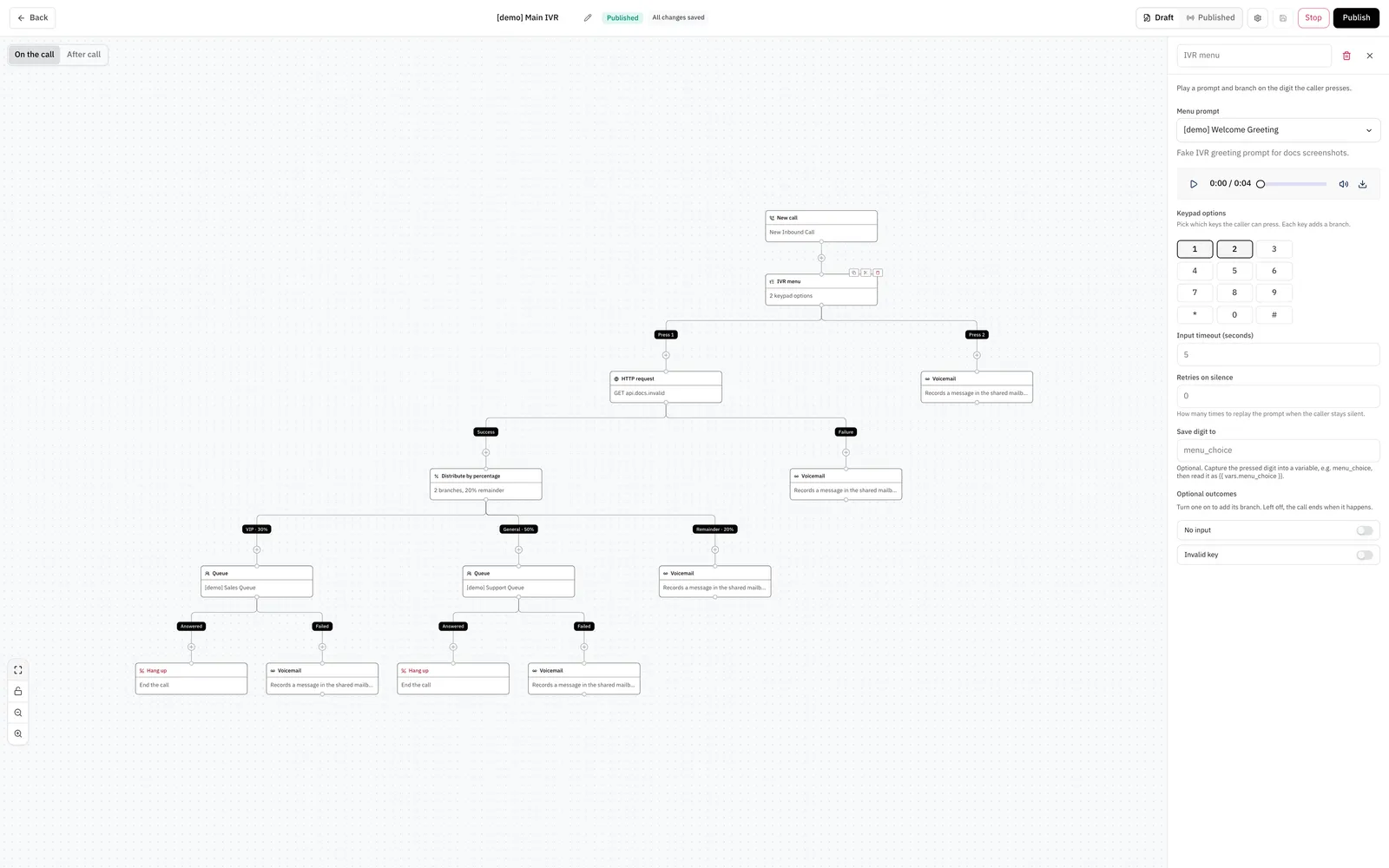
The call flow list
The list shows every call flow on the account. Each row shows the name, direction, status, who created the flow, and who last edited it. The list still names a member who has left the account.
Search by name, or filter by status. Open a flow to edit it. The row menu has Publish, Stop, Resume, and Delete.
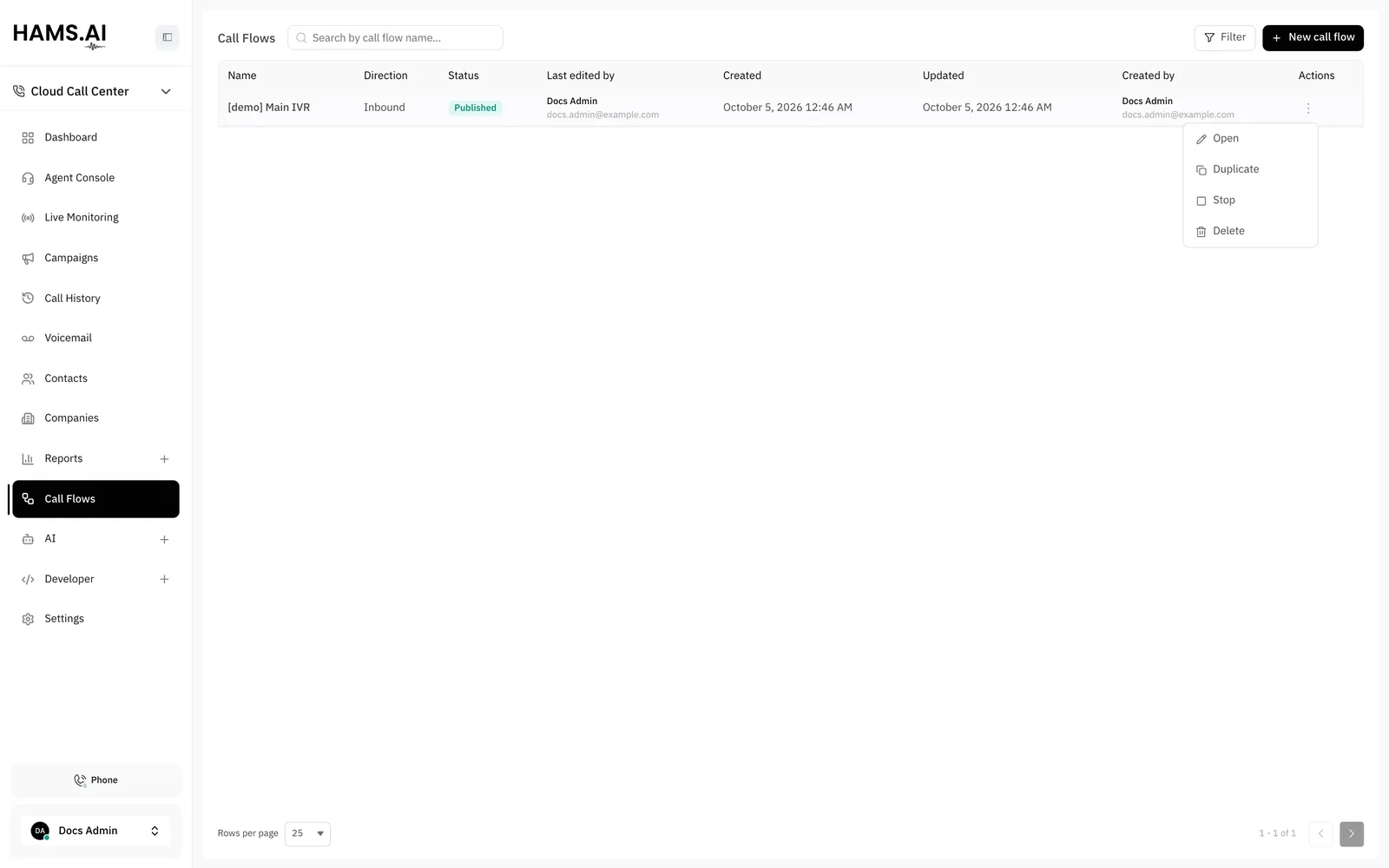
Build a call flow
Drag nodes from the palette onto the canvas. Connect the nodes. Set each node in the side panel. The palette has 3 categories: Interaction, Routing, and Flow control.
Every flow starts at one New call trigger. The system answers the call when a node needs it. A node that plays audio or collects digits answers the call when it runs. A routing node answers the call when the far side connects.
A flow control node, such as HTTP request, does not answer the call. To answer the call at a point that you choose, add an Answer node. See Answer.
Each node has one connector for each outcome it can end with. The flow follows the connector that matches what happened. If an outcome has no connector, the call ends.
To copy a node with its settings, select the node. Copy and paste it. To pan, drag the empty canvas. To zoom, scroll. To add a node right after a connector, click the connector.
Draft, published, and stopped
Every flow has a draft and a published version. You edit the draft. The published version answers calls.
An edit changes the draft only. The builder marks the flow as Unpublished changes. Use the Draft and Published toggle in the builder to look at either version.
Publish checks the draft and copies it over the published version. The change applies to the next call that arrives. A call that is already in the old version finishes in the old version.
You cannot undo a publish. To go back, publish the earlier draft again. Keep a copy of the draft that you want to return to.
Stop takes a published flow out of service. Calls to its DIDs arrive as if the DID has no flow. The fallback of the DID handles those calls. The system keeps the published version.
Resume puts a stopped flow back in service. You do not need to publish again. If you publish a stopped flow, the flow also resumes.
A new flow is a blank draft with nothing published. If you point a DID at the flow before the first publish, calls arrive and nothing runs. Publish the flow first.
What publish checks
The builder marks each unfinished item. Publish fails until you fix every marked item. These are the most common failures:
- A node has an empty setting that it needs. Examples are a menu with no sound, a dial node with no extension, or a queue node with no queue.
- A node uses a sound that is not ready yet.
- A branch has no conditions, or a condition has no variable, operator, or value.
- A Jump node targets another Jump node, or its Max loops value is not from 1 to 10.
- A node refers to a queue, extension, trunk, sound, or voice agent that you deleted.
- A
{{ }}placeholder or a condition uses acall.*variable that does not exist. - A Matches regex condition has a pattern that the system does not support. See Branch.
Publish refuses a flow that uses an unknown call.* variable. The draft accepts the variable, and publish then reports it.
Variables
A flow keeps state in 2 namespaces. Use {{ }} placeholders to read a value in a setting, for example {{ call.caller_number }}.
call.*holds read-only facts about the call.vars.*holds values that the flow writes. An HTTP request node, a Collect digits node, an IVR menu node, and a Set variable node write tovars.*.
A variable name starts with a letter or an underscore. It contains only letters, digits, and underscores. The system uses the prefix $ for its own variables.
Call variables
A call that is in progress has some of these values only. For example, ended_at and outcome are empty until the call ends. An after-call sequence sees the final values. See After-call sequences.
In an after-call sequence, call.outcome is the view of the flow. For a call that entered a queue, it can differ from call history. The flow does not know what the queue did.
The call outcome canceled means that the call ended before it connected. The outcome answered covers a call that a voice agent handled.
Redirected calls
A carrier or PBX can forward a call to you. The trunk reports the number that forwarded the call and the reason. The trunk reports them only when Trust identity headers is on. See Trunks.
call.redirected_from holds the number that forwarded the call. call.redirect_reason holds one of these values:
If the carrier sends a reason that is not in this list, the value is unknown. The builder offers these values in a list when you branch on call.redirect_reason.
A condition compares a boolean variable to the lowercase text true or false. The builder offers these values in a list. A value such as True never matches.
Node reference
Interaction
Routing
Flow control
The nodes Wait and Run workflow run only in an after-call sequence. The node Answer runs only during the call.
Answer
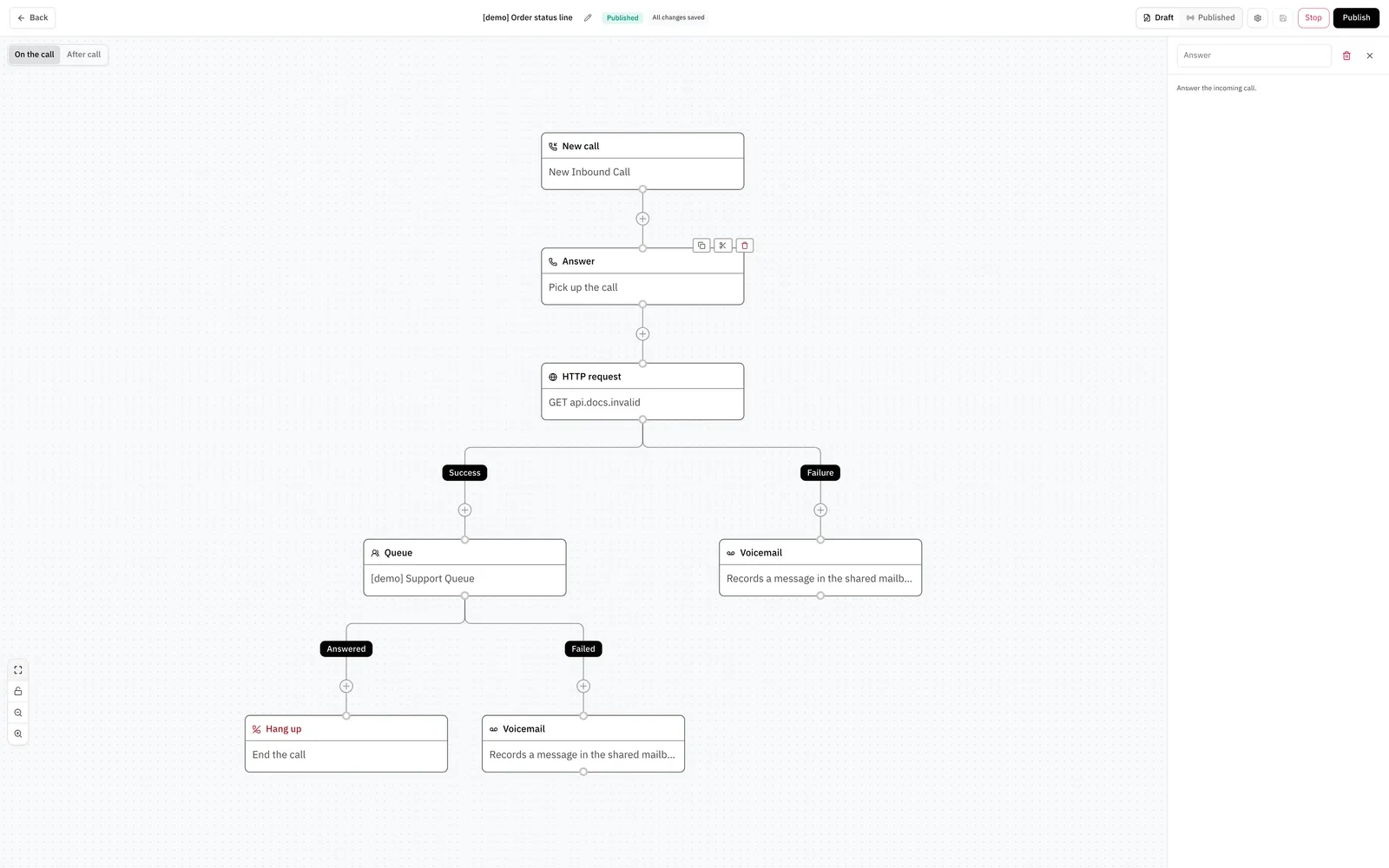
The node answers the call. The node has no settings. It has 1 outcome, Done. The canvas summary of the node is Pick up the call.
Use the node when a flow control node comes first and the caller must be on the line. For example, answer the call, and then call an API with an HTTP request node. Without the Answer node, the call stays unanswered while those nodes run.
Play sound
Plays 1 sound to the caller. The node has 1 outcome, Done. The sound must be ready before you can publish.
IVR menu
The menu plays its prompt and waits for 1 key. Each key that you add becomes a connector, for example Press 1 and Press 2. A key with no connector ends the call.
The node has 2 more connectors for other cases. No input applies when the caller presses no key before the timeout. The default timeout is 6 seconds. Invalid key applies when the caller presses a key that you did not add.
Set Retries on silence to replay the prompt that number of times before the flow takes No input. To keep the pressed key, set Save digit to, for example menu_choice. A later Branch node can use {{ vars.menu_choice }}.
Collect digits
The node collects a string of digits into a variable that you name, for example account_number. Read the value later as {{ vars.account_number }}.
Set the minimum and maximum digits (1 to 32). Set the wait for the first digit (1 to 60 seconds). Set the wait between digits (1 to 30 seconds). You can also set a finish key. The finish key ends the entry early, and the system does not save it.
Only the keys 0 to 9 count as digits. The entry ends at the maximum, at the finish key, or when the wait between digits ends.
If the caller types too few digits or no digit, the node spends 1 retry (0 to 3) and replays the prompt. When the retries end, the flow takes Failed. Otherwise the flow takes Success.
The node checks the length only. It does not check the shape of the value. To check that an account number is real, connect Success to an HTTP request node that looks up the number in your own system. Then branch on the answer.
Turn on Treat as sensitive for a PIN or a card number. Call history then hides the value. The next nodes still receive the real digits.
Branch
The node tests its branches from top to bottom. The call takes the first branch whose conditions match. If no branch matches, the call takes Else. A branch uses Match all conditions or Match any condition. A condition has a variable, an operator, and a value. The operator list has 11 operators. One of them is Matches regex.
Matches regex tests the value of the variable against a regular expression. The system uses the RE2 syntax. A pattern matches when it finds a match anywhere in the value. Use ^ and $ to match the whole value.
These rules apply to Matches regex:
- A condition can have up to 10 patterns. The condition matches when any pattern matches.
- A pattern can have up to 256 characters.
- The system tests only the first 1024 characters of the value.
\d,\w,\s, and\bmatch ASCII characters only.$matches only at the end of the value, not before a final line break.- The system does not support a backreference or a lookaround.
Publish fails when a pattern breaks one of these rules. The builder shows that the pattern is not a supported regular expression.
Distribute by percentage
Splits calls across branches by whole-number percentage. Use it to test 2 flows against each other or to share load.
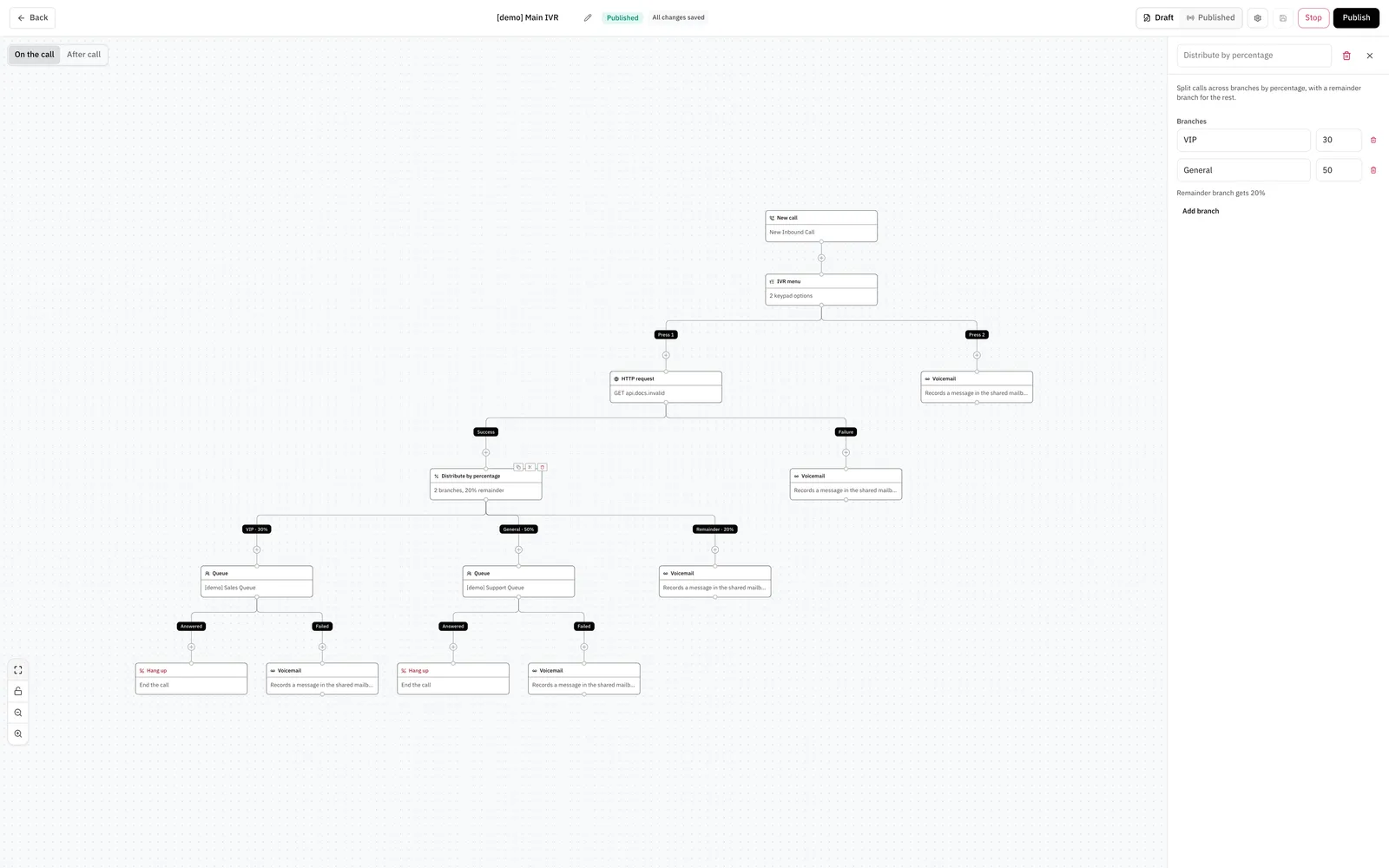
Click Add branch and give each branch a name and a percentage from 1 to 100. The total of all branches must not be more than 100. The Remainder branch gets the rest of the calls. The canvas shows the percentage on each branch.
The system picks the branch for each call with a fixed calculation on the call. If the node runs again for the same call, the call takes the same branch.
Voicemail
Sends the caller to the shared mailbox of the account. The node has no settings. The outcomes are Done and Failed. A caller who leaves a message has usually hung up when the node ends, so the builder hides both connectors. You can show a connector when you need it.
To send a call to the mailbox of one agent, set Offer voicemail if unanswered on a Dial extension node.
HTTP request
The node calls a URL that you choose during the call. The caller hears nothing while the request runs. Use an endpoint that answers fast.
Choose the method. Add headers and a JSON body. Choose an authentication mode: None, Bearer token, or Basic auth. The token and the body can use variables. Basic credentials cannot use variables.
The body goes out as application/json. To send a different type, add a Content-Type header.
Map values from the JSON response into variables by path. You can also save the HTTP status code in a variable. A 2xx reply takes Success. Any other reply, a timeout, or an unreachable host takes Failure. The node does not retry.
Later nodes read the saved variables as {{ vars.name }}. They can also read the call variables, for example {{ call.id }}.
The node sends an Idempotency-Key header on every request. If you set your own Idempotency-Key header, the node keeps yours. The system can repeat a request. Your endpoint can use the key to drop the repeat.
Each request shows on the timeline of the call as a Web request event. The event name in the API is http.request. The event shows the method, the URL, the headers, the request body, the response body, the status, and the duration. The system cuts bodies at 4 KB and masks secrets.
External trunk call
The node sends the call out on one of your trunks to a destination that you enter. Set a ring timeout of 5 to 120 seconds. Add up to 10 custom SIP headers. The node branches on how the call ends: Answered, No answer, Busy, or Failed.
A fifth outcome, Transfer not recognized, applies when the far end asks to transfer the call to a destination that the account does not know. The destination is not one of your extensions and not one of your queues.
The flow then takes that branch. The number that the far end asked for is in {{ vars.$transfer_target }}. You can play a message, look up the number, or dial it on another trunk.
AI voice agent
The node picks one of your voice agents as the destination. The agent talks to the caller. The node has 2 outcomes: Completed and Failed.
The flow takes Completed when the conversation ends. The flow takes Failed when the agent does not exist or does not answer. It also takes Failed when Answer calls with this agent is off for the agent.
A transfer is not an outcome. When the agent transfers the caller, the flow stops and the call goes to the queue or the extension that the agent chose. See Voice agents.
After-call sequences
A call flow can have a second part that runs after the caller hangs up. Use it to send a WhatsApp message, wait, call an API, or start a workflow. See After-call sequences.
Related
- After-call sequences explains what a flow does after the call ends.
- Voice agents explains how to give an AI agent a phone voice.
- DIDs explains how to point a number at a flow.
- Queues explains queue behavior, members, and hold music.
- Trunks explains how a trunk reports the number that redirected a call.
- Sounds explains where the prompts for the Play sound node come from.
- Call history and recordings explains how to see the timeline of a call.