

After-call sequences
An after-call sequence is a second part of a call flow. It runs after the caller hangs up. Use it for work that does not need the caller on the line.
For example, send a WhatsApp message to callers who did not get an answer.
Only administrators can edit call flows. For the basics of the builder, see Call flows.
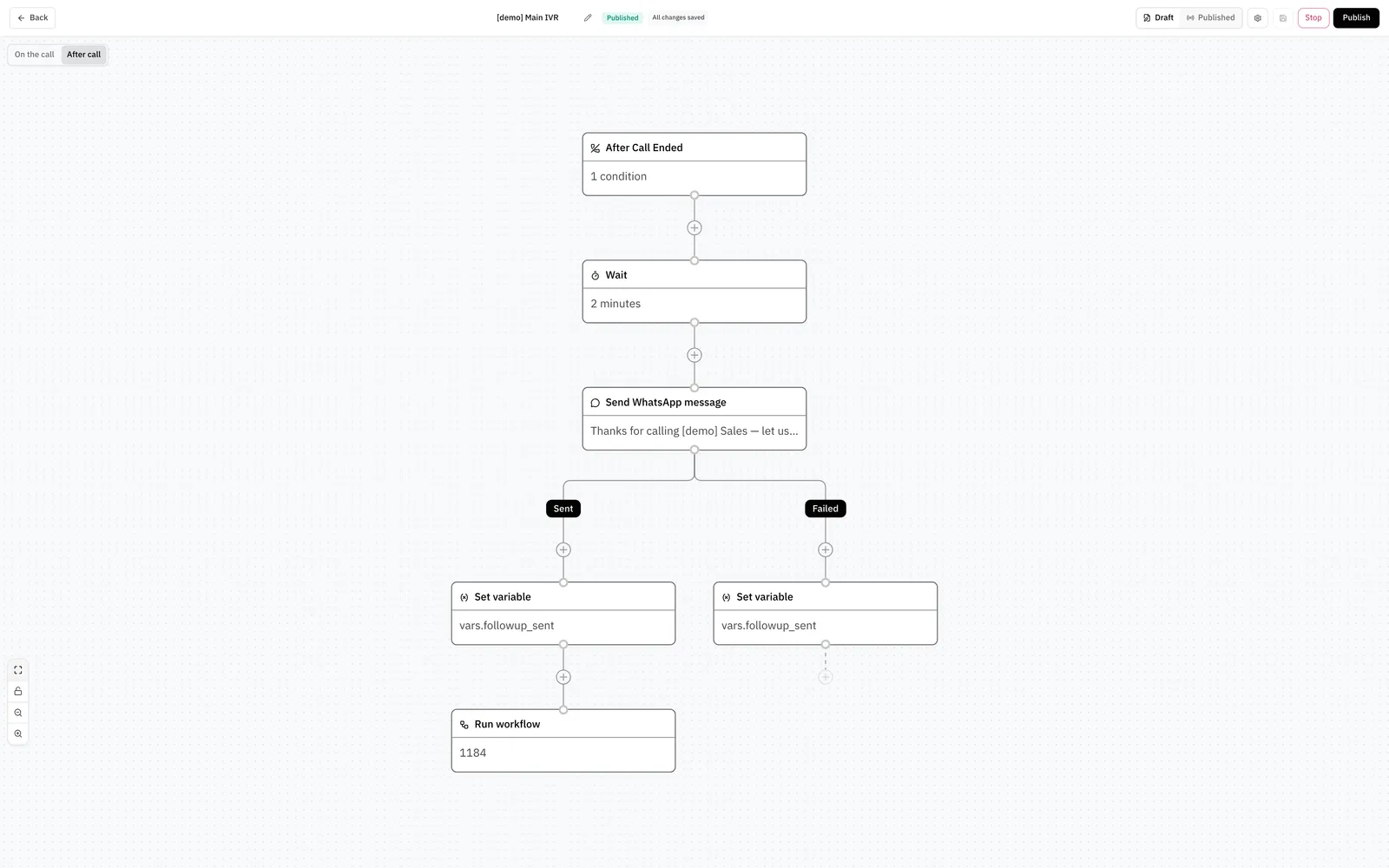
Add an after-call sequence
Set the trigger
Select After Call Ended. Add conditions to choose which calls run the sequence. See The trigger.
The sequence is part of the same call flow. Publish, Stop, and Resume apply to both views. A run that already started keeps the sequence that it started with. A later publish or stop does not change it.
The trigger
The trigger decides which calls run the sequence. The system checks it at the moment the caller hangs up. The conditions use the final values of the call.* variables. See Call variables.
The value of call.outcome is the view of the flow. For a call that entered a queue, it can differ from call history. The flow does not know what the queue did.
Set Run the sequence when to All conditions match or Any condition matches. Click Add condition to add a condition. If you add no condition, every call runs the sequence.
For example, use the condition call.outcome Equals no_answer. The sequence then runs for missed calls only.
The nodes
Nodes that use the caller line, such as Answer, Play sound, and Queue, are not available. The caller has already left.
A sequence can have up to 50 nodes. It can loop only through a Jump node.
Send WhatsApp message
The node sends a message from a WhatsApp inbox in Omni Channel. Set these fields:
- WhatsApp inbox: the inbox that sends the message.
- Send as: the kind of message to send. See the table below.
- Message: the text. It can be up to 4096 characters and can use variables.
- Template: the approved template. Some modes need a template.
- Send to: the number that receives the message. Leave it empty to send to the number that called.
The node has 2 outcomes, Sent and Failed. Sent means that Omni Channel accepted the message. It does not mean that the caller received it.
When the message fails, the reason is in {{ vars.$message_error }}. The value is one of window_closed, template_missing, invalid_number, inbox_unavailable, not_manual, contact_conflict, channel_error, or omni_unconfigured. To handle each case, add a Branch node that tests the value.
Run workflow
The node hands the contact to a workflow in Omni Channel. The workflow must have the Manual trigger. Set these fields:
- Workflow: the workflow to run.
- Inbox: where the conversation of the workflow lives. The default is The call’s own inbox.
- Contact number: the number that the workflow runs for. Leave it empty to use the number that called.
- Variables: up to 20 values that the workflow reads as
vars.*. For example, namecall_outcomewith the value{{ call.outcome }}.
If the call has only the Phone inbox, the node starts no workflow. The timeline shows Workflow did not start and the reason no chat thread to run in. To avoid this case, choose a WhatsApp inbox in Inbox.
The timeline can show one of these reasons when the workflow does not start:
- not a published manual workflow: the workflow does not have the Manual trigger, or you did not publish it.
- no chat thread to run in: the inbox is the Phone inbox.
- conditions did not match: the contact does not match the conditions of the workflow.
- already enrolled: the contact is already in a run of this workflow.
- subscription ended: the subscription of the Omni Channel account ended.
- the inbox could not take it, the channel did not answer, no Omnichannel account linked: Omni Channel could not accept the request.
The node ends the sequence. The workflow handles everything that the contact does next. See Workflows.
Wait
The node pauses the sequence. Set Wait for and Unit: seconds, minutes, hours, or days. The default is 10 minutes. The longest wait is 10 days.
The run continues after a restart. A pause does not use a phone line.
Set variable
The node writes up to 20 variables. The system writes them in order, so a later value can read an earlier value. For example, set first_name and then use it in a message.
Variables in a sequence
An after-call sequence sees the final call.* values, for example call.outcome and call.talk_seconds. It also gets a copy of the vars.* variables at the end of the call.
Sensitive variables do not carry over. In the sequence they are empty. This applies to a value that you collected with Treat as sensitive.
Retries
The system saves its place after every node. If a run stops in the middle, the system continues it. A node can therefore run again. The Omni Channel nodes and the HTTP request node send a key that is unique for each run and node. The receiver can use the key to drop a repeat.
If a run cannot finish after several attempts, the run stops. The timeline shows After-call sequence stopped.
See the result
Open the call in Call history and recordings. The timeline of the call has an After call divider. The events below it show the sequence.
Related
- Call flows explains the builder, the call variables, and publish.
- Workflows explains how to build a workflow that you can start from a call flow.
- Call history and recordings explains the call timeline.