

Agent console
The Agent Console page is your personal page in the Cloud Call Center sidebar. It opens at /app/accounts/{account_id}/call-center/agent-console. Administrators and agents can open it.
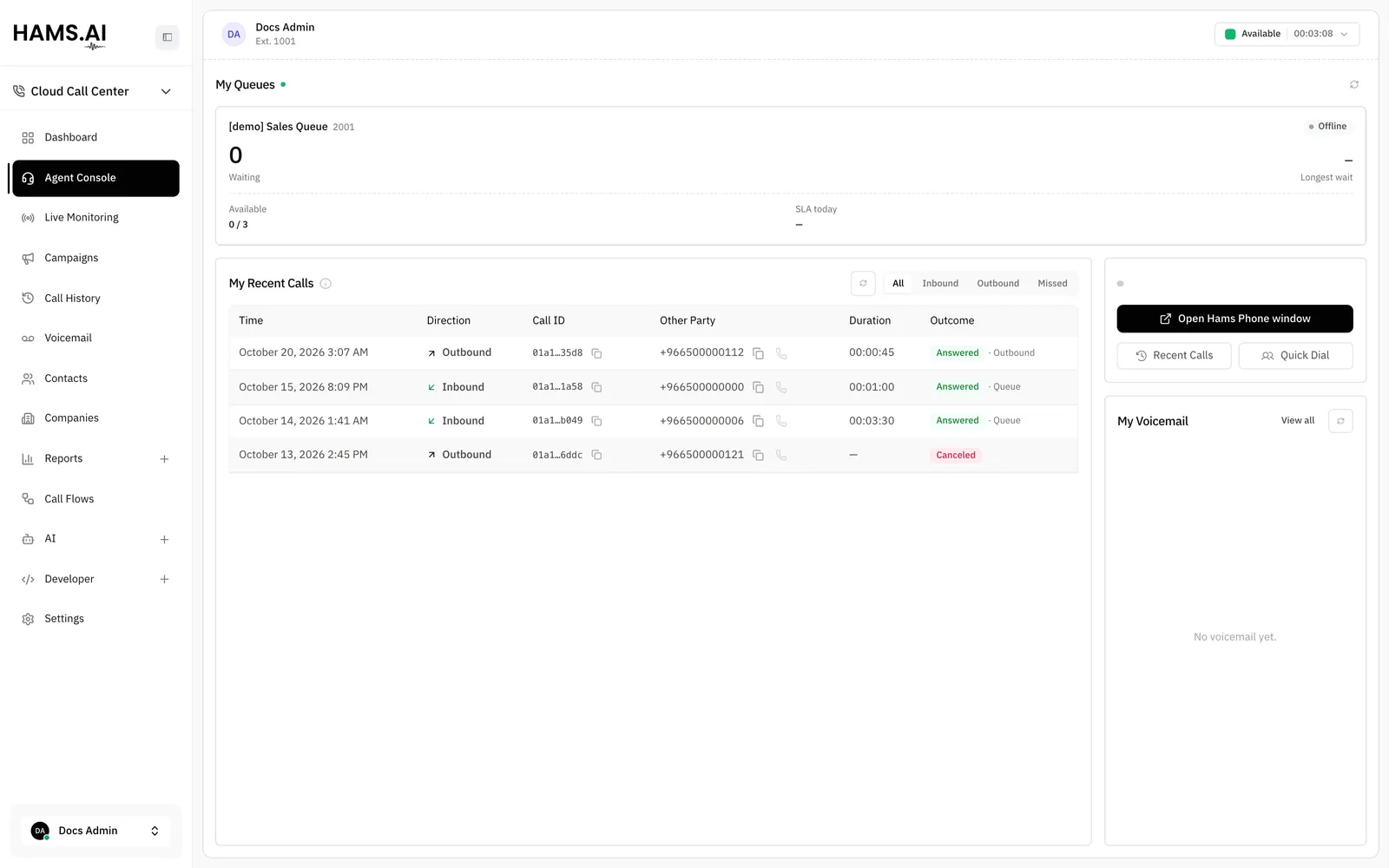
The page shows your status, your queues, your phone, your voicemail, and your recent calls. The dashboard and the Live Monitoring page show the whole account. See Dashboard and live data.
The header
The header shows your avatar and your name. Below your name, it shows your extension numbers, for example Ext. 1001.
The status button is at the right of the header. It shows your current status and a clock. The clock counts up from the start of the status. In wrap-up time, the clock counts down to the end of the wrap-up time.
Your status
Click the status button to open the list.
The label must not be empty. It can have 80 characters at most. The form shows Add a status label. when the field is empty. It shows Label must be 80 characters or fewer. when the label is too long. The form also shows the count, for example 12/80.
If the save fails, the button returns to your last saved status. An alert shows the reason.
Your status is one part of your presence. Your presence also depends on your phone and on your calls. A phone with a registration and the status Available make you available. A call makes you busy. See Softphone.
My Queues
The My Queues section shows one card for each queue that you are a member of. The cards update live. A dot next to the title shows the state of the live updates. Point at the dot to read Live updates on or Live updates paused.
Each card shows the name of the queue and its extension number. A chip at the top right shows your state in that queue:
Each card also shows these figures:
Point at SLA today to see the answered and abandoned calls of today, for example Answered today: 12 · Abandoned today: 1.
The cards only show information. You cannot join or leave a queue here. An administrator sets the members of a queue in Queues.
Click the refresh button to load your queues again. The section can show one of these messages instead of cards:
Your phone
The phone panel is on the page. It is the same panel as the panel of the Phone button in the sidebar. Use it to make, answer and control calls. See Softphone.
On this page, the sidebar does not show the phone card. A call that rings does not open a second phone panel.
My Voicemail
The My Voicemail section shows the 5 newest messages in your personal voicemail box. If an administrator has no box, the section shows the first personal box that the administrator can open. A badge next to the title shows the number of new messages.
Each row shows the caller, the number or the length of the message, and the time. A call from today shows only the time. An older call also shows the day. New messages show in bold.
- Click the play button to open the player. The message becomes a saved message.
- Click the phone button to call the caller back. The button works only when your phone is ready and the message has a number.
- Click View all to open the Voicemail page.
- Click the refresh button to load the messages again.
If you have no voicemail box, the section shows No mailbox yet. If the box has no messages, it shows No voicemail yet. See Voicemail.
My Recent Calls
The My Recent Calls table shows your 20 newest calls. The information icon next to the title gives the same explanation. The server keeps this list, so it is the same on every browser and device. The softphone Recent Calls log is a different list. It is local to one browser. See Softphone.
The table has these columns:
The Other Party column has 2 buttons:
- Copy number copies the number. The page shows Number copied to clipboard.
- Call back calls the number from your phone. The button works only when your phone is ready.
Use the tabs All, Inbound, Outbound and Missed to filter the rows. The tab Missed shows the inbound calls with the outcome no_answer. Click the refresh button to load the table again. The table shows No recent calls. when no row matches.
To see the details of a call, open it in Call history and recordings.