

Post-call analysis
Post-call analysis reads the transcript of a call. It records how the call ended for the customer, the mood of the customer, and why the customer called. It also gives a short summary, a score for the human agent, and labels. Analysis profiles tell the system which calls to analyze and how.
Post-call analysis is off by default. Hams support turns on Post-call Analysis for your account. The analysis reads the transcript of a call, so Hams support must also turn on Call Transcription. Only calls with a recording get a transcript. In Cloud Call Center, only administrators can manage analysis profiles, see analysis results, open the report, and start an analysis.
Before you start
You need these items before the system can analyze a call:
- Call Center, Call Transcription, and Post-call Analysis on for your account.
- A recording policy that records the calls. See Trunks and Queues.
- At least 1 analysis profile that is on. See Create a profile.
How the analysis works
- A recorded call ends. The system prepares the recording and then the transcript. See Transcripts.
- When the transcript is ready, the system starts the analysis. It waits until the record of the call is complete.
- The system finds the first profile that is on and matches the call. It checks the profiles from the top of the list to the bottom.
- The system sends the transcript and some facts about the call for analysis. The result shows a short time later.
The system analyzes inbound and outbound calls, and calls that a campaign places. It does not analyze internal calls between 2 extensions.
The system does not analyze a call in these cases:
- The call has no recording, or the transcript failed. See Transcripts.
- No profile that is on matches the call. The result shows No analysis profile matched this call.
- The transcript has no speech. The result shows The call had no speech to analyse.
- Post-call Analysis was off when the transcript became ready.
If no profile matched, an administrator can start the analysis manually after a profile is on. See Run the analysis again.
Analysis profiles
A profile sets which calls to analyze, which labels the analysis can use, the language of the result, and extra instructions. To open the profiles, click AI in the Cloud Call Center sidebar. Then click Analysis profiles. The page opens at /app/accounts/{account_id}/call-center/call-analysis/profiles. If Post-call Analysis is off for your account, the page opens Call History instead.
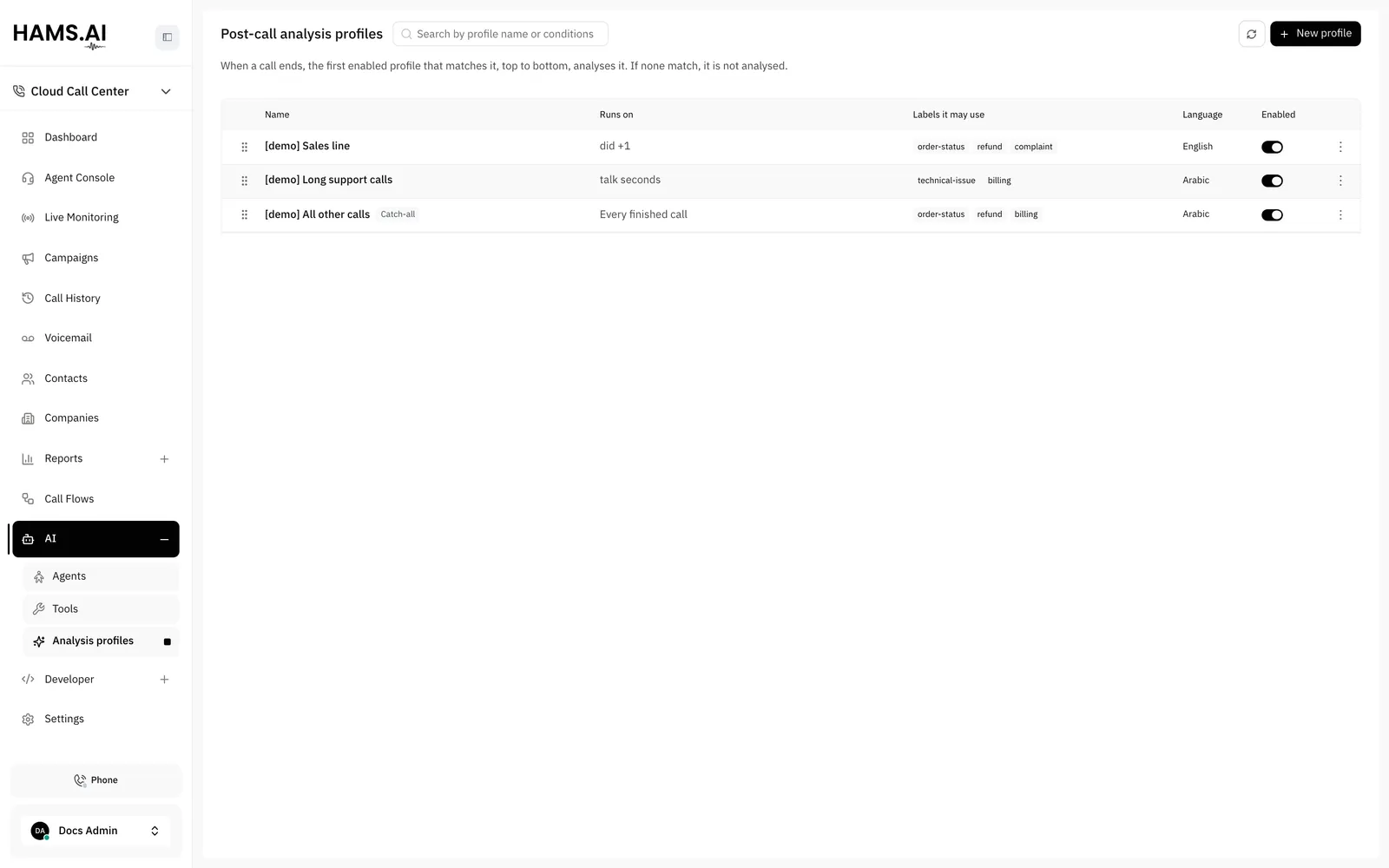
The Post-call analysis profiles page has these columns: Name, Runs on, Labels it may use, Language, and Enabled. A profile with no conditions shows Catch-all and runs on Every finished call. Use Search by profile name or conditions to find a profile.
The order of the list is the match order. To change the order, drag a profile by its handle. The system saves the new order and shows Order saved. You cannot drag a profile while you search the list.
If a catch-all profile is on and is above a profile, the lower profile shows Never runs: a catch-all profile above it matches first. Move the catch-all profile to the bottom of the list.
To turn a profile on or off, use its Enabled switch. The actions menu of each profile has Edit, Duplicate, and Delete.
- Duplicate makes a copy with the name Copy of and the name of the profile. The copy is off. The edit drawer of the copy opens.
- Delete opens a dialog. Click Delete to confirm. The system keeps the results that the profile already gave, with the name of the profile.
Create a profile
If a catch-all profile is on and is at the end of the list, a new profile never runs. Drag the new profile above the catch-all profile.
The Enabled switch at the top of the drawer turns the profile on or off. A new profile is on. The default language is Arabic. If you close the drawer with changes that you did not save, the Discard changes? dialog opens.
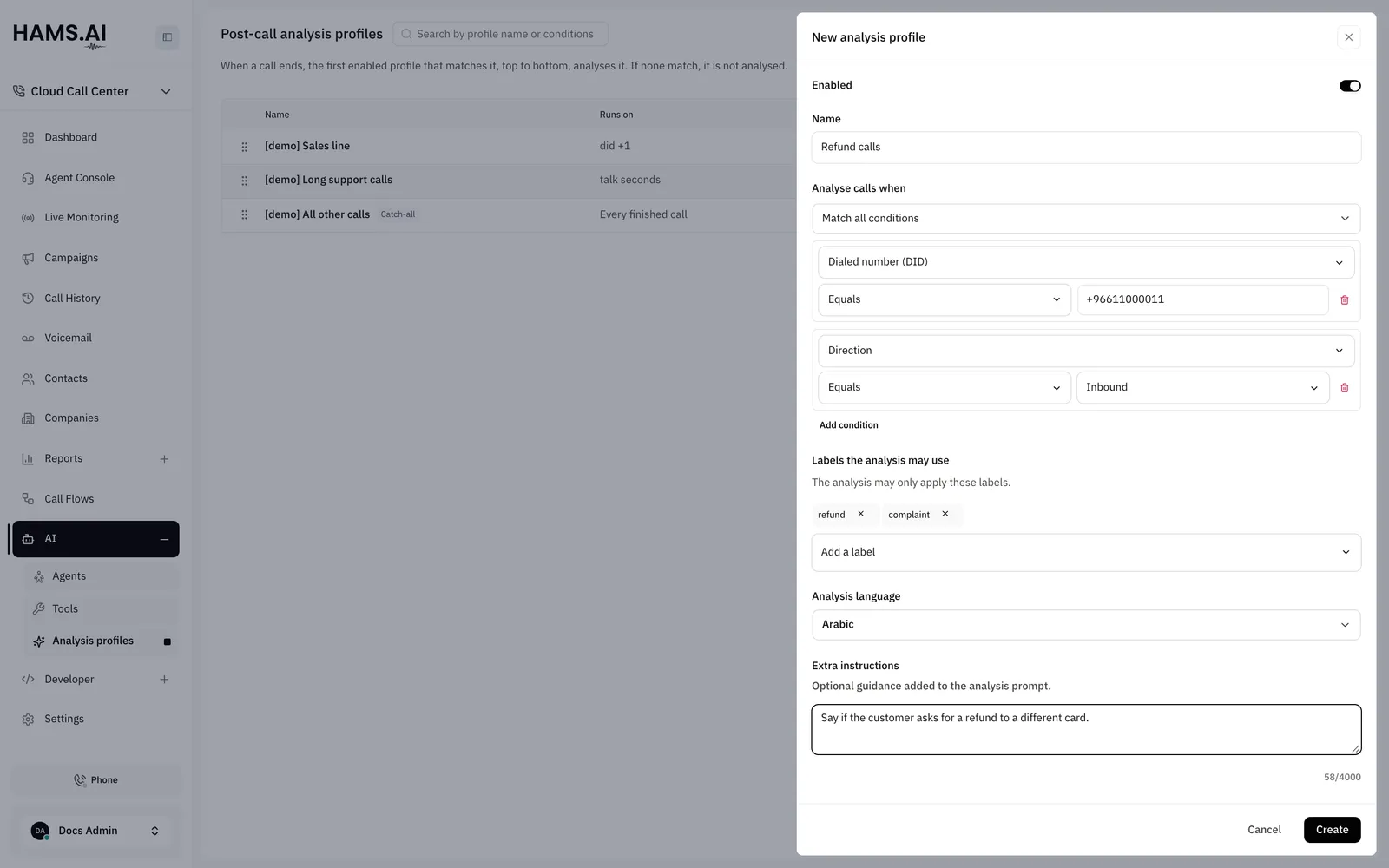
Profile fields
Conditions
A condition tests 1 fact about the call. These facts are available:
The operators depend on the fact. A fact with a fixed list of values, for example Direction, has Equals, Does not equal, Is present, and Is not present. A count or a duration also has Greater than and Less than. Other facts also have Contains, Does not contain, Starts with, Ends with, and Matches regex. Every operator needs a value, except Is present and Is not present.
A Matches regex condition uses RE2 syntax, with up to 10 patterns of 256 characters or fewer each. RE2 does not support back-references or lookarounds. The profile does not save if a pattern is not valid. The rules are the same as the rules of a Branch node. See Branch.
A profile can test only the facts in the table. If you type a different path in Custom path…, the profile does not save.
Labels
The analysis can pick only the labels that the profile lists. If the profile lists no labels, the result has no labels. The system does not add the labels to a conversation. The labels show on the result, in call history, and in the report.
If someone deletes a label in Omni Channel, the drawer shows it struck through, with the tooltip Removed. The system removes it from the profile when you save.
Result fields
The resolution and the sentiment use these API values: resolved, unresolved, escalated, customer_silent, and very_negative, negative, neutral, positive, very_positive.
- Resolved means that the customer got what they needed.
- Unresolved means that the customer did not get what they needed, and the call ended.
- Escalated means that the call went to another team, or someone promised a follow-up, and the call did not end the matter.
- Customer silent means that the customer stopped before the call had a result.
The analysis does not judge the agent on menu prompts, hold music, or announcements. If a transcript is very long, the analysis reads only its beginning and its end.
Read a result
To read the result of a call, open the call in Call History. The Call Details drawer has an Analysis tab for an administrator. The tab shows when Post-call Analysis is on, or when the call already has an analysis.
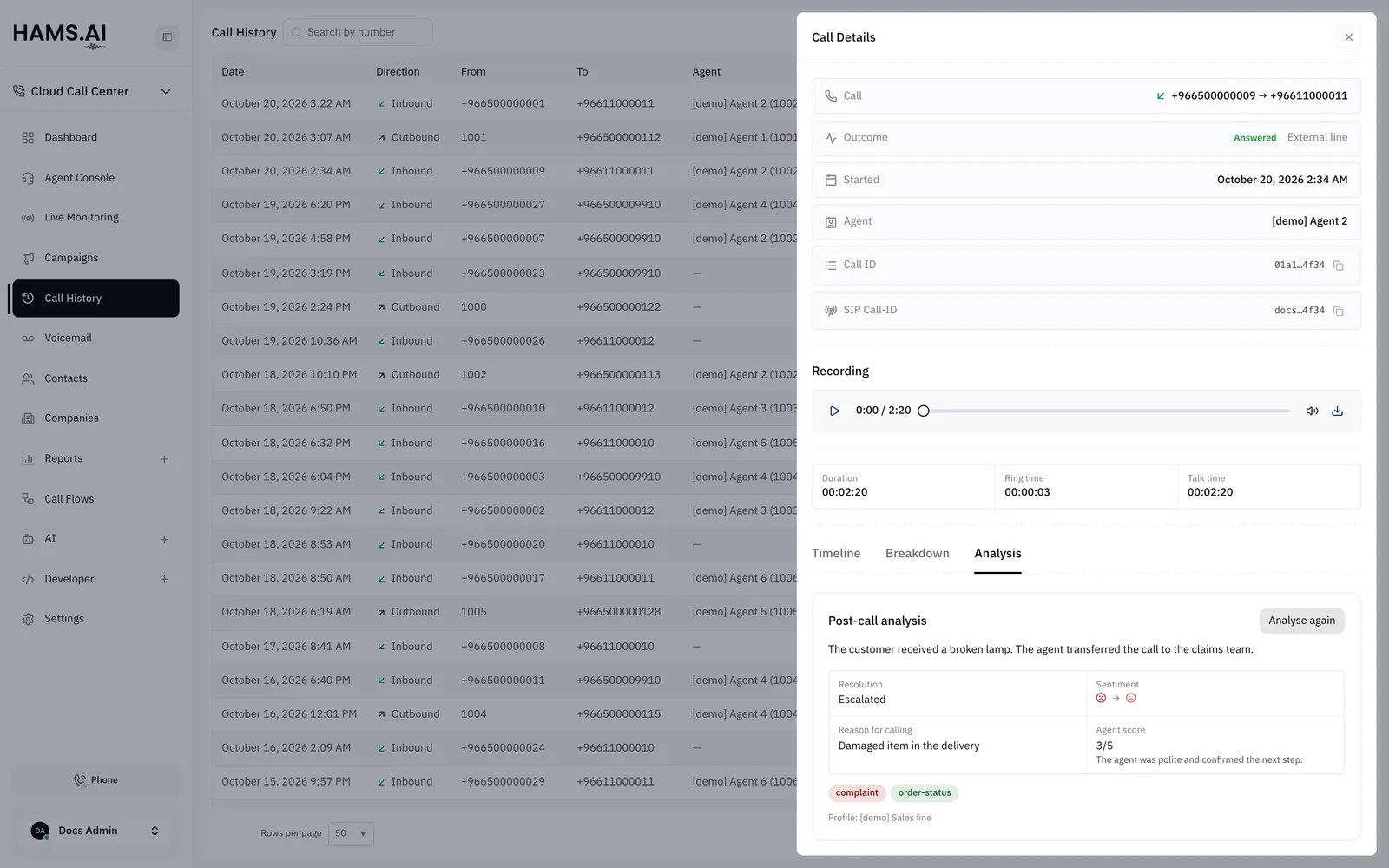
The Post-call analysis card on the tab shows the summary, the Resolution, and the Sentiment at the start and at the end. It also shows the Reason for calling, the Agent score, and the labels. The line Profile: shows the name of the profile that made the result.
The card shows the state of the analysis:
If an analysis failed, start it again. See Run the analysis again.
Run the analysis again
Only administrators can start an analysis. On the Analysis tab, click Analyse this call. If the call already has an analysis, click Analyse again. The tab shows Analysis in progress. until the new result is ready.
In the report, open the actions menu of a row and click Analyse again. If the call has a completed result, the Rerun the analysis? dialog opens. Click Rerun to confirm.
The new result replaces the current result. If the profile of the current result still exists, the system uses that profile again, with its current settings. If not, the system finds the first profile that matches the call.
You cannot start an analysis in these cases:
- Post-call Analysis is off for your account.
- The call is internal.
- The call has no transcript that is ready.
- An analysis of the call is in progress.
Call history
When Post-call Analysis is on, the Call History list has 3 more columns for an administrator:
To show, hide, or move a column, click Columns. To return to the default columns, click Reset to default.
Click Filter to narrow the list by the analysis. Under Resolution, select a resolution. Under Ending sentiment, select the mood of the customer at the end of the call. Then click Apply. See Call history and recordings.
The report
The Post-call analysis report shows the results of the calls that started in a period. To open it, click Reports in the Cloud Call Center sidebar. Then click Post-call analysis. The page opens at /app/accounts/{account_id}/call-center/reports/call-analysis. Only administrators can open it.
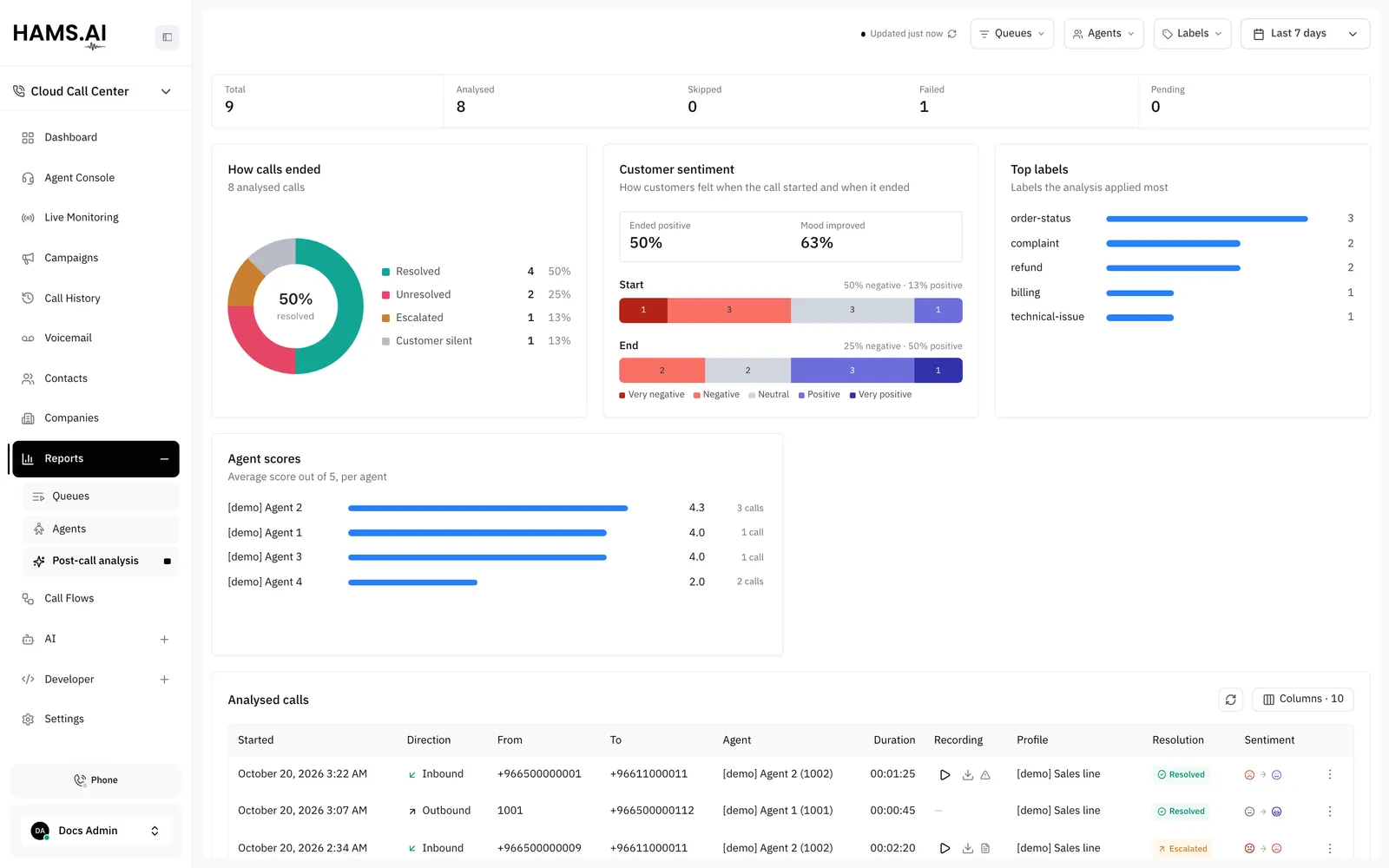
The filter bar works like the filter bar of the other reports. See Reports. It has these filters:
- The period. The range is 92 days or less.
- Queues: the calls that went through one of the selected queues.
- Agents: the calls that one of the selected agents handled.
- Labels: the results that have one of the selected labels.
The refresh control shows when the report last loaded. Click it to load the report again.
The tiles at the top count the analyses: Total, Analysed, Skipped, Failed, and Pending. The report also has these cards:
Analysed calls
The Analysed calls table lists the calls that the report counts, with the newest call first. It has these columns: Started, Direction, From, To, Agent, Duration, Recording, Profile, Resolution, and Sentiment. To show Reason for calling, Labels, and Agent score, click Columns.
The Resolution column of this table shows Customer went silent for Customer silent. Click a row to open the Call Details drawer of the call. To start the analysis of a row again, use its actions menu. See Run the analysis again.
Webhook
When an analysis gives a result, the system sends the call.analysis_completed webhook. Each new result of the same call sends the webhook again, with a higher attempt. A failed or skipped analysis does not send it. See Webhooks.
The Developer API also shows the state, the resolution, the end sentiment, the agent score, and the labels on each call record. See Call history and recordings.
Omni Channel
If Voice Channel is on for your account, the system also sends the result to the Omni Channel conversation of the call. The call card in the conversation shows the resolution, the sentiment, the agent score, the summary, and the labels. If the call center analyzes the call again, the card shows the newest result. All users who can open the conversation see the card. A call that a campaign places does not show in Omni Channel, so its result shows only in the call center. See Voice.