

Voicemail
A voicemail box records a message when nobody answers a call. The Voicemail page in the Cloud Call Center sidebar lists the messages of the boxes that you can open.
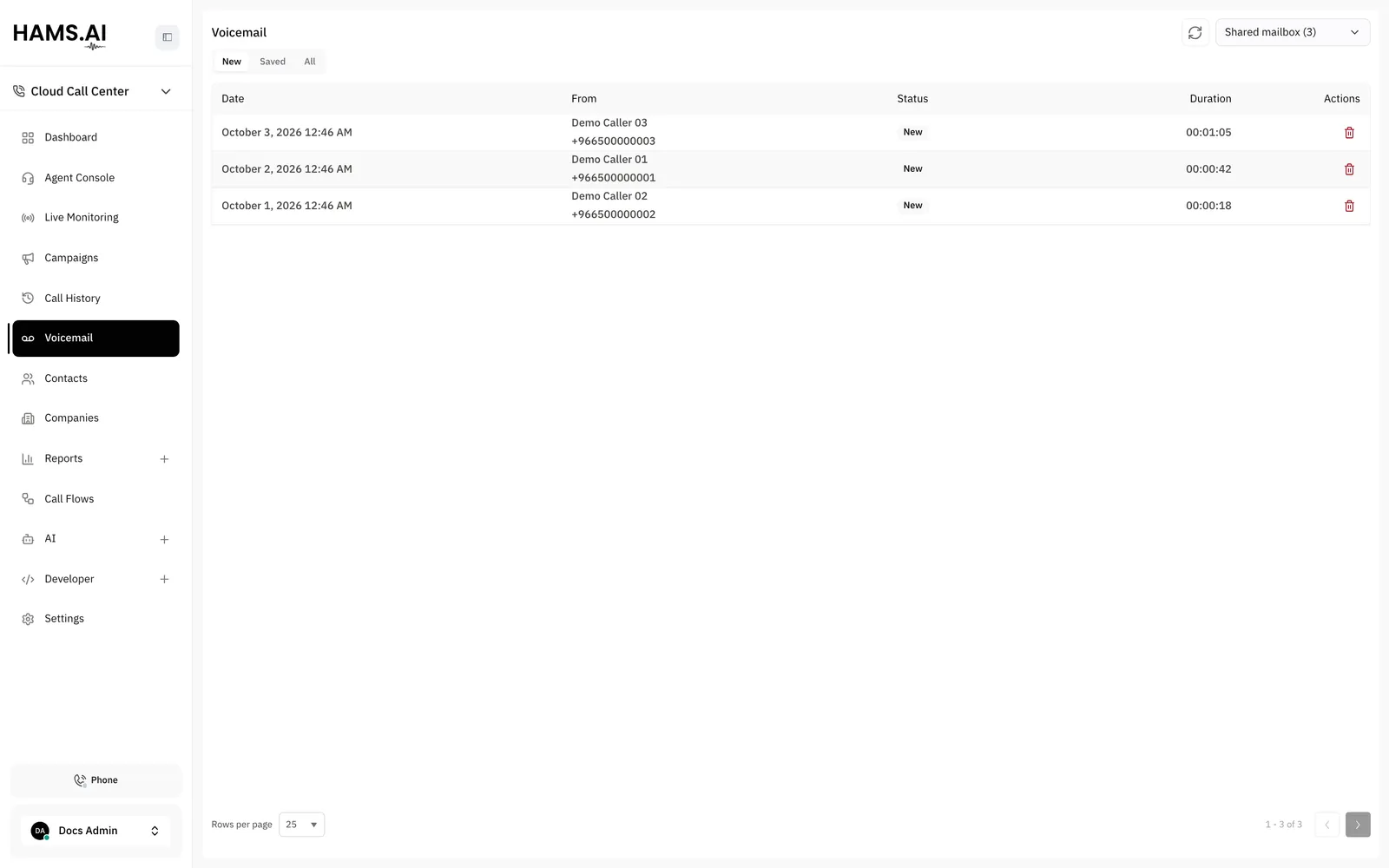
Which boxes you see
An agent sees the boxes of their own extensions. An administrator sees every box, and also the Shared mailbox of the account.
The selector at the top of the page lists your boxes. A number in parentheses shows how many new messages a box has. The selector shows the number of the extension and its name, for example 1001 — Name. The page opens the first box in the list.
If you have no box, the page shows No mailbox yet. An administrator adds a box in Voicemail boxes.
How a message arrives
A caller leaves a message in one of these cases:
- The call flow reaches a Voicemail node. The message goes to the shared mailbox.
- A Dial extension node has Offer voicemail if unanswered turned on, and the extension does not answer. The message goes to the personal box of that extension.
- Someone calls an extension directly, and the extension is offline, busy or does not answer. The extension must have an active personal box.
Call history shows the outcome voicemail for such a call. See Call history and recordings.
If someone dials a number that matches no extension, the system rejects the call with SIP 404. The call does not go to a voicemail box.
Folders
Use the folder buttons under the title to filter the list.
Each row shows the columns Date, From, Status, Duration and Actions. The status is New or Saved. New messages show in bold. The From column shows the name of the caller and the number. If the system has no caller ID, it shows Unknown caller.
The table has pages. Choose 25, 50 or 100 rows for each page. Click the reload button at the top to load the list again.
The page shows No voicemails found when the folder is empty.
Play a message
Click a row to open the player. The message starts to play. The window shows the name of the caller and the date.
When you open a new message, its status changes to Saved. The message stays in the list until you load the list again.
The player has these controls:
- A play and pause button
- A progress bar that you can click to move in the message
- A mute button
- A download button
- The button Close player
If the system has a transcript of the message, the player shows the text under the audio. The system transcribes each message with the same service as call recordings. This works when the service is available for the installation and the account setting Transcribe messages is on. The setting is on by default. See Voicemail boxes.
If the recording is not ready, the play button is off. Its tooltip is This recording could not be prepared and cannot be played.
Delete a message
Do not delete a message that you still need. The system removes the recording, and you cannot get it back.
Listen on the phone
You can also listen to your messages on a phone. Dial *97 from your extension to open your own box. You do not enter a PIN. Dial *98 to open any box in your SIP domain. You must enter the number and the PIN of the box. This code cannot open the Shared mailbox.