

Sounds
A sound is an audio file that the call center plays to a caller. Examples are a greeting, the prompt of a menu, an out-of-hours message, a queue announcement, or hold music. Upload each file one time. Then select it where you need it.
Only administrators can see and change sounds. An agent cannot open the sound library.
You can use a sound only when its status is Ready.
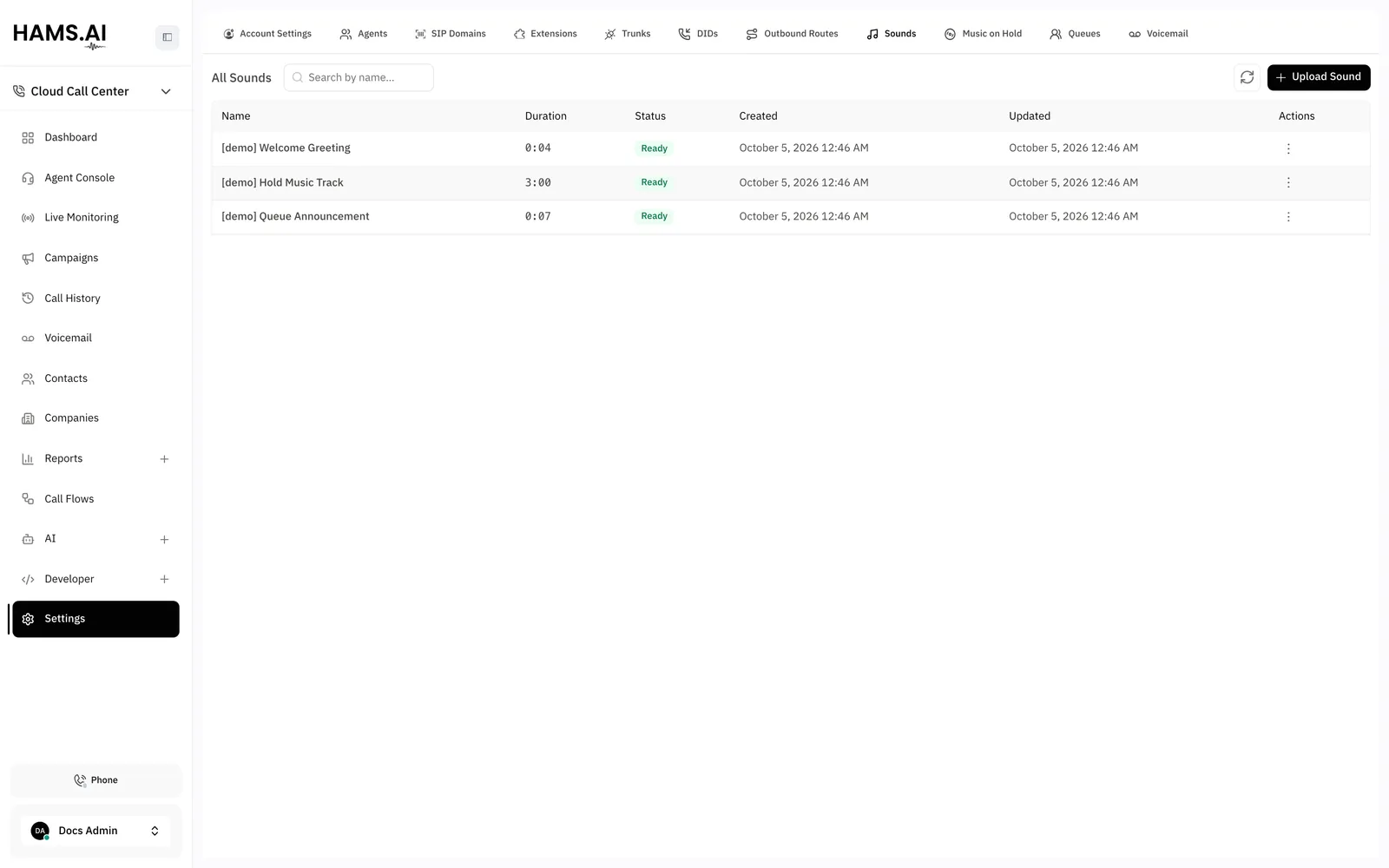
Fields
The list shows the Name, the Duration, and the Status of each sound.
Upload a sound
Status
The system converts each uploaded file for playback. The Status column shows the result.
Change a sound
You can change only the Name and the Description of a sound. You cannot replace the audio.
To use new audio, click Upload as new sound. Then select the new sound where you use the old one.
Click the row of a sound to play it with the Audio preview player. Click Download to get the file.
Use a sound
Select the sound in a Play sound node or in the prompt of an IVR menu node. See Call flows. You can also select a sound for these settings:
- The Join sound and the Periodic announcement of a queue. See Queues.
- The Greeting of a voicemail box. See Voicemail boxes.
- The playlist of a music on hold class. See Music on hold.
Delete a sound
Remove a sound from every call flow, playlist, queue, and voicemail box before you delete it. The system does not delete a sound that one of them uses. You cannot undo a delete.
To delete a sound, open the actions menu of its row. Click Delete. Click Delete again in the dialog.