
Skip to navigation

Queues

A queue holds callers until an agent is free. It has members, a strategy that decides which member gets a call, and hold audio. Callers reach a queue through the Queue node of a call flow.

Only administrators can see and change queues.
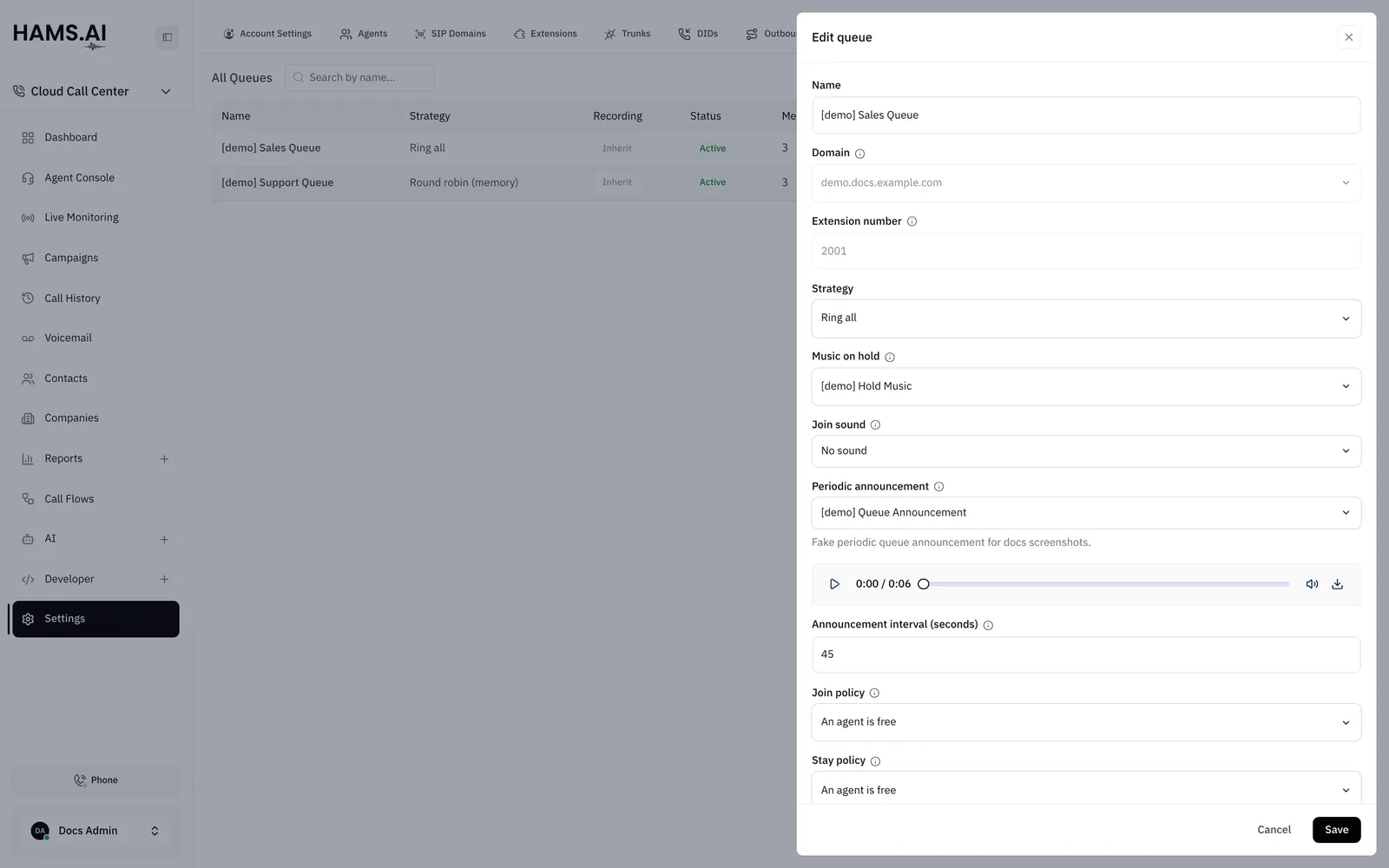
The Queues tab with a queue open on its distribution strategy, hold music and announcements.

Fields

FieldWhat it doesRules
NameNames the queue.Required. 1 to 128 characters. Each queue in a SIP domain needs a different name.
DomainSets the SIP domain of the queue.Required. You choose it when you create the queue. You cannot change it later.
Extension numberSets the number of the queue. Agents can use it as the target of a blind transfer. Callers cannot dial it.Required. 4 to 20 digits. Queues and extensions in the same SIP domain share their numbers, so each number must be unique. You cannot change it later.
StrategySets how the queue picks the member for a call.Ring all, Least recent, Fewest calls, Random, or Round robin (memory). The default is Ring all.
Music on holdSets the hold music class.Optional. The default is System default hold. See Music on hold.
Join soundSets the sound that a caller hears when the caller joins the queue.Optional. The sound must have the status Ready. See Sounds.
Periodic announcementSets the sound that a caller who waits hears at the interval that you set.Optional. The sound must have the status Ready.
Announcement interval (seconds)Sets how often the announcement repeats while the caller waits.Shows only after you select a Periodic announcement. A whole number from 5 to 3600. The default is 30.
Join policySets when a caller can enter the queue.Always, An agent is logged in, or An agent is free. The default is An agent is free.
Stay policySets when a caller who waits can stay in the queue.Same values as Join policy. The default is An agent is free.
Max wait (seconds)Sets how long a caller waits before the queue times out.A whole number from 1 to 3600. Leave it empty for no limit. Required if Join policy or Stay policy is Always.
Agent ring timeout (seconds)Sets how long the phone of one agent rings before the queue tries the next agent. It is separate from Max wait (seconds).A whole number from 1 to 300. The default is 15.
Wrap-up (seconds)Sets the pause after a call before the queue offers the agent another call.A whole number from 0 to 3600. The default is 0.
Max callersSets how many callers can wait at the same time.A whole number from 0 to 1000. Leave it empty or enter 0 for no limit.
Call recordingSets the recording decision for callers who enter the queue.Inherit, On, or Off. The default is Inherit. With Lock this decision, nothing later in the call can change it. See Call recording.
ActiveTurns the queue on or off.On by default.

Create a queue

1

Open the Queues tab

Click Settings in the Cloud Call Center sidebar. Click the Queues tab.

2

Open the form

Click Create Queue. The New queue drawer opens.

3

Enter the identity

Enter the Name. Select the Domain. Enter the Extension number.

4

Set the behavior

Select the Strategy. Select the Music on hold. Set the policies and the timers.

5

Save the queue

Click Create. The drawer closes and the queue shows in the list.

6

Add the members

Click the row of the queue. Add the members. See Members.

To change a queue, click its row. Change the fields. Click Save. You cannot change the Domain or the Extension number.

Members

Members are the agents who can get calls from the queue. Save the queue first. Then add members in the drawer of the queue.

1

Open the queue

Click the row of the queue.

2

Add a member

Click + Add member. Select an extension in Select an extension.

3

Set the member

Set the Penalty, Paused, and Wrap-up (seconds).

ColumnWhat it doesRules
ExtensionSets the extension of the member.The extension must be an active User extension in the SIP domain of the queue. An extension can be a member of a queue one time. An extension can be a member of more than one queue.
PenaltyOrders the member in the queue.A whole number of 0 or more. The default is 0.
PausedPauses the member. The member stays in the queue.Off by default.
Wrap-up (seconds)Sets a wrap-up time for this member only.A whole number from 0 to 3600. The default is Queue default.

Agents see their own queues in the My Queues panel of the agent console. See Agent console.

Hold policy

The Join policy decides if a caller can enter the queue. The Stay policy decides if a caller who already waits can stay.

ValueThe caller can enter or stay when
AlwaysAlways. The queue has no requirement.
An agent is logged inAt least 1 member has logged in and does not have Paused on. A member on a call still counts.
An agent is freeAt least 1 member is free now.

If either policy is Always, a caller can wait with no agent to answer. For this reason, you must set Max wait (seconds).

When a caller cannot enter the queue, the Queue node of the call flow uses its No agents (no_agents) outcome. When the wait ends, the node uses its Timeout (timeout) outcome. When the queue is full, the node uses its Queue full (full) outcome. Connect these outcomes in the call flow. See Call flows.

Music on hold

Music on hold sets the class that plays while a caller waits. If you select System default hold, the queue plays the default hold music. See Music on hold.

Call recording

The queue is the last level of the recording decision. The setting applies when a caller enters the queue, unless the trunk or the DID already locked the decision. If you set Off, the recording ends. It does not mute the recording. For the levels, see Trunks.

Delete a queue

Remove the queue from all call flows before you delete it. A call that reaches a Queue node with a deleted queue takes the failed outcome. The next publish of that call flow fails. You cannot undo a delete.

To delete a queue, open the actions menu of its row. Click Delete. Click Delete again in the dialog.