

Multi-Prompt (Squad)
A Multi-Prompt agent is several agents working as one. Each member is an agent you already built, and the members are joined by handoffs — named transfers that the model chooses in the same way it would choose any other tool.
Use it when one agent would otherwise have to hold several unrelated jobs at once. A hospital line that books, reschedules and cancels appointments can be one agent per job, each with its own instructions and tools, behind a single number.
The create form calls this a Multi-Prompt Agent. Everywhere else Agent List, the builder, this page — it is called a squad. They are the same thing.
Before you start
A squad is assembled from existing agents, so build the member agents first. The create dialog will not let you continue without at least one, and there is no way to author a member from inside the squad.
Members are ordinary Single Prompt agents. Give each one a narrow job and a description that says plainly what it handles — the description is part of how the model decides when to hand over.
Creating a squad
Choose Multi-Prompt Agent in the create form and the Build Your Squad dialog opens.
Squads have no template step. The first member you pick becomes the starter — the one that takes the call.
The canvas
Add Assistant adds more members. Each card shows the member’s description, its tools, and its handoff tools — the ways out of that member.
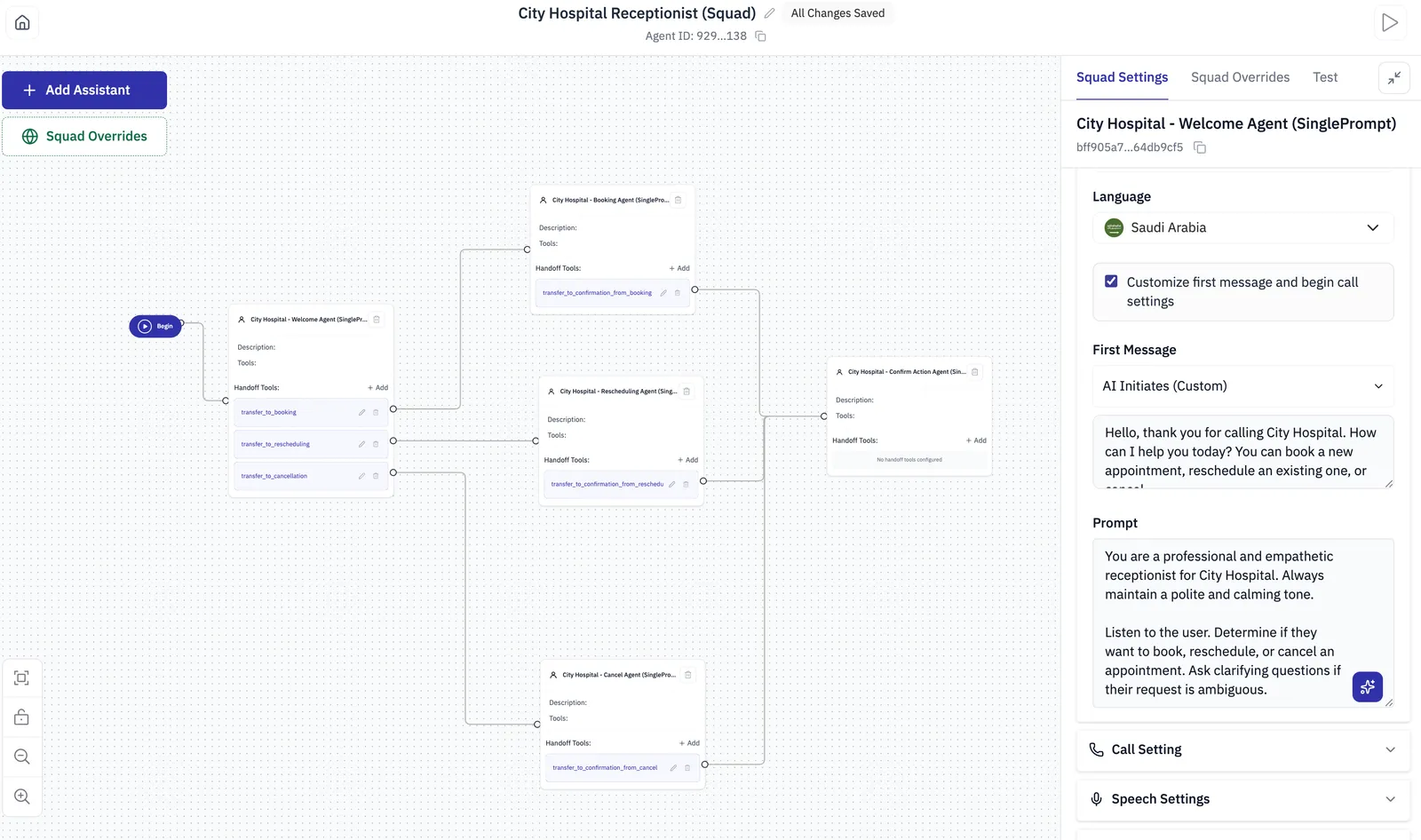
The flow above is the shape most squads take: a starter that works out what the caller wants, specialists that each do one job, and often a shared agent at the end that confirms the outcome.
A member is a live reference to the agent, not a copy of it. Editing a member agent changes every squad that uses it, including squads that are taking calls right now. Before you change an agent, check which squads it belongs to.
An agent can appear only once in the same squad.
This is why members are worth keeping narrow. An agent that does one job is safe to improve; an agent that three squads lean on for different reasons is not.
Handoffs
A handoff is how the caller moves from one member to another. Add one with + Add under a member’s Handoff Tools, then select it to open Handoff Tool Settings.
Name and description
The model reads the name and the description to decide when to fire a handoff, exactly as it would read a tool. The description carries the weight. Write it as the situation, not as the destination.
If the user explicitly states they want to book a new appointment or see a doctor.
Vague descriptions produce handoffs at the wrong moment. Where a member has several handoffs, make their descriptions mutually exclusive, or the choice between them is unpredictable.
Context Engineering Plan
This decides what the destination member knows, and it is the setting that matters most.
Pass All when the destination needs what was already discussed — a confirmation agent reading back a booking, for instance. Pass No context when the new job is genuinely unrelated and the earlier conversation would only mislead it.
Where the destination needs one or two specific facts rather than the whole history, extract them with the Variable Extraction Plan instead of passing everything.
Arrival and delay
Continue picks up mid-conversation, which is what you want when the caller should not notice the handover. Greet has the destination introduce itself, which suits a genuine change of department.
Handoff Delay pauses before the destination takes over, up to 30 seconds. Anything the handoff announces is spoken during that pause, so give it enough time to be heard when you are announcing a transfer.
Variable Extraction Plan
Each variable has a name, a type and whether it is required, and they are pulled from the conversation before the transfer happens. The destination member receives them.
This is how you hand over a booking reference or a date without handing over the whole transcript. Pair it with a narrower context plan.
Member settings
Selecting a member on the canvas opens Squad Settings for that member. Everything here overrides the underlying agent inside this squad only — the agent itself is untouched, and the same agent can behave differently in two squads.
Each member also has its own Call Setting, Speech Settings and Advanced Settings.
The starter member must have Customize first message and begin call settings enabled. It is the member that opens the call, so it needs a first message.
Squad Overrides
Squad Overrides applies settings to every member at once, so a squad sounds like one agent even though several are behind it.
It covers voice, model and language, plus Call Settings, Classification, Post-call Analyses, Alerts, Webhook, Speech Settings, Advanced Settings and Predefined Functions.
Set voice and language here rather than per member unless you actually want the caller to hear a different voice after a handoff. A change of voice mid-call reads as a transfer to a different department, so use it deliberately.
Classification, post-call analyses, alerts and the webhook belong here in almost every case — they describe the conversation as a whole, not one leg of it.
Testing
The Test tab beside Squad Settings and Squad Overrides starts a call against the squad as it is currently configured, without publishing anything. Use it to check the handoffs in particular: say the thing that should trigger each one and confirm the right member picks up, carrying the context you expected.