

Agent builder
An AI agent is what talks to your customer. You give it instructions, a voice, the tools it may use and the knowledge it may draw on, then put it on a phone number, a chat widget or an outbound batch.
Every agent is built in the platform, from Agent List.
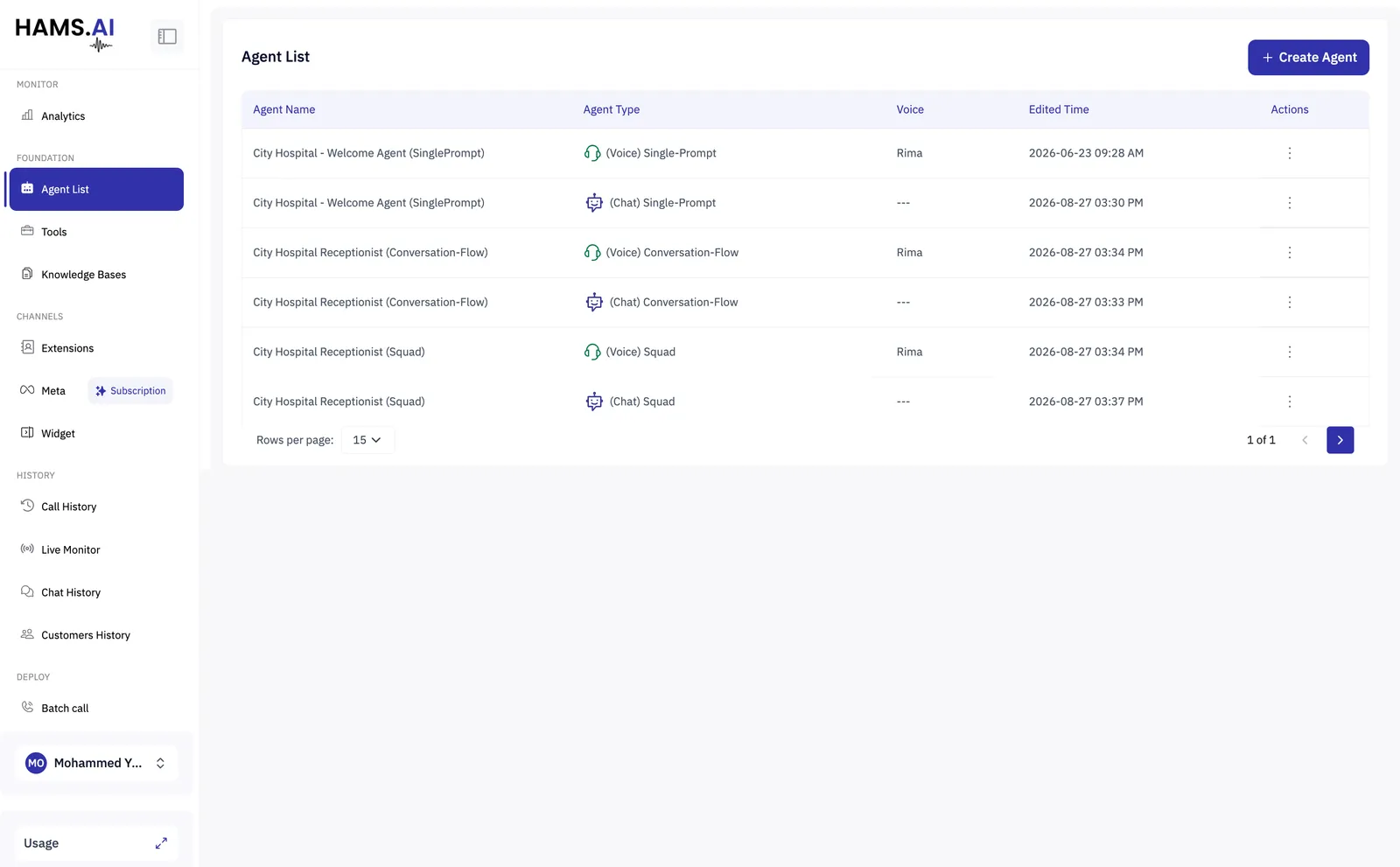
Creating an agent
Create Agent asks two questions.
1. Agent type
The type decides how the conversation is steered by a single instruction, by a flow you draw, or by a team of agents that hand off to each other. It cannot be changed after the agent is created, so it is worth a minute of thought.
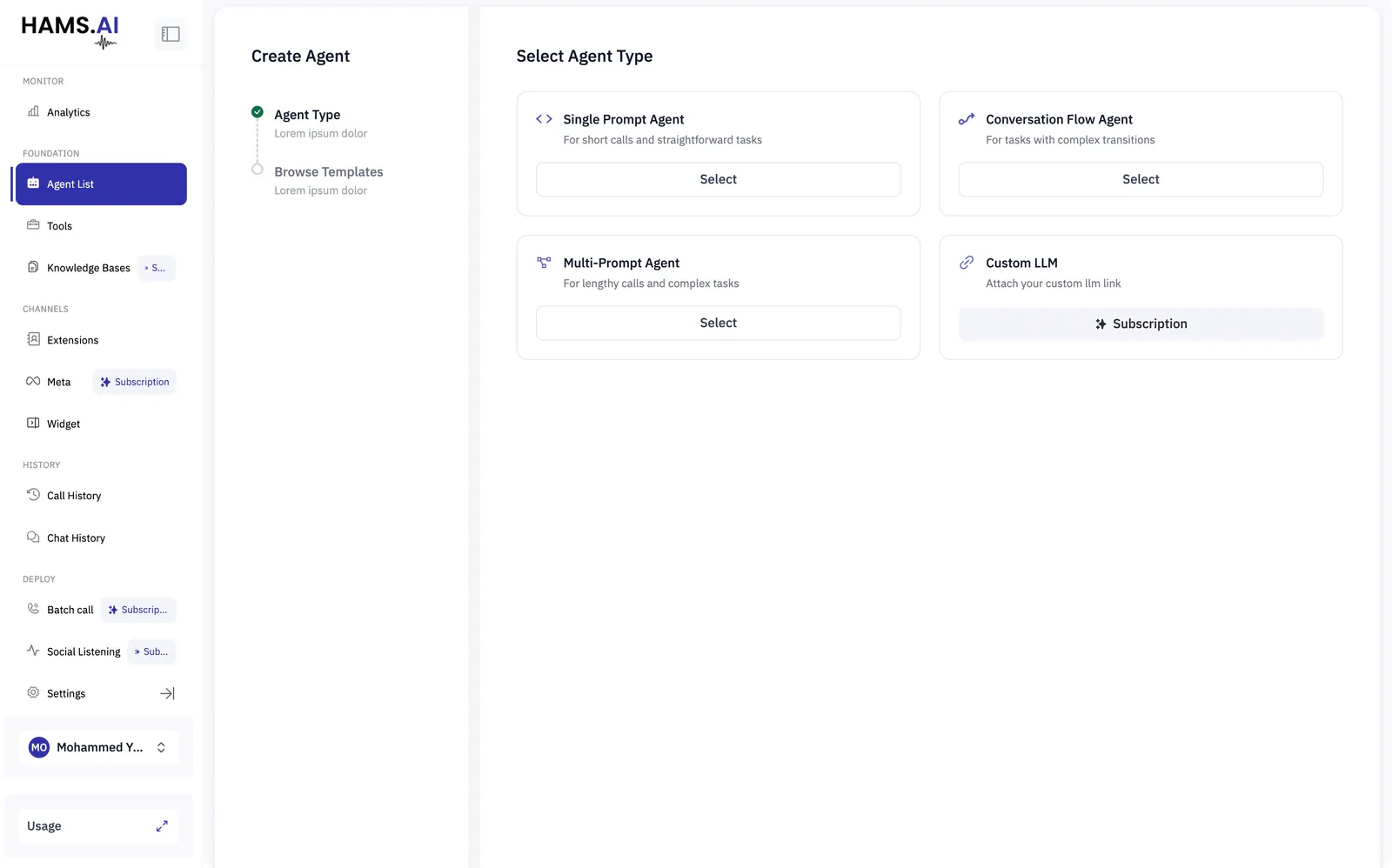
A Multi-Prompt agent is listed as a Squad in Agent List, and its builder is called the squad canvas. The two names mean the same thing.
2. Template
Then choose Start from Blank, or a template that arrives with its prompt and settings already writte for: FAQs, Product inquiry, Survey, Cart Checkout, Patient Reminder, Dentist Appointment Rescheduling.
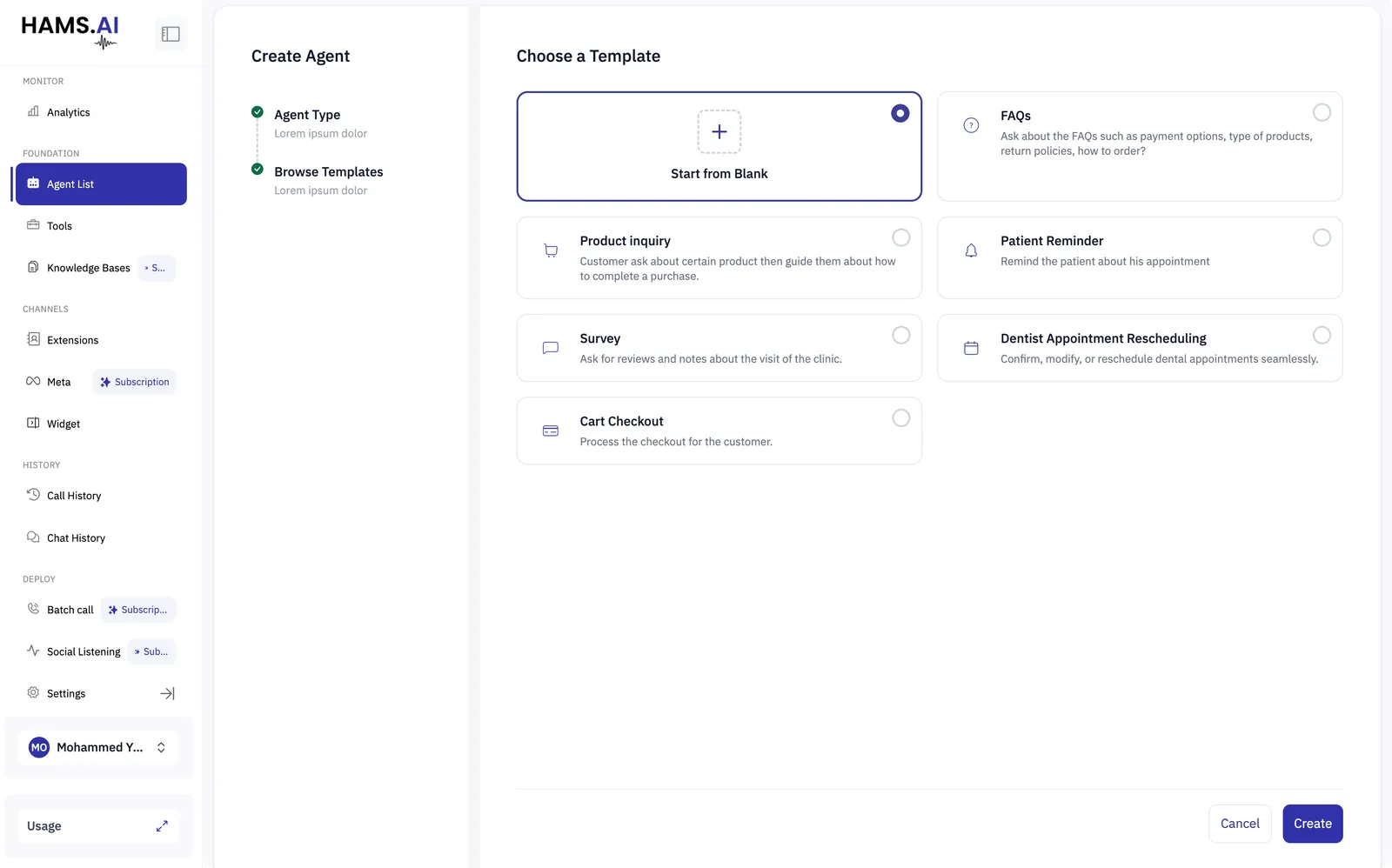
A template is only a starting point. Everything it sets can be edited afterwards, so picking one costs nothing.
The three ways to steer a conversation
Single Prompt
The agent has one prompt, one model, and a set of tools it may call. Everything it knows about how to behave is in that prompt, and the model chooses what to say at every turn.
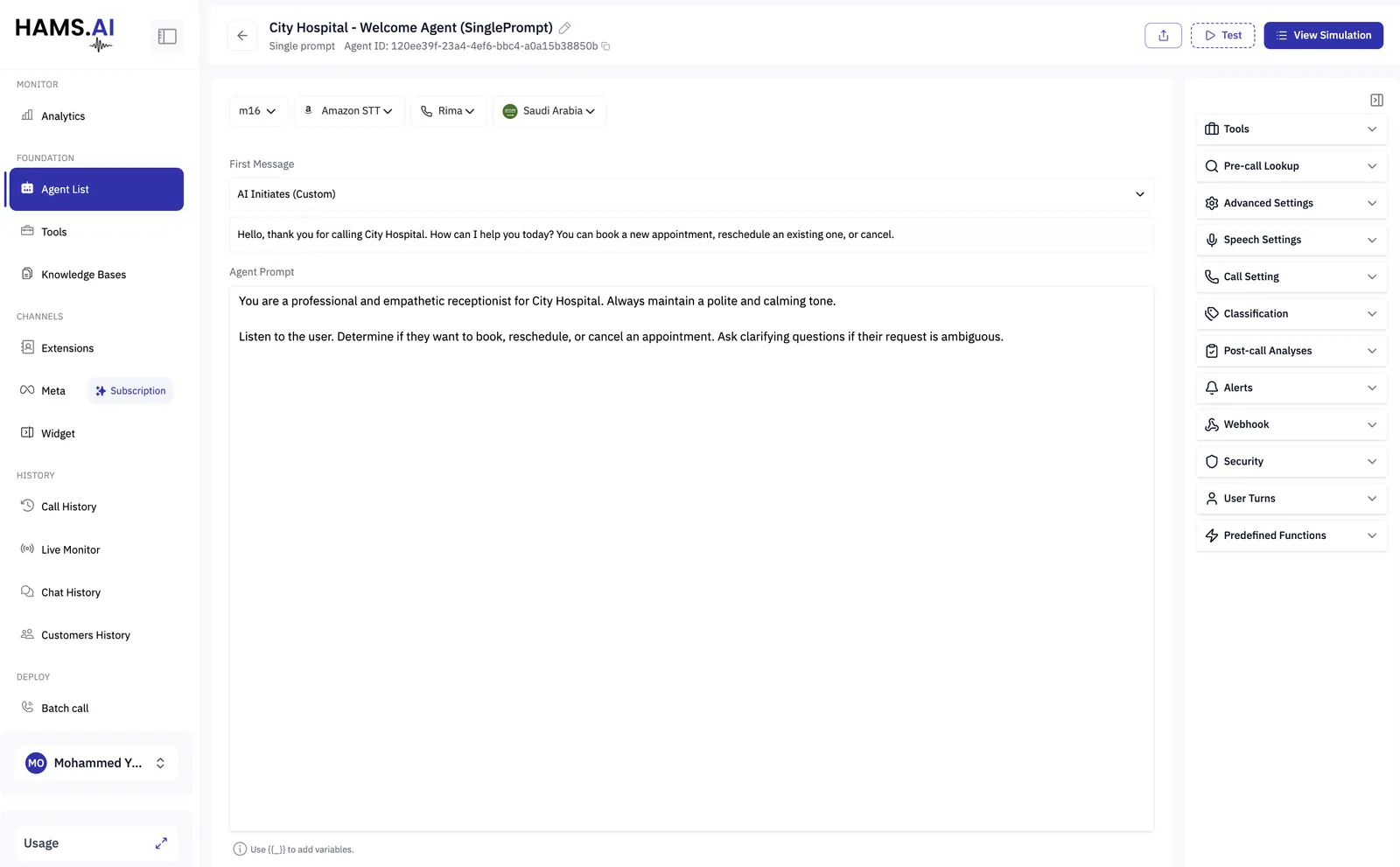
This is the fastest kind to build and the most forgiving of the unexpected: a caller who asks three questions at once, or answers something you did not ask, is handled the way a person would handle it. The trade-off is that you steer it only by writing, so a conversation that must happen in a fixed order is hard to guarantee.
Reach for it when the conversation is open-ended answering questions, q ualifying a lead, triaging a support call.
Conversation Flow
The agent is a graph you draw. Each step is a node, and the connections between them decide when the conversation moves on.
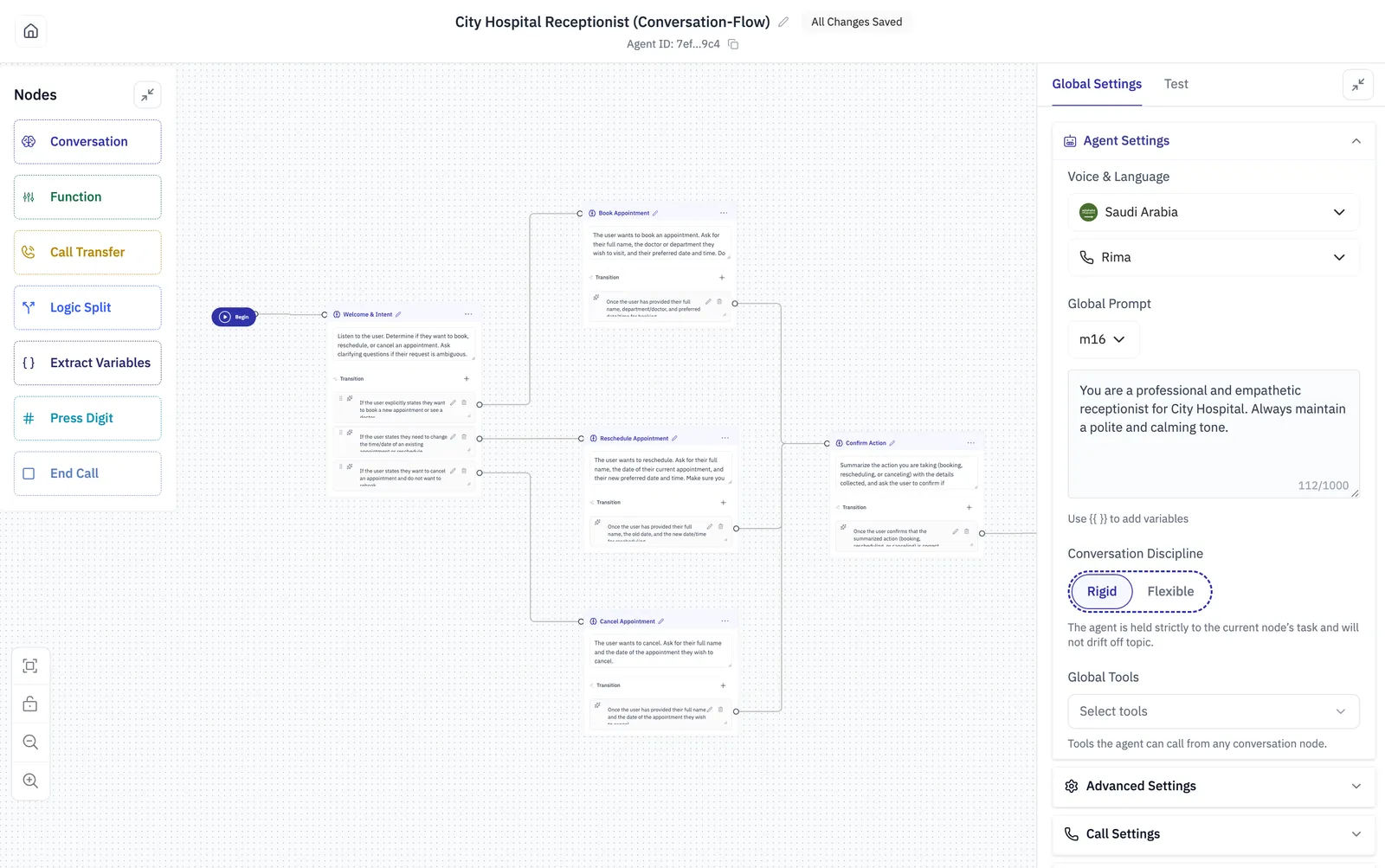
Conversation nodes move on through transitions you describe in plain language “Once the user has provided their full name, department and preferred date and time”. A Logic Split moves on by comparing values instead: the first branch whose conditions hold is taken, and Else catches the rest. Describing a condition in words leaves the judgement to the model; a Logic Split does not.
Three global settings shape the whole flow:
Reach for it when the steps matter verifying identity before disclosing anything, taking a booking, following a compliance script.
Multi-Prompt (Squad)
A squad is several agents working as one. Each member is an agent you already built, added with Add Assistant, and members are joined by handoff tools named transfers the model chooses in the same way it would choose any other tool.
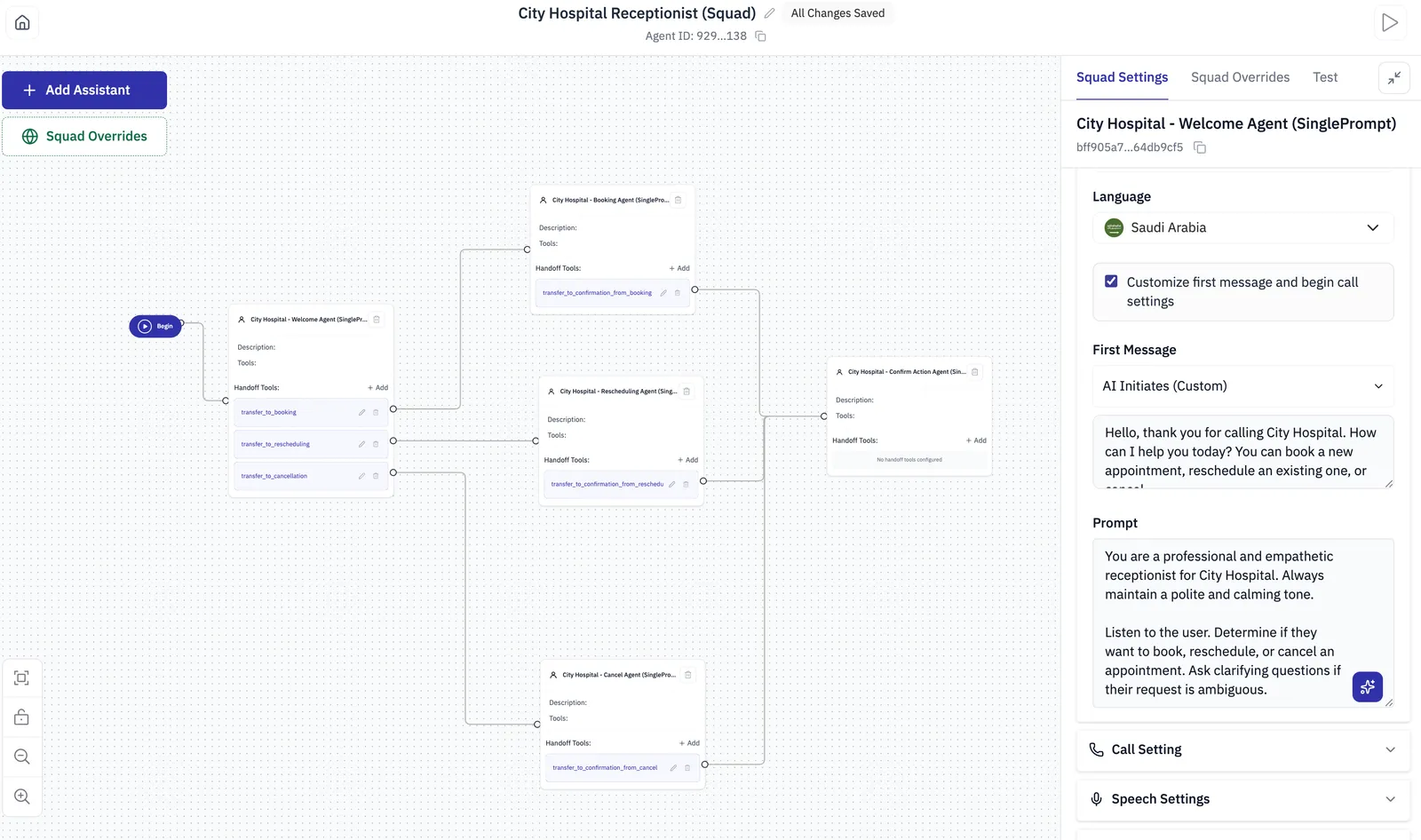
A member is a live reference to the agent, not a copy of it, so editing a member agent changes every squad that uses it. An agent can appear only once in the same squad.
Each handoff controls how much of the conversation the receiving member sees everything, only the dialogue, only the agent’s own replies, the last few messages, or nothing at all and whether the new member carries on talking or greets the caller.
Squad Overrides set voice, model, language and the rest for every member at once, so a squad sounds like one agent even though several are behind it.
Reach for it when one agent would need to hold several unrelated jobs: booking, rescheduling and cancellation, each with its own instructions and tools.
Choosing
Start with a Single Prompt agent. It is quick to build and quick to test, and it will show you where the conversation actually needs structure. Moving to a flow later means rewriting the agent but you will be rewriting it knowing what the calls look like.
Voice or chat
Every agent runs on one channel, shown in Agent List as (Voice) or (Chat) in front of its type. All three types work on either channel, but a single agent does not do both, so an integration that needs both needs one of each.
The channel is fixed when you create the agent, and it decides which settings exist at all. A chat agent has no voice, so everything about speech and telephony simply is not there.
Everything that shapes what the agent says is shared. What differs is everything that exists only because there is a phone line.
Configuring an agent
Whichever type you choose, the agent’s settings are grouped into the same panels.
A flow agent keeps the same panels under Global Settings, alongside its per-node settings. A squad keeps them under Squad Overrides, where they apply to every member at once.
Agent settings covers each panel in full, what the values mean, and which ones are worth changing.
Above the panels sit the choices that apply to the whole agent: the model that answers, the
speech-to-text engine that hears the caller, the voice it replies in and the language it
speaks. Below those, the First Message decides whether the agent speaks first and what it opens
with, and the Agent Prompt is everything else it knows. Use {{ }} to put a variable into
either.
Every agent has an Agent ID, shown under its name and copied with one click. That is what your integration refers to, see AI agents.
Two controls sit in the header of every agent: Test, which starts a conversation against the current configuration without publishing it, and View Simulation.