

Alerts
An alert watches one agent’s calls and notifies you when a pattern you care about appears: a spike in failed calls, ratings sliding, an integration breaking.
Without alerts, somebody has to open the dashboard and notice. Alerts invert that. The platform watches continuously and reaches out only when a threshold you set is crossed. Every rule is re-checked once a minute, so a real incident surfaces in minutes rather than whenever someone next happens to look.
Every alert is five choices.
Alerts live inside the agent, in the right-hand configuration panel between Post-call Analyses and Webhook.
When to use one
Alerts are for things somebody needs to act on today. Anything you only review weekly belongs on a dashboard instead.
Good reasons to create one
- Something might break silently. A failing integration or a misconfigured number can run for hours before anyone notices.
- A campaign is live. During an outbound push, a dialer problem costs money by the minute.
- Quality has a floor. If a contract promises a standard, an alert tells you before the customer does.
- You just changed something. After a prompt or tool change, a temporary alert is a safety net.
Poor reasons
- Curiosity. “How many calls today?” is a dashboard question.
- Trends. Slow drift over weeks will not cross a rolling 24-hour window cleanly.
- Rare events nobody can act on. If nobody will do anything at 2 a.m., do not page anybody at 2 a.m.
- Everything at once. With only three rules available, each one has to earn its place.
The test before you create one: if this fires at 3 p.m. on a Tuesday, what does the person receiving it actually do in the next hour? If there is no clear answer, it is a report, not an alert.
Creating an alert
Open the agent, expand Alerts, then Create Alert. The whole form is one screen.
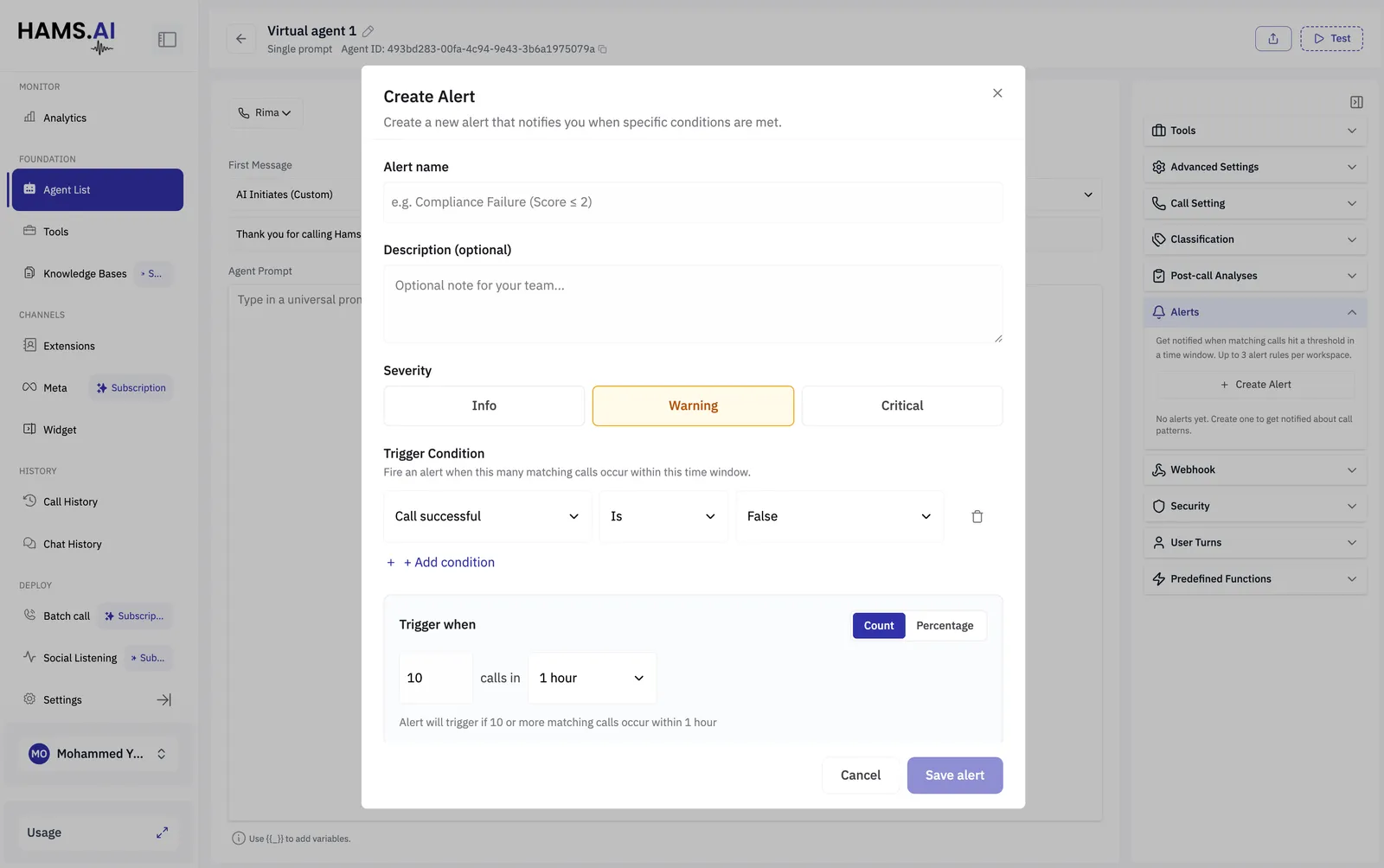
1. Name it so a stranger understands it. The name becomes the email subject line. Failed calls spike, Riyadh support is useful at 7 a.m.; Alert 2 is not. Use the description to tell your team what to do about it.
2. Pick a severity. Severity is a label for the humans reading the alert. It appears in the email subject and in the webhook payload, and it does not change how or where the alert is delivered.
3. Build the condition. Choose a field, an operator and a value, for example Call successful · Is · False. Add more conditions to narrow it, remembering they must all be true together.
4. Set the threshold and window. Switch between Count and Percentage, then set the number and the time window. Read back the sentence underneath before saving, it restates your rule in plain English.
5. Choose where it goes. Tick Email and enter comma-separated addresses, and/or tick Webhook to post to the agent’s configured webhook. At least one channel is required. Slack is shown as Soon and is not available yet.
Count or percentage
Percentage mode always carries a minimum call count. Without it, one bad call out of one reads as 100%.
What you can watch
Eighteen signals from each completed call are available as conditions.
Only completed calls are counted. A call joins the count when it ends, so an alert for calls longer than ten minutes fires after those calls finish, not while they are running.
Alerts you can copy
What happens when an alert fires
The firing is recorded. Every firing stores the exact time window, how many calls matched, and up to 10 example calls, so you can go straight to the evidence.
Notifications go out. Email arrives from no-reply@hams.ai with the subject
[WARNING] Alert: <your alert name>. Webhooks receive a signed alert_triggered payload at the
agent’s endpoint, and failed deliveries are retried automatically.
The rule goes quiet for a while. After firing, a rule enters a cooldown so one ongoing problem does not flood your inbox. By default the cooldown equals the alert’s own time window, so a one-hour alert notifies at most once per hour. It resumes watching automatically.
Why an alert may not fire when you expect
- It is still in cooldown from a previous firing.
- The matching calls had not ended when the check ran.
- Conditions combine with and, so one extra condition can make the rule impossible to match.
- In percentage mode, the minimum call count was not reached.
- The alert is switched off.
Limits
Habits that keep alerts useful
- Start loose, then tighten. Set the threshold slightly high and lower it only if you find you missed something real. An alert that cries wolf is ignored within a week.
- Send to a team, not a person. People take leave; distribution lists do not.
- Put the response in the description. The person woken by the alert may not be the person who created it.
- Review monthly. An alert that never fired is probably set too high. One that fires constantly is too low, and everyone has already muted it.
A sensible first three: one Critical failure alert, one Warning quality alert, and one covering whatever is currently live or recently changed. Adjust once you see how often each fires.