> This page is for Omni Channel.
> For clean Markdown of any page, append .md to the page URL.
> For a complete documentation index, see https://docs.hams.ai/llms.txt.
> For AI client integration (Claude Code, Cursor, etc.), connect to the MCP server at https://docs.hams.ai/_mcp/server.
# Live chat
> Add the live chat widget to your website and answer visitors in Omni Channel.
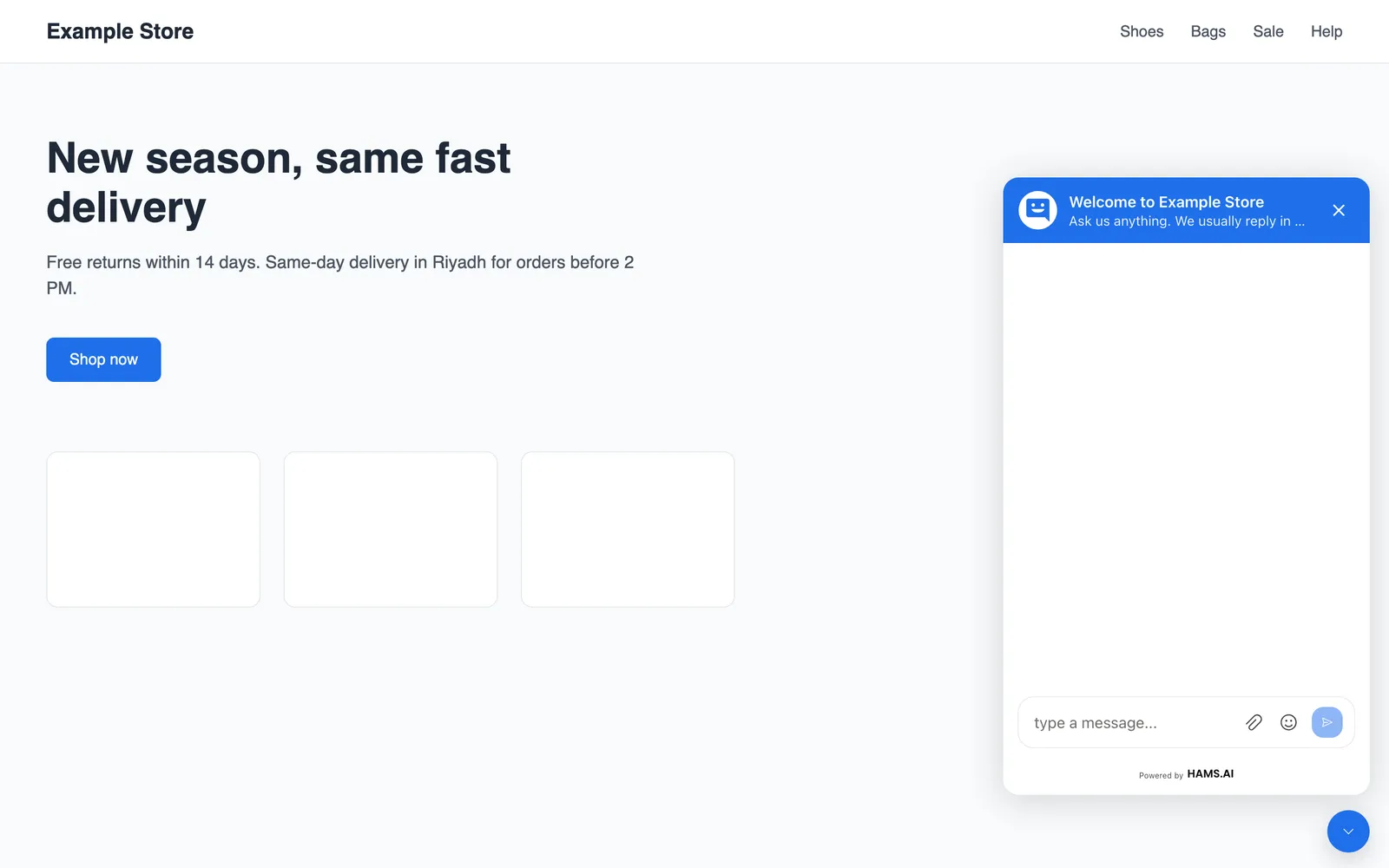
The live chat widget is a chat window on your website. A visitor clicks the chat bubble, types a message, and the conversation shows in your inbox like any other conversation. In the product, the channel card for the widget is **Website**. An inbox of this type is a website inbox. You add 1 script to your pages, and the widget loads from your Hams domain.
> **Note**
>
> The **Website** card shows when **Website Channel** is on for your account. **Website Channel** is on by default. Only administrators can add the inbox and change its settings. Agents of the inbox can read and reply to its conversations.
In this page, `{account_id}` is the number of your account in the dashboard URL.
## Before you start
You need these items:
* Edit access to the pages of your website, or a developer who has it.
* The domain of your website, for example `example.com`.
* Optional: a developer who can add code to the back end of your website. Identity validation needs it.
## Add the inbox
#### Open the inboxes
Open **Settings** > **Inboxes**. The page is at `/app/accounts/{account_id}/settings?tab=inboxes`.
#### Start the wizard
Click **Add Inbox**. The wizard opens at the **Choose Channel** step.
#### Select the channel
Click the **Website** card. The description is **Create a live-chat widget**. Click **Next**.
#### Enter the widget details
At the **Create Inbox** step, fill in the fields in the table below. Click **Next**.
#### Add the agents
At the **Add Agents** step, select the agents who answer the visitors. You must select at least 1 agent. Click **Next**.
#### Copy the script
At the last step, the page shows the title **Your Inbox is ready!** and the widget script. Copy the script and put it on your website.
#### Finish
Click **Take me there**. The new inbox opens.
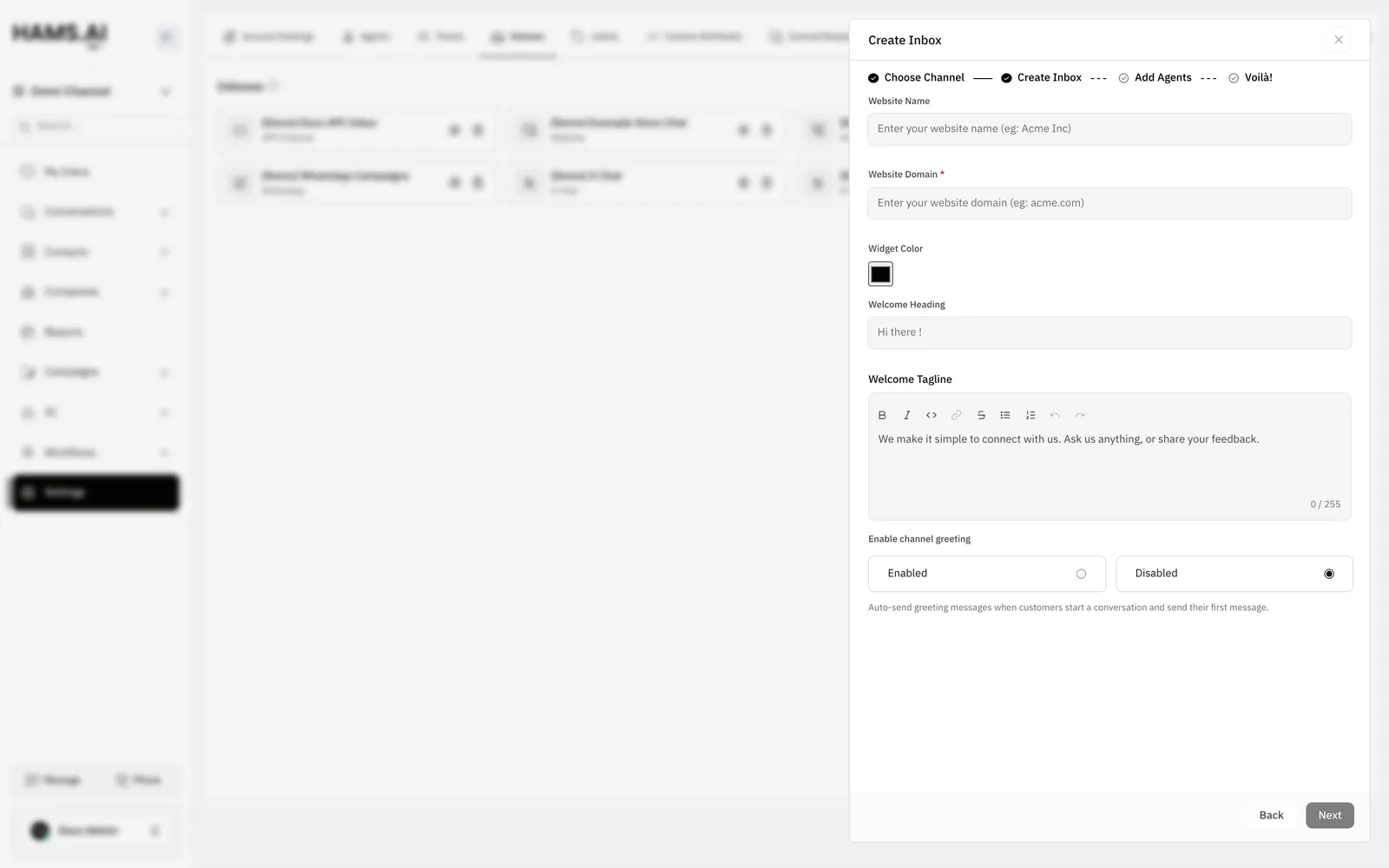
| Field | Required | What to enter |
| ---------------------------- | -------- | ----------------------------------------------------------------------------------------------------------- |
| **Website Name** | Yes | The name of the inbox. The widget and the agents show this name. Example: `Example Store`. |
| **Website Domain** | Yes | The domain of your website. Example: `example.com`. |
| **Widget Color** | No | The color of the chat bubble and the widget header. The default is `#030201`. |
| **Welcome Heading** | No | The short title at the top of the widget. The hint text is `Hi there !`. |
| **Welcome Tagline** | No | The text under the title. The limit is 255 characters. |
| **Enable channel greeting** | No | Select **Enabled** or **Disabled**. The default is **Disabled**. |
| **Channel greeting message** | No | Shows only when you select **Enabled**. The system sends this message after the first message of a visitor. |
The **Next** button stays off until **Website Name** and **Website Domain** have a value. If the system cannot create the inbox, it shows **We were not able to create a website channel, please try again**.
## Put the script on your website
The script loads the widget. Copy it from the last step of the wizard. To find it again, open the inbox settings and click the **Script** tab above the preview.
The script has this shape. The values of `BASE_URL` and `websiteToken` are specific to your inbox.
```html
```
Paste the script into the HTML of your pages, inside the `` tag. The widget shows on each page that has the script. If you use a site builder, paste the script in the section for custom code in the footer.
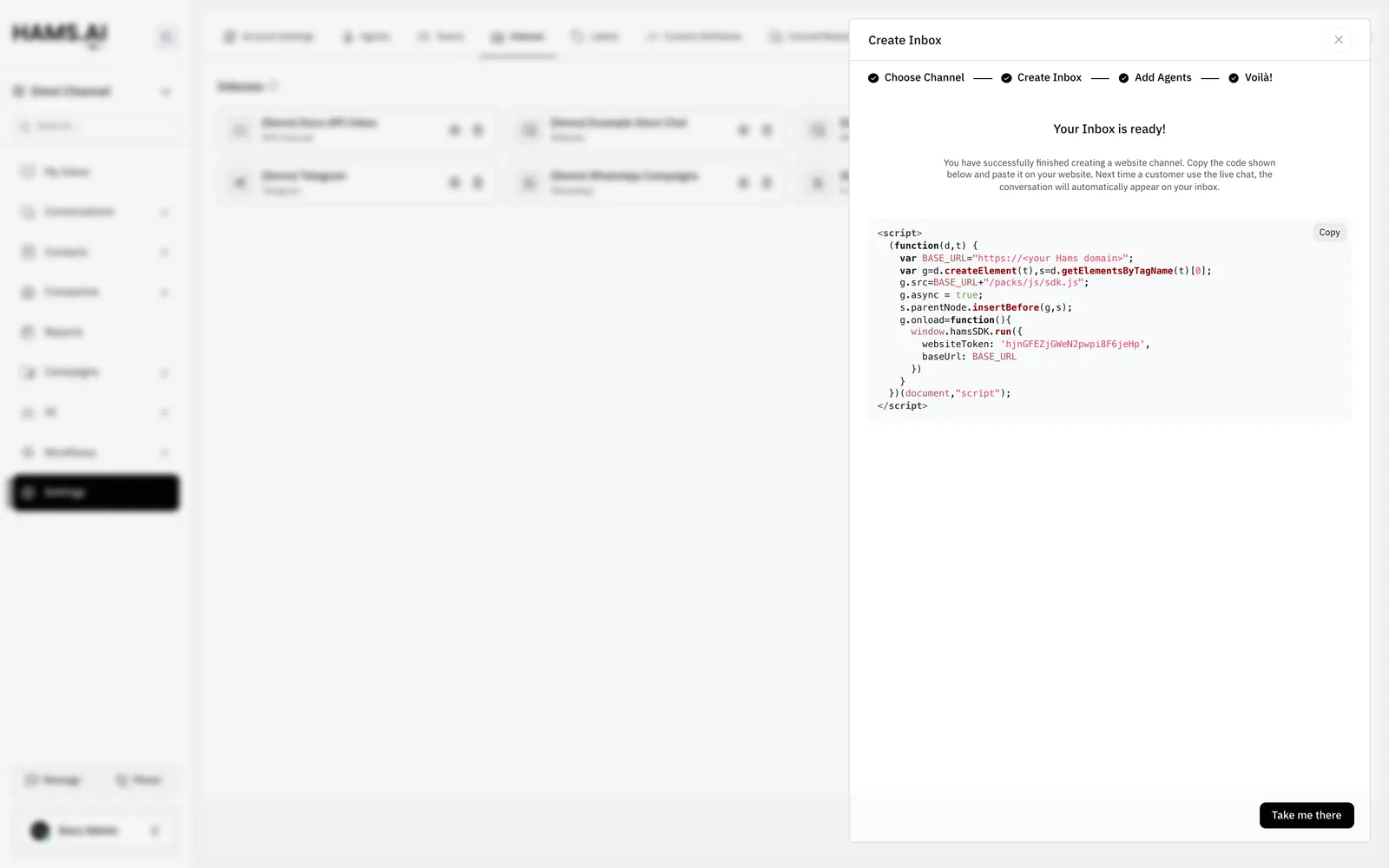
The **Script** tab also adds a `window.hamsSettings` line to the script. This line holds the values of **Position:**, **Type:**, and **Launcher Title** that you set in the builder. See [Settings of the widget](#settings-of-the-widget).
## Settings of the widget
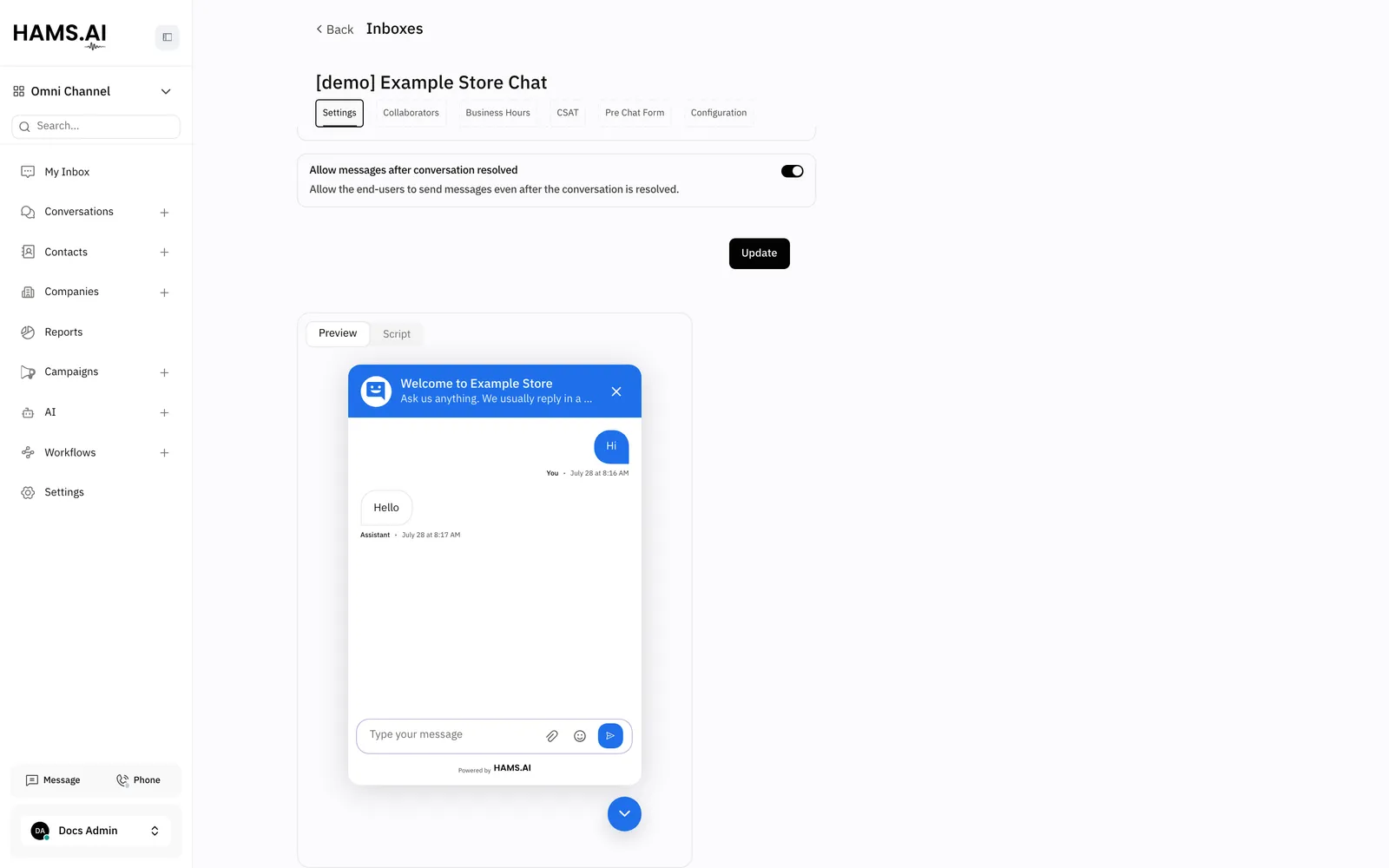
To open the settings, open **Settings** > **Inboxes**. Click **Settings** on the website inbox. The **Settings** tab shows the builder. A live view shows below the builder. The **Preview** tab of the live view shows the widget. The **Script** tab shows the script. Click **Update** to save your changes.
The generic tabs **Collaborators**, **Business Hours**, **CSAT**, and **Bot Configuration** work as in [Inboxes and channels](/omni-channel/inboxes). A website inbox also has the tabs **Pre Chat Form** and **Configuration**.
### Basic fields
| Field | What it does |
| ------------------ | ----------------------------------------------------------------------------------------------------------------------------------------------------------------------- |
| **Channel Avatar** | The picture of the inbox. Upload a picture or delete it. |
| **Website Name** | The name of the inbox. |
| **Website Domain** | The domain of your website. |
| **Help Center** | Attaches a Help Center to the inbox. Select **None** to remove it. |
| **Sender name** | Shows a **Configure your business name** button. The business name appears in emails that the system sends to the visitor. See [Continue by email](#continue-by-email). |
### Widget features
| Field | What it does |
| -------------------------- | ------------------------------------------------------------------------------------------------------- |
| **Welcome Heading** | The title at the top of the widget. |
| **Welcome Tagline** | The text under the title. The limit is 255 characters. |
| **Widget Color** | The color of the header, the chat bubble, and the buttons. |
| **Bubble** > **Position:** | **Left** or **Right**. The bubble shows at the bottom of the page on that side. |
| **Bubble** > **Type:** | **Standard** shows a round icon. **Expanded Bubble** shows a wider button with the launcher title. |
| **Launcher Title** | The text on the bubble when the type is **Expanded Bubble**. The default is `Chat with us`. |
| **Set Reply time** | **In a few minutes**, **In a few hours**, or **In a day**. This is the typical reply time of the inbox. |
| **Features** | Check boxes. They are described in the next list. |
The **Features** check boxes are:
* **Display file picker on the widget**: shows the attachment button in the widget.
* **Display emoji picker on the widget**: shows the emoji button in the widget.
* **Allow users to end conversation from the widget**: the Hams widget has no button to end a conversation. Thus, this check box does not change the widget.
* **Use inbox name and avatar for the bot**: shows the inbox name and avatar on bot messages.
The file picker and the emoji picker are on in a new inbox. The header of the widget shows the heading, the tagline, and a close button. A line at the bottom of the widget shows **Powered by HAMS.AI**, with a link to the Hams website.
### Channel preferences
| Field | What it does |
| ---------------------------------------------- | -------------------------------------------------------------------------------------------------------------------------------- |
| **Enable channel greeting** | Sends a greeting message after the first message of a visitor. With the toggle on, enter the **Channel greeting message**. |
| **Enable email collect box** | Asks a visitor for an email address. See [Collect an email address](#collect-an-email-address). |
| **Allow messages after conversation resolved** | Lets a visitor send messages to a resolved conversation. If this is off, the visitor sees a **Start a new conversation** button. |
| **Enable conversation continuity via email** | Continues the conversation over email when the visitor leaves. See [Continue by email](#continue-by-email). |
The **Enable conversation continuity via email** toggle shows only when Hams support turns on **Inbound Emails** for your account.
## Options in the script
You can set more options in the page code. Put a `window.hamsSettings` object before the script. The options are optional.
```html
```
| Option | Values | What it does |
| -------------------- | ----------------------------- | ------------------------------------------------------------------------------------------------------------------- |
| `position` | `left`, `right` | The side of the bubble. The default is `right`. |
| `type` | `standard`, `expanded_bubble` | The style of the bubble. |
| `launcherTitle` | Text | The text on an expanded bubble. |
| `widgetStyle` | `standard`, `flat` | The shape of the widget window. |
| `darkMode` | `light`, `auto`, `dark` | The color scheme. `auto` follows the device. |
| `locale` | A language code such as `en` | The language of the widget text. |
| `useBrowserLanguage` | `true`, `false` | Uses the language of the browser of the visitor. |
| `hideMessageBubble` | `true`, `false` | Hides the bubble. Open the widget with `toggle` instead. |
| `welcomeTitle` | Text | Replaces the **Welcome Heading** on this page. |
| `welcomeDescription` | Text | Replaces the **Welcome Tagline** on this page. |
| `enableFileUpload` | `true`, `false` | Overrides the file picker check box. |
| `enableEmojiPicker` | `true`, `false` | Shows or hides the emoji button. The default is `true`. |
| `baseDomain` | Domain | The domain for the cookies of the widget, for example `example.com`. Use it to share the visitor across subdomains. |
## Control the widget from your page
After the widget loads, the object `window.$hams` gives you these methods. The widget also sends the browser event `hams:ready` on `window` when it is ready. Run your calls after that event.
| Method | What it does |
| -------------------------------------------------------------------- | ------------------------------------------------------------------------------------------------------------------------------------------------------ |
| `toggle('open')` or `toggle('close')` | Opens or closes the chat window. Without a value, it switches the state. |
| `toggleBubbleVisibility('hide')` or `toggleBubbleVisibility('show')` | Hides or shows the bubble. |
| `setUser(identifier, { name, email, avatar_url, identifier_hash })` | Tells the widget who the visitor is. The identifier is a string or a number. The user object must have at least 1 of `name`, `email`, or `avatar_url`. |
| `setCustomAttributes({ key: value })` | Saves custom attributes on the contact. |
| `deleteCustomAttribute('key')` | Removes a custom attribute from the contact. |
| `setConversationCustomAttributes({ key: value })` | Saves custom attributes on the current conversation. |
| `deleteConversationCustomAttribute('key')` | Removes a custom attribute from the conversation. |
| `setLabel('label')` and `removeLabel('label')` | Adds or removes a label on the conversation. |
| `setLocale('ar')` | Changes the language of the widget. |
| `setColorScheme('dark')` | Sets `light`, `auto`, or `dark`. |
| `reset()` | Clears the visitor and the conversation. Use it when a user signs out of your website. |
Example. This code sets the visitor after the widget is ready.
```js
window.addEventListener('hams:ready', function () {
window.$hams.setUser('user-1042', {
name: 'Sara Ali',
email: 'sara@example.com',
});
window.$hams.setCustomAttributes({ plan: 'pro' });
});
```
Custom attributes show on the contact or on the conversation in the dashboard.
## Allowed domains and mobile apps
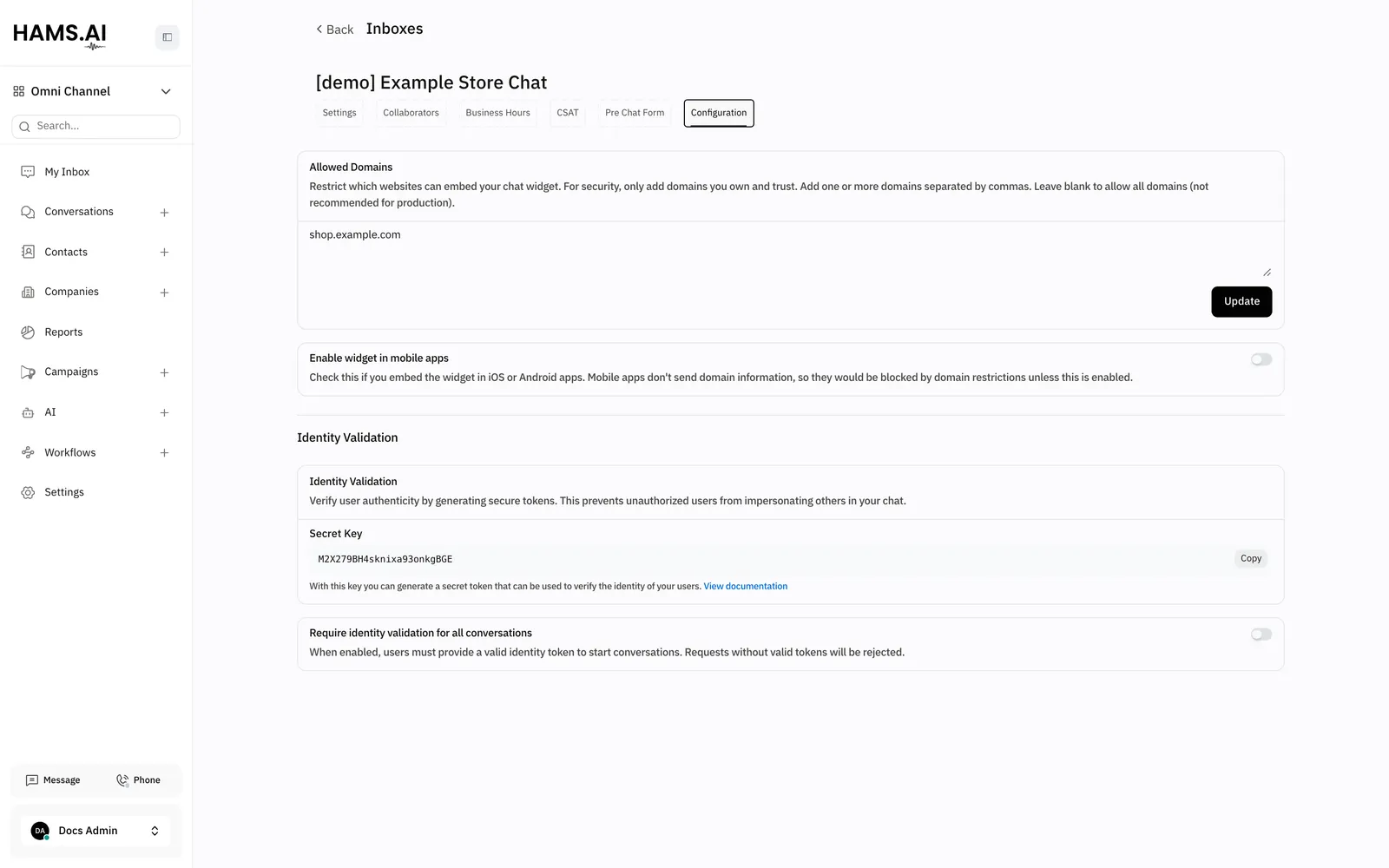
Open the **Configuration** tab of the inbox.
* **Allowed Domains**: enter the sites that can show the widget. Separate them with commas. Example: `example.com, www.example.com`. Click **Update**. If the field is empty, any site can show the widget. Add your domains for a production site.
* **Enable widget in mobile apps**: turn this on if you put the widget in an iOS or Android app. Mobile apps do not send a domain. Without this option, a domain restriction blocks them.
## Identity validation
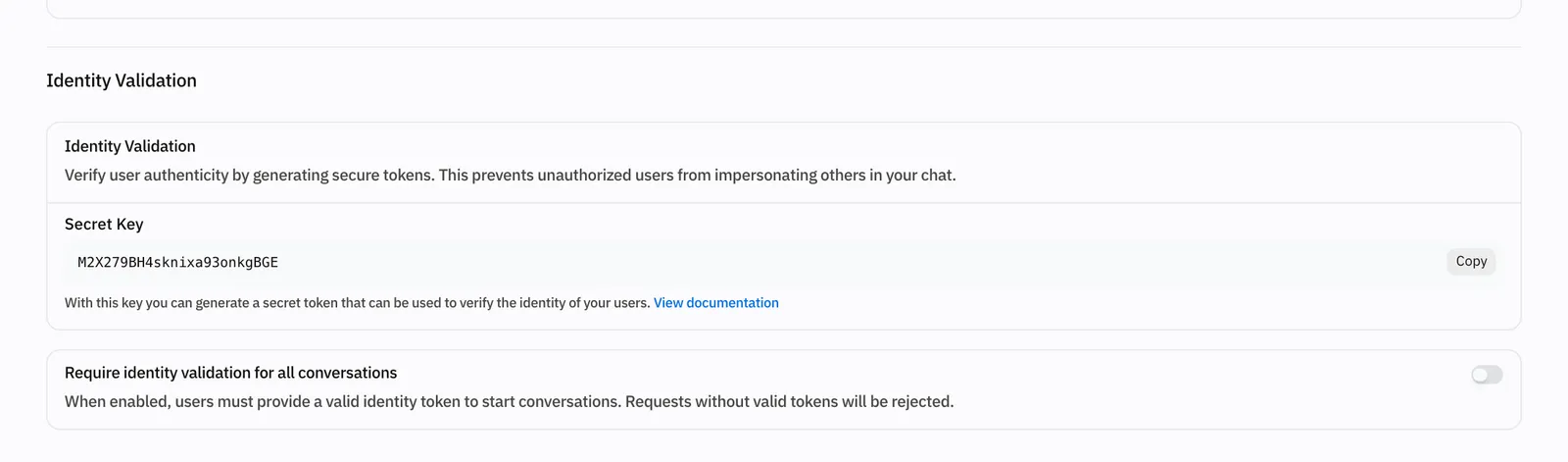
Identity validation makes sure that a visitor is who your website says. Without it, a person can call `setUser` with the identifier of another user in the browser console. Then that person sees the conversations of the other user.
To turn it on, you add a hash that your server makes for each user. The widget sends the hash with `setUser`, and the system checks it.
#### Copy the secret key
Open the **Configuration** tab. Open **Identity Validation**. Copy the **Secret Key**.
#### Make the hash on your server
Make an HMAC SHA256 hash of the user identifier with the secret key. Keep the key on your server only.
#### Send the hash to the widget
Pass the hash as `identifier_hash` in the user object of `setUser`.
#### Require the check
Turn on **Require identity validation for all conversations**. The system then rejects a `setUser` call that has no valid hash.
Example of the hash in Node.js:
```js
const crypto = require('crypto');
const identifierHash = crypto
.createHmac('sha256', process.env.HAMS_SECRET_KEY)
.update(String(userId))
.digest('hex');
```
> **Warning**
>
> Never put the secret key in the code of a web page or a mobile app. Anyone can read that code.
If **Require identity validation for all conversations** is off, the system checks a hash only when the call has one. The system always rejects a wrong hash. The error is `HMAC failed: Invalid Identifier Hash Provided`.
## Pre-chat form
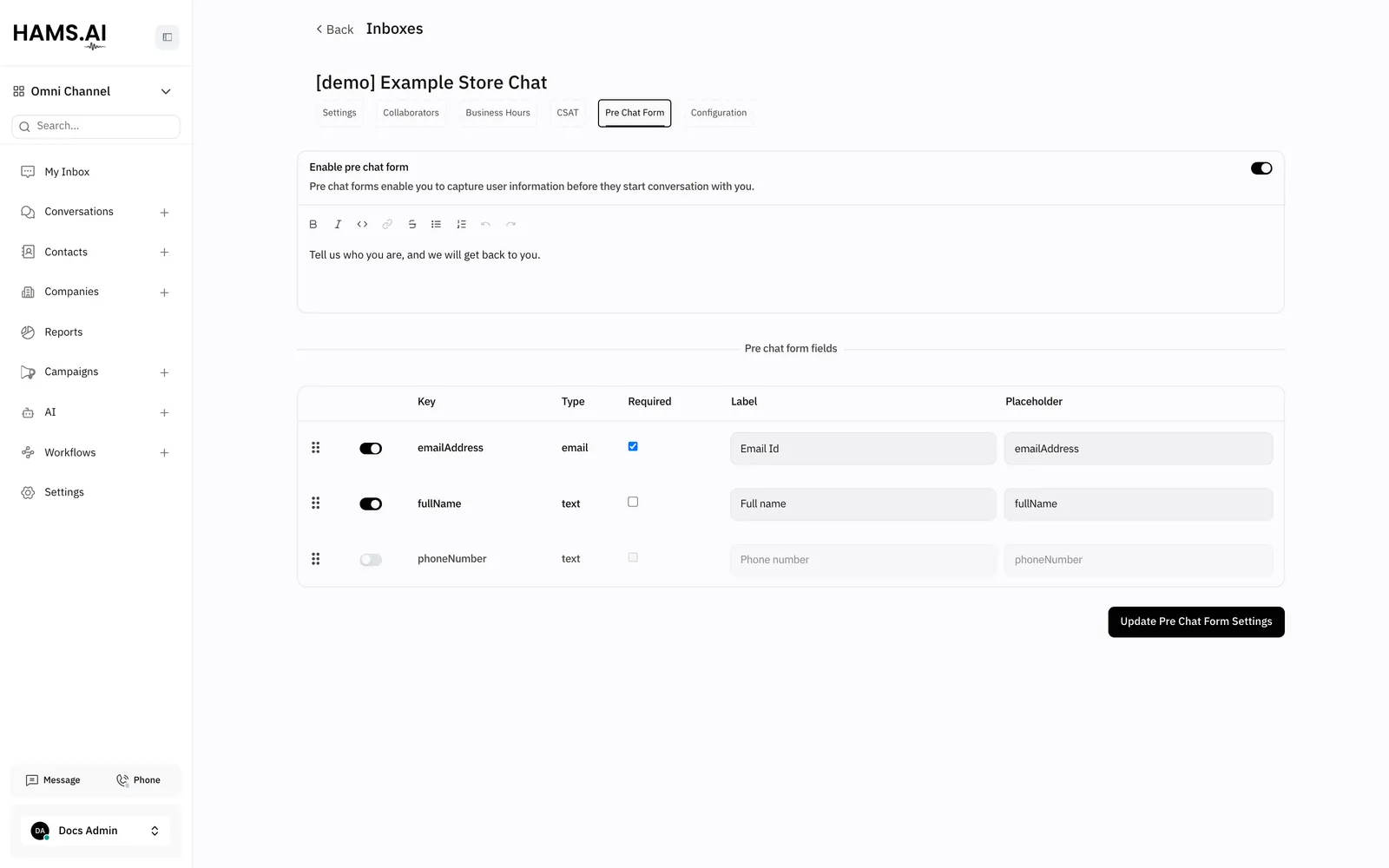
A pre-chat form asks the visitor for details before the conversation starts. Open the **Pre Chat Form** tab of the inbox.
1. Turn on **Enable pre chat form**.
2. Enter a **Pre chat message**. The visitor sees it above the form.
3. In the field table, turn on each field that you want. Drag a row to change the order.
4. For each turned-on field, you can check **Required**. You can also change the **Label** and the **Placeholder**.
5. Click **Update Pre Chat Form Settings**.
The table lists 3 standard fields and all custom attributes of your account, for contacts and for conversations.
| Key | Type | What the visitor enters |
| -------------- | ------- | ------------------------------------------------ |
| `emailAddress` | `email` | The email address. The widget checks the format. |
| `fullName` | `text` | The full name. |
| `phoneNumber` | `text` | The phone number, with a country code. |
The widget does not show the form to a first-time visitor. The first message of the visitor starts the conversation directly. If the form is on and at least 1 field is on, the form shows in 2 cases:
* The visitor clicks **Start a new conversation** after an agent resolves the last conversation.
* The visitor clicks a campaign message.
The visitor must fill in the fields that you marked **Required**.
The form does not ask for details that the widget already has. If the contact has an email address, the form hides `emailAddress`. If the contact has a phone number, the form hides `phoneNumber`. If the contact has an email address, a phone number, or an identifier, the form hides `fullName`.
## Business hours and reply time
Open the **Business Hours** tab of the inbox.
1. Turn on **Enable business availability for this inbox**.
2. Enter the **Unavailable message for visitors**.
3. Select the timezone in **Select timezone**.
4. For each day, turn on **Enable availability for this day**. Enter the hours, or select **All-Day**.
5. Click **Update business hours settings**.
When a visitor sends a message outside the hours, the system replies with the unavailable message. It does not send the message if an agent replied in the last 5 minutes. The system sends it 1 time each day for each conversation.
The **Set Reply time** field on the **Settings** tab is separate. It is the typical reply time of the inbox. The preview of the builder uses it.
## Collect an email address
If **Enable email collect box** is on, the system asks each new visitor for an email address. The visitor sends a first message. Then the widget shows **Give the team a way to reach you.** It also shows **Get notified by email** with an email input. The system asks 1 time for each conversation. It does not ask when the contact has an email address.
The system saves the email address on the contact. Agents see it in the contact details.
## Continue by email
If **Enable conversation continuity via email** is on and the contact has an email address, the conversation can continue over email. The reply of an agent goes to the email address of the visitor. The reply of the visitor to that email goes back into the same conversation.
The email address can come from the email collect box, the pre-chat form, or `setUser`. The name in the email header depends on **Sender name**. If you set a business name, the email shows it.
## Attachments and emoji
If the file picker is on, a visitor can click the attachment button. The visitor can also paste a file from the clipboard into the message box.
* The default limit is 40 MB for each file. The administrator of the Hams installation can change the limit. If a file is too large, the widget shows **File exceeds the \{limit} attachment limit**, where `{limit}` is the maximum size.
* The file picker accepts images, audio, video, PDF, plain text, CSV, JSON, XML, and RTF files. It also accepts Word, Excel, PowerPoint, and OpenDocument text files, and ZIP, 7z, RAR, and TAR archives.
The attachment button hides when the visitor has typed text in the message box. The emoji picker adds an emoji to the message.
## What agents see
A website conversation shows in the conversation list with the name of the inbox. An agent replies from the usual reply box. Replies show in the widget in real time.
In the contact panel, the **Conversation Details** section shows data about the visit:
* **Initiated from**: the page where the visitor started the conversation.
* **Initiated at**: the date and time that the conversation started.
* **Browser**, **Operating System**, **Browser Language**, and **IP Address**.
The contact card shows the name, email, and phone from the pre-chat form or `setUser`. It also shows the custom attributes, the conversation custom attributes, and the labels that your page code set.
After an agent resolves the conversation, the visitor sees **Start a new conversation**. If the contact has an email address, the widget also shows **Request a conversation transcript**. The system emails the transcript to the visitor. To let the visitor write in the same conversation, turn on **Allow messages after conversation resolved**.
If the conversation uses CSAT, the visitor sees **Rate your conversation**. See [Inboxes and channels](/omni-channel/inboxes).
## What the widget does not do
* The widget does not show the reply time or the online status of the team. The header shows only the heading, the tagline, and the close button.
## Related
* [Inboxes and channels](/omni-channel/inboxes)
* [Conversation cycles](/omni-channel/conversation-cycles)
* [Overview](/omni-channel/overview)